
Word to PowerPoint Converter with AI
Upload a Word document and MOVO AI reads the text, splits it into key points and builds a new PowerPoint deck you can edit. It does not copy pages one by one. It rebuilds plans, reports and meeting notes into a talk.
One prompt. This design.
This is MOVO taking one line, drafting the outline and designing all 8 slides. Every word stays editable.
How to turn a Word document into a PPT in 3 steps
Upload the DOCX and name the document type
Attach the DOCX with the + button and write a line about what it is and who will hear the talk. Pick the number of slides in the Slide count menu.
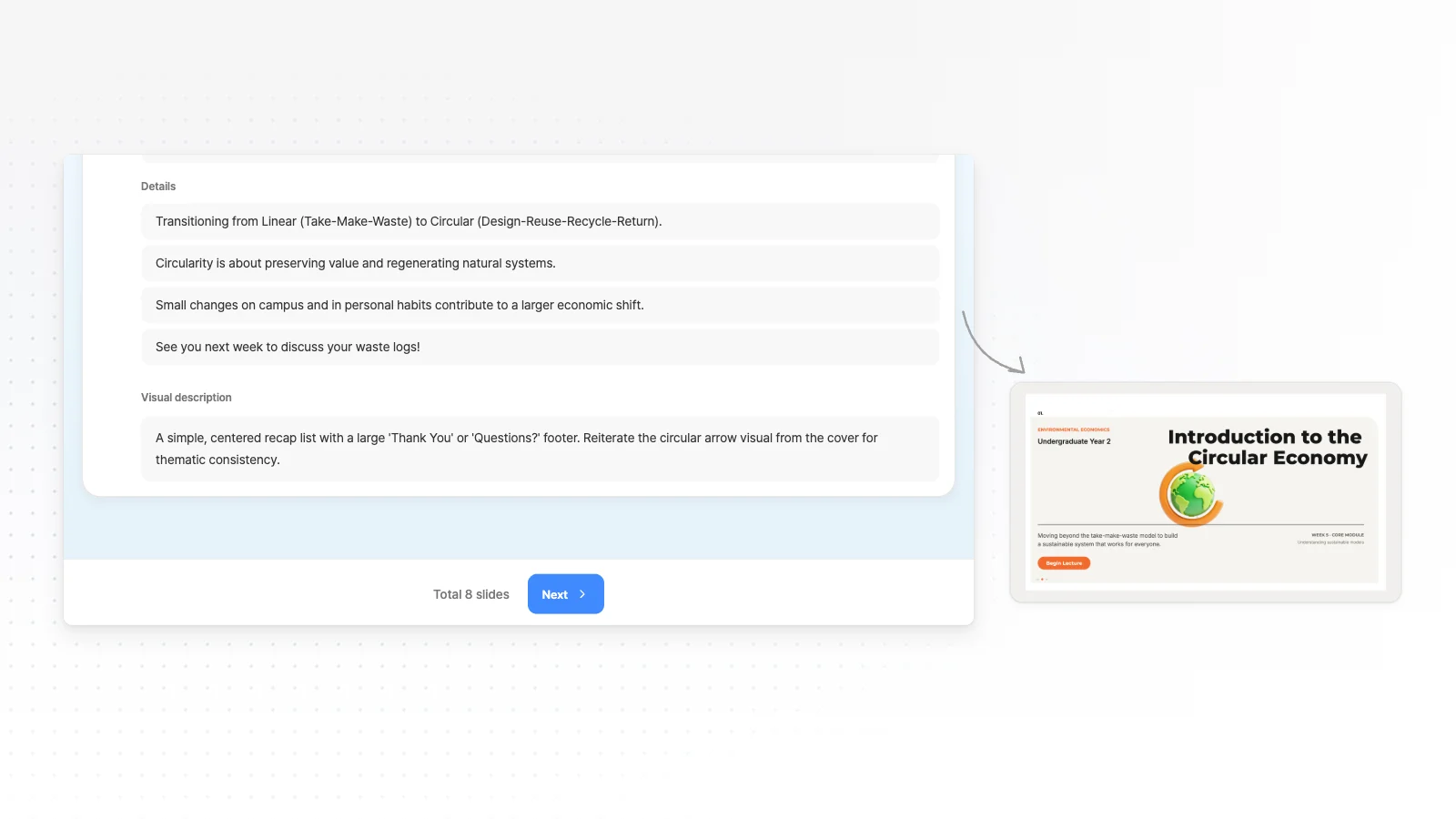
Review the outline
MOVO reads the Word text and shows a slide-by-slide outline with titles and key points first. Reorder slides or fill gaps, pick a style, then generate the slides.
Check against the original and export
Check that numbers, dates and names match your Word file, then fix them by hand or in chat. When it is ready, export to PPTX, PDF, PNG, Figma.
What MOVO takes from a Word file
MOVO reads the text in your Word file. Check what carries over and what you add yourself before you upload.
Text, including tables
MOVO reads headings, body text, lists and the text inside table cells, then cuts each part down to key points per slide.
New design, not your formatting
Fonts, colors, table styles and page layout stay behind. Every slide gets the presentation style you pick instead.
DOC and HWP files
Old .doc files and Hangul (HWP) documents are not accepted. Save them as DOCX or PDF first, then upload.
Slide structures by document type
The same Word file can become different talks. Write the structure in your request, or adjust it in the outline MOVO shows first.
Project plan to approval talk
Background and problem, goal, plan, timeline and budget, then the decision you need. Ask for the approval request on the last slide.
Report to team update
One-line conclusion, key results, evidence, issues and causes, then next steps. Ask MOVO to keep only the results if the report is long.
Meeting notes to decisions
Purpose, decisions made, owners and tasks, then the next meeting date. Ask for decisions grouped together, not the order people spoke.
Script to slides
If your script already follows the talk order, ask to keep the paragraph order with three points per slide. MOVO shortens long sentences into on-screen text.
Requests to send with your Word file
Manager update
"A manager update from the attached plan, ending with the decision request."
Client proposal
"Turn this proposal DOCX into a client deck that leads with their problem."
Notes plus numbers
"Combine the meeting notes DOCX and sales XLSX into a monthly meeting deck."
Edit the deck and get a PowerPoint file
Polish the draft in the editor, then export the format you need.
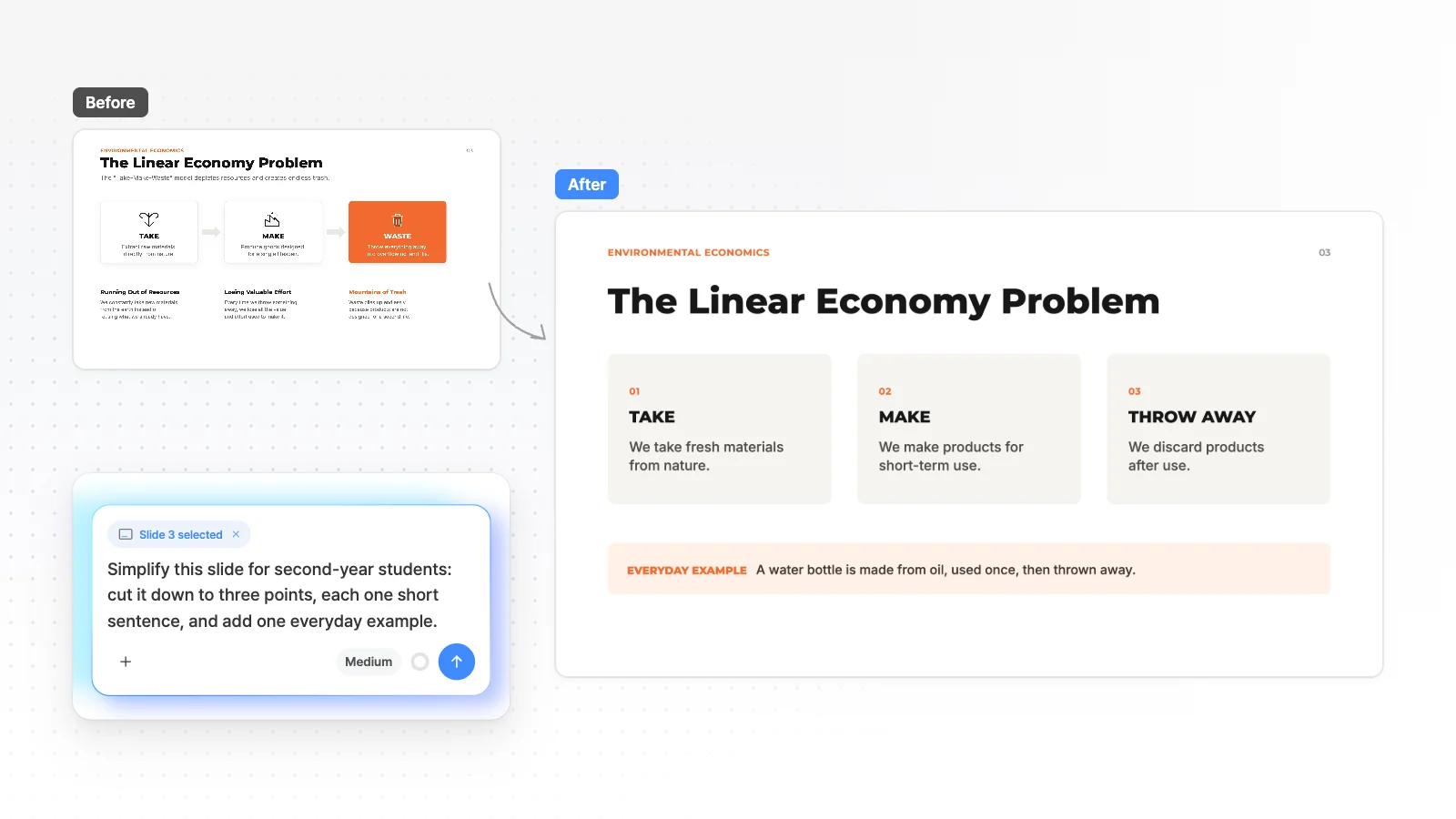
Edit one slide with AI
Pick a slide, type what to change, and AI edits that slide only.
Fix text by hand
If a number or name differs from your Word file, click the text on the slide and fix it.
Export PPTX for PowerPoint
Text stays in text boxes and shapes stay PowerPoint shapes, so you keep editing in PowerPoint.
Business plan templates
Real business plan templates from the MOVO library. Companies and numbers inside are examples, so replace them with your own plan.




Frequently asked questions
Does MOVO convert a Word document into PowerPoint as is?
No. MOVO reads the text of your Word file and builds new slides for a presentation flow, without the original formatting or page layout. If every page must keep its look, a document converter is the better fit.
Which Word files can I upload?
MOVO accepts DOCX files. Save old DOC files and Hangul (HWP) documents as DOCX or PDF before you upload. Supported attachment formats are PDF, PNG, JPG, WebP, TXT, CSV, DOCX, XLSX.
What happens to tables and images in my Word file?
MOVO reads the text inside table cells but does not keep the table style, and images in the document are not read. To let MOVO see a figure, save the document as PDF and upload that. PDFs are read as both text and page images.
Is there a size limit for Word files?
On Free, each DOCX can be up to 5 MB, with 3 files per request. Pro and Max raise that to 20 MB and 10 files. MOVO does not read photos inside a DOCX anyway, so if a file is too big, save a copy without the photos.
Can MOVO shorten a long report into a few slides?
Yes. Pick the number of slides in the Slide count menu, and MOVO chooses the key points to fit that length. Free makes up to 5 slides at a time, Pro up to 30 and Max up to 50.
Can I turn a Word document into slides for free?
Yes. The Free plan gives 300 credits a month and covers the whole flow, from attaching the DOCX to reviewing the outline and generating slides. Free exports are PDF, PNG with a watermark, and a PPTX you can edit in PowerPoint starts on Pro at $19.99 a month.
Does MOVO split slides by my Word headings?
MOVO reads the heading text but not styles like Heading 1 and Heading 2, so slide breaks may differ from your headings. To set them yourself, list the sections in your request or fix them in the outline MOVO shows first.
Can I make slides in another language from my Word file?
Yes. Attach the DOCX and name the language you want in the request, and MOVO writes the slides in that language. List names that must stay as they are, like product or company names, in the same request.


