
AI Presentation Design: Start from a Style or Template
Pick one of more than 200 presentation styles, or start from a template made for your use case. With that many styles, your deck won't share the same AI design as everyone else's, and your pick applies to every slide.
One prompt. This design.
This is MOVO taking one line, drafting the outline and designing all 8 slides. Every word stays editable.
Why pick the style yourself
Skip the generic AI slide look and start with a design that fits the purpose and mood of your talk.
Less of the AI look
With more than 200 presentation styles to choose from, your deck does not come out in the same AI design as everyone else's.
One design across the deck
The style you pick applies the same colors and fonts to every slide, from the cover to the closing slide.
Your brand colors
In the Settings step, set Primary, Secondary and Accent colors and a font to match your company template.
Choose from more than 200 styles
You choose in the Design step, after the Outline and Settings steps.
Filter by document type and mood
Narrow the styles by document type, like Report / Analysis or Proposal / Persuasion, and by mood. Or browse every style.
Search by name or purpose
Search styles by name, purpose or mood, like “calm pitch deck”.
Favorites and recent picks
Star the styles you like to keep them in Favorites, and reuse designs you picked recently.
Preview a style
Click Preview on any style to see sample slides made with it.
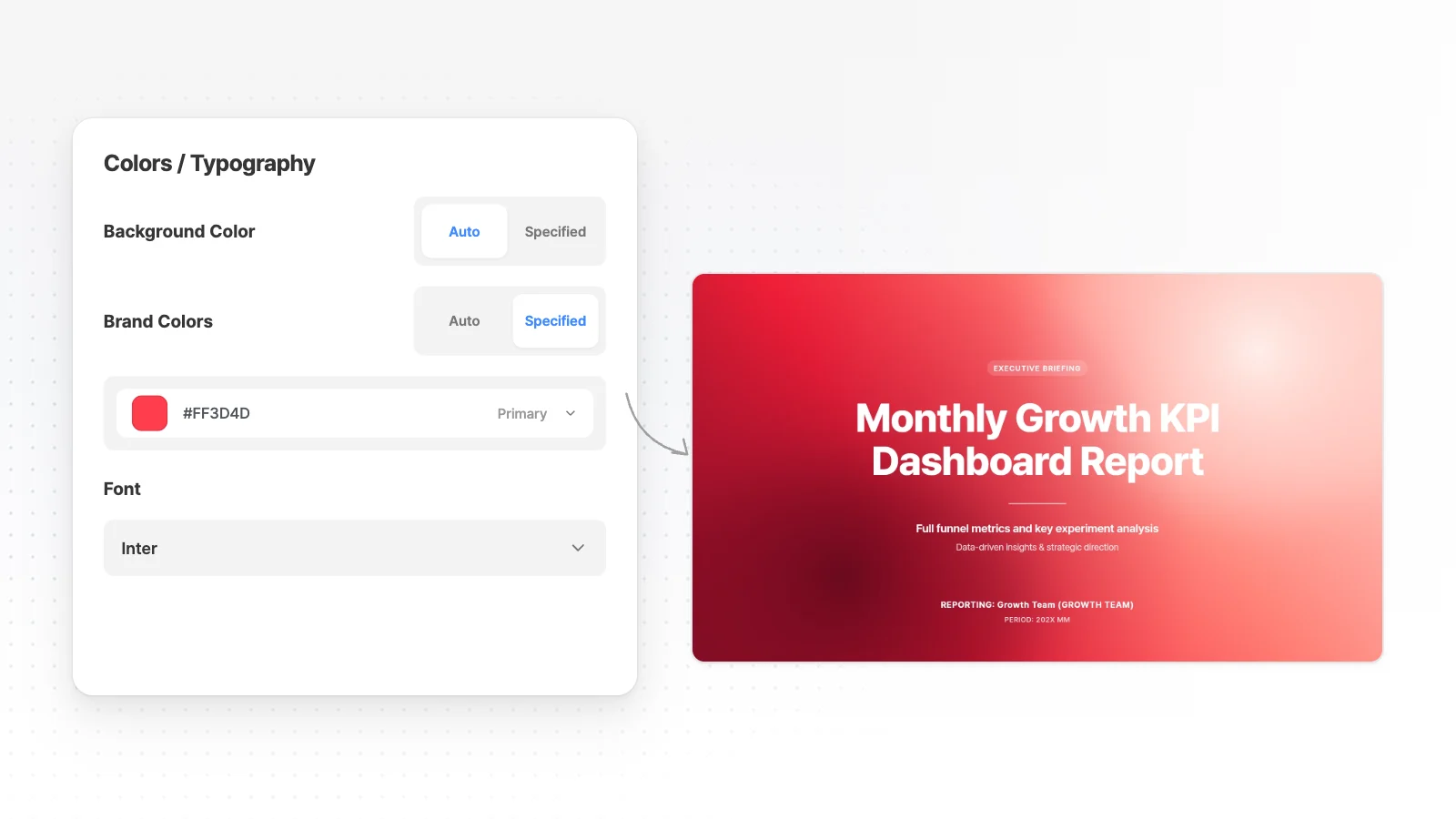
Set colors, fonts and density, or leave them on Auto
You set these in the Settings step, before you pick a style.
Colors on Auto or Specified
Leave background and brand colors on Auto and AI picks them. Choose Specified to set Primary, Secondary and Accent colors yourself.
Font
Keep Auto (AI mix) or pick a font from the list. Logos and product photos you attach are used as they are.
Design density
Set the spacing between elements to Auto, Airy, Balanced or Dense.
Audience and tone
Choose an audience and a copy tone, and the same content is written at the depth and voice that fit your listeners.
Start from a template for your use case
Open a ready-made deck and swap in your own content.
Templates by use case
Pick a template for reports, proposals, pitch decks or lectures, and it opens straight in the editor.
Start from this deck
On a template page, click “Start from this deck” to copy it into your projects and edit it there.
Fill it in by chat
Tell the chat what to change in the open template, and AI rewrites each slide with your content.
Start with a design style in 3 steps
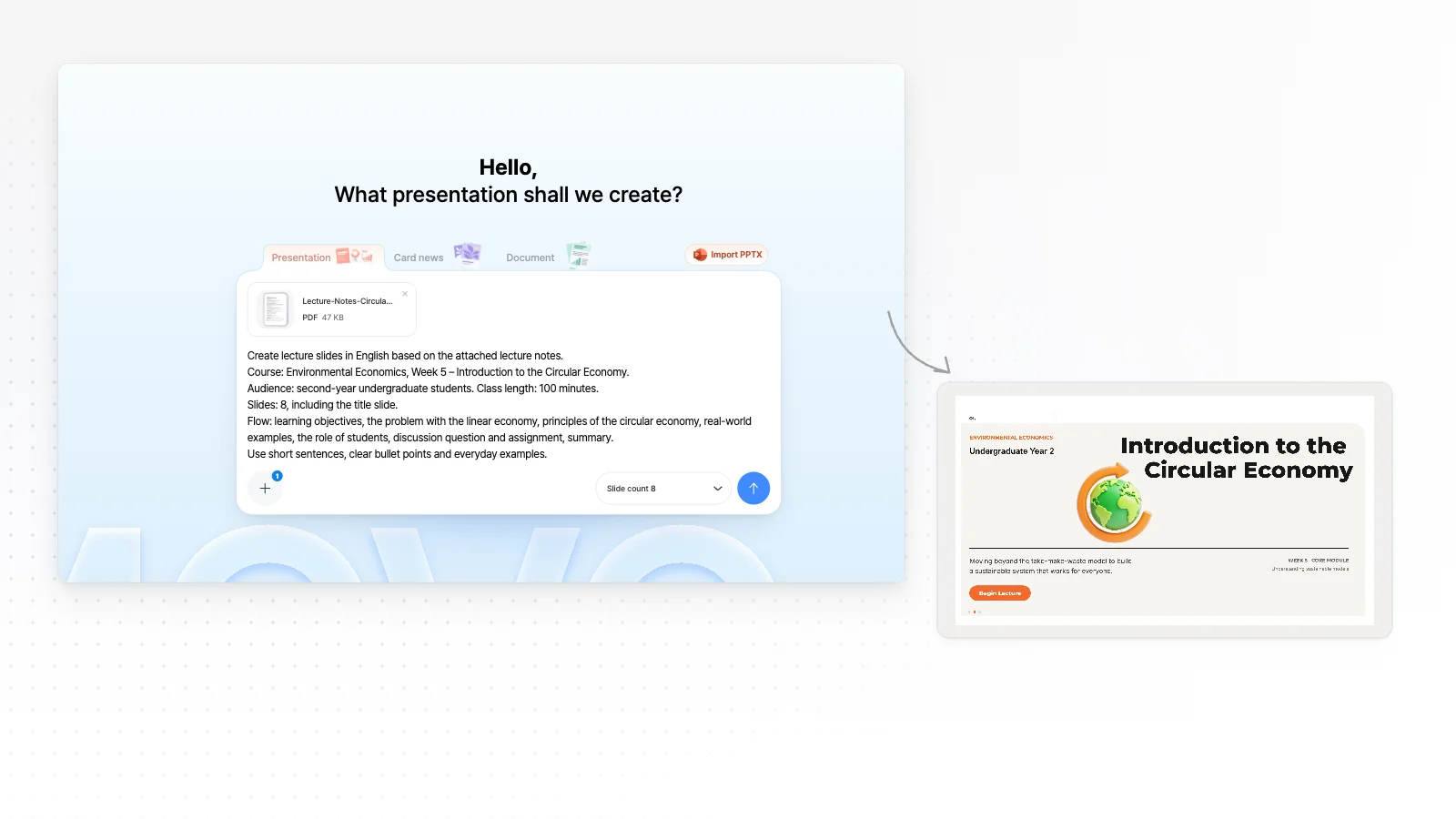
Add a topic or your files
Type a topic or attach files in the input box, and AI shows you the outline first.
Pick a style in the Design step
After the Outline and Settings steps, choose a style in the Design step. Use Preview to check it first, and star the ones you like.
Polish the deck
Once every slide is built in your style, pick a slide and ask the chat for changes, or edit text and shapes directly.
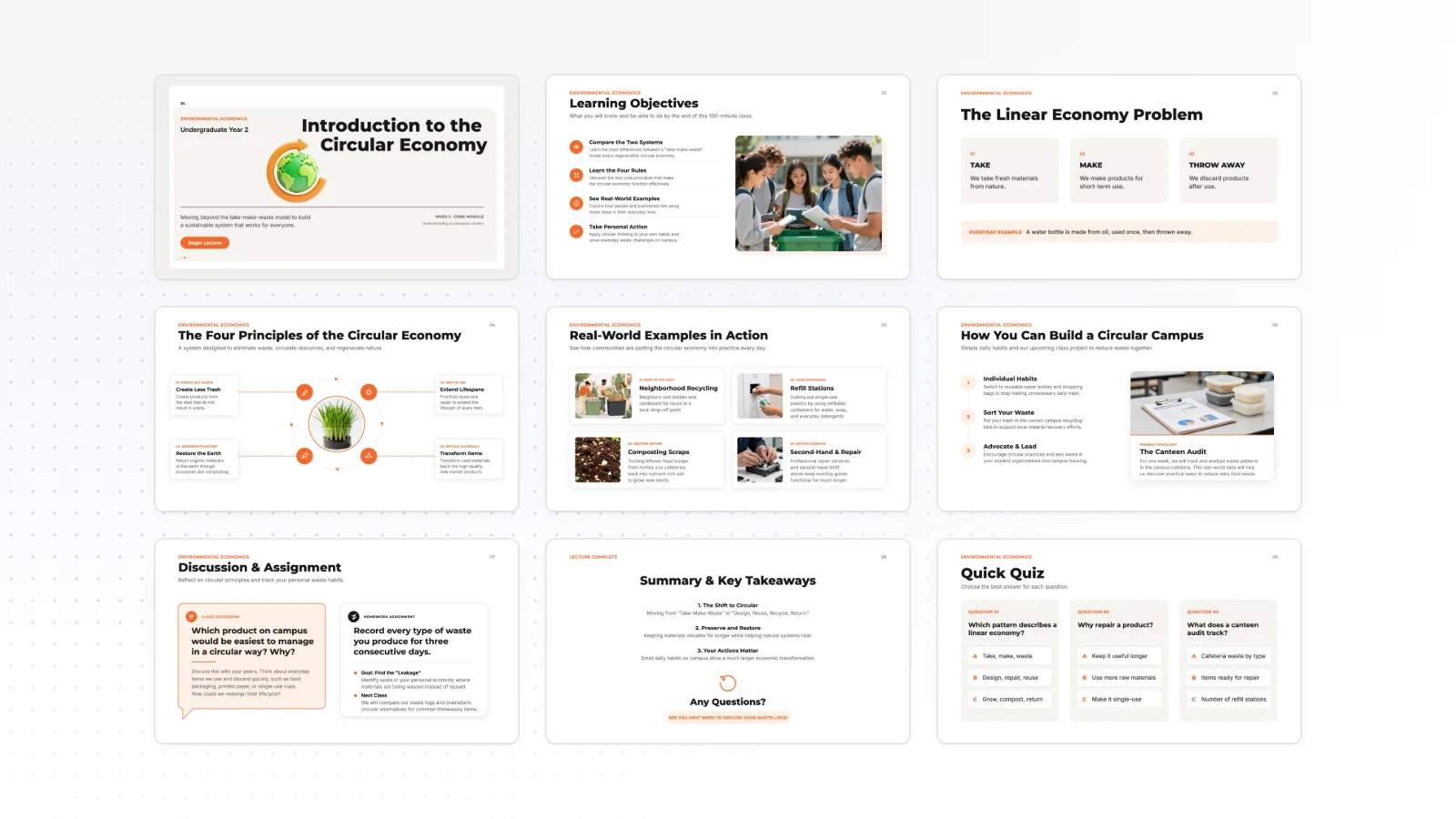
Presentation templates
Real 16:9 presentation templates from the MOVO template library. Open one and replace the content with your own.


Frequently asked questions
How many design styles are there?
MOVO has more than 200 presentation styles, and the count differs by language and keeps growing. Narrow them by document type and mood, or search by name, purpose or mood.
When do I pick a style?
Pick a presentation style in the Design step, after the Outline and Settings steps, and the same style is applied to every slide. After the deck is built, text, colors and shapes can still be changed in the editor.
What if I am not sure which style fits?
Narrow the list by document type and mood, then click Preview on each style to see sample slides. In the Settings step, leave colors and fonts on Auto and AI decides them for you.
Can I use my company colors and fonts?
Yes. Before you generate, set Primary, Secondary and Accent colors and a font yourself. Logos and product photos you attach are used as they are, not redrawn by AI.
What is the difference between a template and a style?
A style is the design applied when MOVO builds a new deck from your topic and outline. A template is a finished deck with content and slide structure in place, so you open it and replace the content.
Can I change the design after the deck is made?
Yes. Text, colors and shapes can be changed directly in the editor after the deck is built. Pick a slide and ask the chat to change its colors or layout as well.
Can I preview a style before I use it?
Yes. Click Preview on any style to see sample slides made with that style. Star the styles you like to keep them in your Favorites list for later.
Can I use design styles for free?
Yes. Free plan users can pick from the standard styles, and styles marked Pro open on paid plans. The Free plan gives 300 credits a month, up to 5 slides per generation, and PDF, PNG export with a watermark.


