
Start Your Presentation with an AI Outline
Type a topic or add your files, and AI first shows an outline with a title and key points for every slide. Edit the outline to set the flow, pick a design, and MOVO builds the deck from that outline.
One prompt. This design.
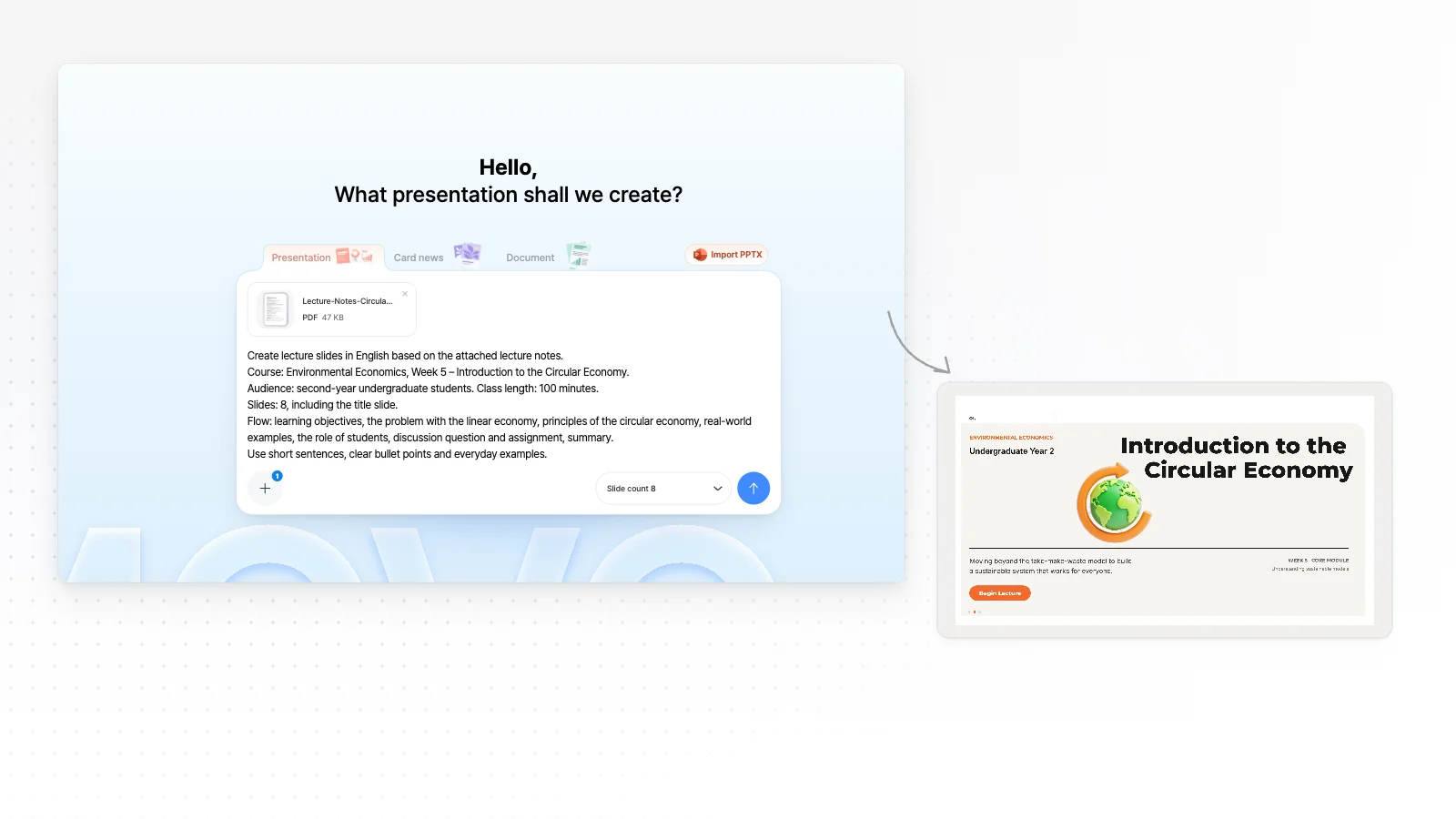
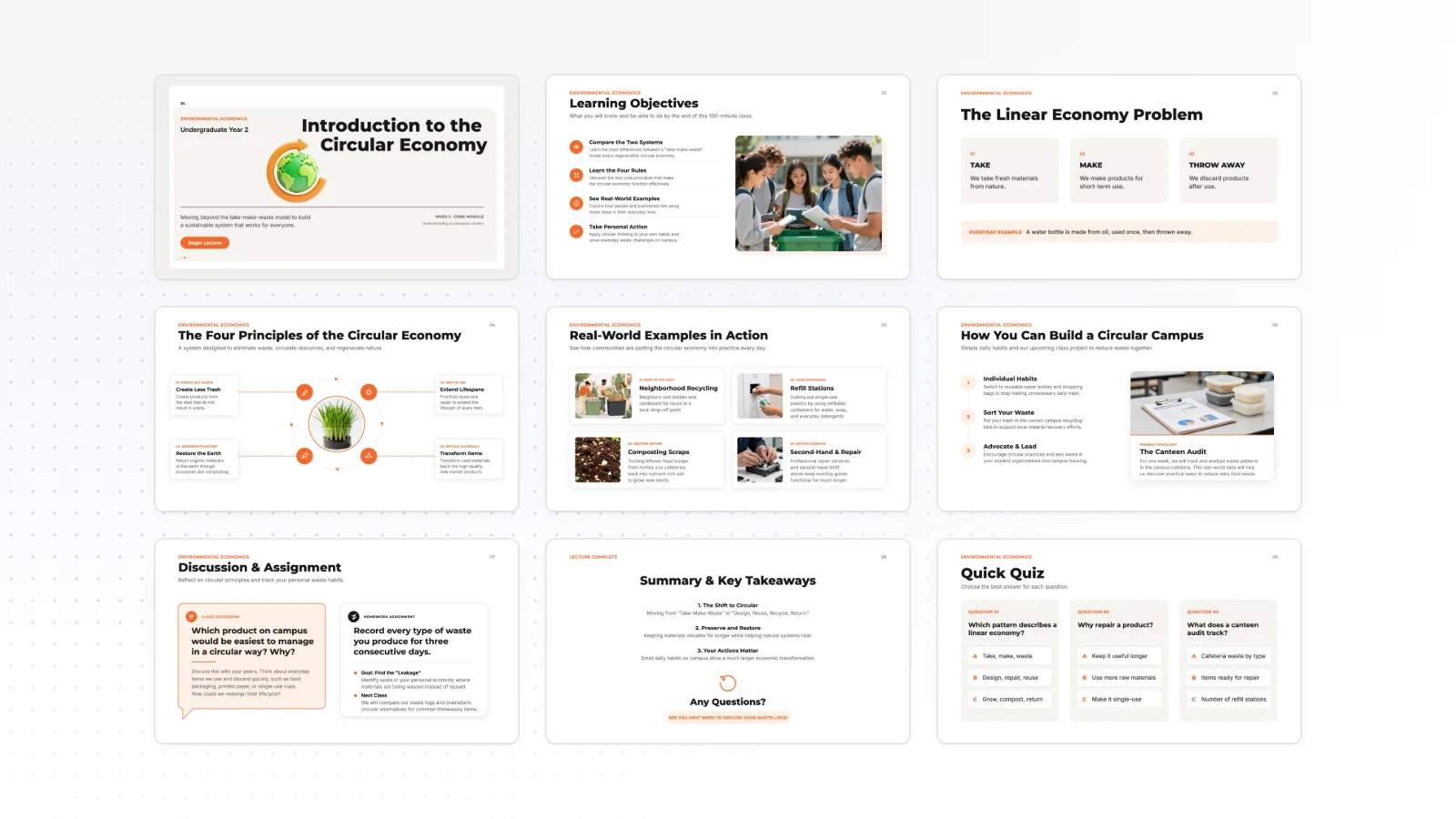
This is MOVO taking one line, drafting the outline and designing all 8 slides. Every word stays editable.
Why start with the outline
No more reshuffling the order after every slide is built.
You set the flow
You review and edit the outline before anything is built, so the deck follows the flow you chose.
Fewer do-overs
Fix missing points and order problems in the outline, so you rarely rebuild a finished deck from scratch.
Plan what each slide says
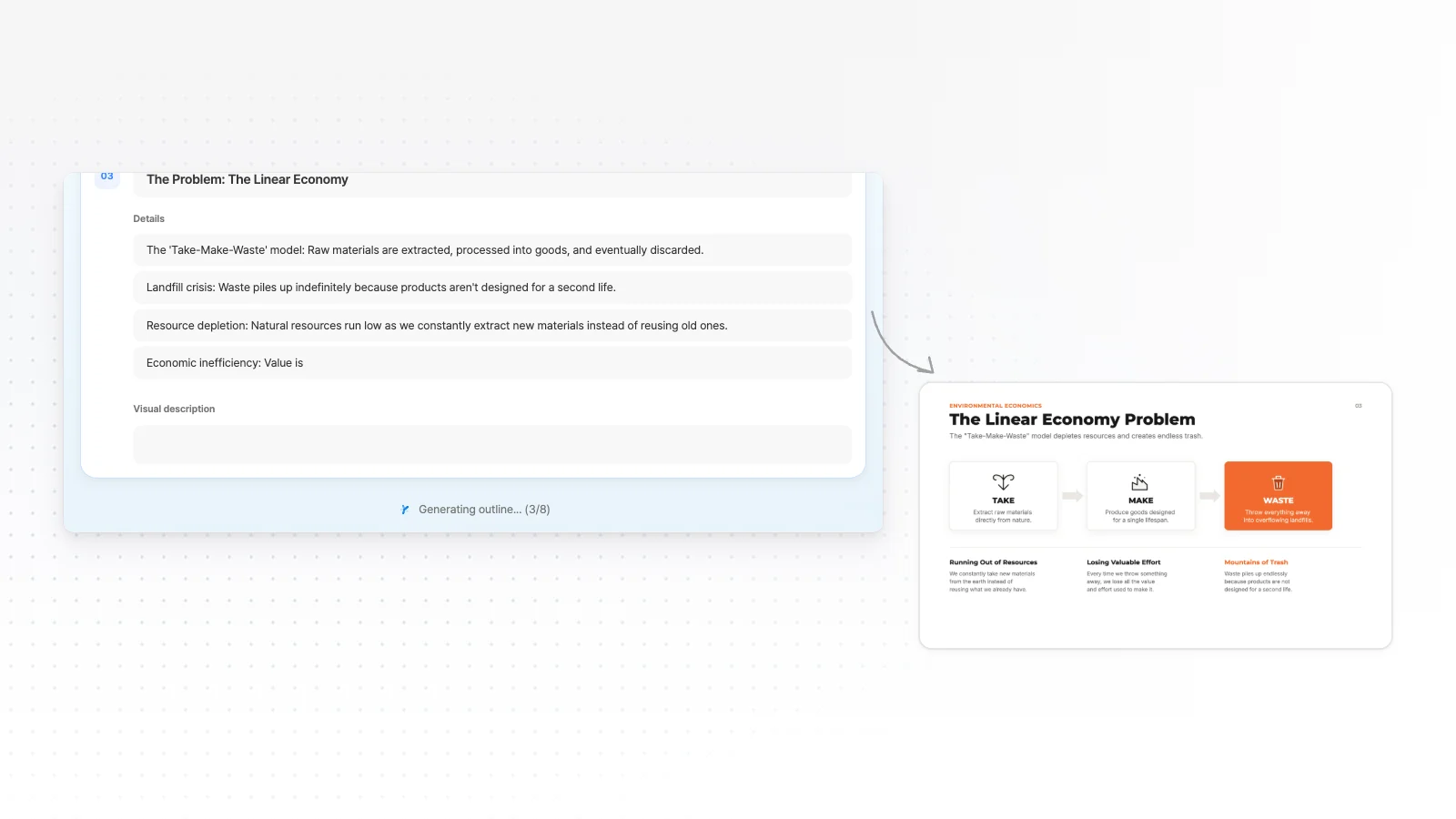
Fill in each slide's title, Details and Visual description, and the slides are drawn to match.


AI drafts the outline
AI takes on the step of deciding what to say.
An outline from one line
Describe the topic, audience and length in a sentence, and AI shows an outline with a title and key points for each slide.
Built from your files
Upload a PDF report, a Word plan or an Excel sheet with numbers, and AI reads it into a presentation flow. Supported files: PDF, PNG, JPG, WebP, TXT, CSV, DOCX, XLSX.
Plan it in a chat
Choose “Create through chat” to shape a plan with AI first, then click “Create from this plan” to build the slides.
Edit the outline slide by slide
Lock in the flow before any slide is built.
Titles and Details
Rename each slide and add or remove lines in its Details list.
Reorder slides
Drag a slide to change the order of your talk.
Visual description
Describe how each slide should look, like “3 icon cards, with big numbers on the left”.
Reference files
Files you attached are listed above the outline under References, so you can see what AI read.
Design and build from the outline
Check the slide count, then apply a design to the outline you settled on.
One style for the whole deck
After the outline, pick one of more than 200 presentation styles and it applies to every slide.
Audience, density and tone
Set the audience, design density, copy tone, colors and fonts to decide how deep and in what voice the outline is written.
Edit after it is built
After the deck is built, pick a slide and ask the chat for changes, or edit text and shapes directly.
Slide count notice
If the outline comes back with fewer slides than you asked for, a notice such as “7 of 10 slides generated” appears below it.
How to build a presentation outline first in 3 steps
Add a topic or your files
Type the topic, audience and length in a sentence or two, or attach your files.
Review and edit the outline
On the “Review your presentation structure” screen, edit each slide's title and Details and drag slides to reorder them. Write the look you want under Visual description, and the slide is drawn that way.
Pick a design and build
In the next step, choose a style and settings, then click “Create Presentation” to build slides that follow the outline.
Frequently asked questions
Can I edit the outline before the slides are made?
Yes. AI first shows an outline with a title and key points for every slide. Edit them, pick a design, and MOVO builds the slides from that outline.
What can I change in the outline?
Rename each slide, edit its Details list and Visual description, and drag slides into a new order. Files you attached stay listed above the outline under References, so you can see what AI read.
Why does the outline have a different number of slides than I asked for?
AI may have adjusted the slide count to fit your content. If you need an exact length, state the slide count clearly in your request and generate again.
Can I plan the deck through a conversation?
Yes. Choose “Create through chat” and shape a plan with AI as you talk. When the plan looks right, click “Create from this plan” to build the slides.
Do I still get an outline when I attach files?
Yes. AI reads attached PDF, PNG, JPG, WebP, TXT, CSV, DOCX, XLSX files and shows the outline first. Add anything your files do not cover directly in the outline.
How many slides can I make at once?
One generation makes up to 5 slides on Free, 30 on Pro and 50 on Max. Slides can still be added or removed in the editor afterward.
Can I get a fresh outline?
Edit titles and Details right on the outline, or send a new request from the home screen with the audience, length and must-have points. The Regenerate button appears only when outline generation was interrupted or did not start.
What is the difference between the generation modes?
Fast is for a quick draft you want to edit right away. Quality is for an important presentation that needs more polish, and it is available on Pro and higher paid plans.
More AI presentation tools


Related pages
AI Presentation Maker
Start from a one-line topic and see what you can do after the first draft.
Files to presentation
What to know when you outline a deck from Word or Excel files.
Presentation design styles
How to pick a style after the outline and settings.
Pricing
Credits and export formats for each plan.