
Edit an Existing PowerPoint with AI
Upload your PowerPoint file (PPTX), pick a slide and tell MOVO AI what to change. AI edits only that slide, and the slides you already like stay as they are. For one word or one position, click the slide and edit it by hand.
One prompt. This design.
This is MOVO taking one line, drafting the outline and designing all 8 slides. Every word stays editable.
Why fix your existing deck in MOVO
Change only what needs changing instead of starting over.
Start from your own file
Upload a PPTX and its text, shapes and images open as elements you can edit. You do not rebuild the deck from scratch.
Only the picked slide changes
Pick a slide and ask, and AI edits that slide only. The slides you already like stay as they are.
AI and hand edits together
Some fixes are faster by hand, like one word or one position. Click the slide and switch between chat and direct editing on one screen.
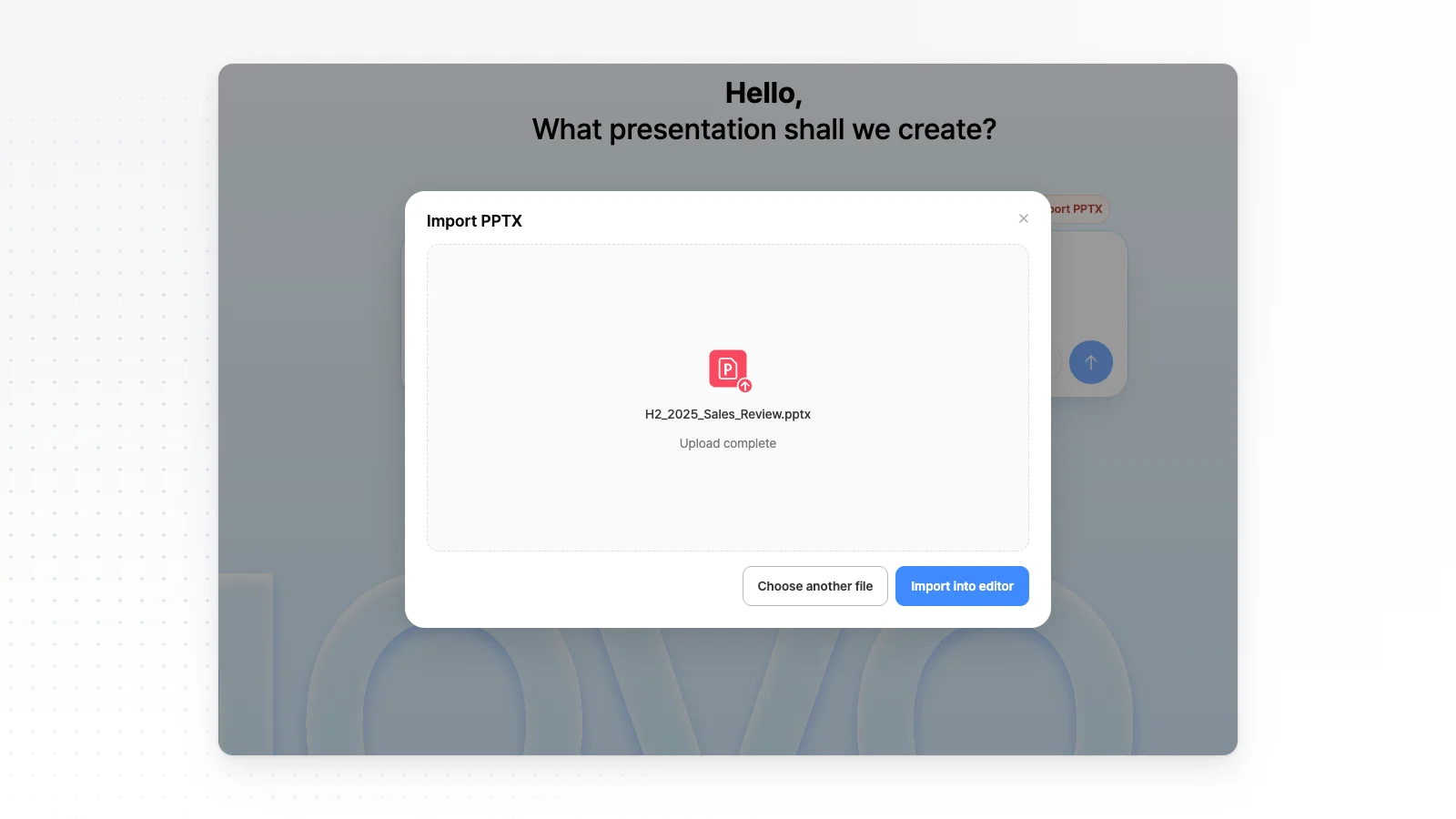
Import the PPTX you already have
Upload a file made in PowerPoint and MOVO opens it as a new project in the editor.
Open it from home or the sidebar
Click Import PPTX, drop your file in, then click Import into editor. MOVO creates a new project, and the file on your computer stays unchanged.
Up to 50 slides and 20 MB
Files can have up to 50 slides, hidden slides included, and up to 20 MB. For bigger files, split the deck or shrink large images first.
Not 16:9? That works too
Decks made in 4:3 or other sizes import at their original slide size.
Pick a slide and say what to change
Imported decks and decks made in MOVO are edited the same way.
Pick from the slide list
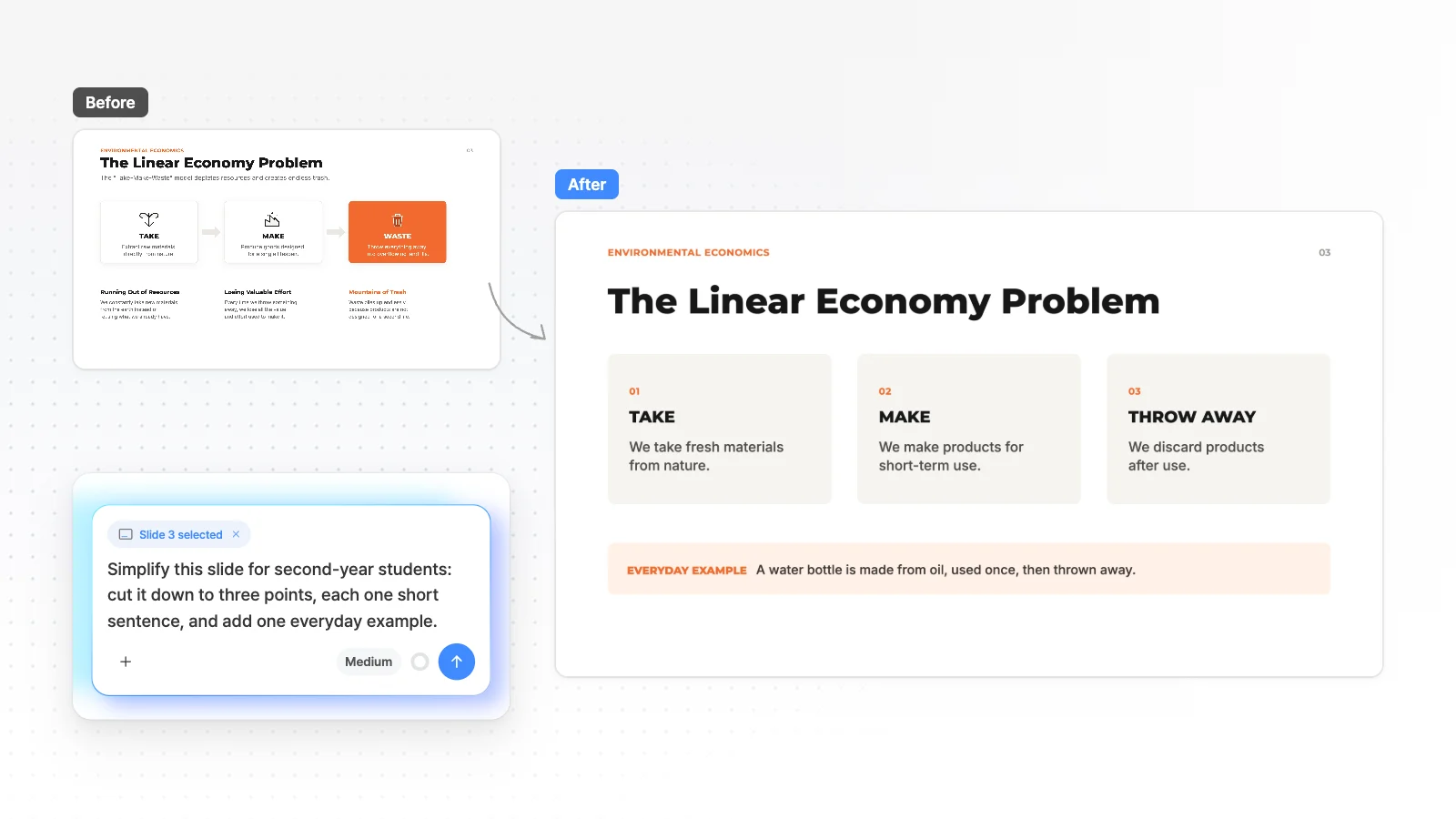
Click a slide in the slide list and the chat shows Slide 3 selected. Your request then applies to that slide.
Swap in this period's numbers
Paste the new figures into your request, like "Replace the numbers on this slide with the second-half numbers below and update the title".
Make a crowded slide readable
Ask for the shape you want, like "Cut this to three points in two columns". AI rewrites the text and layout of the picked slide.
Turn last year's deck into this year's
Pick the cover and write what to change and the new value, like "Change the date to November 2026 and the team name to Strategy".
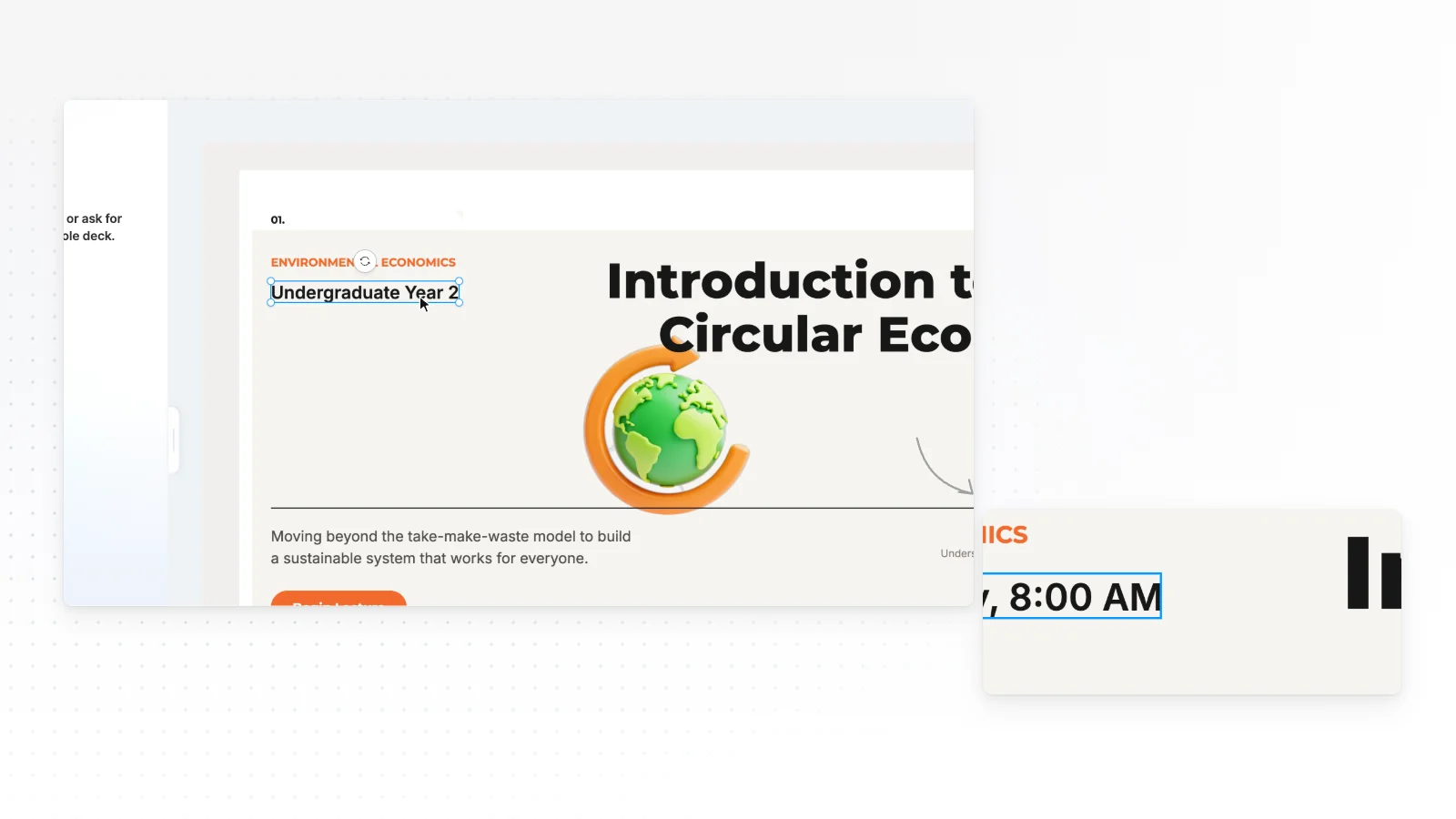
Edit directly in the editor
You do not have to ask AI. Click and fix things by hand.
Click to edit
Click a text box to rewrite it. Drag images and shapes to move or resize them.
Add with the editing tabs
Use the Elements, Text, Images, Upload, Background and Layers tabs to add shapes and text boxes, upload your images and change the background.
Fine-tune in the properties panel
Select an element to open its properties panel. Hold Shift to select several elements and change their fonts and properties at once.
Find and fix overflow
If a swapped font makes text overflow, Check layout finds overlapping or clipped elements on the slide. Fix with AI then cleans them up from that list.
Send the edited deck back to PowerPoint
After you fix an imported deck, take it back as the PowerPoint file you started with.
Export to PPTX again
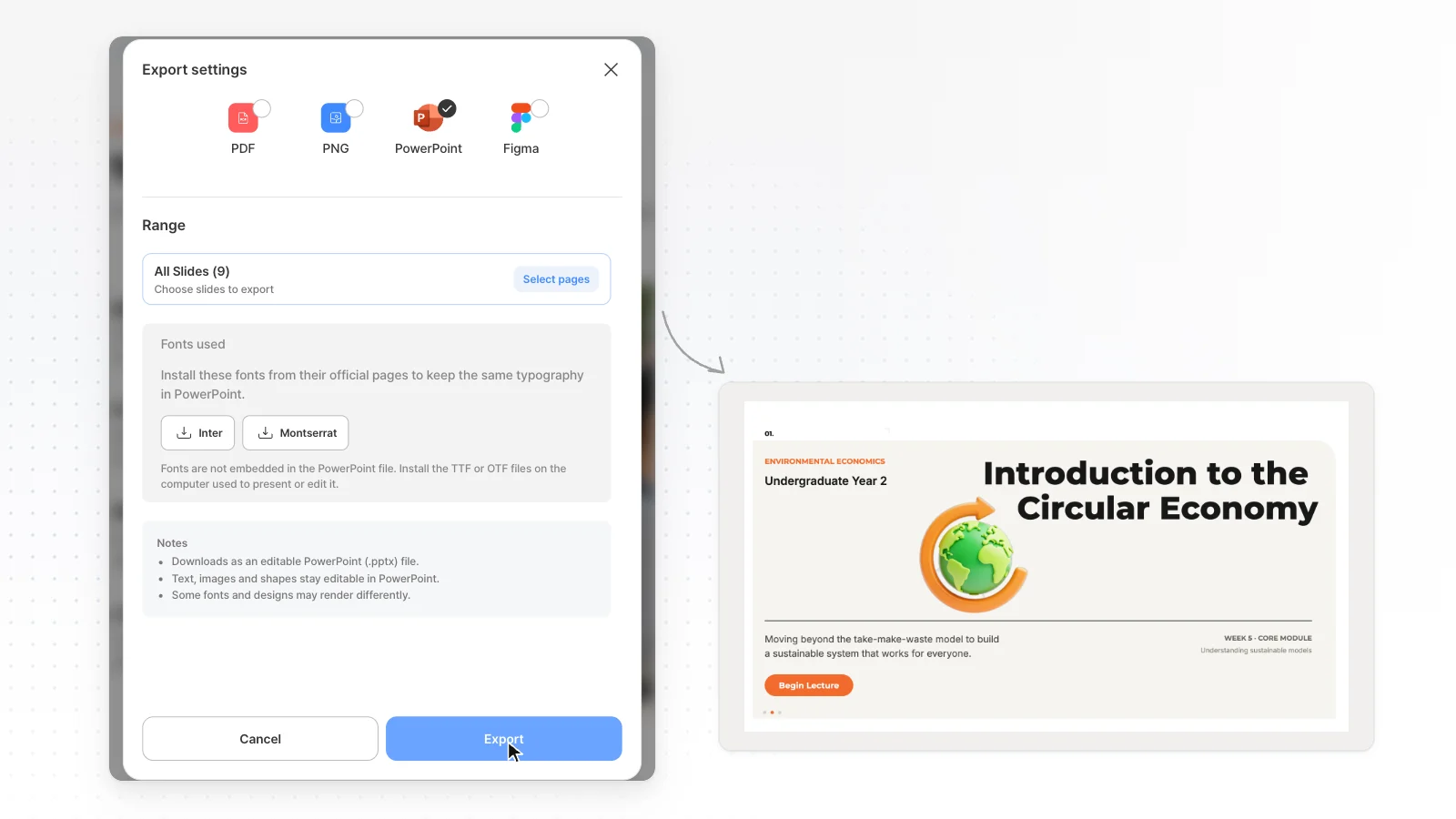
Export a PPTX so teammates can keep editing it in PowerPoint. Text comes out as editable text boxes, and PPTX export starts on the Pro plan.
Check fonts twice
Unsupported fonts switch to Pretendard on import, and fonts missing on the export server switch to Arial on export. See Fonts used in the export dialog, then open the file and check each slide.
Review as a PDF first on Free
The Free plan exports PDF, PNG, so you can get feedback on a PDF before you take the PPTX. Free exports include a watermark.
How to edit an existing PowerPoint with AI in 3 steps
Import the PPTX
Upload your file with Import PPTX on the home screen or in the sidebar, then click Import into editor. The deck opens as a new project.
Pick the slide and ask
Click the slide to fix in the slide list below, and the chat shows Slide 3 selected. Type the result you want, like "Cut this to three points" or "Lead with the conclusion".
Finish by hand and export
Small fixes like one word or one position are faster by hand. When you are done, open Export and pick a format.
Frequently asked questions
Can I upload an existing PowerPoint and edit it with AI?
Yes. Upload the file with Import PPTX on the home screen or in the sidebar, and MOVO opens it as a new project. Pick a slide, ask in chat, and keep files to 20 MB and 50 slides or fewer, hidden ones included.
Can I import a .ppt file or Google Slides?
MOVO imports .pptx files only. Save an older .ppt file as .pptx in PowerPoint first, and download a Google Slides deck as a PPTX before you upload it.
What should I check after importing?
Look for text that overflows because a font switched to Pretendard, and for images that did not come through. Check layout finds overlapping or clipped elements on the slide you are viewing, and Fix with AI cleans them up. Run it on each slide that changed.
Will other slides change too?
When you pick a slide and ask, AI edits that slide. To change several slides or the whole deck, ask without picking a slide, for example to match the tone across every slide.
How should I phrase a request?
Say the result you want, like "Cut this to three points", "Lead with the conclusion" or "Split it into two columns". For figures, ask MOVO to find a market size and it searches the web and adds the sources.
Can I use it for free?
Importing a PPTX and editing with AI both work on the Free plan. Each AI request uses credits, shown as credits used under the reply, and the Free plan gives 300 credits a month. Free exports are PDF, PNG with a watermark.
Can I keep editing the result in PowerPoint?
Yes. From the Pro plan, PPTX export saves text as text boxes and shapes as PowerPoint shapes. Fonts missing on the export server fall back to Arial, so check them after download.
What should I check on a slide AI edited?
Check that numbers, names and dates stayed correct, and that no text overflows or overlaps. Also make sure the edited slide matches the tone and terms of the slides around it.
Can AI edit images too?
Yes. Ask for a new image that fits the slide, or ask to upscale an image you selected. Logos and product photos you attach are used as they are.
Can I edit slides by hand as well?
Yes. Click text, images or shapes to edit them. Use the Elements, Text, Images, Upload, Background and Layers tabs to add elements or change the background, all on the same screen as chat.


