
AI Proposal Presentation Maker
Upload a client brief or RFP and MOVO AI drafts a proposal deck. It follows the client's problem, your solution, the plan, the budget and expected results. You see the outline before any slides are made, so you can reorder it for each client.
Slide structures for each kind of proposal
Use these as a starting order for the AI outline. Put the order in your request, or move and remove slides at the outline step.
Service proposal (10 to 12 slides)
Cover, the client's problem, causes and evidence, your solution, phases and deliverables, timeline, team, budget, expected results, next step. Keep your company intro to one slide next to the team slide.
Bid response to an RFP
Follow the order of the RFP's evaluation criteria. A common order is project understanding, approach, detailed work plan, schedule, team, quality and risk, then price. Attach the RFP and ask for slides in the same order as its sections.
Partnership proposal (6 to 8 slides)
One slide on each company, the shared problem, how you will work together, a joint campaign idea, roles, expected results and a first meeting. Put what the partner gains near the front.
Prompt examples for proposals
Marketing agency pitch
"Use the attached brief for a 12-slide, 3-month social campaign proposal."
Bid response
"Make a proposal that follows the RFP's evaluation criteria in order."
B2B software proposal
"A 10-slide software proposal using the attached cost sheet."
Feed in client files and check the outline first
AI decides what to say and in what order. Slides are made only after you confirm the outline.
Briefs and RFPs as PDF
Attach the client's RFP or brief as a PDF and MOVO reads the requirements and spreads them across the outline.
Costs and schedules from a spreadsheet
Add your quote or timeline as XLSX or CSV and the budget and schedule slides use those numbers. Supported files: PDF, PNG, JPG, WebP, TXT, CSV, DOCX, XLSX.
Set the audience to Client
Pick Client as the audience in the presentation settings and MOVO adjusts depth and tone for that reader. Copy Tone options are Formal, Friendly and Punchy.
Pick a Proposal / Persuasion style
At the design step, filter by Proposal / Persuasion and the whole deck follows the style you pick. Narrow it further with moods such as Trustworthy or Clean.
Polish the numbers and slides before you send
Once the draft is ready, fix only the slides that need it.
Evidence with sources
Ask MOVO to find the market size for ready meals and chart it on slide 2. It searches the web, adds the figures and lists the sources under its reply.
Redo only the budget slide
Pick the budget slide and ask for a table of items, unit prices, quantities and totals, with tax noted as excluded. AI changes that slide only.
Reuse it for the next client
Duplicate the project from its menu on the dashboard. Then, without picking a slide, ask MOVO to change the client name and case studies across the deck.
Send as PDF or a link
Export a PDF for email, or turn on link sharing so the client watches a slideshow without signing in.
How to make a proposal deck in 3 steps
Upload the brief and describe the scope
Attach the RFP, brief or cost sheet with the + button, then write the client name, scope and slide count. You can edit one of the prompt examples above.
Check the outline and pick a style
Move or remove slides in the AI outline to fit this client, click Next, and choose a Proposal / Persuasion style.
Edit slide by slide and send
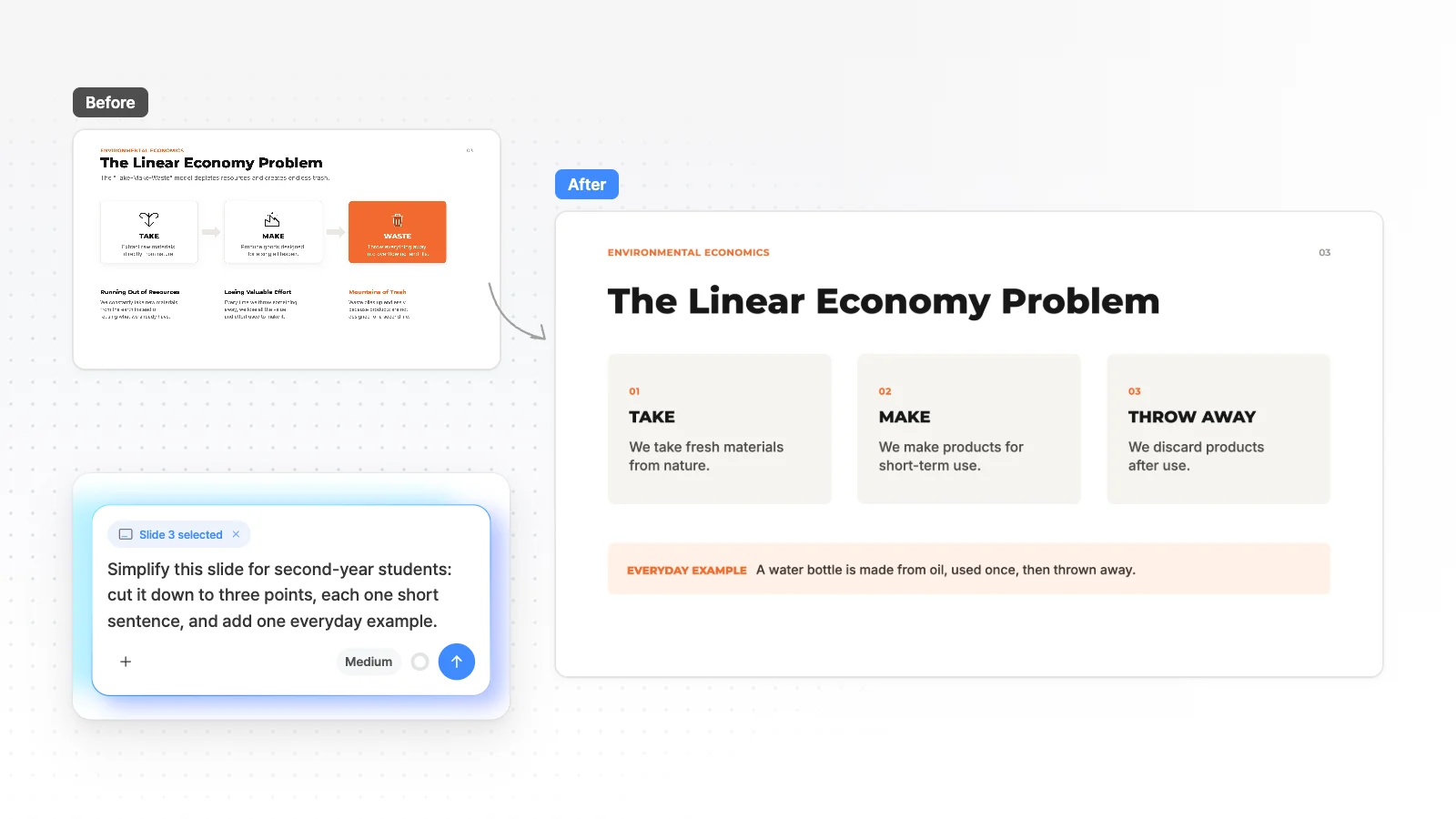
Pick a slide and ask in chat, or click text to edit it yourself. When it is ready, export a PDF or share a link.
Start from a proposal template
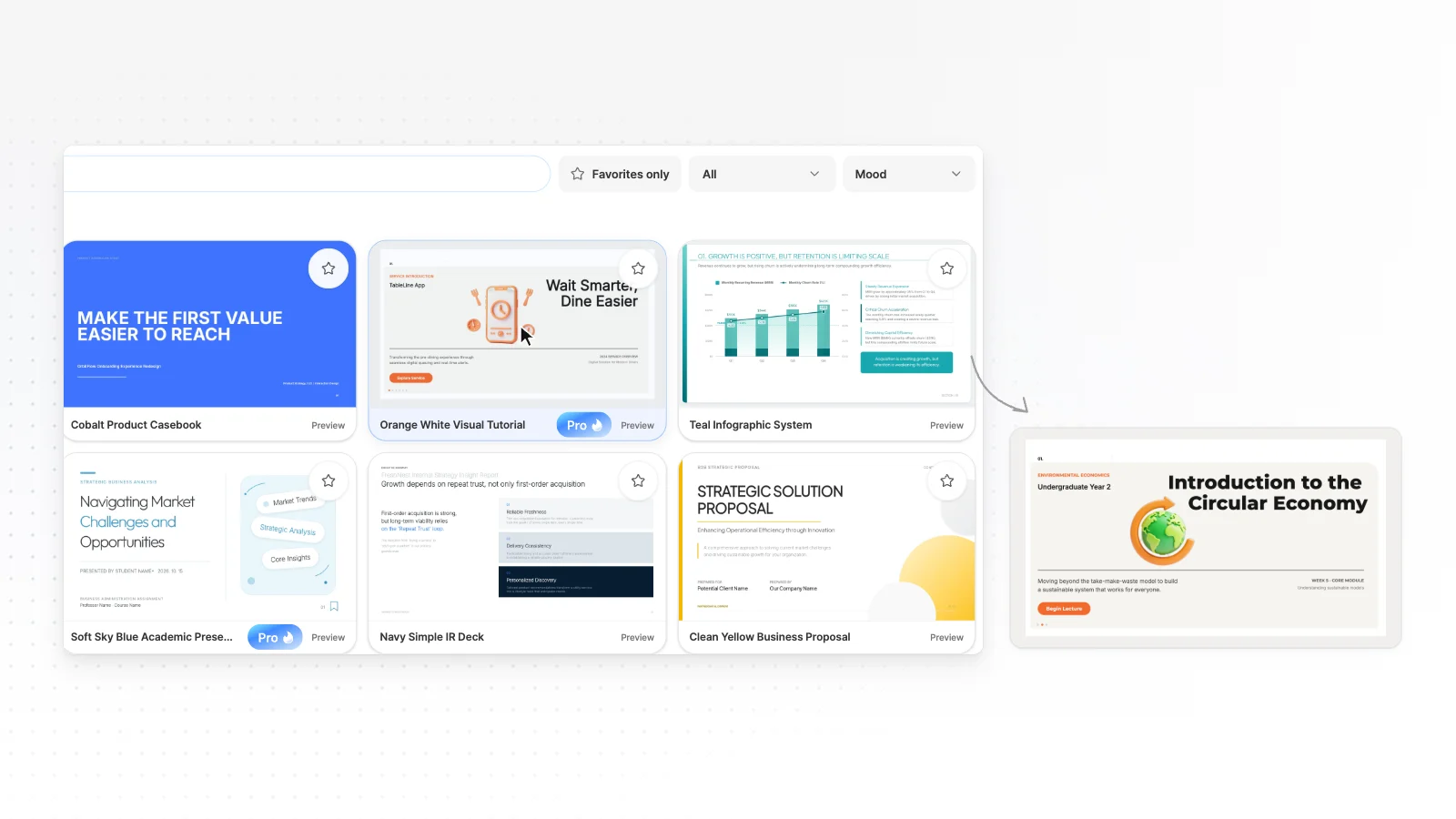
If a proposal for a similar business exists, opening the template and changing the text and numbers is often faster. Open a card to see its slides, then start editing from there.


Frequently asked questions
Can MOVO follow the sections of an RFP?
Attach the RFP as a PDF and ask for slides in the order of its evaluation criteria. MOVO reads the sections and builds the outline from them. Before slides are made, compare the outline with the RFP and add anything missing.
Can I add a quote or a cost table?
Attach your quote as an XLSX or CSV file and MOVO uses those numbers on the budget slide. In PPTX export, tables become shapes and text rather than PowerPoint tables, so check them before pasting into a client template.
Can I use my company logo and colors?
Yes. Set your primary, secondary and accent colors and your font under Brand Colors before generating. Logos and product photos you attach are used as the originals, not redrawn by AI.
Which format should I send to the client?
Export a PDF to attach to an email, or turn on link sharing so the client can flip through it. Link viewers watch a slideshow without signing in. If the client needs to edit the file, send a PPTX, which starts on the Pro plan.
Can I reuse one proposal for another client?
Duplicate the project from the dashboard first, so the original stays as it was. Then, without picking a slide, ask MOVO to change the client name and case studies, and the change applies across the deck.
Can I make a proposal deck for free?
Yes. The Free plan gives 300 credits a month, up to 5 slides per generation, and PDF, PNG export with a watermark. Longer proposals and watermark-free files start on Pro at $19.99 a month, with up to 30 slides per deck.
How is a proposal different from a company profile?
A proposal promises how you will solve one client's problem, with a budget and a schedule. A company profile explains who your company is. Send the profile when you first meet a client and the proposal after they ask for one.
More AI presentation tools


Related pages
Proposal presentation templates
Templates for marketing, consulting and rebranding proposals.
Company profile presentation
How to make the deck you send when you first meet a client.
Sales presentations
First-meeting pitches and quarterly business reviews for sales teams.
Pricing
Slide limits, upload limits and export formats for each plan.