
PDF to PPT with AI
Upload a PDF and MOVO AI reads it, drafts an outline, and builds a new PowerPoint deck you can edit. It is not a page-by-page converter. It rebuilds reports, papers and lecture notes into a presentation flow.
One prompt. This design.
This is MOVO taking one line, drafting the outline and designing all 8 slides. Every word stays editable.
How to turn a PDF into a PPT in 3 steps
Upload the PDF and describe the talk
Attach your PDF and write a line or two about the audience and the goal. The more you say about length and must-have points, the closer the outline gets.
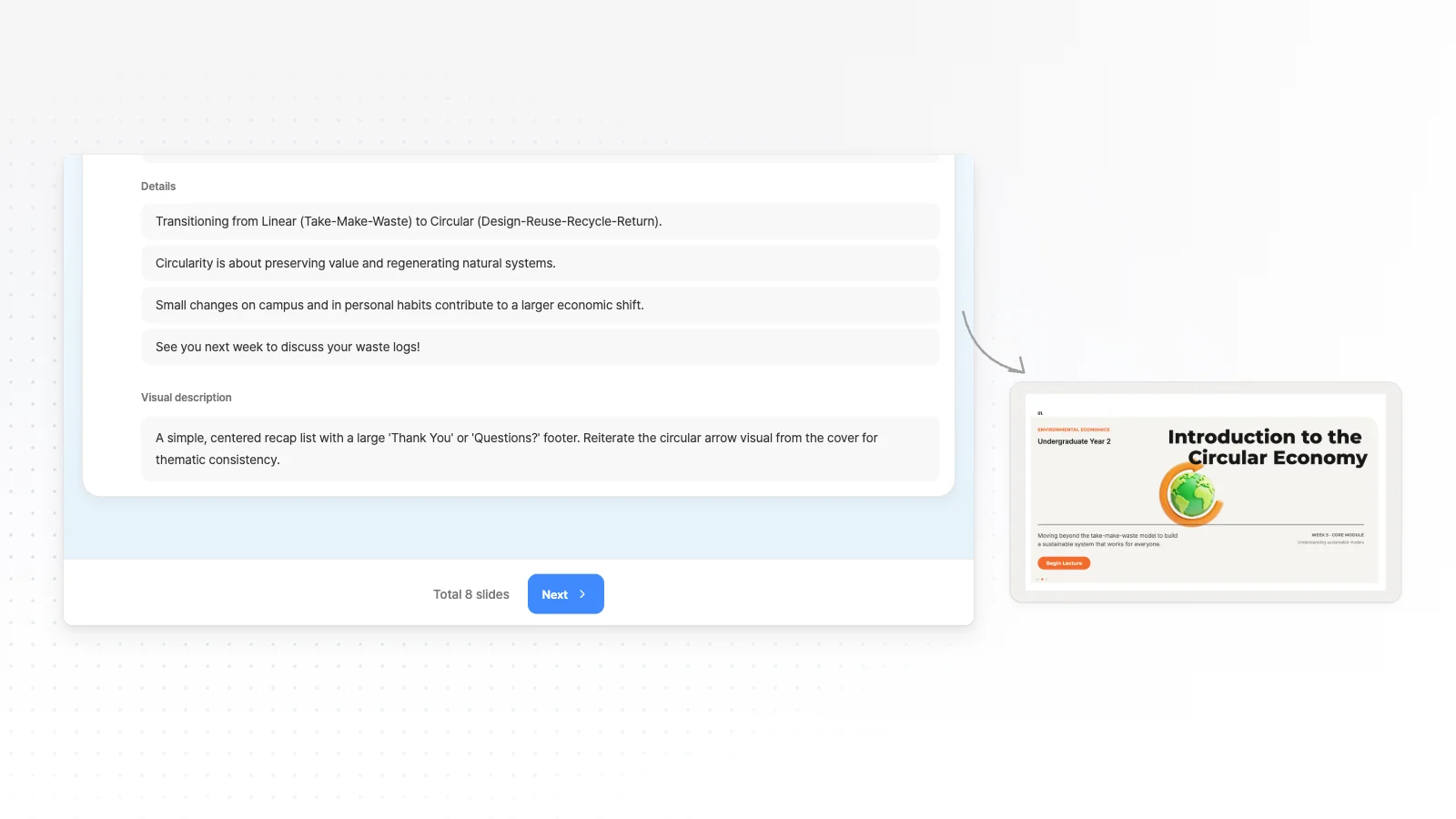
Review the outline
MOVO reads the PDF and shows a slide-by-slide outline with titles and key points first. Fix the order or fill gaps, pick a style, then generate the slides.
Polish the slides and export
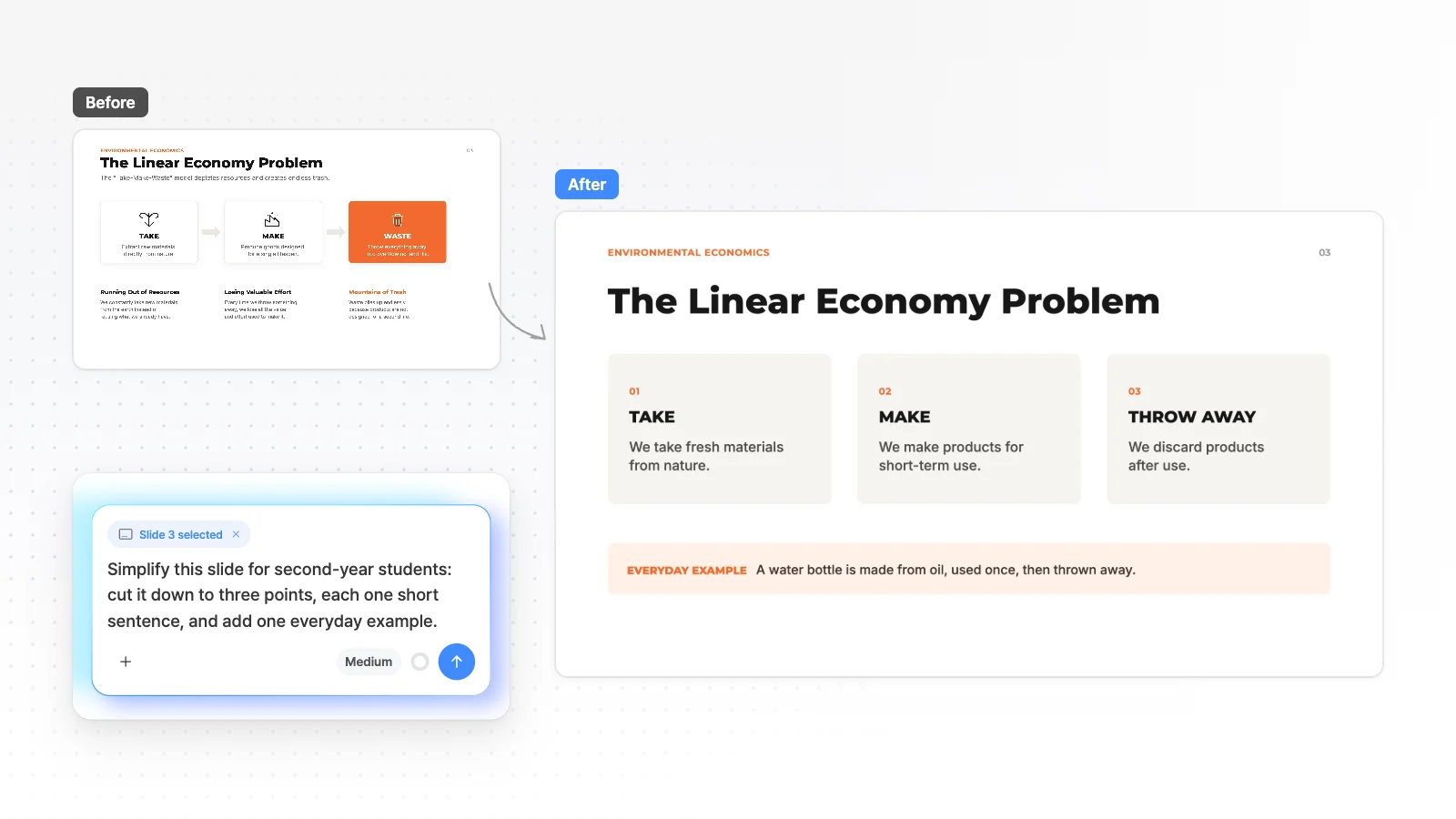
Edit text, images and shapes directly, or ask in chat to change the slide you are viewing. When it is ready, export to PPTX, PDF, PNG, Figma.
How this differs from a PDF converter
The right tool depends on whether you need the same pages or a new talk.
Need the same pages?
If your PDF is already slides and every page must keep its layout, use a PDF converter. MOVO does not keep page layout or fonts.
Need a presentation?
For reports, papers and lecture notes, MOVO cuts each section down to key points and reorders them for a talk. You see the outline first.
Keep editing in PowerPoint
From the Pro plan, PPTX export saves text as text boxes and shapes as PowerPoint shapes.
Read the PDF and outline first
AI handles the step of deciding what to say.
Add other files too
Attach a Word plan or an Excel sheet next to the PDF. Supported files: PDF, PNG, JPG, WebP, TXT, CSV, DOCX, XLSX.
Say who and how long
Write the audience and length, like a 10-slide team update, and the outline follows it.
Depth for your audience
Pick executives, investors or customers and AI adjusts depth and tone, such as putting decisions and risks first for executives.
Plan it in a chat
Choose chat mode to shape the plan with AI first, then build slides from that plan.
Pick a style and fix only what you need
Design and edits continue in the editor.
One style across the deck
Pick a presentation style after the outline and every slide follows it.
Edit one slide with AI
Pick a slide, type what to change, and AI edits that slide only.
Fix overlaps
“Check layout” finds overlapping or clipped elements on the slide, and “Fix with AI” cleans them up from that list.
Numbers with sources
Ask AI to find a market size and chart it on slide 4. MOVO searches the web, adds the figures and lists the sources under its reply.
Export and share
Choose the format for where it goes next.
PPTX
Text stays in text boxes and shapes stay PowerPoint shapes, so you keep editing in PowerPoint. Available from the Pro plan.
PDF and PNG
The Free plan exports PDF, PNG with a watermark.
Share a link
Turn on sharing and send the link. Viewers watch it as a slideshow without signing in.
Figma
Export to Figma to hand off to a designer. Available from the Pro plan.
Frequently asked questions
Does MOVO convert a PDF into PowerPoint as is?
No. MOVO reads the content of your PDF and builds new slides for a presentation flow, without the original page layout or fonts. If you need every page copied one to one, a PDF converter is the better fit.
Which files can I upload besides PDF?
MOVO accepts PDF, PNG, JPG, WebP, TXT, CSV, DOCX, XLSX files when you create a deck. You can attach a Word plan or an Excel sheet with numbers next to your PDF in the same request.
Is there a size or file limit for PDFs?
The Free plan takes up to 3 files per request, each up to 5 MB. Pro and Max take up to 10 files of 20 MB each, with 50 MB in total.
Can I make slides from a PDF for free?
Yes. The Free plan gives 300 credits a month, up to 5 slides per generation, and PDF, PNG export with a watermark. Editable PPTX files for PowerPoint start on Pro at $19.99 a month.
Can I edit the result in PowerPoint?
Yes. PPTX export saves text as text boxes and shapes as PowerPoint shapes. Tables and charts export as shapes and text, and fonts missing on the export server fall back to Arial.
Will text break when I turn a PDF into a PPT?
MOVO does not copy the text layout of your PDF. Slides get freshly written text boxes, so you avoid the split lines and broken words common in converted pages. Fonts missing on the export server fall back to Arial in PPTX, so check fonts after download.
Can MOVO read a scanned PDF?
MOVO reads a PDF as both text and page images, so text in a scanned document can be used too. Blurry scans and handwriting may be misread, so compare the outline with the original.
What should I check in a deck made from a PDF?
MOVO drafts the outline, writes key points and applies your style. Before you export, check the order, missing sections, and whether numbers, dates and quotes match the PDF. Also check that slides edited in chat match the tone and terms of the others.
Can I make one deck from several PDFs?
Yes. The Free plan takes 3 files per request, and Pro or Max take 10. MOVO combines their content into one outline for a single presentation flow.
Can I make slides in another language from my PDF?
Yes. Write the language you want in the request, and MOVO writes the slides in that language from the PDF content. Check technical terms against the original afterward.
More AI presentation tools


Related pages
AI Presentation Maker
Start from a one-line topic and see what you can do after the first draft.
Report presentation templates
Slide structures to borrow when you turn a report PDF into a talk.
MOVO vs Gamma
Imports and PPTX export compared from official documentation.
Pricing
Upload limits and export formats for each plan.