
Edit Your Slides Directly in the Presentation Editor
Click the text, images and shapes on any slide, even ones AI made, and edit them yourself in the editor. Polish with the Elements, Text, Images, Upload, Background and Layers tabs on the left and the toolbar at the top, and leave big changes that rework a whole slide to AI chat.
One prompt. This design.
This is MOVO taking one line, drafting the outline and designing all 8 slides. Every word stays editable.
Why edit by hand
Fix only the spots you want, by hand, without asking AI again.
Small fixes, right away by hand
For small fixes like a typo, a number or the position of a box, clicking and fixing is faster than describing it. Editing by hand uses no credits.
Bold one word, color one number
Double-click a text box and drag over just the characters to change, and weight, size and color apply to those characters only. To highlight one number in a title, you do not have to rewrite the sentence.
Lock what sits in the back
Lock a background photo or decorative shape in the Layers tab and it stays put when you click it on the canvas. Locked elements are also left out when you drag across an empty area to select several elements.
Click to select and arrange elements
Click and drag to move things like in PowerPoint, and line up several at once.
Click to select, drag to move
Click an element once to select it, then drag to move it or use the handles to change its size and angle. While you drag, guides appear that snap to other elements and to the slide edges.
Several at once
Hold Shift and click, or drag from an empty area, to select several elements. Use the top bar to align them and space them evenly, and change their font and font size all at once.
Double-click to go inside a group
Double-click a group to select and edit just one element inside it. When you are done, press Esc to leave the group.
Sort the stacking order in the Layers tab
The Layers tab lists the elements on the slide, and you drag a row to move it forward or back. Pick an element hidden behind others straight from the list.
Edit text, images and backgrounds by hand
A toolbar for the selected element appears at the top, and you pick new things to add from the tabs on the left.
Font, size and color in the top bar
Click a text box once to select it, then change the font, weight, size, color, alignment, line spacing and letter spacing for all its text at once. Alignment applies to the whole box even if you select only part of the text.
Add from the Elements and Text tabs
Add shapes, lines, arrows, emoji, illustrations and charts from the Elements tab, and heading and body text boxes and font pairings from the Text tab.
Add photos from the Images and Upload tabs
Upload your own images in the Upload tab, or find Unsplash photos in the Images tab. Double-click an image you added to crop it.
Change the backdrop in the Background tab
In the Background tab, set the slide background to a solid color, a gradient or an image.
Switch between hand edits and AI edits
Leave big changes to AI and finish by hand.
AI targets the element you select
Click an element on the canvas and "1 element selected" appears above the chat input. Ask something like "Change the selected chart to a blue palette" and AI edits that element.
AI shortens the sentence, you place the box
Select a text box and ask "Shorten this sentence to one line". Then drag the shortened box to fit its position and size.
Undo works on AI results too
If you do not like an AI result, click Undo before you edit anything else. One undo takes you back to before AI applied it.
Make a copy before big changes
Before you rewrite the whole deck, open the menu and click Make a copy to keep the current state as a new project. Undo history is lost when you refresh the page.
How to edit slides by hand in 3 steps
Open a deck
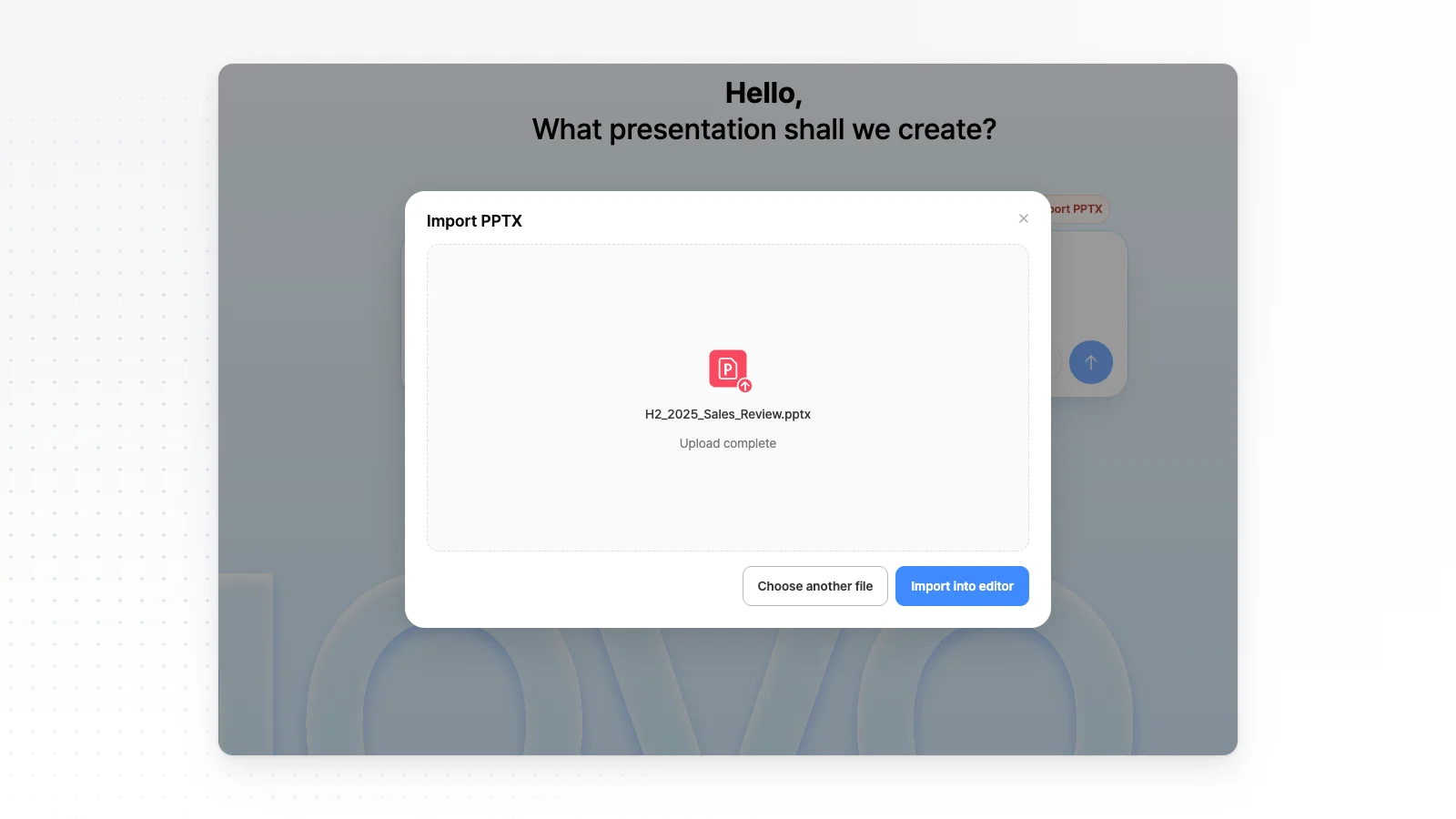
Make a new deck from the input box or start from a template. To use a PPTX you already have, upload it with Import PPTX on the dashboard and click Import into editor.
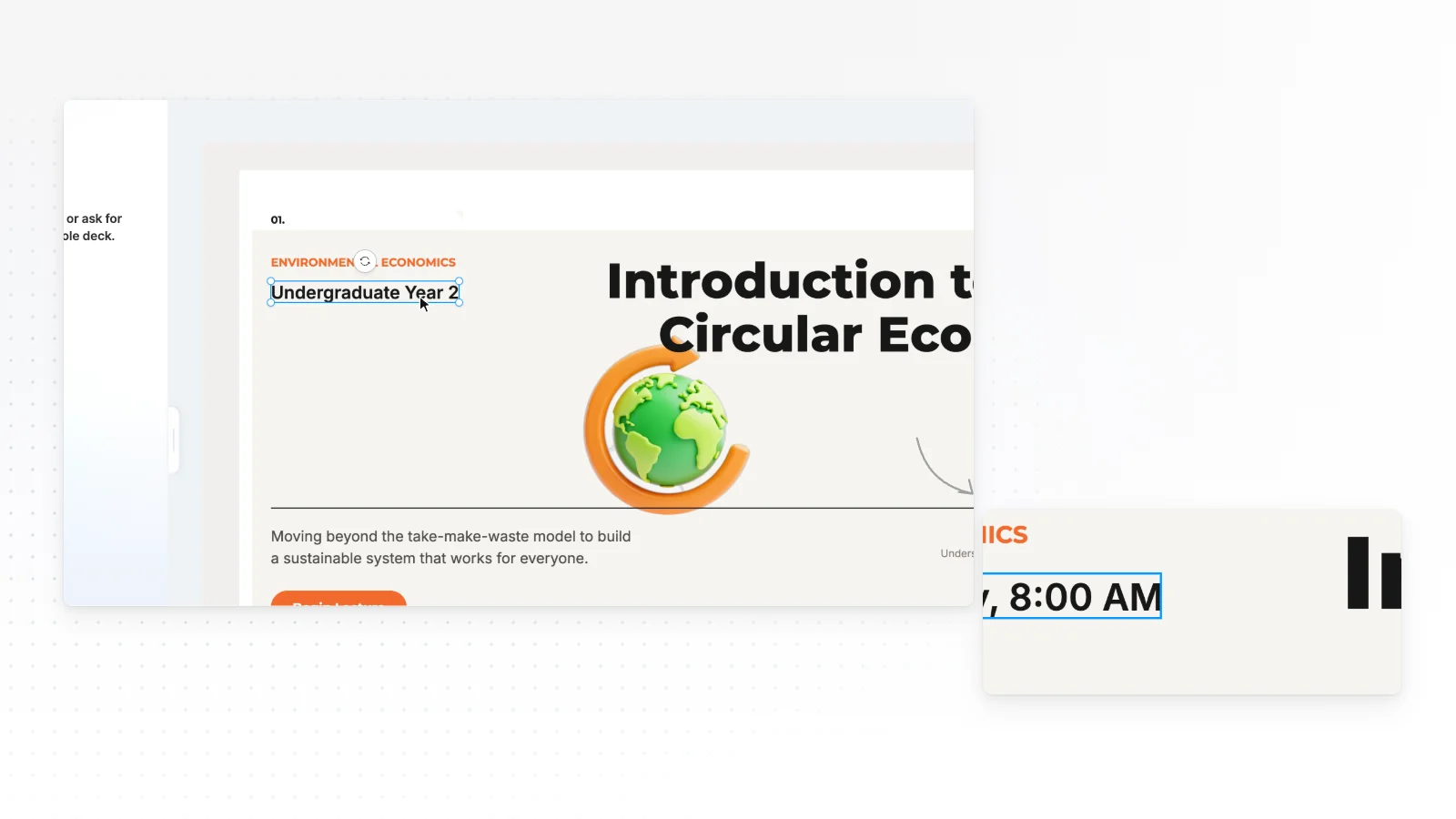
Click the element to fix
Click a text box and the text toolbar appears at the top. Double-click to edit the text, and drag to move it.
Leave big changes to AI and export
Ask AI chat for changes that rework a whole slide. Your edits save automatically, and when you are done you export in the format you need from PPTX, PDF, PNG, Figma.
Frequently asked questions
Can I edit an AI-made presentation by hand?
Yes. Click Create Presentation and the editor opens, where you click the text, images and shapes on the finished slides and edit them right away. You switch between AI chat and direct editing on the same screen.
Does direct editing use credits?
No. Changing text, colors or positions by hand uses no credits. Credits go only to work AI does, like AI chat requests and removing image backgrounds, and the Free plan gives 300 credits a month.
Can I edit a presentation made somewhere else?
Yes. Open it with Import PPTX on the dashboard and click elements to edit them in the MOVO editor. Files must be 20 MB or smaller and have 50 slides or fewer, hidden ones included.
How do I change the order of overlapping elements?
Right-click an element on the canvas and click Bring Forward, Bring to Front, Send Backward or Send to Back. When several elements overlap, you can also drag a row in the Layers tab to where you want it.
Can I group and duplicate with shortcuts like in PowerPoint?
Yes. Select several elements and press Ctrl G (⌘ G on Mac) to group them, and Ctrl Shift G (⌘ ⇧ G) to ungroup. Ctrl D (⌘ D) duplicates the selected element, and Ctrl Z (⌘ Z) undoes.
More AI presentation tools


Related pages
Edit an existing PowerPoint with AI
Upload a PPTX you already have, pick the slides to fix and edit them by asking.
Export editable PPTX
Keep editing the deck you fixed by hand in PowerPoint.
Report presentation templates
Open a report template and change only the numbers and text.
Editor shortcuts
Shortcuts for hand edits like copy, duplicate, group and undo.