
Slide Layout Check: Find Overlapping and Clipped Text
Before you present, “Check layout” finds text that overlaps or gets clipped on a slide. Click “Fix with AI” and AI cleans up the spots it found.
One prompt. This design.
This is MOVO taking one line, drafting the outline and designing all 8 slides. Every word stays editable.
Why check the layout before you present
Find what is off without scanning every slide by eye.
Overlaps that are easy to miss
Finds spots that are easy to miss on screen, like text boxes on top of each other or text hidden behind a shape.
Results right away
The check runs inside the editor and marks the problem spots on the slide right away.
Fix them in one go
Click “Fix with AI” and everything the check found goes to AI in one request to tidy up positions and sizes.
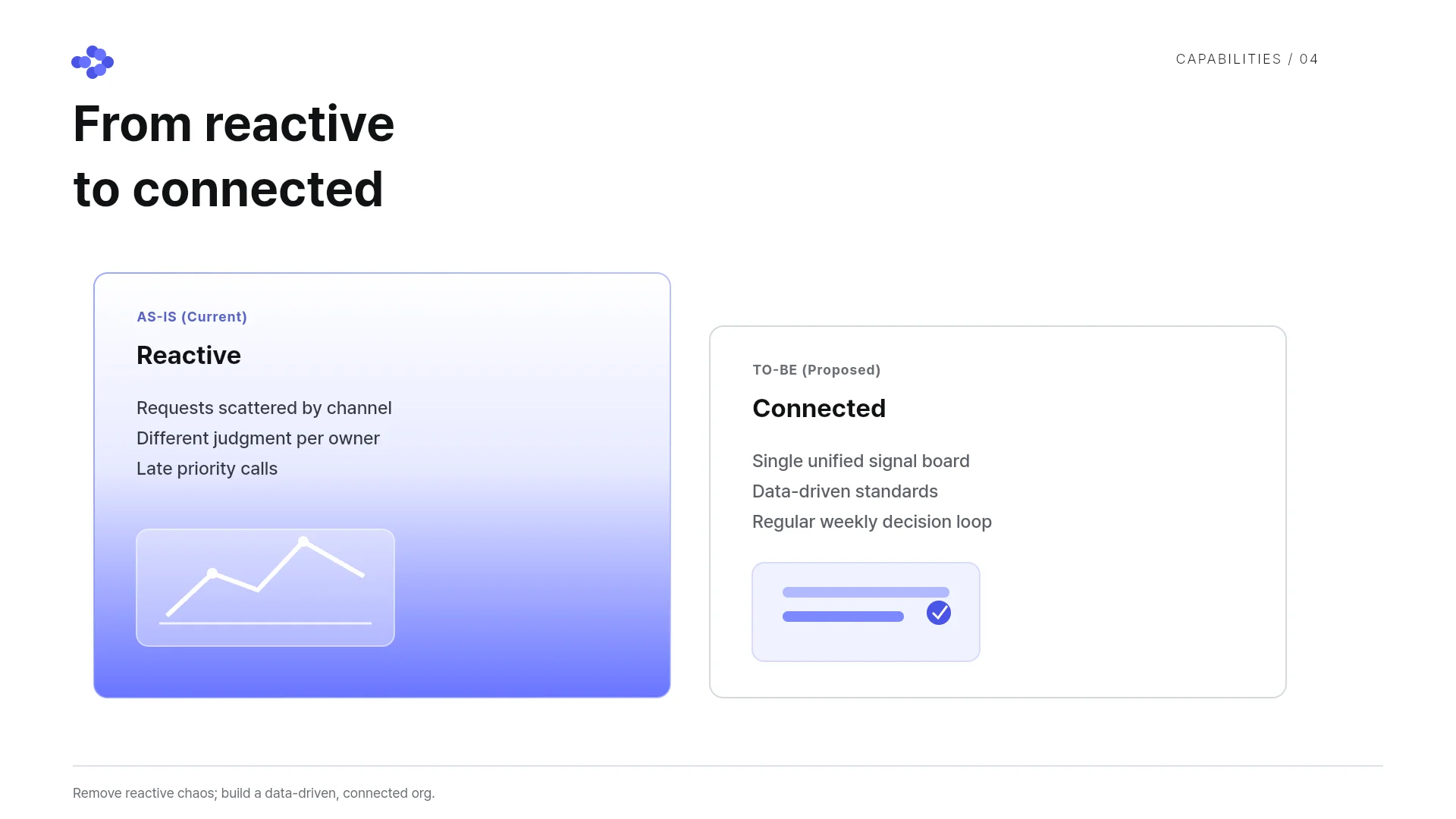
Find overlapping or clipped elements
The check looks at the slide you are viewing.
Overlaps and covered text
Finds two elements that overlap or text covered by another element. Their names go into the request when you click “Fix with AI”.
Spills outside boxes and cards
Finds text clipped by its box, text spilling out of its card, and elements that extend outside the slide.
Tight line height and lines behind text
Also finds text with line height so tight its lines overlap, and lines that run behind text.
Flashed on the slide
Problem spots flash on the slide for a few seconds, so you see where they are right away.
Clean up what it finds
Let AI handle it or fix it yourself.
One click with Fix with AI
Click “Fix with AI” next to the result, and what the check found goes to the chat as one request. AI then tidies up the layout of that slide.
Move it yourself
For one or two spots, clicking the element and moving or shrinking it is often faster.
Keep intended overlaps
Overlaps you made on purpose may be flagged too. The Fix with AI request tells AI to fix only what looks off, and you can move anything back yourself.
Check again, then export
Use the same button again after AI makes changes.
Check again after Fix with AI
Click “Check layout” again on a slide AI fixed to make sure nothing is left.
Check slide by slide
Move through the slides and check each one with the same button.
One last check before export
Clean up before you export to PPTX, and there is less to fix in PowerPoint.
How to check a slide layout in 3 steps
Open a deck
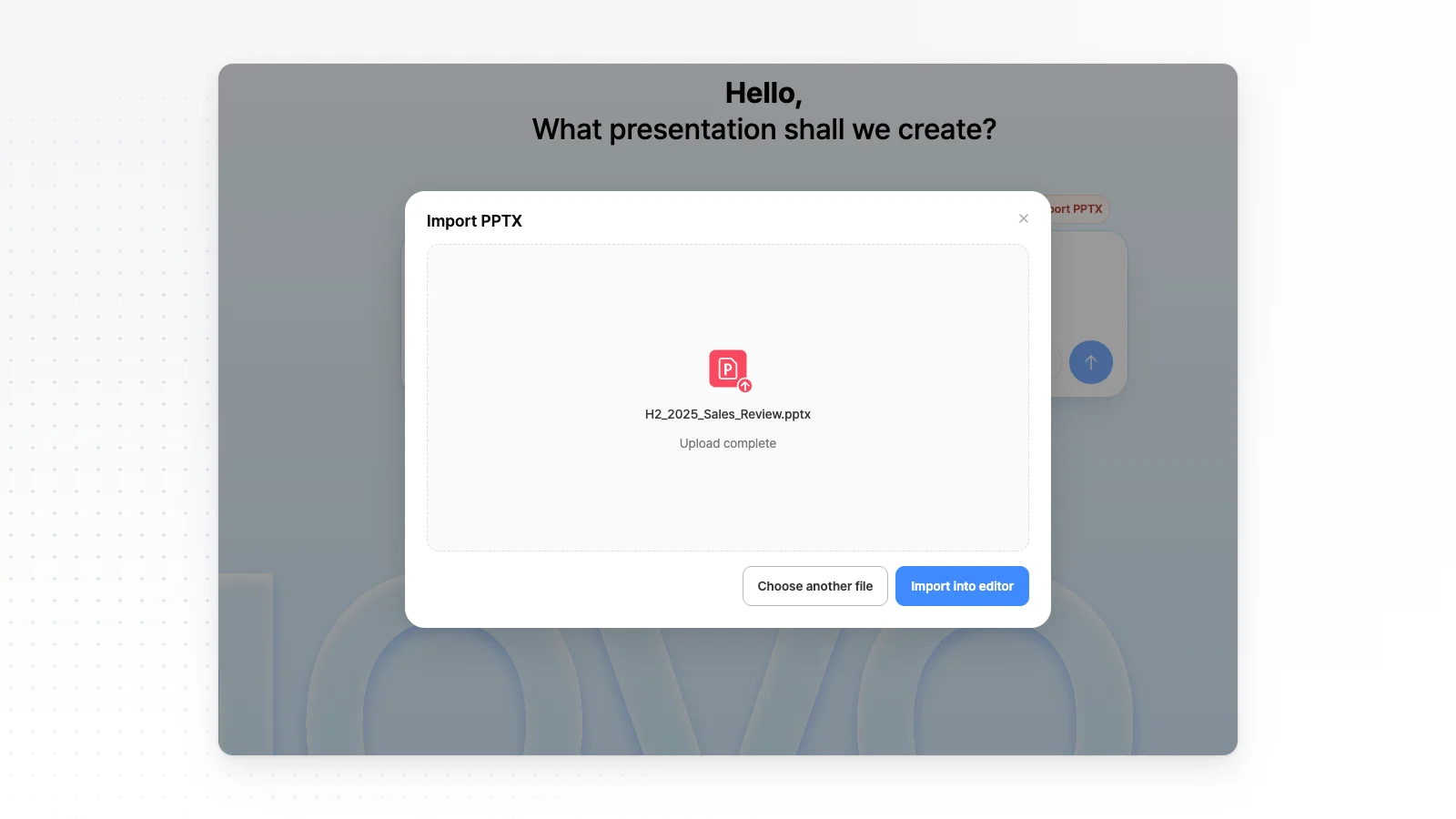
Type a topic or attach files to make a new deck, or open your own file with Import PPTX on the home screen.
Click Check layout
Open the slide in the editor and click “Check layout” at the bottom left under the slide. If all is well you see “Nothing overlaps or gets clipped”, and if not, a result such as “3 spots overlap or spill” appears.
Clean up with Fix with AI
Click “Fix with AI” next to the result, and AI rearranges the layout using what the check found. Check the slide and move any remaining elements yourself.
Frequently asked questions
What does the layout check find?
The check finds overlapping elements, text covered or clipped by its box, and elements spilling out of a card or the slide. Tight line height that makes lines overlap and lines running behind text are flagged too.
Does the check use credits?
No. The check runs inside the editor and does not send an AI request. Cleaning up the results with “Fix with AI” is an AI request, so that step uses credits.
Can I check the whole deck at once?
No. The check looks at the one slide you are viewing right now, so move through the slides and click the button on each one.
Will it undo overlaps I made on purpose?
The check flags every overlap, so overlaps you designed on purpose are counted too. The Fix with AI request tells AI that some overlaps may be intentional and to fix only what looks off. Check the slide afterward and move anything back yourself.
Can I check an imported PPTX?
Yes. Decks you open with Import PPTX on the home screen are checked with the same button in the editor. Import takes files up to 20 MB and 50 slides.
What if the layout breaks again after AI fixes it?
Click “Check layout” again on the fixed slide. If anything is left, the result shows how many spots remain, so run “Fix with AI” again or move them yourself.
Where do the results appear?
Problem spots flash on the slide, and the button becomes a line such as “3 spots overlap or spill” with a “Fix with AI” button. The names of the elements involved go into the chat request when you click “Fix with AI”.
What does “Can't check right now” mean?
Wait until the slide has fully loaded, then click the button again a moment later. A slide with no elements on it has nothing to check.
More AI presentation tools


Related pages
Edit an existing PowerPoint with AI
Fix the slides the check found by telling AI what to change.
Editable PPTX export
Get the cleaned-up deck as a file you can edit in PowerPoint.
AI Presentation Maker
Start from a one-line topic and see what you can do after the first draft.
Pricing
Credits and export formats for each plan.