
AI PowerPoint Generator
An AI presentation maker for PPT decks that don't look AI-made
Type a topic or upload a PDF, Word or Excel file, and AI drafts the outline and design of your slides. Edit by hand or by chat, then export a PPTX that opens and edits in PowerPoint.
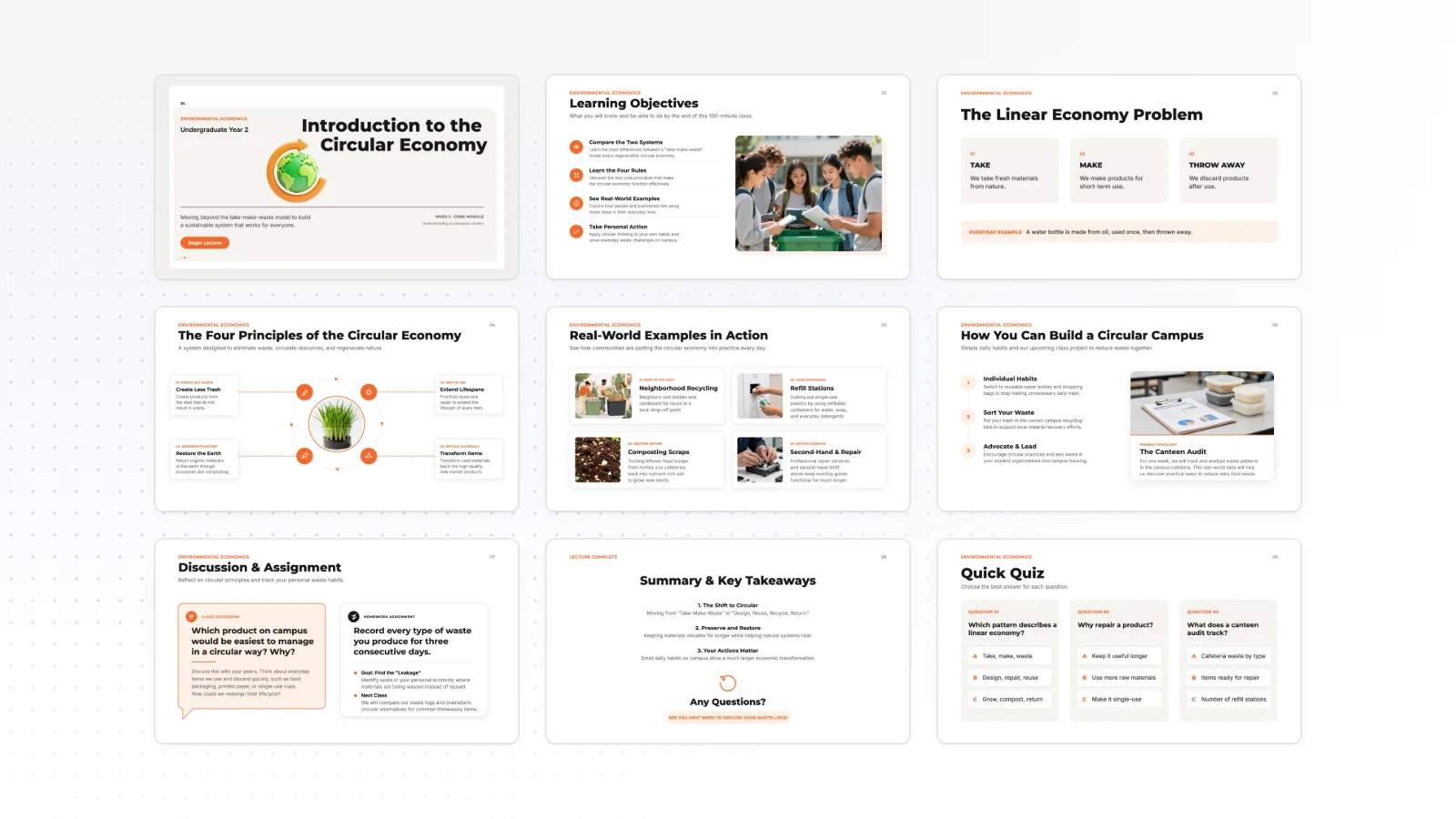
One prompt. This design.
This is MOVO taking one line, drafting the outline and designing all 8 slides. Every word stays editable.
How MOVO makes AI PPTs that don't look AI-made
You choose the design style and the flow, then finish the details by hand.
Pick your own style
Choose from more than 200 presentation styles, so your decks do not all share one AI look.
Set the flow yourself
Review and edit the outline first, so the slides follow the story you planned.
Finish by hand
Fix text, images and shapes yourself, then polish the deck in PowerPoint.
How to make a PowerPoint with AI in 3 steps
Type a topic or upload a PDF or Word file.
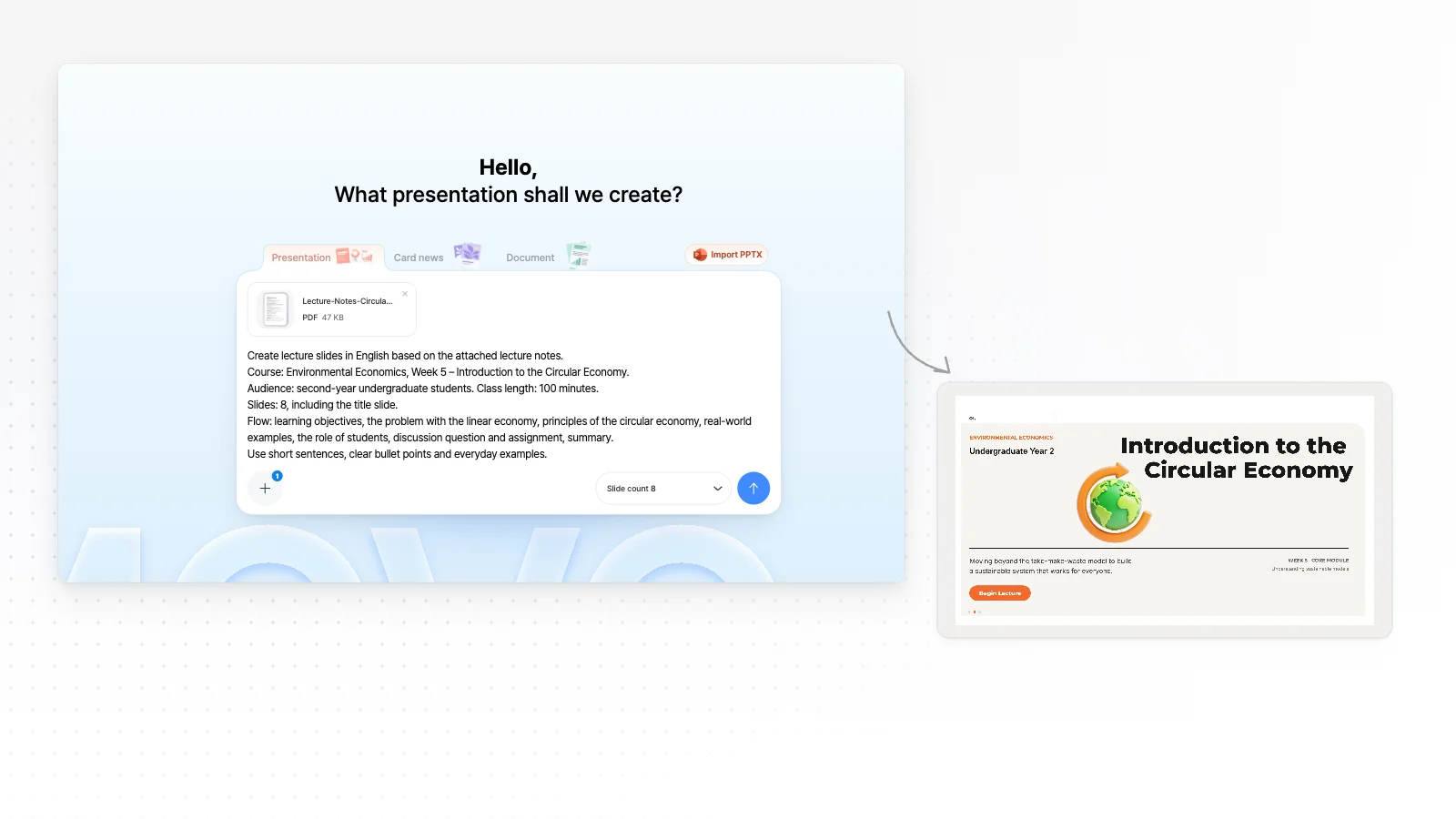
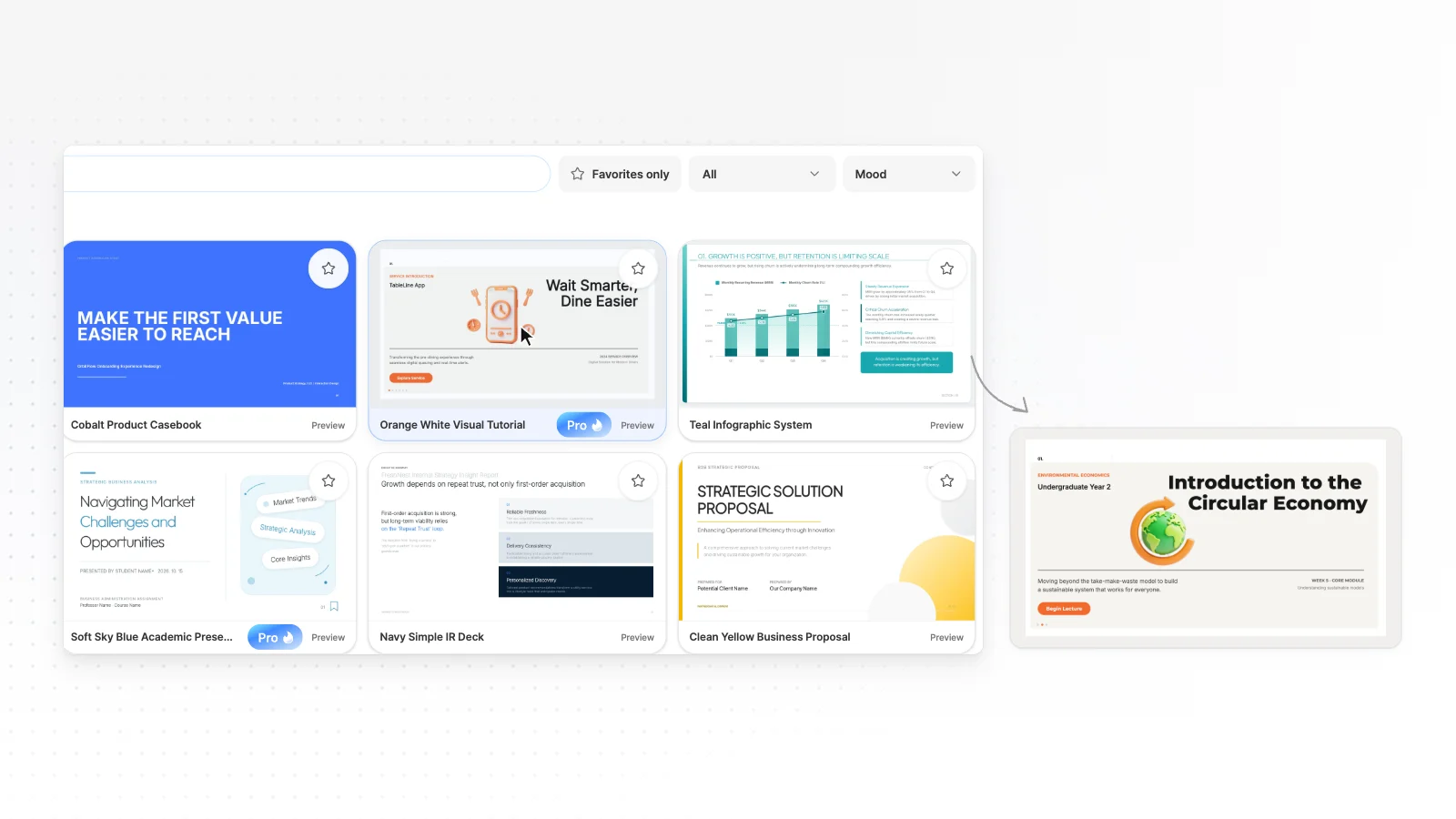
Review the outline AI suggests, then pick a style.
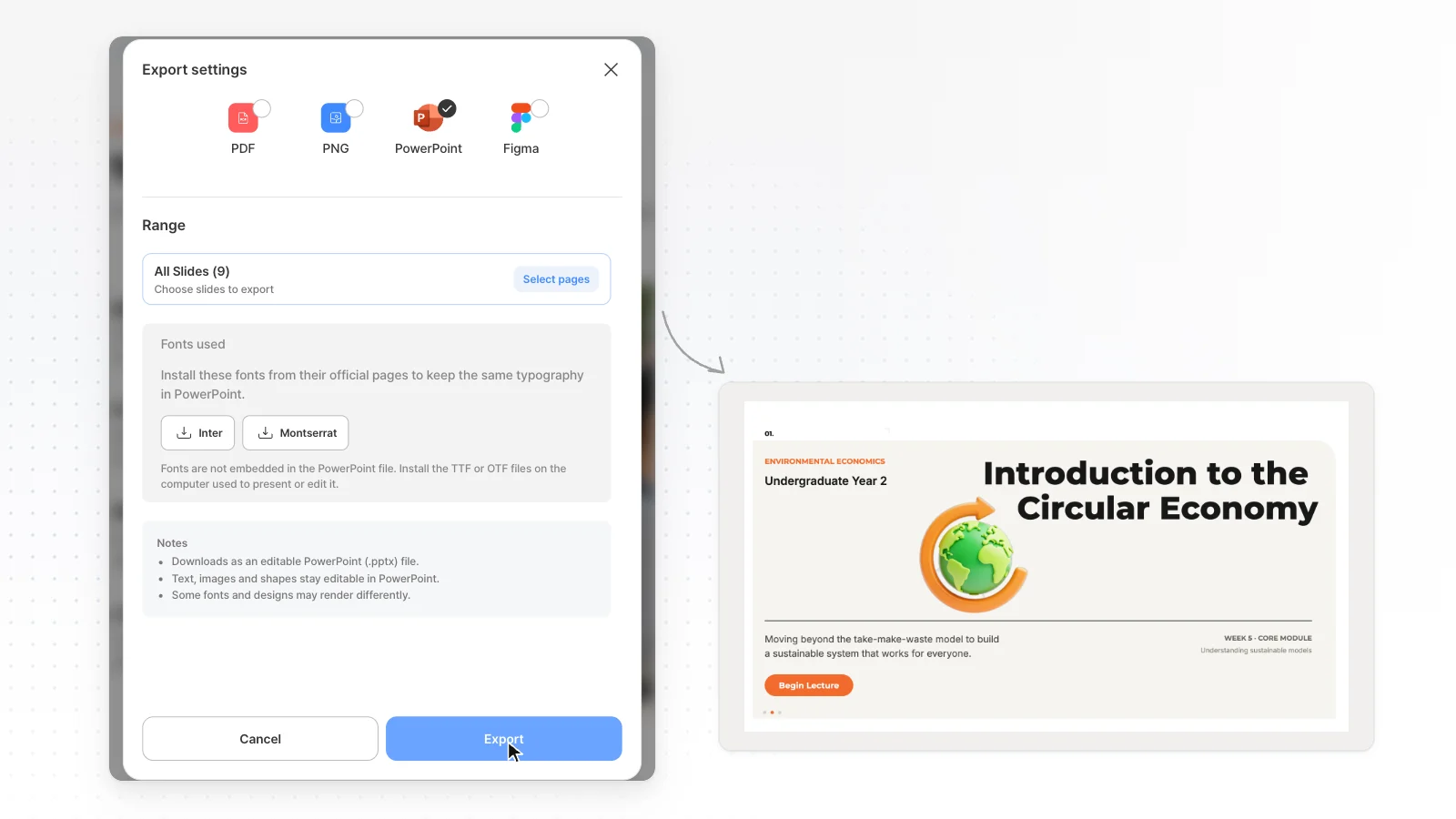
Edit your slides and export to PPTX, PDF, PNG, Figma.
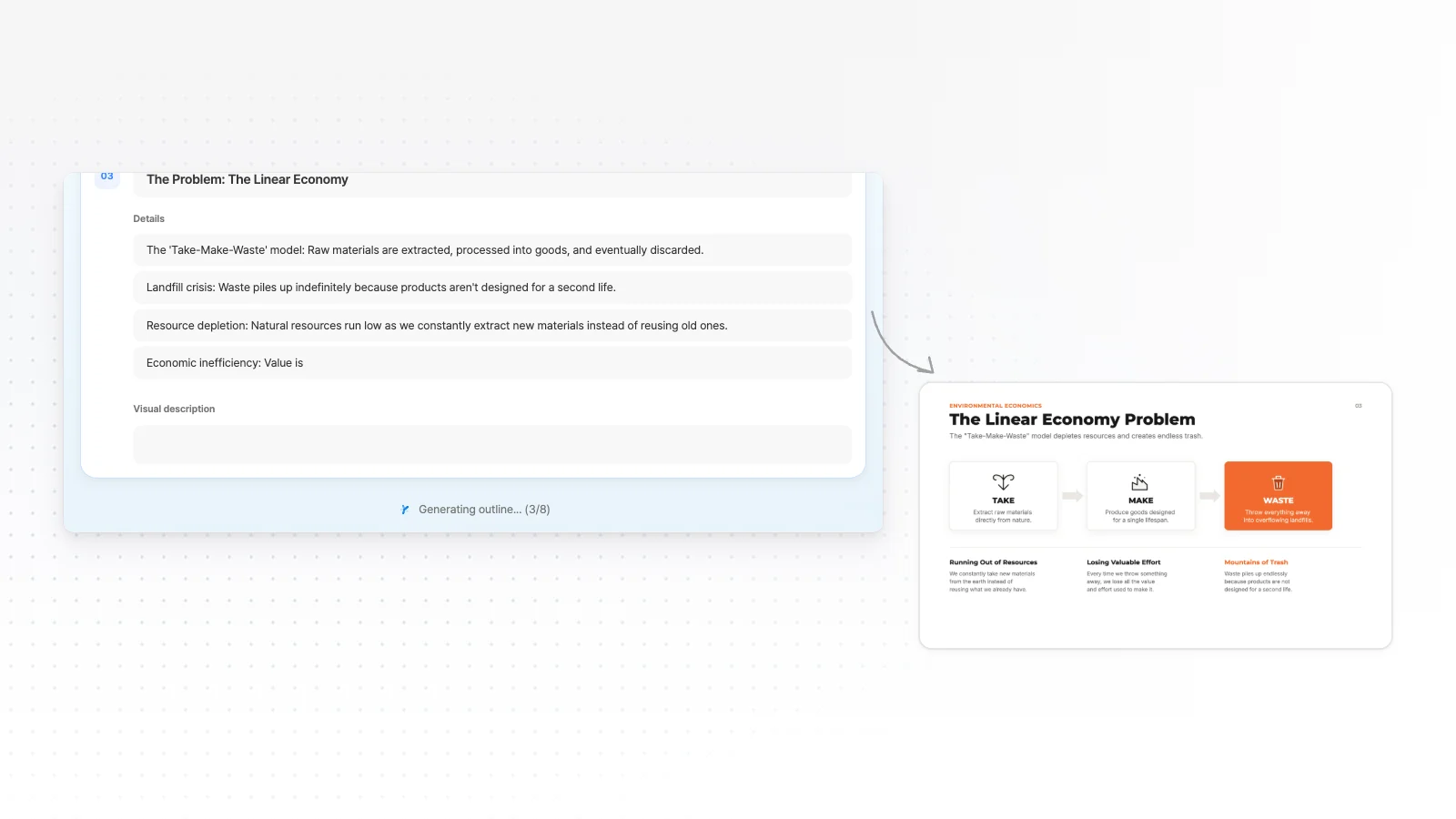
Outline first, from a topic or your files
AI starts with what you want to say.
An outline from one line
Write the topic, audience and length in a sentence or two and AI shows an outline with a title and key points for every slide.
Built from your files
Upload a report PDF, a Word plan or an Excel sheet and AI turns it into a presentation flow. Supported files: PDF, PNG, JPG, WebP, TXT, CSV, DOCX, XLSX.
Plan it in a chat
Choose chat mode to shape the plan with AI first, then build slides from that plan.
Depth for your audience
Pick executives, investors or customers and AI adjusts depth and tone, such as putting decisions and risks first for executives.
Design done with 200+ styles and templates
Start from tidy slides even without a design background.
One style across the deck
Pick a presentation style after the outline and every slide follows it.
Your colors and fonts
Set primary, secondary and accent colors and fonts before you create. Logos and product photos you attach are used as they are.
Start from a template
Pick a template for reports, proposals, pitch decks or lectures and it opens in the editor.
AI-generated images
AI creates images and illustrations that fit each slide. Ask for a redraw if you want another one.
Fix only the slides you need
Change what you need without starting over.
Click to edit
Click any text, image or shape on a slide to change it.
Edit one slide with AI
Pick a slide, type what to change, and AI edits that slide only.
Ask for the whole deck
Ask without picking a slide to change the whole deck at once, such as matching the tone or translating.
Fix overlaps
“Check layout” finds overlapping or clipped elements on the slide, and “Fix with AI” cleans them up from that list.
AI features for reports and proposals
Built for work decks where numbers and sources matter.
Numbers with sources
Ask AI to find a market size and chart it on slide 4. MOVO searches the web, adds the figures and lists the sources under its reply.
Charts you can edit
Bars and labels AI draws are ordinary shapes you can edit.
Rewrite the text
Say "cut this to three points" or "make it simpler" and AI rewrites the selected slide.
Export to PowerPoint, PDF or a share link
Choose the format for where it goes next.
PPTX
Text stays in text boxes and shapes stay PowerPoint shapes, so you keep editing in PowerPoint. Available from the Pro plan.
Figma
Export to Figma to hand off to a designer. Available from the Pro plan.
PDF and PNG
The Free plan exports PDF, PNG with a watermark.
Share a link
Turn on sharing and send the link. Viewers watch it as a slideshow without signing in. Allow copying so teammates can take it and edit.
Edit Your Slides Directly in the Presentation Editor
Click the text, images and shapes on any slide, even ones AI made, and edit them yourself in the editor. Polish with the Elements, Text, Images, Upload, Background and Layers tabs on the left and the toolbar at the top, and leave big changes that rework a whole slide to AI chat. See direct editing in detail
Small fixes, right away by hand
For small fixes like a typo, a number or the position of a box, clicking and fixing is faster than describing it. Editing by hand uses no credits.
Bold one word, color one number
Double-click a text box and drag over just the characters to change, and weight, size and color apply to those characters only. To highlight one number in a title, you do not have to rewrite the sentence.
Lock what sits in the back
Lock a background photo or decorative shape in the Layers tab and it stays put when you click it on the canvas. Locked elements are also left out when you drag across an empty area to select several elements.
AI PowerPoint prompt examples
Copy a prompt, change the details and paste it into MOVO. Say who the deck is for and what it should cover.
Business review
"Make a quarterly business review for our leadership team. Open with revenue against target, then cover risks and next steps."
Pitch deck
"Create a seed pitch deck for a meal-kit startup covering the problem, solution, market, business model, team and the ask."
From a PDF report
"Turn the attached report into a short summary deck for the sales team, with one key finding per slide."
Lecture slides
"Build a lecture on the circular economy for first-year students. Use plain words and end with a three-question quiz."
Research with sources
"Find the latest global EV market size, chart it on slide 4 and list the sources."
Fix one slide
"Cut this slide to three points and make the tone more formal."
AI presentation templates
Pick a template for your use and it opens straight in the editor. Flip through the first slides to see how each is built.
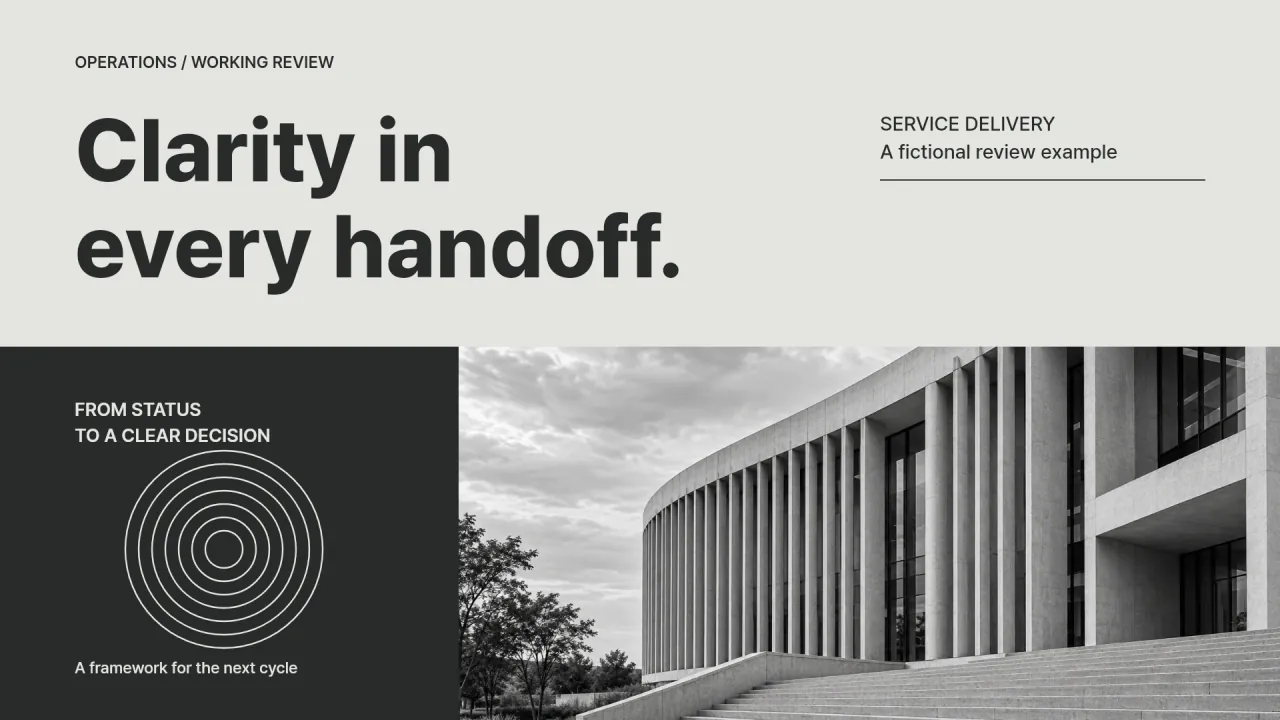
Reports
Work, results and research reports that lead with the conclusion.
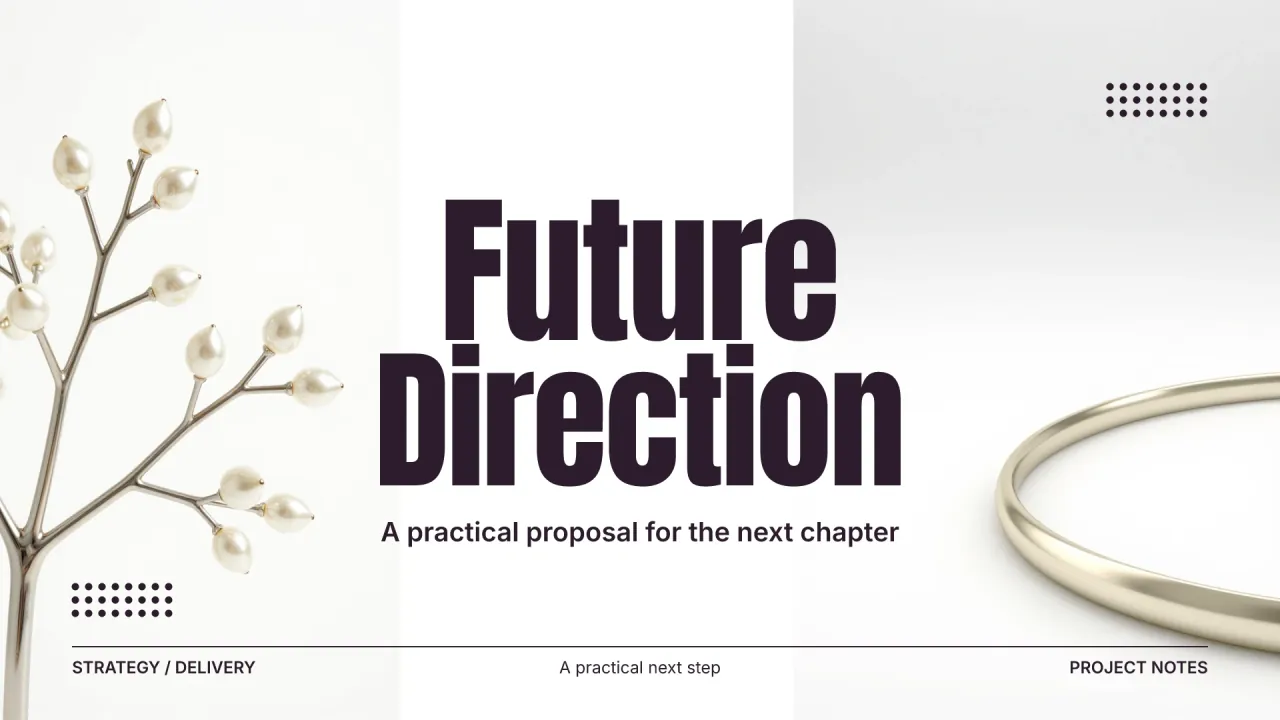
Proposals
Walk the client through their problem, your approach, then timeline and pricing.
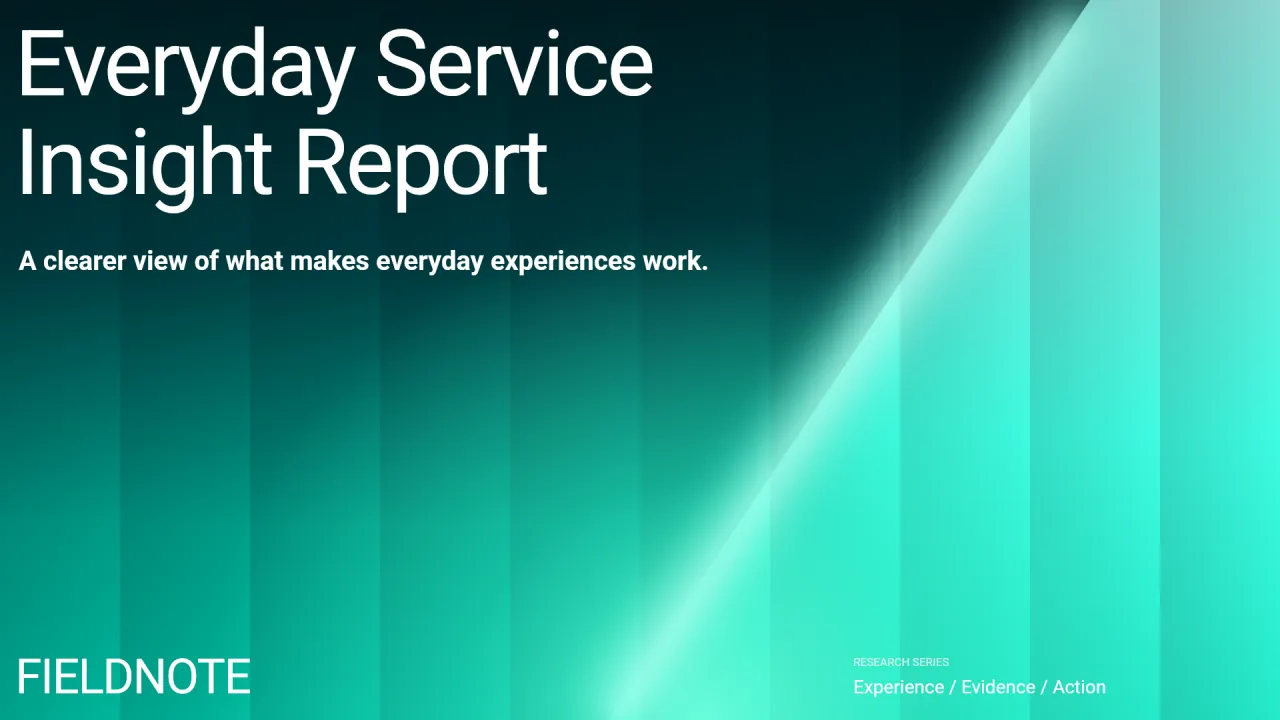
Business plans
Lay out goals, initiatives and owners one slide at a time.
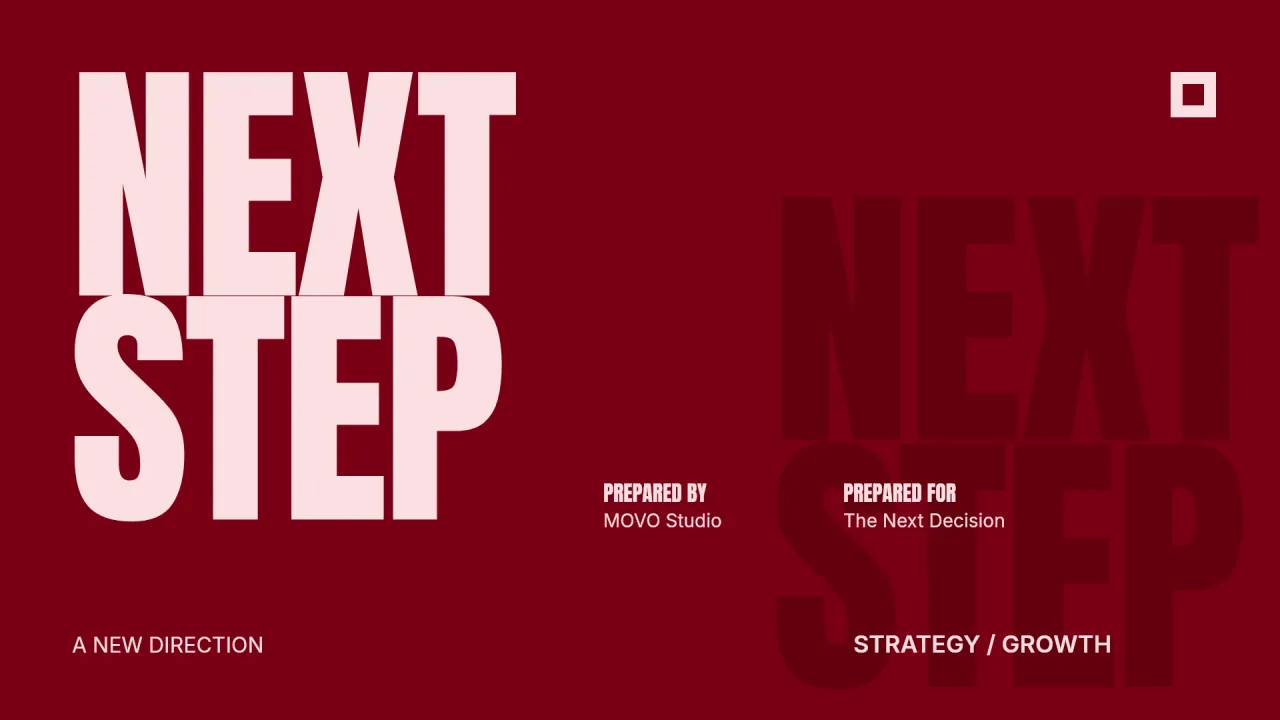
Pitch decks
Move from problem and solution through market and traction to the ask.
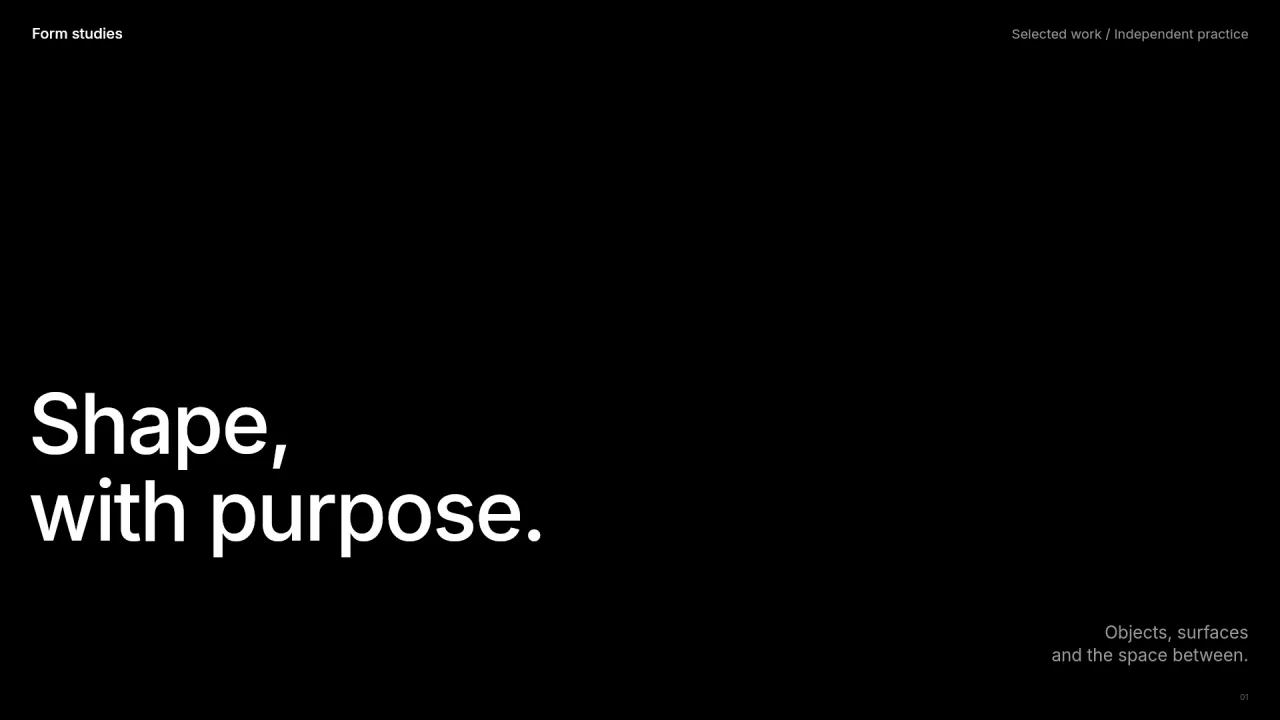
Portfolios
Show your role, results and the work itself for every project.
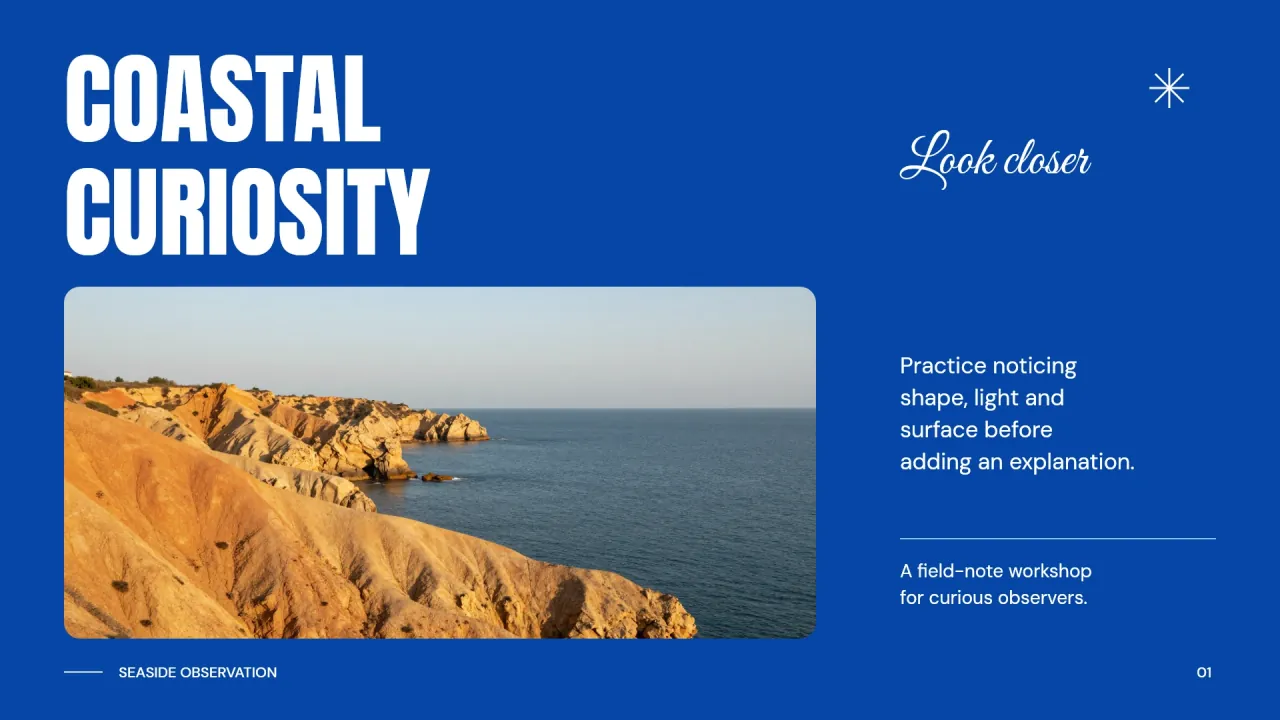
Lectures
Teach one idea per slide and close with practice and quiz slides.
Frequently asked questions
Is this AI PowerPoint generator free?
Yes, you can start on the Free plan. It includes 300 credits a month and up to 5 slides per generation, with watermarked PDF and PNG export. PPTX export for PowerPoint starts with the Pro plan at $19.99 per month.
Will my presentation look AI-made?
MOVO lets you choose from more than 200 presentation styles, so decks do not all share one generic AI look. You also fix the outline before any slide is built, then refine text, images and shapes by hand.
How many slides can I make at once?
One AI generation makes up to 5 slides on the Free plan, 30 on Pro and 50 on Max. Pick the slide count in the input box, then add or remove slides in the editor later.
Can I make a PPT from a PDF or Word file?
Upload PDF, PNG, JPG, WebP, TXT, CSV, DOCX, XLSX files and the AI organizes their content into a presentation flow. The Free plan takes up to 3 files of 5 MB each. Pro and Max take up to 10 files of 20 MB each, 50 MB in total.
Can I review and edit the outline first?
Yes. The AI first shows an outline with a title and key points for every slide. Edit the titles and points, pick a design, and the slides follow that outline.
How do I choose the design?
After you confirm the outline, pick a presentation style and MOVO applies it to every slide. Once the deck is built, you can still change text, colors and shapes yourself in the editor.
Can AI revise just one slide?
Yes. Open the slide in the editor and describe the change in chat, and the slide you are viewing is attached to the request. This works well for rewording, tidying a layout or changing colors.
Can I edit the exported PPTX in PowerPoint?
Yes. MOVO builds the deck in your browser, and the PPTX keeps text in text boxes and shapes as native shapes. Open the file in PowerPoint and keep editing, since slides are not flattened into images.
Which formats can I export?
MOVO AI exports to PPTX, PDF, PNG, Figma. The Free plan exports PDF and PNG with a watermark, and PPTX and Figma export start with the Pro plan.
More AI presentation tools
Related guides
How to Make a Presentation with MOVO AI
Learn how MOVO AI builds a presentation: type a request, attach files, edit the outline, pick an audience and a design, refine slides with AI, and export a PDF or PowerPoint.
How to Turn a Report into Slides with AI
Turn a written report into slides with AI: which files to upload, how to reorder a report into a talk, how to keep every number right, and a MOVO walkthrough with report templates.
AI Slide Editing Prompts with 18 Examples
Copy-ready prompts for editing an existing deck with AI, grouped by goal: brand colors with hex codes like #1B2A4A, tone, length, layout, charts, and deck-wide consistency, plus how to choose what gets edited.