
AI Presentation Maker for Teachers and Educators
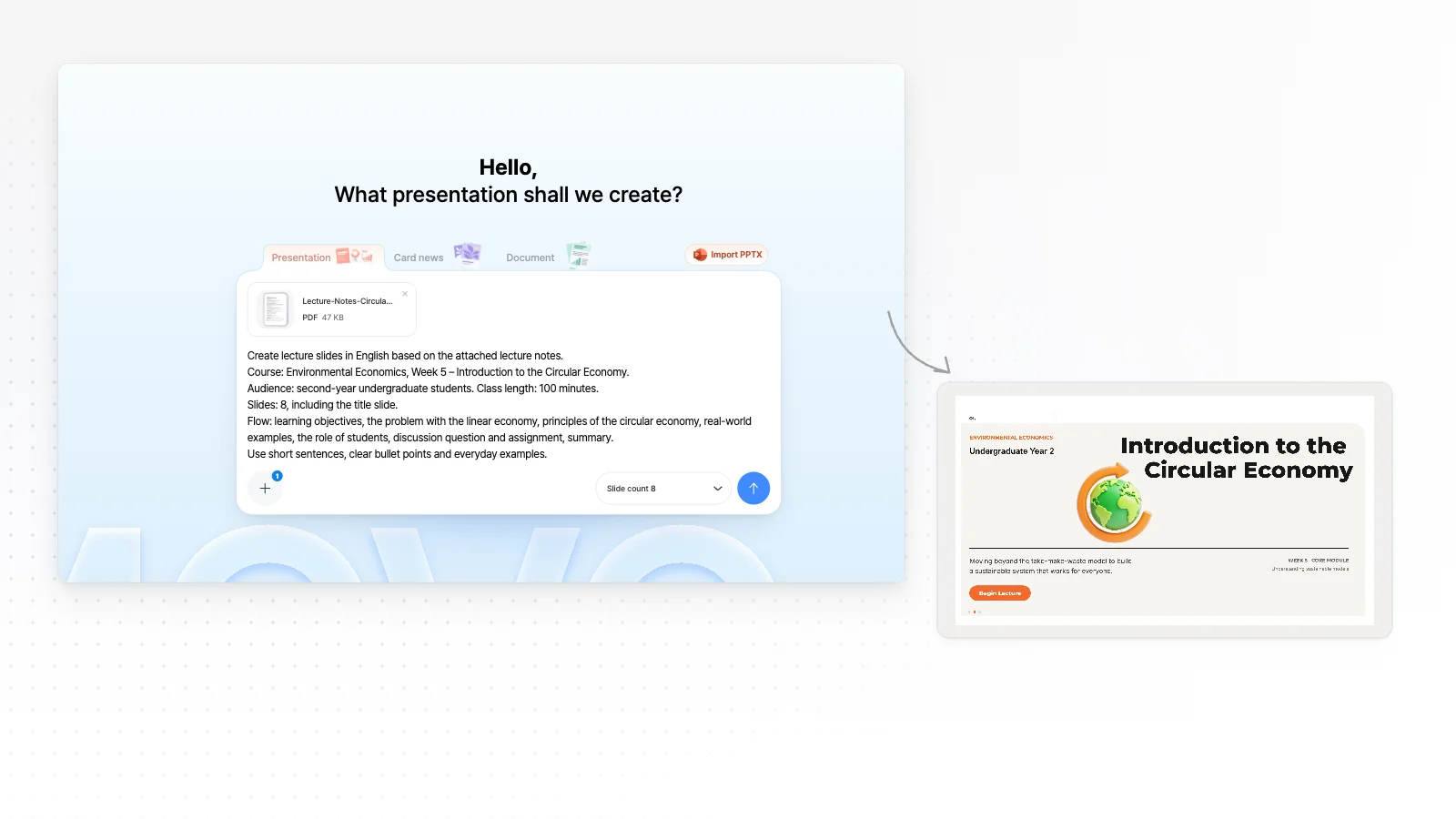
Attach your lecture notes or lesson plan, then write the course, week and who you teach. MOVO AI drafts the outline first and builds class slides you can edit. List the slides you want, like learning objectives or a discussion task, and the outline follows that order.
One prompt. This design.
This is MOVO taking one line, drafting the outline and designing all 8 slides. Every word stays editable.
What AI takes off your lesson prep
You decide what to teach. AI turns it into slides and tidies them up.
Lecture notes into slides
Attach notes or a lesson plan you already wrote. AI cuts each part down to key points and reorders them for class, so you skip retyping.
Pitched at your students
Set the audience to Student/Education in the settings and AI adjusts tone and depth. Pick a Formal, Friendly or Punchy copy tone.
Keep last term's deck
Import your PPTX, pick the slides that need work and let AI fix them. The other slides stay as they are.
Slide structures by lesson type
Paste any of these into your request as is. Drop or add slides to fit your class length and level.
Concept lesson
Title → objectives → last class recap → one concept per slide → everyday examples → quiz → summary and next class
Lab or practical class
Objectives → materials and safety rules → one step per slide → how to record observations → results → check questions
Discussion or project class
Opening question → background → key issues → group task → presentation order and grading criteria
Review class before an exam
Exam scope → one unit's key ideas per slide → common mistakes → practice questions → answers and explanations → exam details
Example: a class deck from one lecture PDF
The request
"Make 8 lecture slides for a 100-minute class from the attached notes."
One line for the flow
"Flow: objectives, problem, principles, examples, discussion, summary."
One slide, simpler
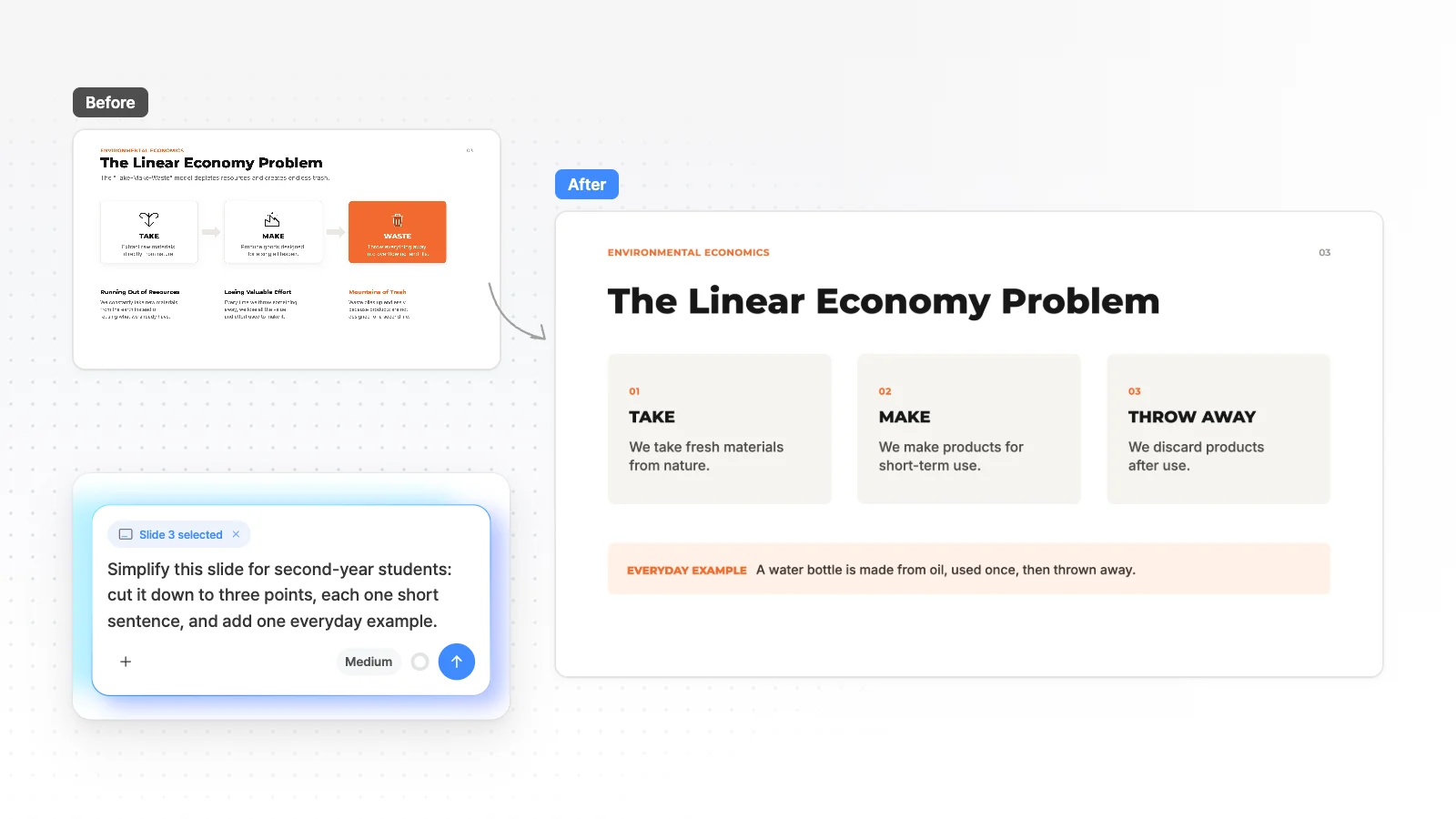
"Simplify slide 3 for second-year students in three short points."
Polish before class and share with students
Adjust the deck for your class, then export it for where it goes.
Edit by clicking
Click any text, image or shape to change it. Small fixes like a due date are quicker by hand.
Share a link
Turn on sharing and send the link. Students watch it as a slideshow without signing in, which suits review after class.
PDF handouts
Export printable handouts as PDF. In the export dialog, choose all slides, the current slide or a selection.
PowerPoint on school computers
From the Pro plan, export PPTX and keep editing in PowerPoint. Fonts missing on the export server fall back to Arial, so open the file before class.
How to make class slides in 3 steps
Attach notes and describe the class
Attach lecture notes or a lesson plan, then write the course, week, audience, class length and slides you want. The more you say about level, the better the wording fits.
Check the lesson flow in the outline
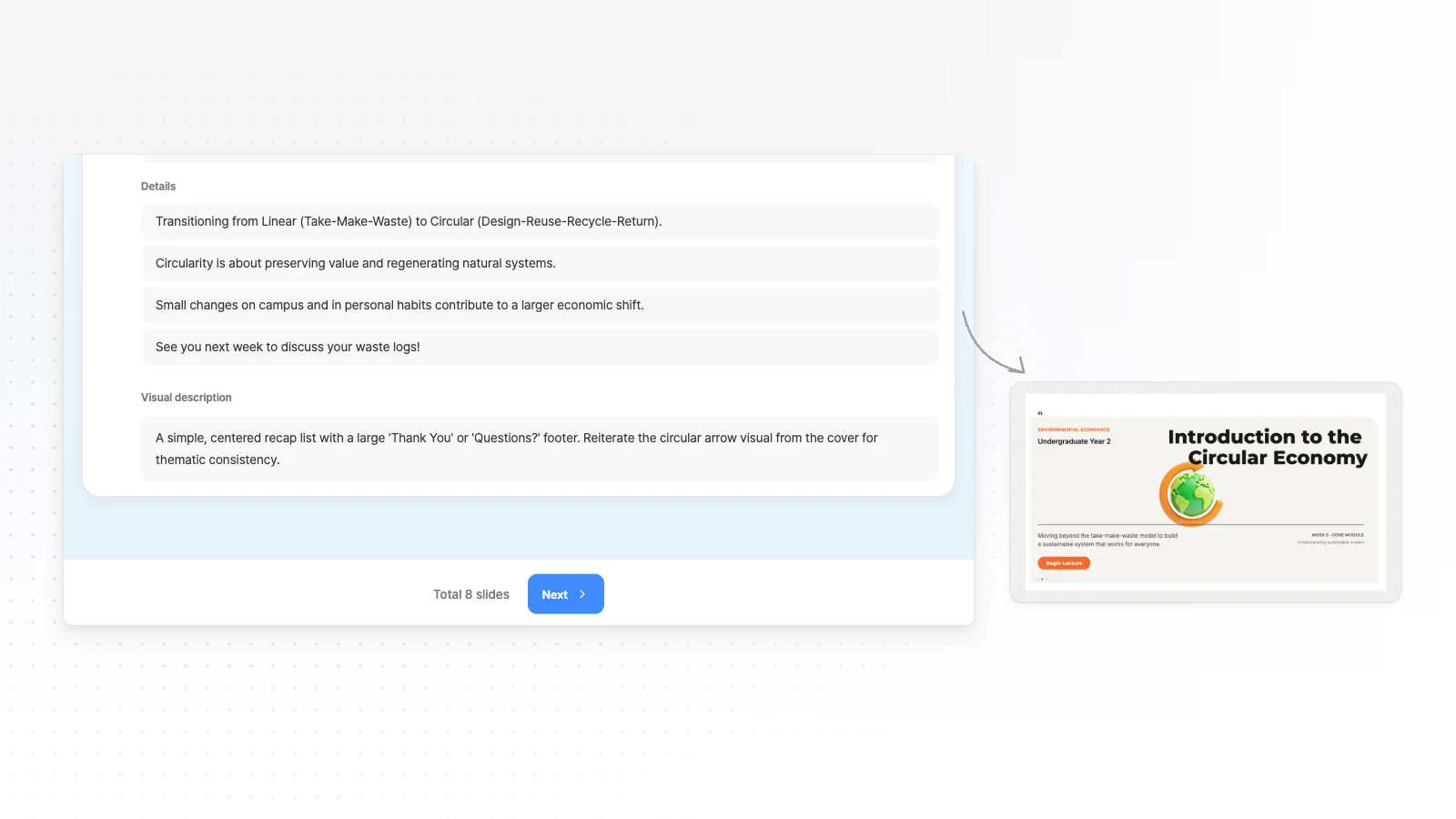
MOVO shows a slide-by-slide outline with titles and key points first. Fix missing concepts or the order, pick a style, then generate the slides.
Polish each slide and share it
Select a hard slide and ask in chat to simplify it. When it is ready, share a link or export to PPTX, PDF, PNG, Figma.
Lesson presentation templates
Real templates from the education and training category of the MOVO library. Open one to see its slide outline and swap in your own unit and activities.


Frequently asked questions
Can I turn lecture notes into class slides?
Yes. Attach your lecture notes or lesson plan and write the course, week, audience and class length, and MOVO drafts an outline before building slides. The content is rebuilt for teaching, not copied page by page from the PDF.
Which file types can I upload for a lesson?
MOVO accepts PDF, PNG, JPG, WebP, TXT, CSV, DOCX, XLSX files. Google Docs and Google Slides content works too if you download it as DOCX, PDF or PPTX first. A PPTX file opens through Import PPTX instead of the attach button.
Can I make slides easier for younger students?
Write the grade level in your request and set the audience to Student/Education in the settings. For a slide that is already made, select it and ask for simpler wording, and only that slide changes.
Can I edit last term's PowerPoint slides?
Yes. Use Import PPTX above the input box to open files up to 20 MB and 50 slides in the editor. Select a slide and ask in chat, and the other slides stay as they are.
Can I set the number of slides for my class length?
Pick a number in Slide count inside the input box, or write something like 8 slides including the title in your request. The most slides you can make at once depends on your plan.
Can teachers use MOVO for free?
Yes. The Free plan gives 300 credits a month, up to 5 slides per generation, and PDF, PNG export with a watermark. For up to 30 slides at once or an editable PPTX file, use Pro at $19.99 a month.
Can I add quiz or discussion slides?
Add a quiz and discussion questions to the flow in your request, and MOVO puts those slides into the outline. These slides show questions and options as text, so use a separate survey tool to collect student answers.
How accurate is the lesson content AI writes?
Definitions, dates and figures written by AI can be wrong, so check them against your textbook or source. Ask the editor chat to look something up, and MOVO searches the web and lists sources under its reply.
More AI presentation tools


Related pages
Presentations for students
Slide structures and prompts students use for assignments, class talks and group projects.
PDF to PPT
Rebuild a textbook chapter or paper PDF into new slides for a talk.
AI Presentation Maker
Start from a one-line topic when you have no notes yet.
Training presentations
Onboarding, policy training and new tool rollouts for company trainers.