
Export Presentation Slides to Figma
Move slides made in MOVO into Figma so a designer can keep refining them. Open the exported file with the MOVO AI plugin in Figma, and each slide becomes a Figma frame.
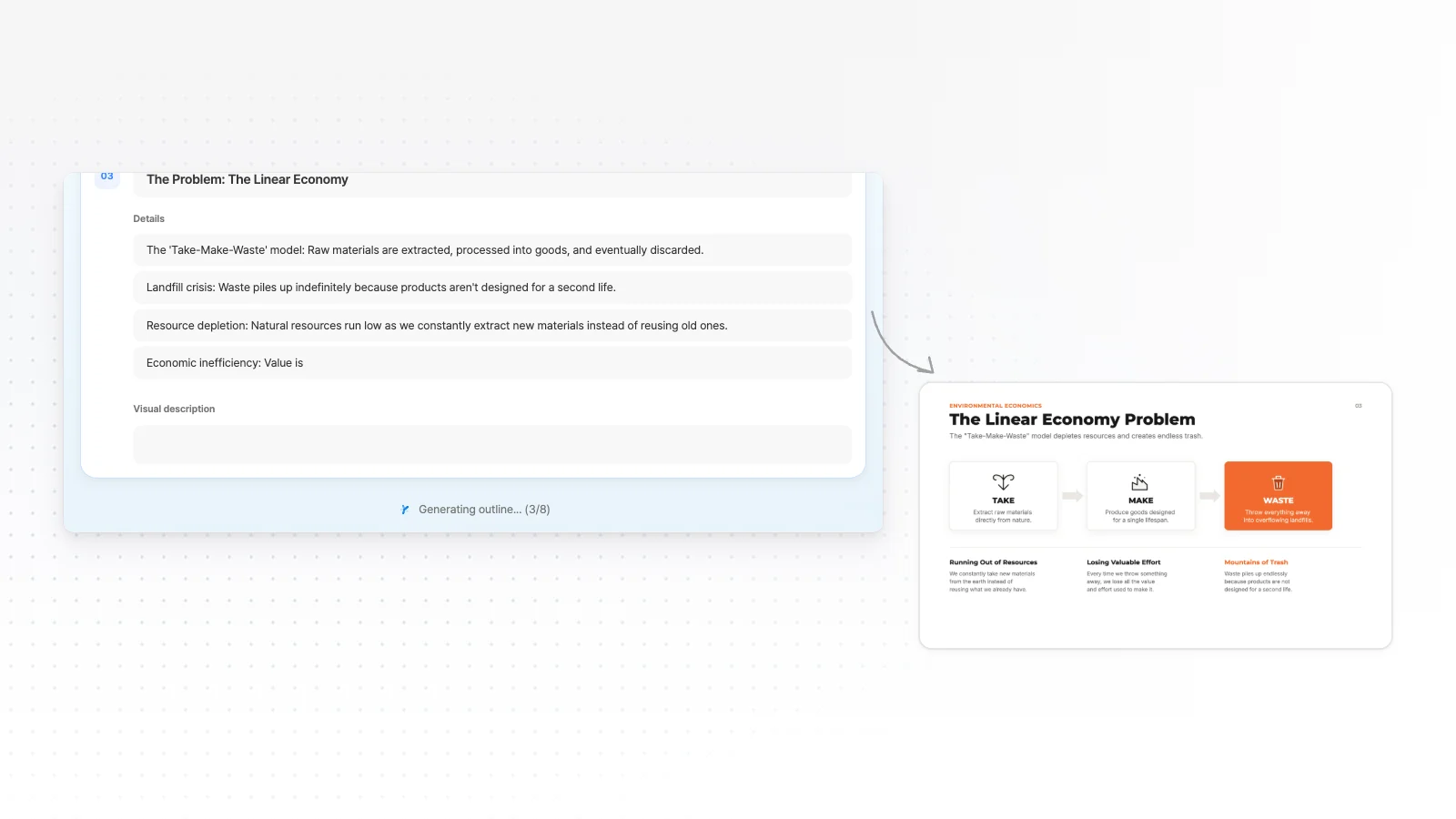
One prompt. This design.
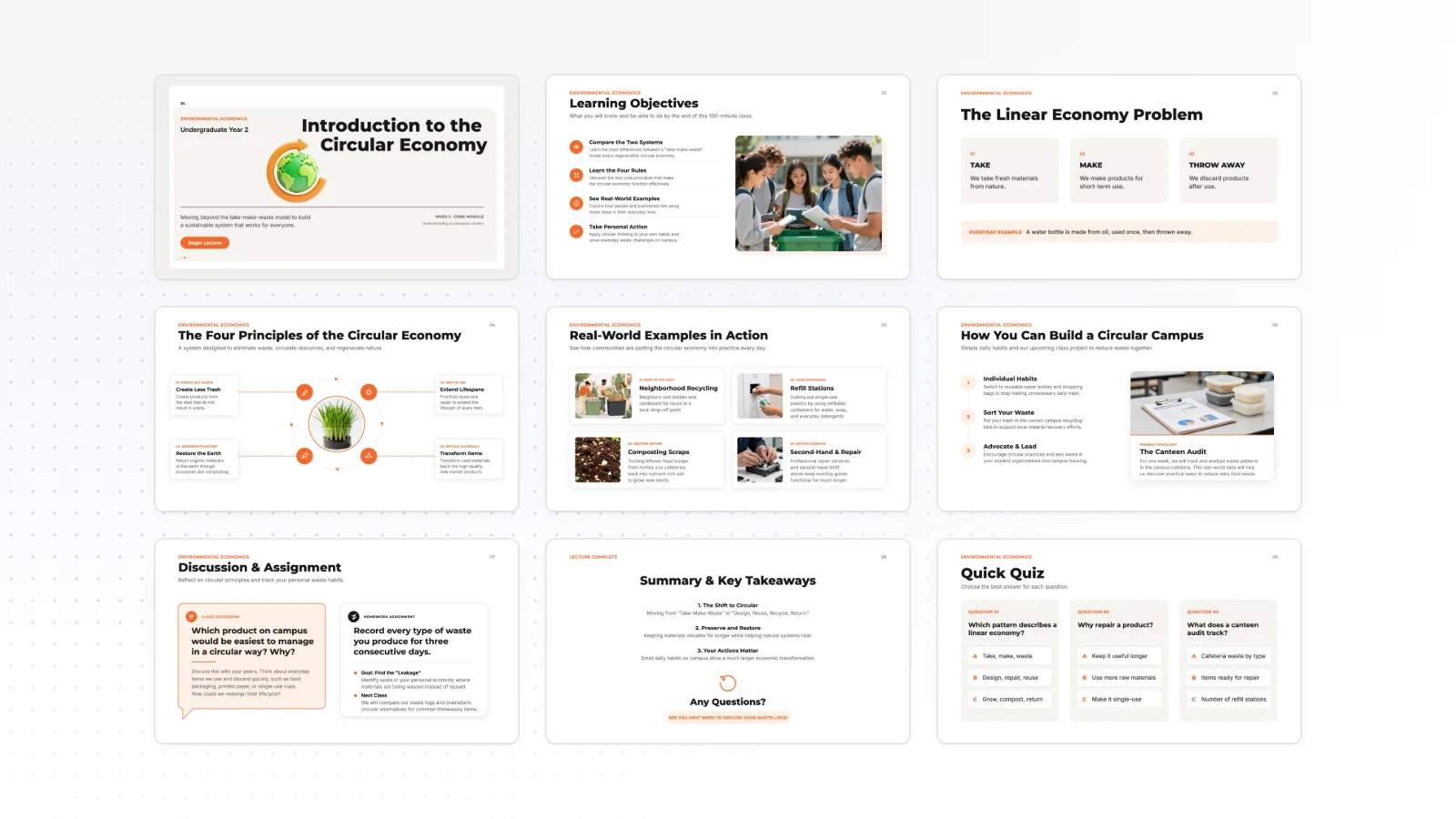
This is MOVO taking one line, drafting the outline and designing all 8 slides. Every word stays editable.
Why hand off in Figma
Draft fast with AI, then finish in the tool your designers use.
A fast first draft
Build the draft from a topic or your files and hand it over, so the designer does not start from a blank canvas.
Frames ready to edit
Every slide arrives as a Figma frame, so the designer works in a familiar tool.
Match your design system
Do the final pass in Figma with your team's components and color system.
Draft the deck in MOVO
Settle the content and structure with AI first.
Review the outline first
AI shows an outline with a title and key points for each slide, then builds slides from the outline you edit.
Styles and brand colors
Choose from more than 200 presentation styles and set Primary, Secondary and Accent colors and a font.
Edit one slide with AI
Pick a slide, type what to change, and AI edits that slide only.
Move it to Figma
Open the exported file with the Figma plugin.
Export a .movo file
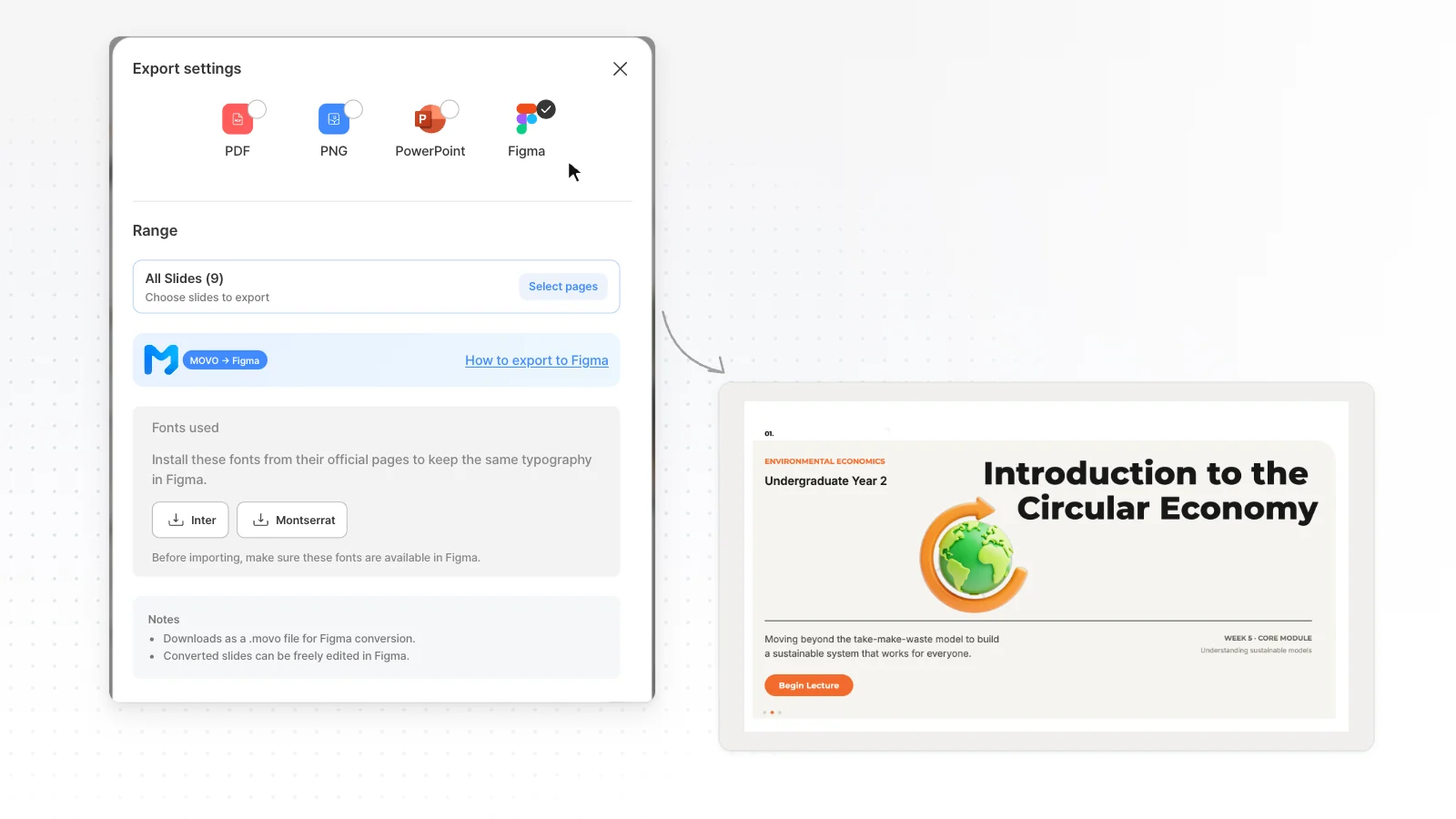
Choose Figma in the export dialog to download a .movo file for Figma conversion.
Open it with the MOVO AI plugin
In Figma, run Plugins → MOVO AI and upload the .movo file. If you do not have the plugin, search “MOVO AI” in Figma Community to install it.
Slides become Figma frames
Every slide turns into a Figma frame you can edit and keep working on.
Finish in Figma
What to check before and after you import.
Check fonts
Before importing, make sure the fonts in your deck are available in Figma. The Fonts used section of the export dialog lists them.
Only the slides you need
In the export dialog, send all slides, the current slide only, or just the slides you pick.
PPTX as well
Export the same deck to PPTX too, and get a separate file for presenting in PowerPoint.
How to export to Figma in 3 steps
Make and polish the deck
Type a topic or attach files to make a deck, then polish the text and layout in the editor.
Choose Figma in the export dialog
Click the export button at the top of the editor, choose Figma and set the range. A .movo file for Figma conversion downloads.
Open it with the Figma plugin
In Figma, run Plugins → MOVO AI and click “Upload .movo file” to add the file. Once the slides arrive as Figma frames, edit them right away.
Frequently asked questions
How do I export to Figma?
Choose Figma in the editor's export dialog to download a .movo file. Open the MOVO AI plugin in Figma and upload that file, and the slides arrive as Figma frames.
Is Figma export free?
No. Figma export is available from the Pro plan at $19.99 a month. The Free plan exports PDF, PNG with a watermark, which works for sharing but not for a design handoff.
Where do I install the plugin?
Search “MOVO AI” in Figma Community and install the plugin once. After that, run it from Plugins → MOVO AI in the Figma menu whenever you have a new .movo file.
Can I edit text and shapes in Figma?
Yes. Slides become Figma frames, and the elements inside them can be edited as you keep working in Figma. Text looks the same only when Figma has the same fonts.
Should I choose PPTX or Figma?
Choose PPTX if you present in PowerPoint or a teammate will edit the deck there. Choose Figma if a designer will refine and finish it in Figma.
Can I send only some slides to Figma?
Yes. In the export dialog, choose all slides, the current slide only, or the slides you pick. Hand the designer only the slides that need work.
Can I send the deck to Figma again after editing in MOVO?
Yes. Export again from MOVO to get a new .movo file and upload it with the plugin. Frames you imported earlier do not update on their own, so use the newly imported frames.
Does exporting to Figma affect refunds?
Yes. Refunds are difficult once you have run a PPTX or Figma export after payment. See the frequently asked questions on the pricing page for the full conditions.
More AI presentation tools


Related pages
Editable PPTX export
Export to PPTX when the deck keeps going in PowerPoint.
Presentation design styles
How to pick a design style before you hand off the deck.
AI Presentation Maker
Start from a one-line topic and see what you can do after the first draft.
Pricing
Credits and export formats for each plan.