
Choose a design style
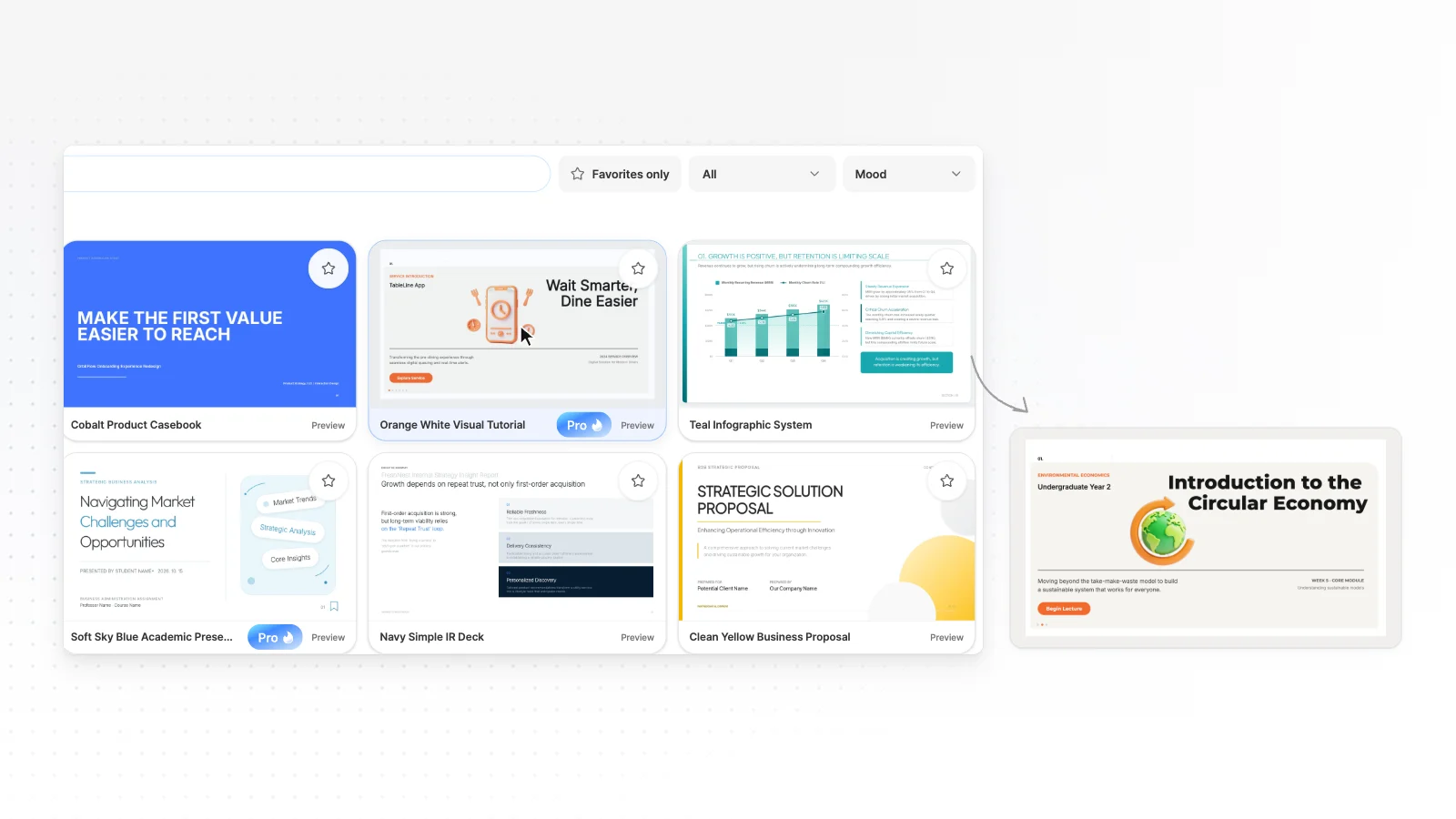
In the Design step, find a style with search, filters and favorites, preview sample slides, then generate. Paid-only styles are available on Pro and Max.
- Available on
- All plans
- Requires
- Signed in · Paid-only styles need Pro or Max
The style you pick in the Design step sets the colors, fonts and layout of every slide. There are more than 200 presentation styles, and card news and documents get their own style lists.
Browse styles
- Scroll the All designs list under Choose design style.
- Click Load more at the bottom to see more.
- Click a style to select it.
Search and filter
- Type a name, purpose or mood in Search designs, for example
calm pitch deck. - Click Filters to narrow by Document type and Mood. You can pick several moods at once.
- No results? Clear search and filters brings back the full list.
Preview
- Click Preview on a style to open sample slides made in it.
- Flip through with Previous sample and Next sample.
- Click Choose this style if you like it, or Close preview if not.
Favorites and recent picks
- Click the star on a style to save it as a favorite. Click again to remove it.
- Turn on Favorites only to see just your saved styles. With none saved, you'll see No saved designs yet.
- Recently selected designs collects designs you picked in earlier projects — handy for keeping a series consistent.
Paid-only styles
Styles marked Paid only can be selected on Pro and Max. On Free you can preview them but not select them.
Tips for picking a style
- Start from what the deck is for. Narrowing by Document type — report, proposal, pitch and so on — cuts the list down fast.
- Look at several slides in Preview, not just the thumbnail. Cover and content slides can feel quite different.
- For text-heavy decks, check that the body text in the samples reads well.
- If you have brand colors, set Brand Colors in the Settings step too. See Audience, tone, colors and fonts.
Generate
When Selected design: name and Total N slides appear at the bottom, you're ready. Create Presentation only becomes clickable once a style is selected. Click it to move to the editor and start generating.
Updated 2026-11-01