
Start from your files
Attach PDFs, Word or Excel files and images, and the AI reads them, drafts an outline and builds the deck. Supported formats and per-plan limits.
- Available on
- All plans
- Requires
- Signed in
Build from the reports, plans, spreadsheets and photos you already have. Attach several files at once and the AI combines them into a single outline.
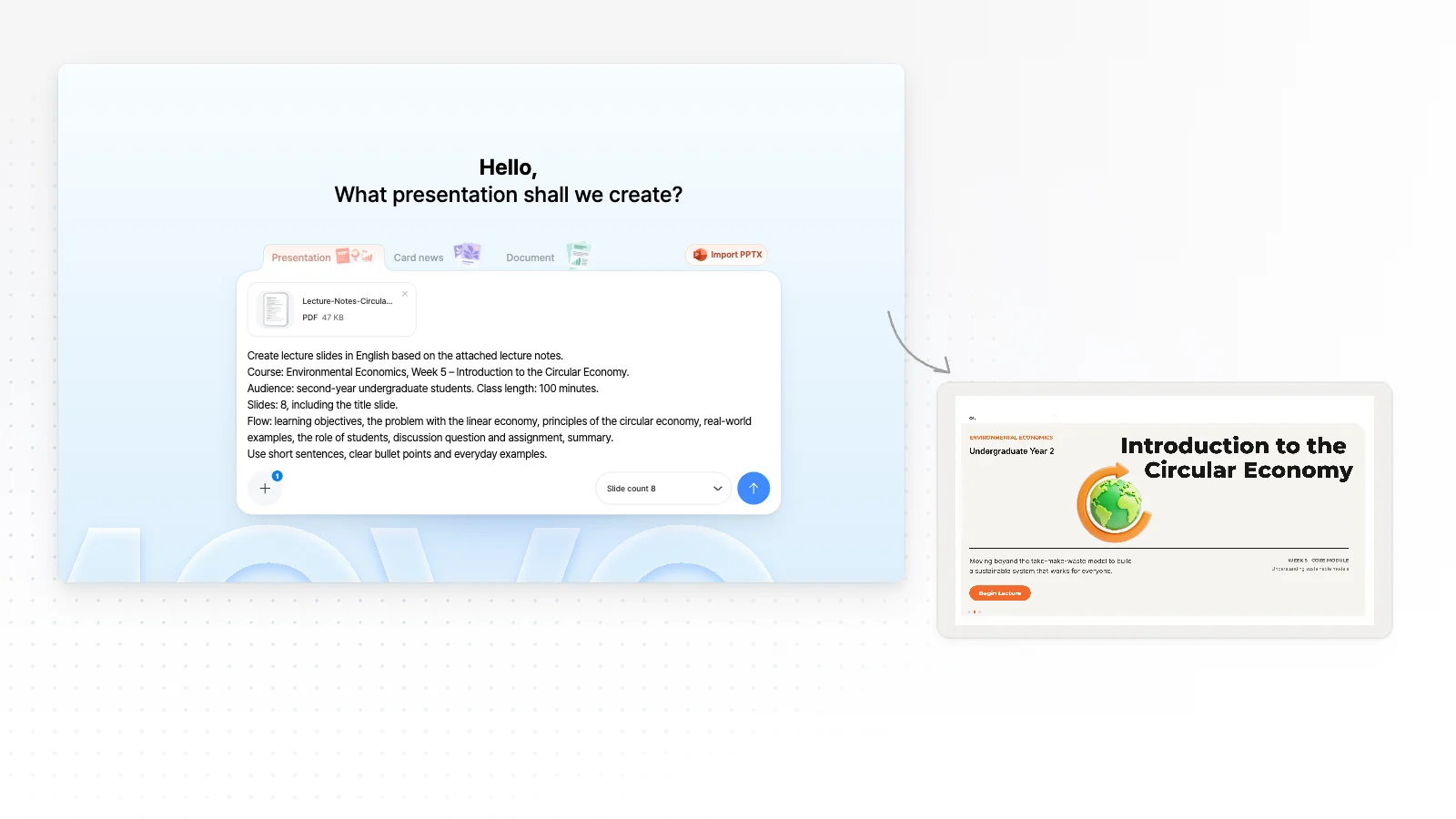
Attach files
- Choose a format in the format tabs.
- Click the + button (Attach file (PDF, images, etc.)) at the bottom left of the input box and pick your files. You can also drag them onto the input box.
- Each file card moves from Uploading to Checking file to Uploaded. You can send once every file shows Uploaded.
- Add a line or two about how to use the material.
- Click the arrow button. The AI reads your files and drafts the outline.
Supported files
| Format | How it's used |
|---|---|
| Reads reports and papers and splits them into per-slide points. Up to 100 pages. | |
| DOCX | Reads headings and paragraphs from plans and reports. |
| XLSX, CSV | Reads the numbers and puts the figures you need on slides. XLSX up to 20 sheets and 100,000 cells. |
| TXT | Turns loose notes and meeting minutes into a presentation order. |
| PNG, JPG, WebP | Placed on slides, or used as reference — e.g. a whiteboard photo or screenshot. |
HWP and PPTX can't be attached. Save HWP files as PDF or DOCX, and open PPTX files with Import a PPTX file.
Attachment limits by plan
| Item | Free | Pro and Max |
|---|---|---|
| Size per file | 5 MB | 20 MB |
| Files per request | 3 | 10 |
| Total size | 15 MB | 50 MB |
Going over shows a message such as Free: 5 MB per file. Pro: 20 MB per file. with an Upgrade plan button. The count appears next to +, for example 2/3.
Starter prompts for files
Once a file is attached and the input box is empty, buttons appear below it for what to do with the material. Each one fills in a matching request.
| Format | Buttons |
|---|---|
| Presentation | Rebuild as a new presentation, Improve the existing design, Summarize the key points, Use images in the design |
| Card news | Rebuild as card news, Summarize the key info, Turn into promotional content, Use images in card news |
| Document | Rebuild as an A4 flyer, Turn into a notice/leaflet, Make it a poster, Summarize the key points |
Getting the result you want
- Say how to use the files, for example
A 10-slide quarterly results report from these Excel numbers. - With several files, say which one should lead.
- Attached logos and product photos are used as-is, never redrawn by AI. The AI decides where they go, so name any photo that must appear.
- Pictures inside a PDF aren't reused as original images. Attach must-have photos separately as PNG or JPG.
- The original layout and fonts aren't copied. The AI reads the content and redesigns it in the style you choose.
If a file won't upload
| Message | What to do |
|---|---|
| Unsupported format. | Use PDF, PNG, JPG, WebP, TXT, CSV, DOCX or XLSX. |
| Password-protected files cannot be read. | Replace it with an unlocked copy. |
| PDFs can have up to 100 pages. | Split out the pages you need. |
| Animated images are not supported. | Save a still image instead. |
| No readable text was found. | Use a document that contains text. |
| This file is already attached. | The same file was added twice. Keep one. |
Updated 2026-11-01