
MOVO Docs
How-to Guides
Step-by-step guides to every MOVO feature. Follow along at your own pace!
Edit Slides with AI Chat
The AI chat panel on the left lets you change slides just by typing what you want. Say "change the layout" or "make it blue" — AI handles the rest!

- Open the AI tab (the sparkles icon) in the left sidebar.
- Just type what you want, like "Make this a two-column layout".
- To attach a file, click the "+" icon and upload your file.
- Press ⌘K (Mac) or Ctrl+K (Windows) to open the command palette for fast action search.
💡 Tip
Use the command palette for fast access to any action you need.
Export & Download
The Free plan supports PDF and PNG exports with a watermark. From the Pro plan onwards, you can also export to PPTX and Figma — without watermarks and with no limit.
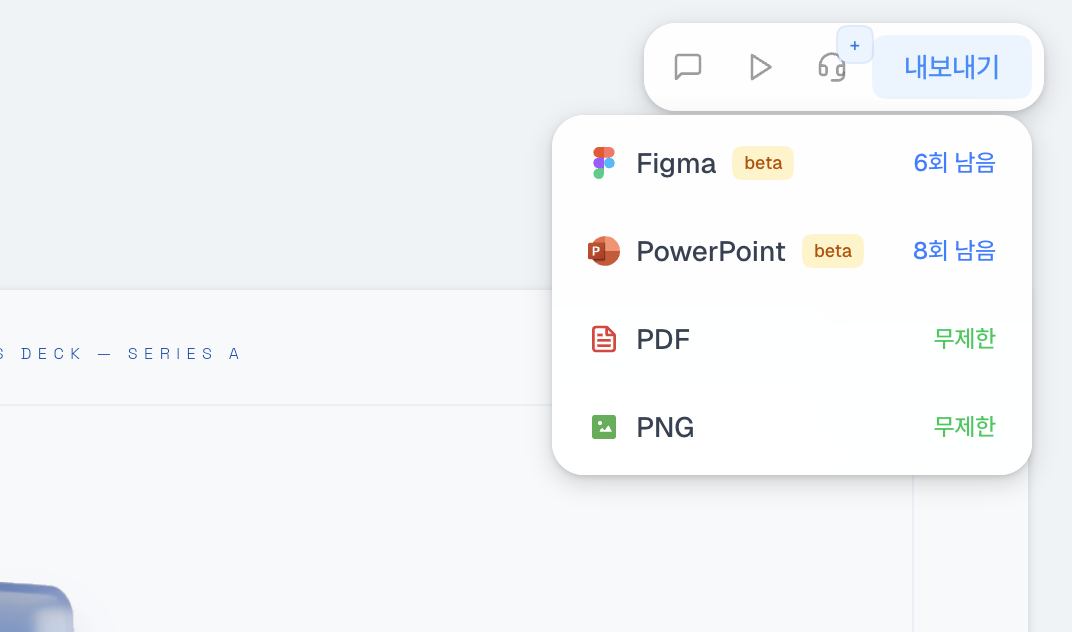
- Click the Export button at the top of the editor.
- Choose your format: PDF, PNG (Free plan with watermark) or PPTX, Figma (paid plans).
- Sit back — your file will download automatically!
Using Templates
Browse public projects and templates in the gallery, preview them, and copy one into your workspace. The original stays untouched, so the copied project is safe to customize.
- Open Gallery from the sidebar to browse public projects and templates.
- Click on a template to see a full preview.
- Hit "Use this template" to copy it to your projects.
- Now make it yours! Edit anything — the original template won't change.
Credits & Plans
Credits are used when you create slides or edit them with AI. The amount charged can vary by action, such as generation or editing.
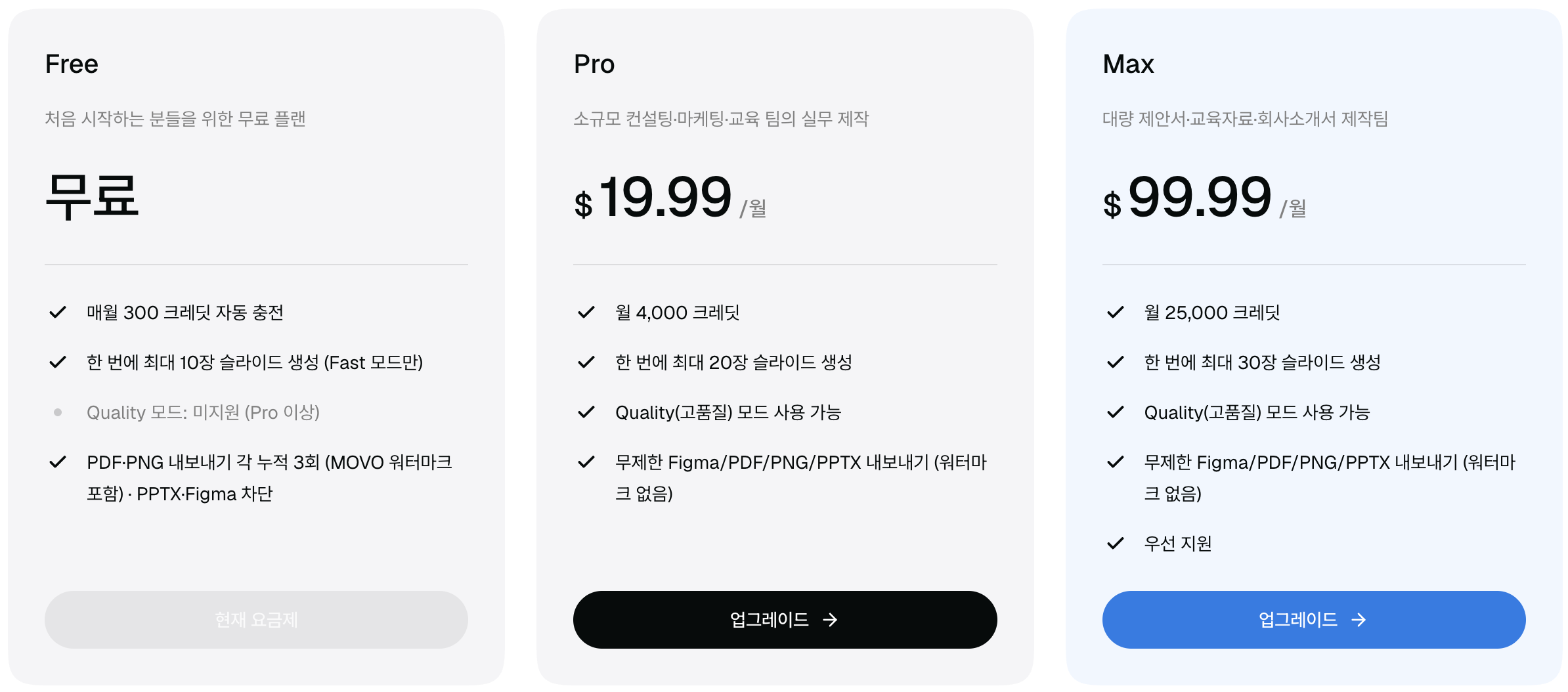
- Free plan: 300 credits every month to try the core generation and editing flow.
- Pro ($19.99/mo): 5,000 credits each month + unlimited exports.
- Max ($99.99/mo): Planned to include 40,000 credits each month, unlimited exports, and priority support. This plan is currently in development.
- One-time credit purchases are available for paid subscribers. Monthly subscription credits do not carry over to the next billing cycle.
📝 Note
Monthly subscription credits do not carry over to the next billing cycle. One-time credit purchases are available for paid subscribers only.
Present Your Slides
You can present your slides full-screen right from the editor. No need for PowerPoint — just hit play and go!
- Click the Play button (▶) at the top of the editor.
- Use arrow keys or click to move through your slides.
- Press ESC to exit presentation mode.
Managing Your Projects
Keep your workspace tidy! My Projects lets you search, sort, rename, duplicate, and delete your projects all in one place.
- Click 'My Projects' in the sidebar.
- Use search or sort to quickly find what you're looking for.
- Click ⋯ on any project to Rename, Duplicate, or Delete it.
- Heads up: deleted projects can't be recovered, so be careful!
⚠️ Warning
Deleted projects can't be recovered, so be careful!