
Edit the outline
Edit titles, key points and visual descriptions on the outline cards, drag to reorder, then move on to the next step.
- Available on
- All plans
- Requires
- Signed in
After a Quick generate request, the Outline step opens as Review your presentation structure. The slides follow this outline, so fixing it here saves reshuffling a finished deck.
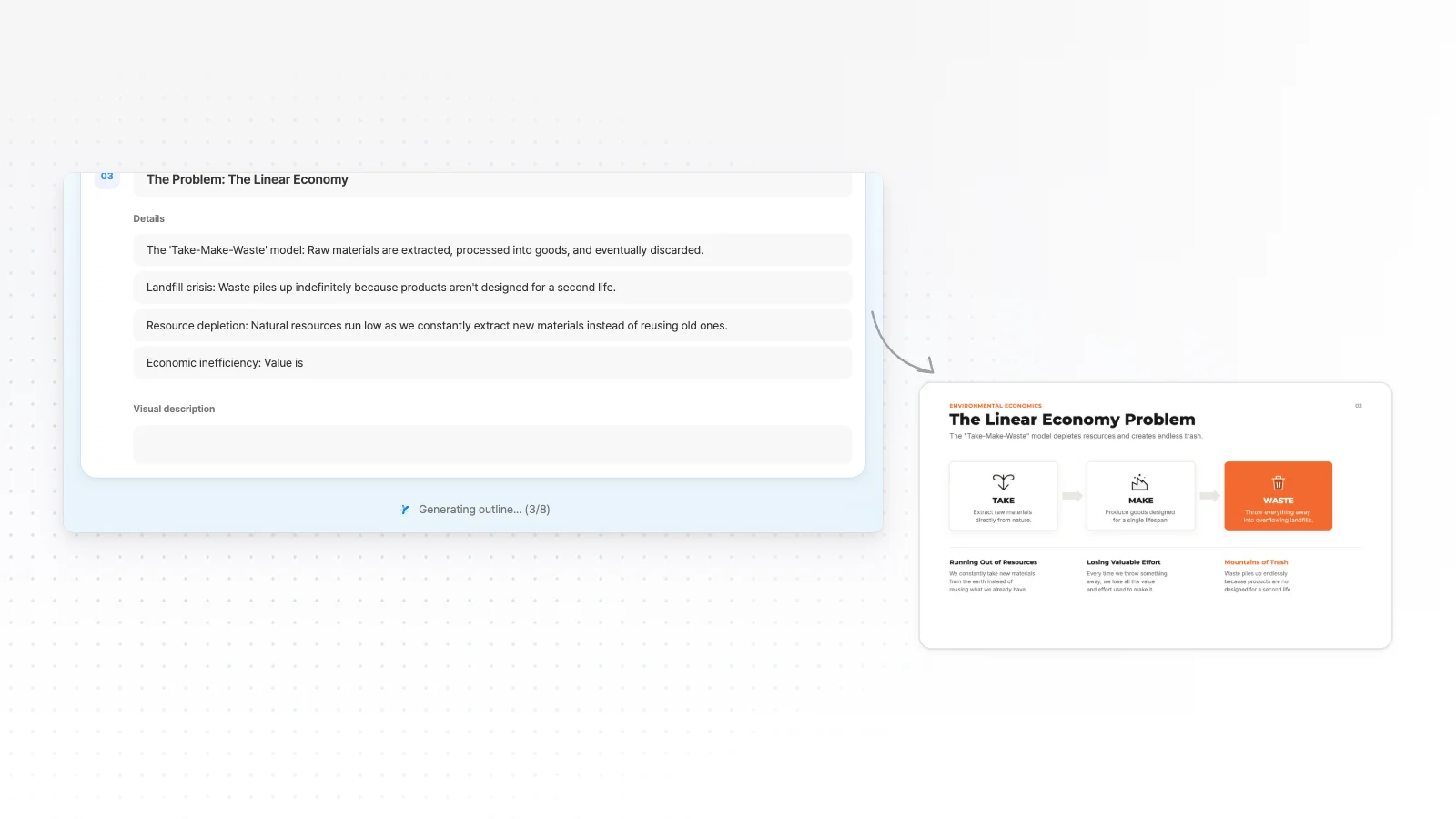
While the outline is being written
You'll see Creating your outline and This may take up to 1 minute. Cards fill in one by one, with progress such as Generating outline... (3/8) below. You can't edit cards until it finishes. Any files you attached are listed under References at the top.
Parts of an outline card
Each card is one slide. Click inside a card and edit it like a document.
| Part | What it is | How to edit |
|---|---|---|
| Number (01, 02 …) | Slide order | Drag the card. |
| Title | The top line of the card | Click and type. You can't continue with an empty title. |
| Details | The bulleted key points | Press Enter to add a point. Delete lines you don't need. |
| Visual description | How this slide should look | e.g. 3 icon cards, with big numbers on the left |
Reorder slides
- Press and hold the handle (six dots) on the left of the card you want to move.
- Drag it — a blue line shows where it will land.
- Drop it and the numbers update.
Check the slide count
Total N slides is shown at the bottom. It's the number you chose in the input box. The outline screen has no add or delete buttons for cards, so for a big change in length it's quickest to start again from the dashboard with a different count. After generating, you can add slides in the editor with Add Slide.
If the AI trims the count to fit the content, you'll see something like 8 of 10 slides generated. AI may have adjusted based on content.
Generate the outline again
| Situation | Message | Button |
|---|---|---|
| Generation stopped or never started | Restart outline generation | Regenerate |
| Something went wrong | Outline generation failed | Retry |
Once an outline has generated normally, there's no button to get a whole new one. Edit the cards, or change your request and start again from the dashboard.
Move on
Click Next to go to Settings. Next stays disabled while the outline is still being written or if there's an error. Click Back in Settings to return to the outline.
Updated 2026-11-01