
Create your first presentation
Type a topic in the dashboard, then review the outline, choose settings, pick a design style and generate your first presentation.
- Available on
- All plans
- Requires
- Signed in
This walkthrough takes you from a one-line topic to an exported deck. The step indicator at the top moves through Outline → Settings → Design.
Before you start
- Sign in with your Google account. See Sign up and sign in.
- The Free plan makes up to 5 slides at a time and gets 300 credits a month.
- Creating the outline and the slides uses credits. See How credits work.
1. Enter your topic
- Choose Presentation in the format tabs at the top of the dashboard.
- Leave the mode on Quick generate.
- Type your topic. Mention who it's for, what it's for and anything that must be included — the outline gets more accurate.
- Choose a number in Slide count. The Free plan can pick 1–5. Larger numbers carry a PRO or MAX badge.
- Have a PDF or Word file? Attach it with the + button.
- Click the arrow button (Create slides).
2. Review the outline
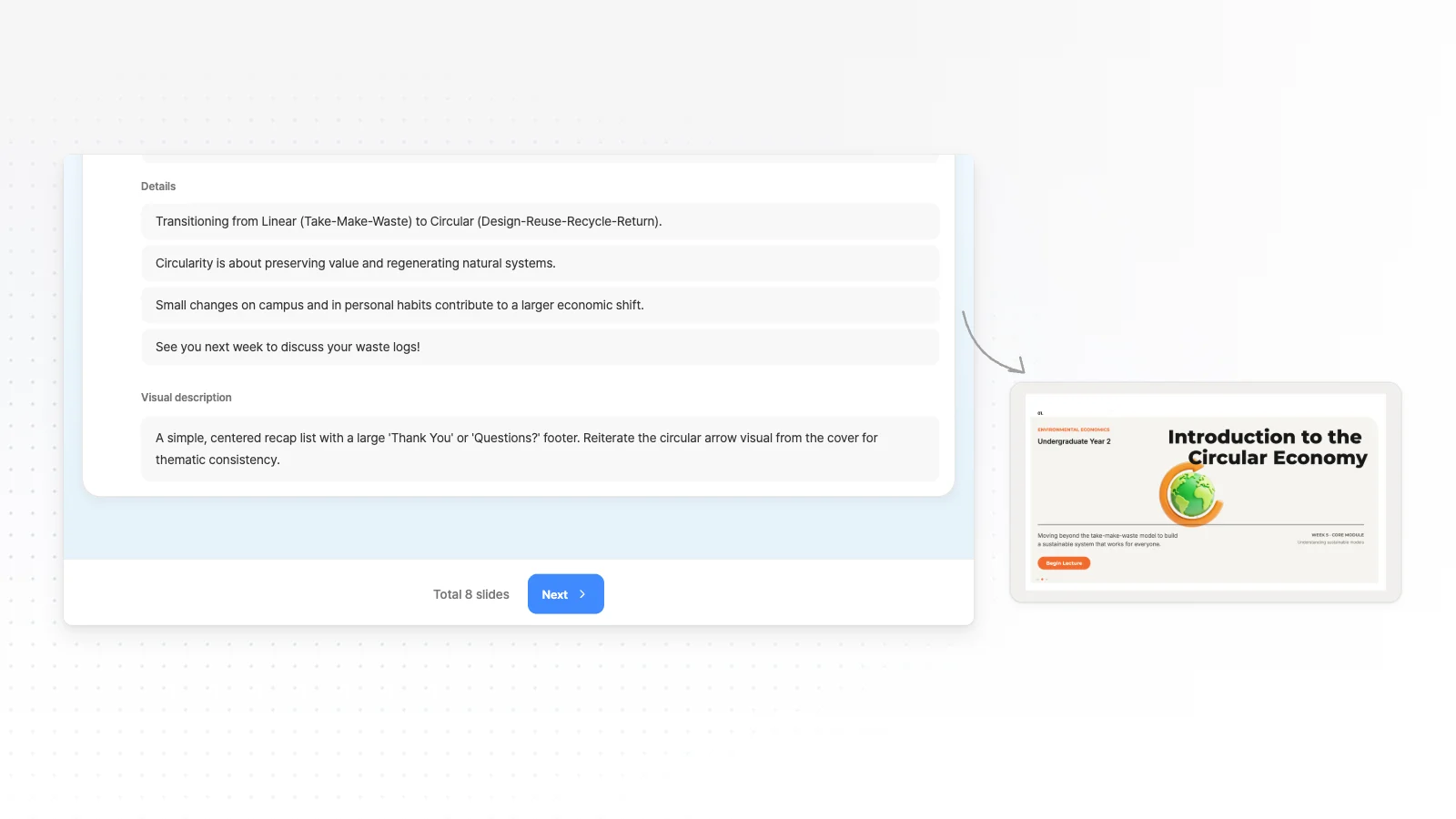
The Review your presentation structure screen opens and the AI writes the outline, which can take up to a minute. Each card is one slide.
- Click the title at the top of a card to edit it. Titles can't be left empty.
- Edit the bulleted key points, or press Enter to add one and delete lines you don't need.
- Drag the handle on the left of a card to reorder slides.
- Check Total N slides at the bottom and click Next.
3. Choose settings
Pick the Audience, Design Density and Copy Tone, and set brand colors and fonts under Colors / Typography if you need to. Everything can stay on Auto. See Audience, tone, colors and fonts.
4. Pick a design style
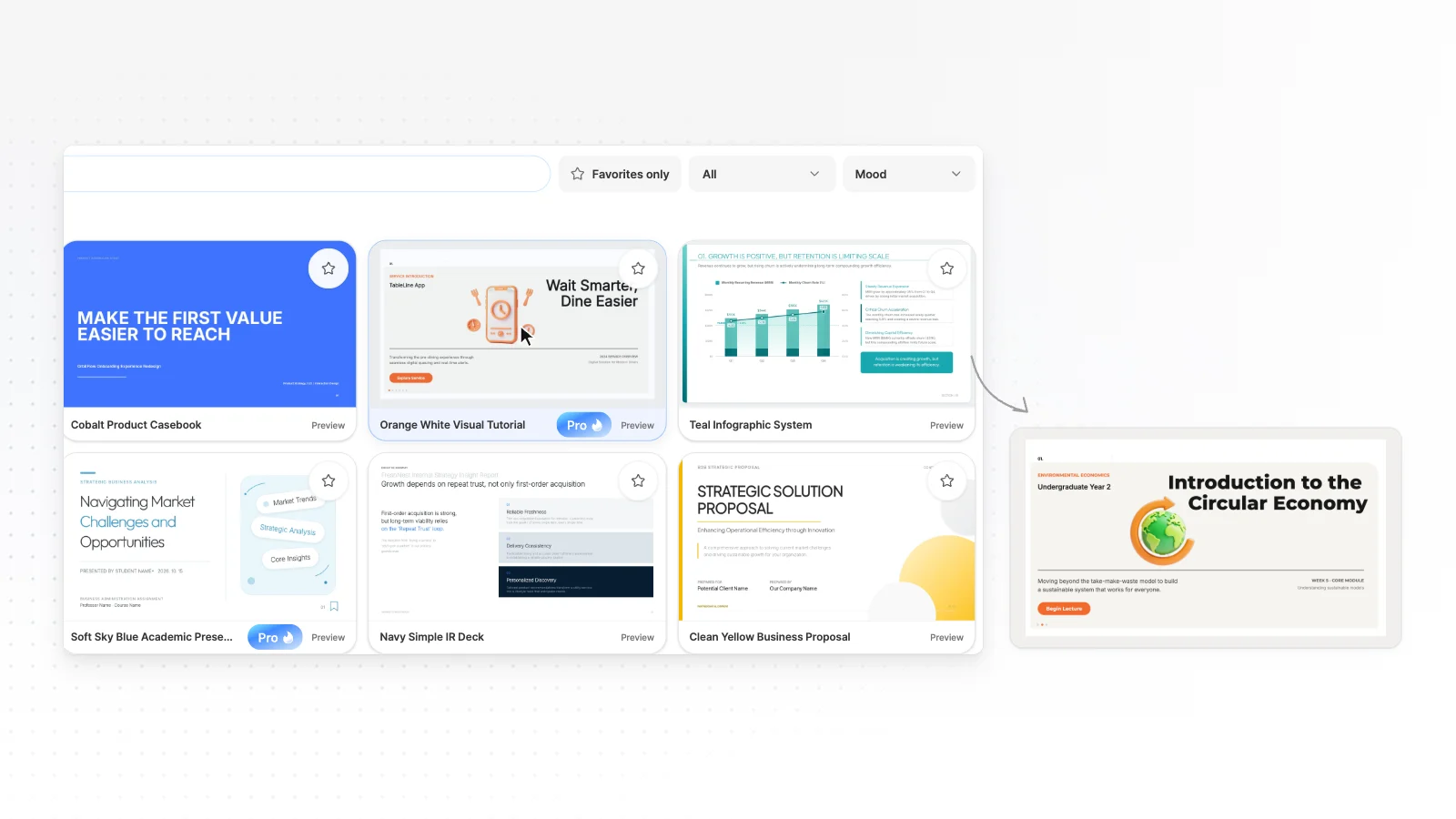
- Click a style you like in Choose design style.
- Click Preview to see sample slides made in that style.
- Looking for something specific? Type a name, purpose or mood in Search designs.
- When Selected design: … appears at the bottom, you're set.
5. Generate
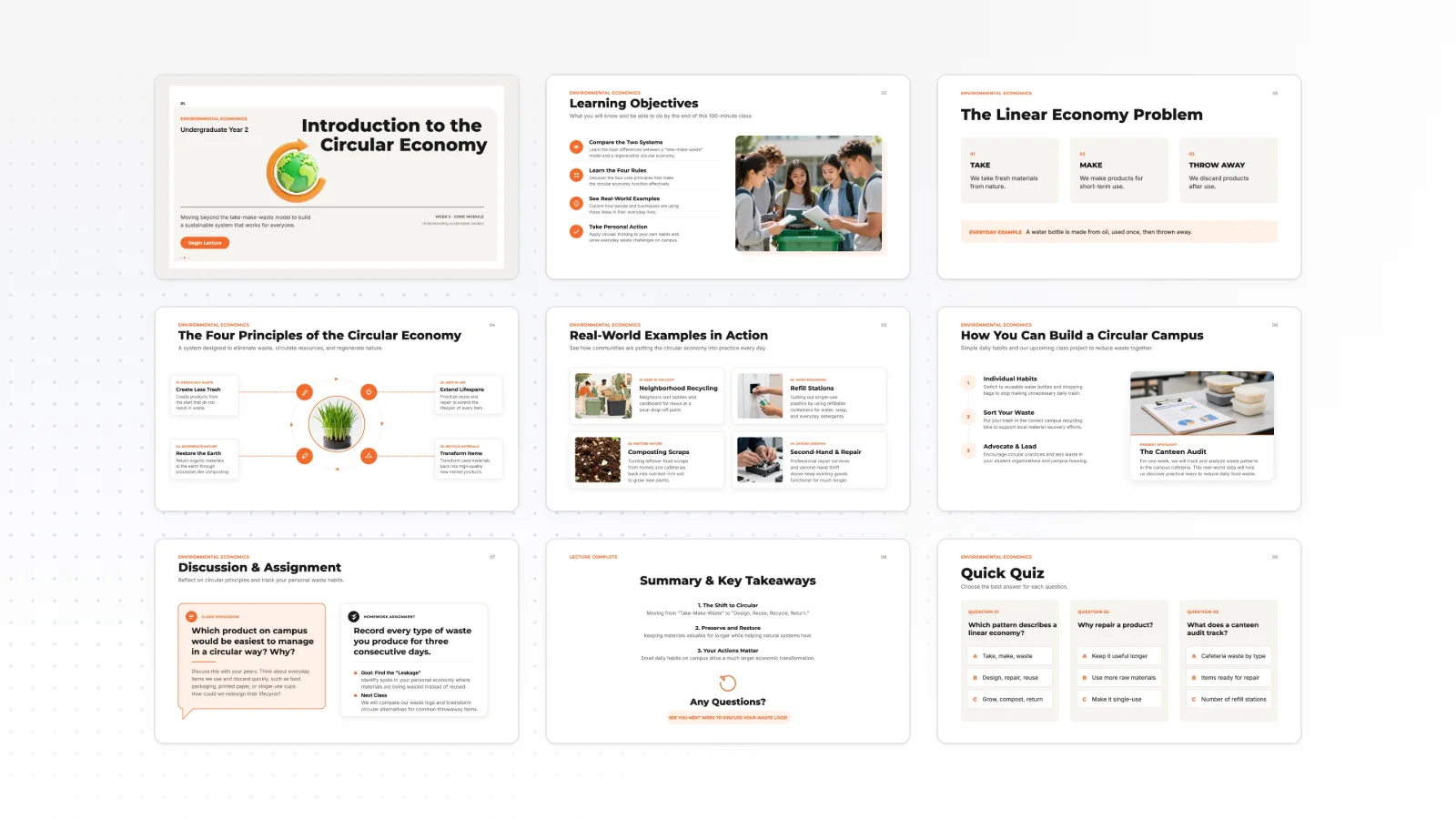
Click Create Presentation. You move to the project editor and generation starts. The project is saved under Projects in the sidebar.
6. Refine and export
- Select a slide and tell the AI chat what to change. See AI edit.
- Click text or images to edit them directly. See Editor.
- When you're done, use Export. Free exports PDF and PNG with a watermark. Pro and up add PPTX and Figma without a watermark.
Updated 2026-11-01