
Export to Figma
Choose Figma to download a .movo file, then upload it to the MOVO AI plugin in Figma to turn every slide into a Figma frame.
- Available on
- Pro · Max
- Requires
- Figma account · MOVO AI Figma plugin
Draft quickly in MOVO, then let a designer finish in Figma. Each slide arrives as a Figma frame, and the text and shapes inside it stay editable.
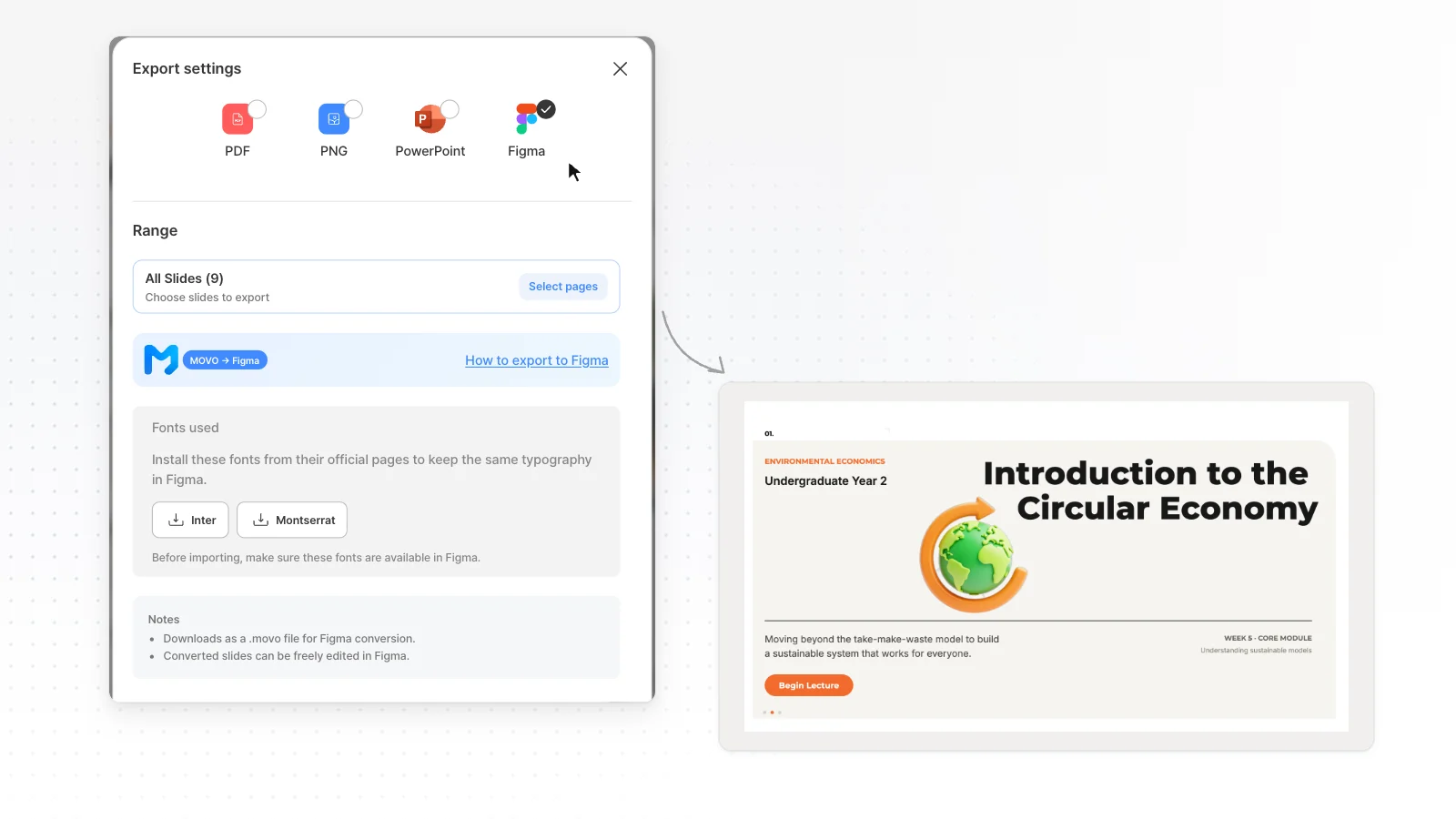
1. Download the .movo file
- Select Export at the top of the editor and choose Figma.
- Check the slides under Range.
- Review the "Fonts used" list.
- Select Export. A "Converting .movo..." notice appears and the
.movofile is saved.
2. Install the Figma plugin
You open .movo files with the MOVO AI plugin in Figma. You only need to install it once.
- Search for "MOVO AI" in Figma Community.
- Install the MOVO AI plugin from its page.
3. Import in Figma
- Open a Figma file and run Plugins → MOVO AI from the menu.
- Select Upload .movo file in the plugin and choose the file you downloaded.
- Every slide comes in as a Figma frame, ready to edit.
The import guide
After your first Figma download, an "Import to Figma" guide opens automatically with the three steps above. Choose Don't show again to stop it from appearing. You can always reopen it from How to export to Figma in the export dialog.
Check your fonts
Slides only look the same in Figma if the same fonts are available there. Before importing, make sure the fonts under "Fonts used" are available in Figma.
Sending updates after editing in MOVO
Changes made in MOVO do not update frames you already imported. Export again, upload the new .movo file with the plugin, and use the new frames.
Updated 2026-11-01