
Edit a single slide
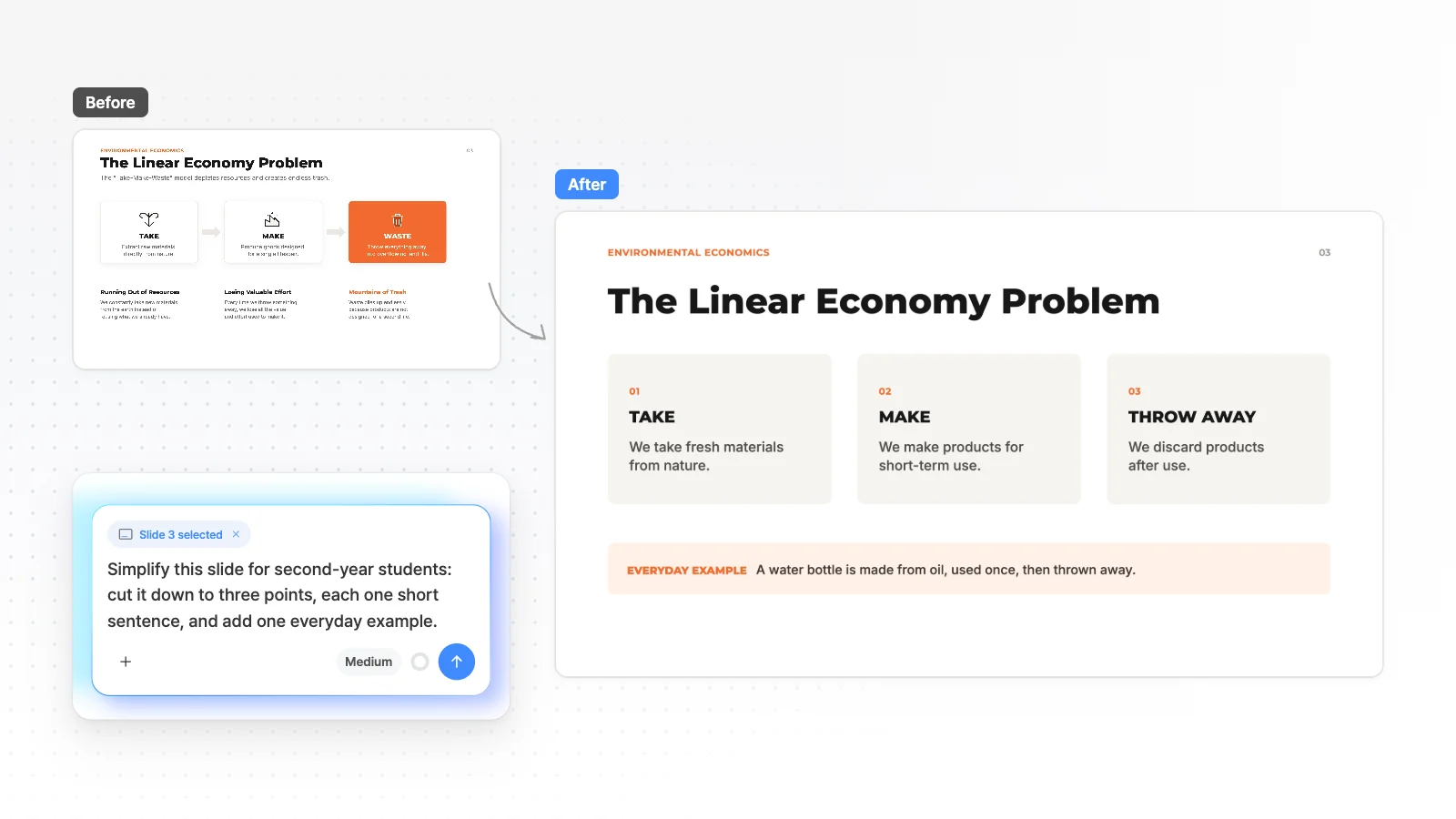
Show the slide you want to change and the box gets a 'Slide N selected' pill. Requests sent that way target that slide.
- Available on
- All plans
- Requires
- Signed in · your own project
AI chat targets the slide you're looking at by default. To change just one slide, keep it on screen and send your request. The AI works on that slide and leaves the rest alone.
1. Pick the slide
- Click the AI tab on the left of the editor to open the chat panel.
- Click the slide you want to change in the slide list.
- Check that the pill above the box shows its number, such as 'Slide 3 selected'. The placeholder changes to 'How would you like it styled?'.
2. Write and send the request
- Say what to change and what to keep. For example: 'Keep the title, cut the body down to 3 bullet points'.
- Press Enter to send.
- When the run ends, the slide updates on the canvas and the reply shows what it cost, such as 'Credits used: 12'.
Edit just a text box or image
Click an element on the canvas and the pill changes to '1 element selected'. Select several and it shows the count, such as '3 elements selected'. Requests sent this way target the selected elements.
- Select a text box: 'Shorten this sentence to one line'
- Select an image: 'Remove the background and keep only the person'
- Select several shapes: 'Make these the same size with even spacing'
Clear the selection
- Click the X (Unpin this slide) on the pill to clear one level at a time: first the element selection, then the slide.
- Move to another slide and its pill comes back.
- Clicking a starter prompt clears both, because those prompts are about the whole deck.
If the result isn't right
- Follow up right away, such as 'a bit larger' or 'keep the original colors'. The AI remembers earlier requests in the same conversation.
- To go back to how it was, see Undo AI changes.
- For a word or two, editing directly on the canvas is quicker and uses no credits.
Updated 2026-11-01