Gamma Alternatives Compared in 2026
Gamma alternatives compared by need: MOVO, Microsoft PowerPoint with Copilot, Canva, Beautiful.ai, Google Slides with Gemini and Pitch, on what you put in, editing after generation, PPTX export, free plans and US prices as of October 17, 2026.
If your source material is a PDF, a Word file or an Excel workbook, and you want to see each slide's title, details and visual description before design, catch overlapping text with "Check layout" and hand off an editable PowerPoint file, MOVO is the Gamma alternative to try first. If your company runs on Microsoft 365, pick PowerPoint with Copilot; if your team already designs in Canva, Canva; for consistent on-brand layouts, Beautiful.ai; for Google Workspace, Google Slides with Gemini; and for a small team that builds every deck from one branded template, Pitch. Gamma turns a prompt, pasted notes or an imported PDF, Word or PowerPoint file into a styled deck, and it shares well as a link or a web page. Its pricing and help pages also list limits worth checking: the 400 free credits are a one-time grant that doesn't refill, and Excel files can't be imported directly. If none of that affects your work, Gamma may still be the right tool.
MOVO starts from the material you already have. Attach a product brief PDF, a Word document or a results spreadsheet, and MOVO shows each slide's title, details and visual description as an outline you can edit. Then choose the audience, tone and a style, and fix single slides by selecting them and asking the AI. Below: which tool fits which need, the same criteria for all six plus Gamma, a section per tool, a worked example in MOVO, templates, and answers to common questions.
Which Gamma alternative fits your situation?
Choose by the file you need to hand off and where your team already works.
| If you need to… | Pick | What the vendor documents |
|---|---|---|
| Turn a PDF, Word or Excel file into a deck, review each slide's visual description, check layouts, hand off a PPTX | MOVO | Outline step before generation, per-slide AI requests, 'Check layout', PPTX and Figma export on paid plans |
| Stay inside Microsoft 365 and get a native .pptx that follows your company template | PowerPoint with Copilot | Copilot builds a deck in PowerPoint from a prompt or a Word file and can start from your organization's template |
| Keep designing in Canva, with brand kits, stock media and charts in one editor | Canva | Magic Design for Presentations drafts the deck; you finish it in the Canva editor and can download a PPTX |
| Get layouts that rearrange themselves as you edit, and an editable PowerPoint to send | Beautiful.ai | Over 300 Smart Slide layouts; editable PowerPoint and Google Slides export on Pro, Team and Enterprise |
| Work in Google Workspace and draft a native Slides deck from your Drive files | Google Slides with Gemini | Full-deck generation from a prompt and Drive sources on eligible Workspace and Google AI plans |
| Build every deck from one branded template and share tracked links as a small team | Pitch | Pitch Agent fills the template you pick; PPTX export on paid plans |
Sources: MOVO help center, MOVO pricing, Microsoft Copilot in PowerPoint help, Canva AI presentations, Beautiful.ai pricing, Beautiful.ai exporting, Gemini in Google Slides help, Pitch pricing.
How do the six alternatives compare on the same criteria?
Prices as listed on each vendor's US pricing page on October 17, 2026, in US dollars. Gamma is in the last row for reference.
| Tool | What you put in | Editing after generation | PPTX export (plan) | Free plan | Starting paid price |
|---|---|---|---|---|---|
| MOVO | A prompt plus PDF (up to 100 pages), Word, Excel (up to 20 sheets), CSV, TXT, images | Select a slide and ask the AI, edit on the canvas, 'Check layout' | Pro and Max; text, images and shapes stay editable; fonts not embedded and some designs may render differently | 300 credits a month, up to 5 slides per deck, PDF and PNG with a watermark | Pro $19.99 a month, or $16 a month billed annually ($192 a year) |
| PowerPoint with Copilot | A prompt or a Word file; work accounts can also use a PDF | Ask Copilot to change one slide or the whole deck, or edit in PowerPoint | Native .pptx on every plan | PowerPoint for the web is free; Copilot in PowerPoint is listed on Personal, Family and Premium | Microsoft 365 Personal $9.99 a month or $99.99 a year |
| Canva | A prompt; a PDF or Word file as context; a CSV for data decks | The full Canva editor; chat edits on Pro and up, still rolling out | PPTX download; Canva's help names no plan and warns it may look different | Yes, with a monthly AI allowance shared across tools | Pro $18 a month, or $144 a year ($12 a month) for one person |
| Beautiful.ai | A prompt, pasted text, documents, PDFs or links | Edit the outline before design; Slide AI redoes one slide | Editable PowerPoint on Pro, Team and Enterprise | No free plan on the pricing page; 14-day trial with a card | Pro $14.50 a month billed annually, or $45 month to month |
| Google Slides with Gemini | A prompt, Drive files as sources, an existing deck as a style reference | Edit Gemini's plan before it builds, then refine one slide at a time or by hand | Download as PPTX from any Slides file | Slides is free; Gemini in Slides needs an eligible Workspace or Google AI plan | Workspace Business Standard $14 per user a month with a 1-year commitment |
| Pitch | A prompt and a template; PDF, MD, TXT and CSV files and images | Ask Pitch Agent, use Quick actions on a block, or edit by hand | Plus, Team and Business | 100 one-time AI credits; PDF exports carry Pitch branding | Plus $15 a month, or $13 a month billed yearly (one seat) |
| Gamma (for reference) | A prompt, pasted notes, or an imported PDF, Word or PowerPoint file; no direct Excel import | Plan mode shows a plan to approve before it builds; chat edits on the deck, a slide or one element; compare Original and Modified | Every plan; fonts and speaker notes included; Free files carry a "Made by Gamma" badge | 400 one-time credits, up to 10 slides per prompt | Plus $12 a month, or $9 a month billed annually ($108 a year) |
Every tool here lets you ask the AI for changes and then edit by hand. The real differences are what you can start from, what file you get, and which plan you need for it.
1. What is MOVO best for?
MOVO is best for turning a brief, report or spreadsheet you already have into a business deck when you want to approve the outline first and fix slides one at a time.
- What you put in: PDF (up to 100 pages), Word (.docx), Excel (.xlsx, up to 20 sheets and 100,000 cells), CSV, TXT and images. Free takes 3 files of up to 5 MB each; Pro and Max take 10 files of up to 20 MB each, 50 MB in total. Before building, MOVO shows each slide's title, details and visual description as an outline you can edit and reorder, and builds the slides from the outline you approve.
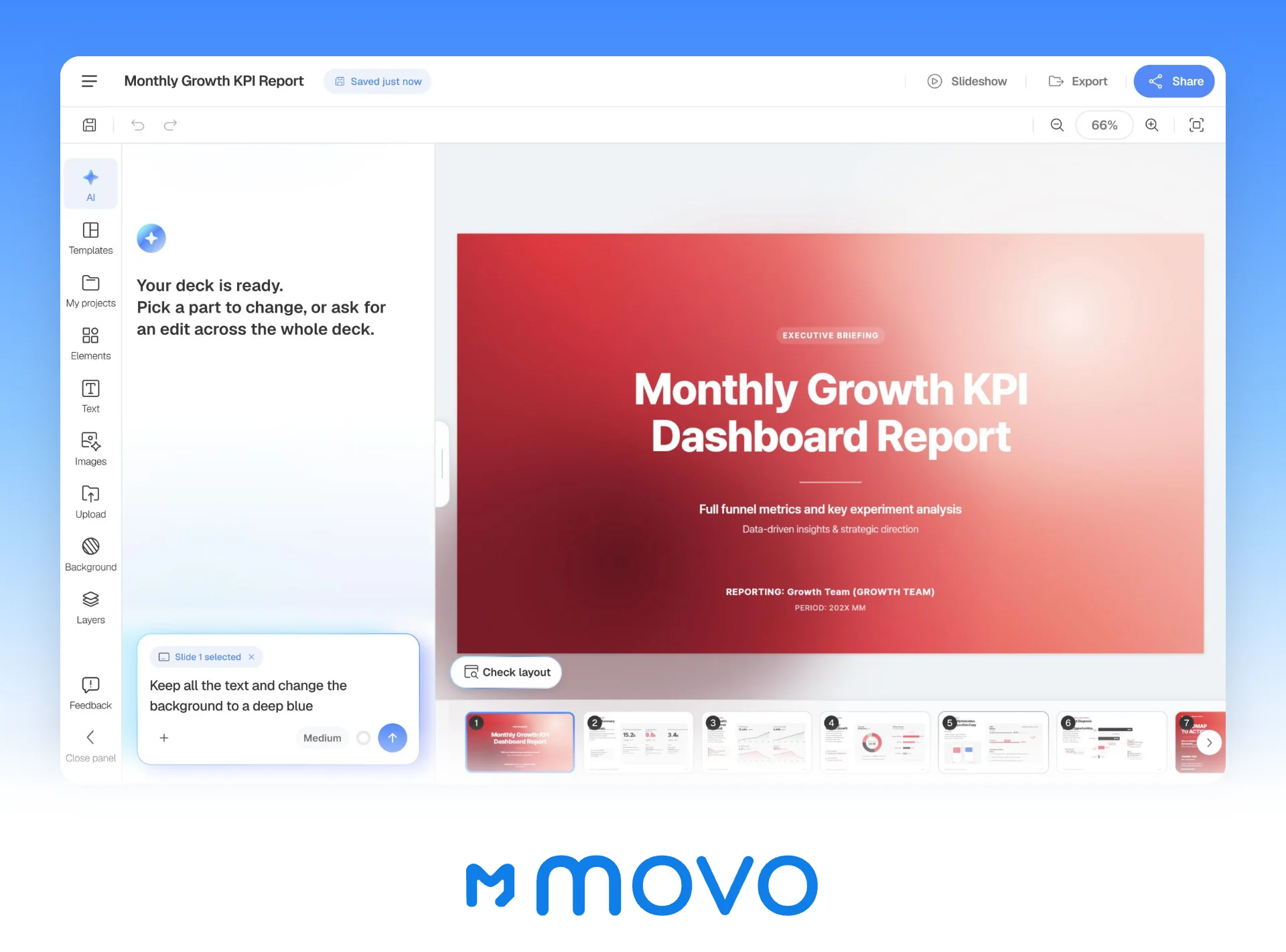
- Editing and checks: select a slide and ask the AI for a change; the selected slide goes with your request. Edit text and shapes on the canvas, then click "Check layout" below the canvas to mark overlapping or spilling text on the current slide, and "Fix with AI" to tidy it.
- Design: choose the audience (General, Executive, Technical, Student/Education, Investor or Client), design density, copy tone, background and brand colors, and fonts. Then pick a style filtered by "Document type", or start from one of MOVO's templates.
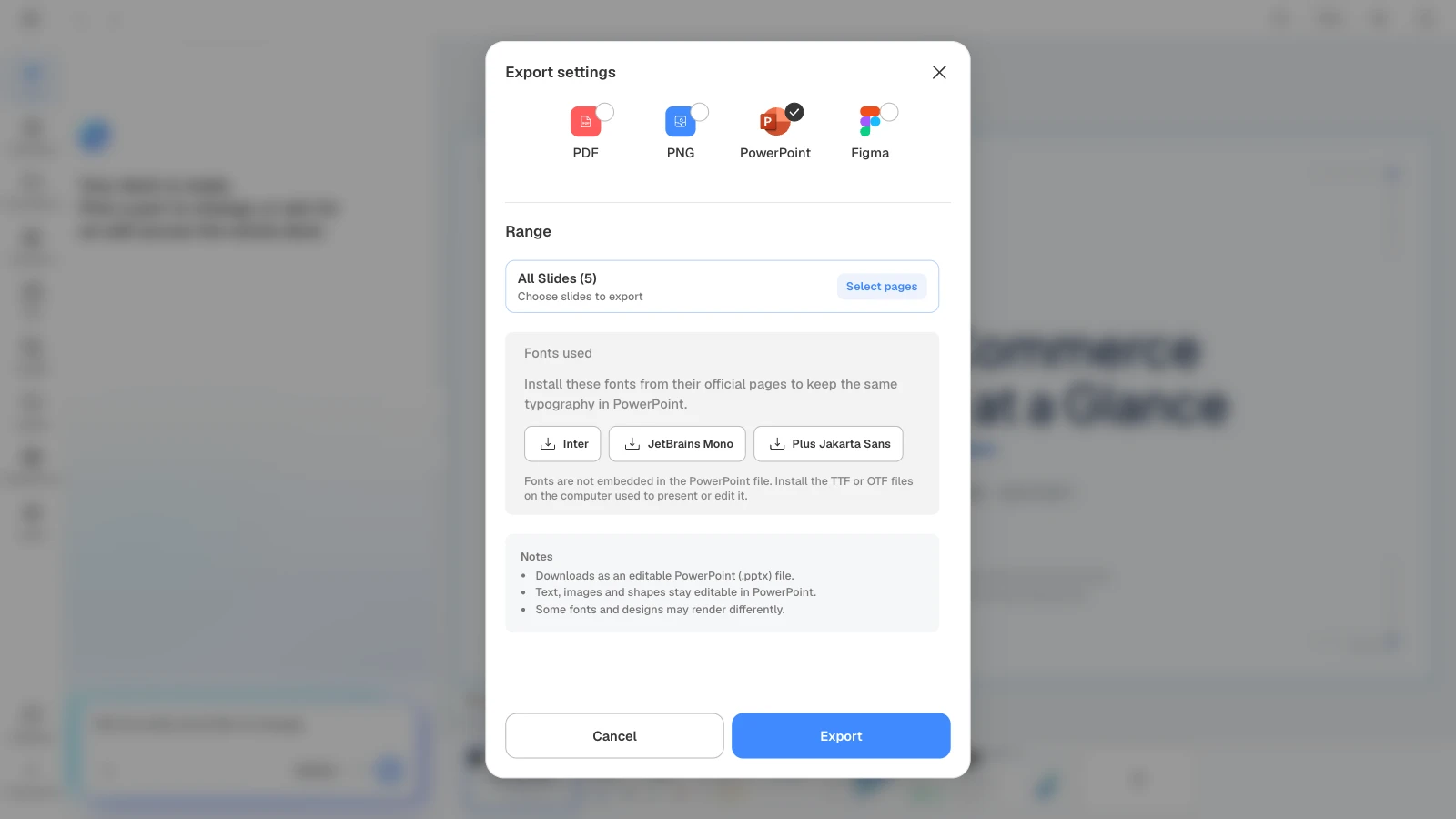
- Files and presenting: PDF and PNG on every plan, with a watermark on Free. PPTX and Figma on Pro and Max; in the PPTX, text, images and shapes stay editable in PowerPoint. Present from the editor with "Slideshow," or share a project link with "Share." AI generation makes up to 5 slides per deck on Free and 30 on Pro.
- Drawbacks: Free doesn't export PPTX. MOVO's export dialog notes that some fonts and designs may render differently in PowerPoint, and fonts aren't embedded, so install the fonts it lists on the computer you present from. You can't attach a PowerPoint file and keep its layouts; save it as PDF and MOVO builds a new deck from its content.
- Best for: marketers, consultants and founders who have the source material already and need a deck they can check slide by slide and hand off as a PowerPoint file.
Sources: MOVO help center, MOVO export guide, MOVO pricing.
2. What is Microsoft PowerPoint with Copilot best for?
PowerPoint with Copilot is best for teams that already pay for Microsoft 365 and need AI drafts to land as ordinary, fully editable PowerPoint files.
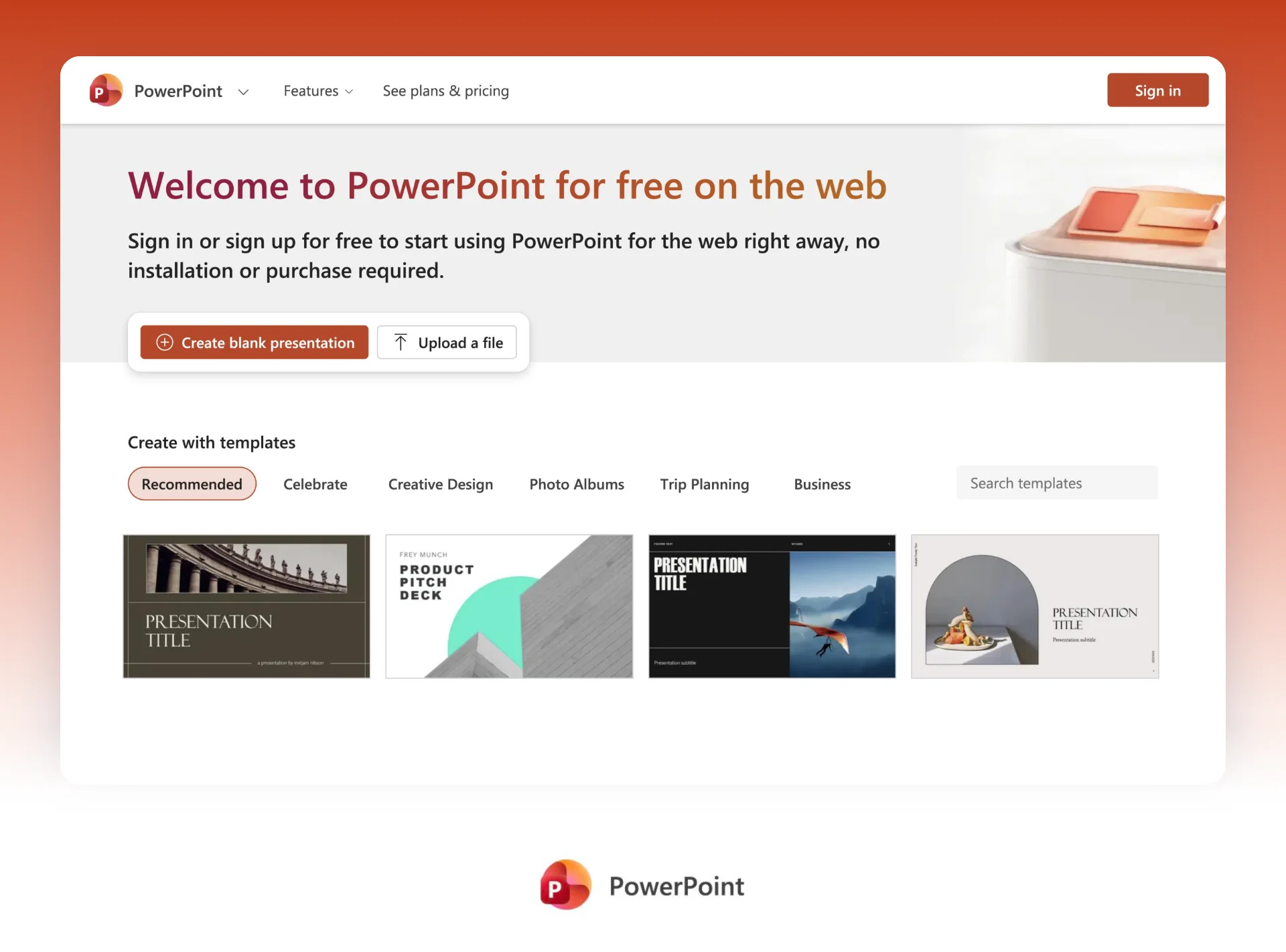
- What you put in: a prompt. In Agent Mode, Copilot may ask about your audience, presentation style and image style, and you refine the outline in chat before it builds. You can also start from a Word file (best under 24 MB); Microsoft's FAQ says work accounts can use a PDF too. Agent Mode can't reference files yet ("coming soon").
- Editing and checks: ask Copilot to change one slide or the whole deck: rewrite text, add slides, reorganize sections, create images or turn a list into SmartArt. Rewrite works on a whole text box only. Microsoft says Copilot output "may not always be accurate."
- Design: PowerPoint themes, templates and Design Suggestions. If you start from your organization's .pptx or .potx template, Copilot keeps its theme and builds from its layouts. Brand kit needs a work Microsoft Copilot license.
- Files and presenting: the deck is a native .pptx, and you can also save it as PDF, video or images. Present with Presenter view, and share from OneDrive with edit or view-only links. Microsoft documents no Google Slides export.
- Drawbacks: Microsoft lists Copilot in PowerPoint on paid plans (Personal, Family and Premium), and "AI features are not available in Microsoft 365 Basic." Microsoft says AI credit allotments "depend on your Microsoft 365 plan" and rates Copilot use in PowerPoint "Higher than free" on Personal and Family and "Extensive" on Premium, without numbers. On Family, only the subscription owner gets Copilot. Quality "is expected to be highest in English."
- Best for: companies with a PowerPoint template who want every AI draft to start on brand and stay a regular .pptx.
Sources: Create a presentation with Copilot, Copilot in PowerPoint FAQ, Edit with Copilot, Keep your presentation on brand, Microsoft 365 plans, Copilot pricing for individuals.
3. What is Canva best for?
Canva is best for teams that already design in Canva and want brand kits, templates, stock media and charts around the AI draft.
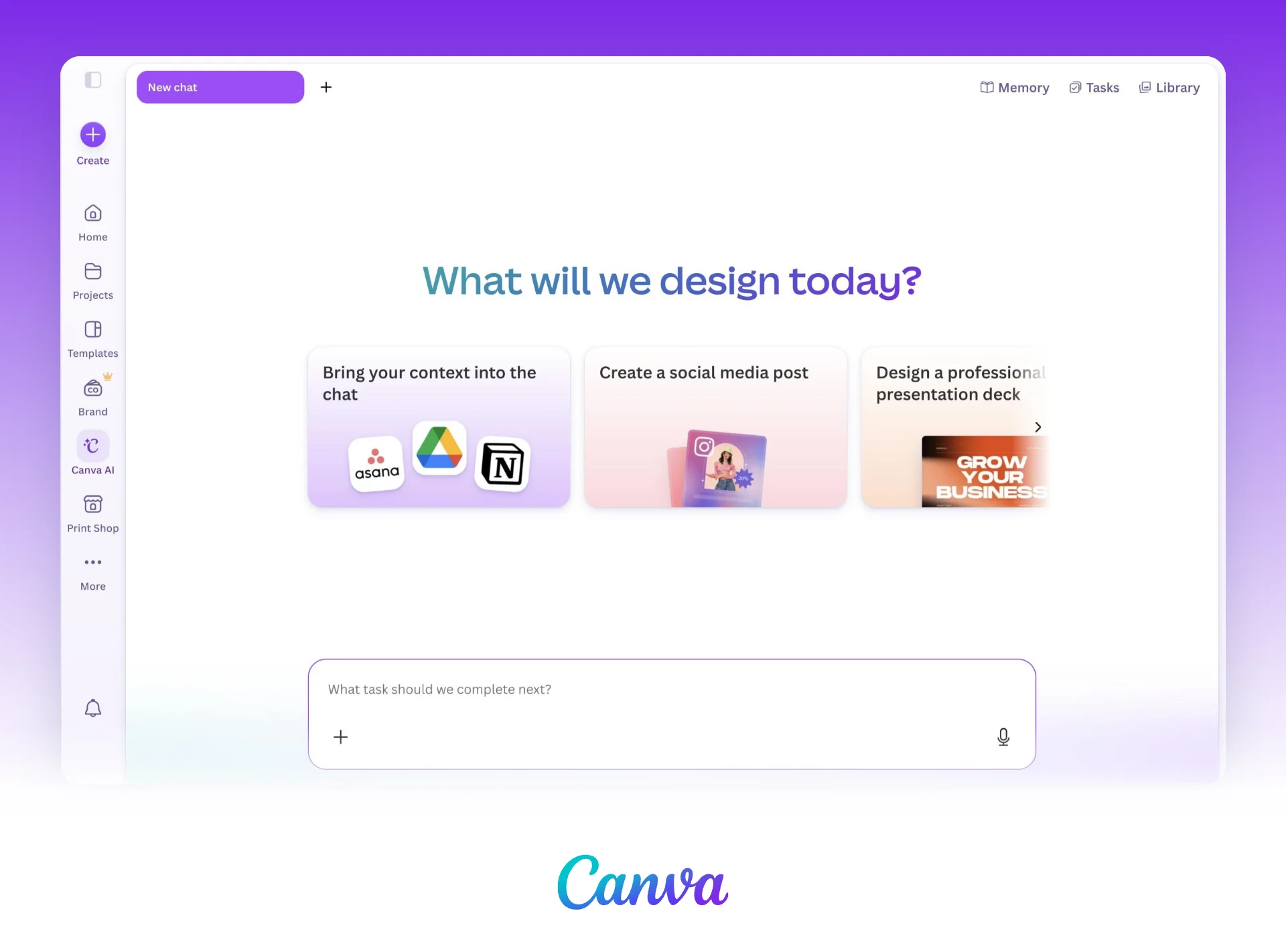
- What you put in: type or speak a prompt. Starting from the Canva AI homepage, you may get an outline to adjust before you click "Generate presentation." You can attach a PDF or Word file as context, or build a data deck from a CSV or Canva Sheets.
- Editing and checks: the deck opens in Canva's full drag-and-drop editor. Editing by chat in the Canva AI tab is on Pro, Business and Enterprise and "isn't available for everyone just yet." Canva says its AI "can make mistakes" and asks you to review facts, names, dates and figures.
- Design: Brand Kits (one with 3 colors on Free, five on Pro), on-brand layout suggestions and style copying. Magic Design builds layouts "using ready-made templates that adapt to your content."
- Files and presenting: download as PPTX, PDF, PNG, JPG or MP4. Present full screen, with Presenter view, or offline on a device you set up. Canva warns a PPTX "may look different" in PowerPoint and that animations and embedded videos may not play.
- Drawbacks: deck generation counts toward a monthly AI allowance shared across Canva's tools: Canva's AI help lists up to 20 Standard or Premium uses on Free, and its AI presentations page says Magic Design is free up to 10 times. The one-click Docs to Decks conversion is gone, with "no confirmed plans" to return. Free designs with premium elements download as a watermarked draft unless you upgrade or license them.
- Best for: marketing and social teams who live in Canva and present or publish from it more than they hand off PowerPoint files.
Sources: Canva pricing, Canva AI presentations, Using Canva AI for presentations, Presentations from data, Canva AI FAQ, Editing with Canva AI, Magic Design, AI usage limits, Presentation modes, Present offline, Download file types, Docs to Decks, Downloading premium content.
4. What is Beautiful.ai best for?
Beautiful.ai is best for people who make client-facing decks often and want them consistent without nudging every box by hand.
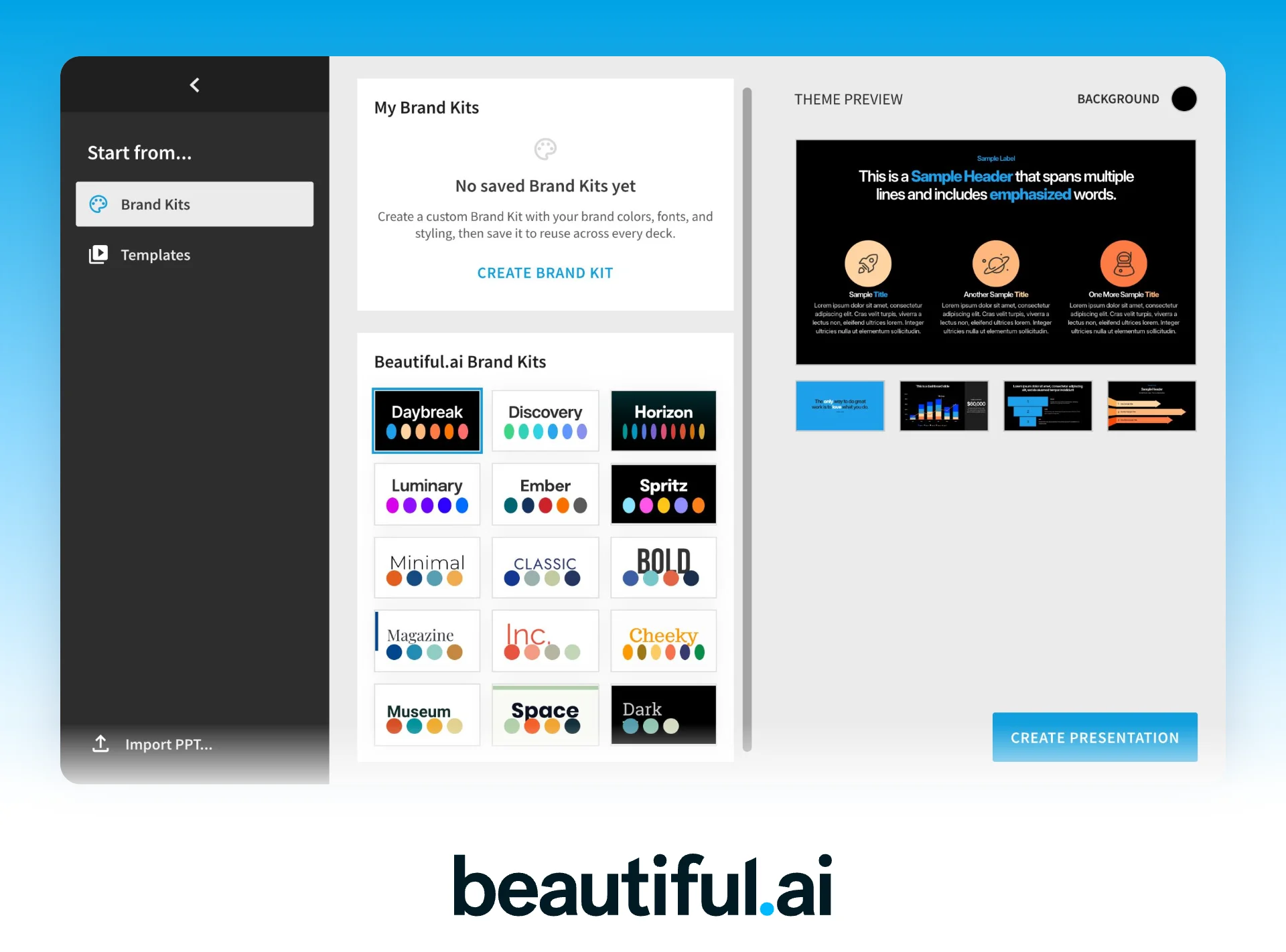
- What you put in: type, paste or speak a prompt, from a short idea to slide-by-slide instructions. The + icon adds "documents, PDFs, or links." Before generating, you pick a theme, an image source and the presentation language.
- Editing and checks: the AI first writes a text-only outline that you edit, or change by chat ("Delete slides 4, 6, and 9"), before design. After that, Slide AI works on one slide at a time: other layouts, a new version, or "Preserve Exact Text." Version history is on every plan.
- Design: over 300 Smart Slide layouts that rearrange as you edit. A new deck starts from ready-made Beautiful.ai Brand Kits (Daybreak, Minimal, Classic and others) or your own; Pro adds a custom theme builder, and team Brand Kits with uploaded fonts live in Team Resources. Classic Slides gives you a free-form canvas.
- Files and presenting: editable PowerPoint and Google Slides export on Pro, Team and Enterprise, plus PDF and an offline player. Animations and transitions are lost in every export. Present from the editor and share links with viewer analytics.
- Drawbacks: no free plan on the pricing page; the 14-day trial needs a card and charges automatically. Month-to-month Pro is $45 (as of October 17, 2026), and monthly plans can't be refunded.
- Best for: consultants and sales teams who send editable PowerPoint files and want every deck to look the same.
Sources: Beautiful.ai pricing, Creating a presentation with AI, Slide AI, Exporting, Editable PowerPoint export, 14-day trial.
5. What is Google Slides with Gemini best for?
Google Slides with Gemini is best for Workspace teams who want an editable Slides deck drafted from their own Drive files and then co-edited.
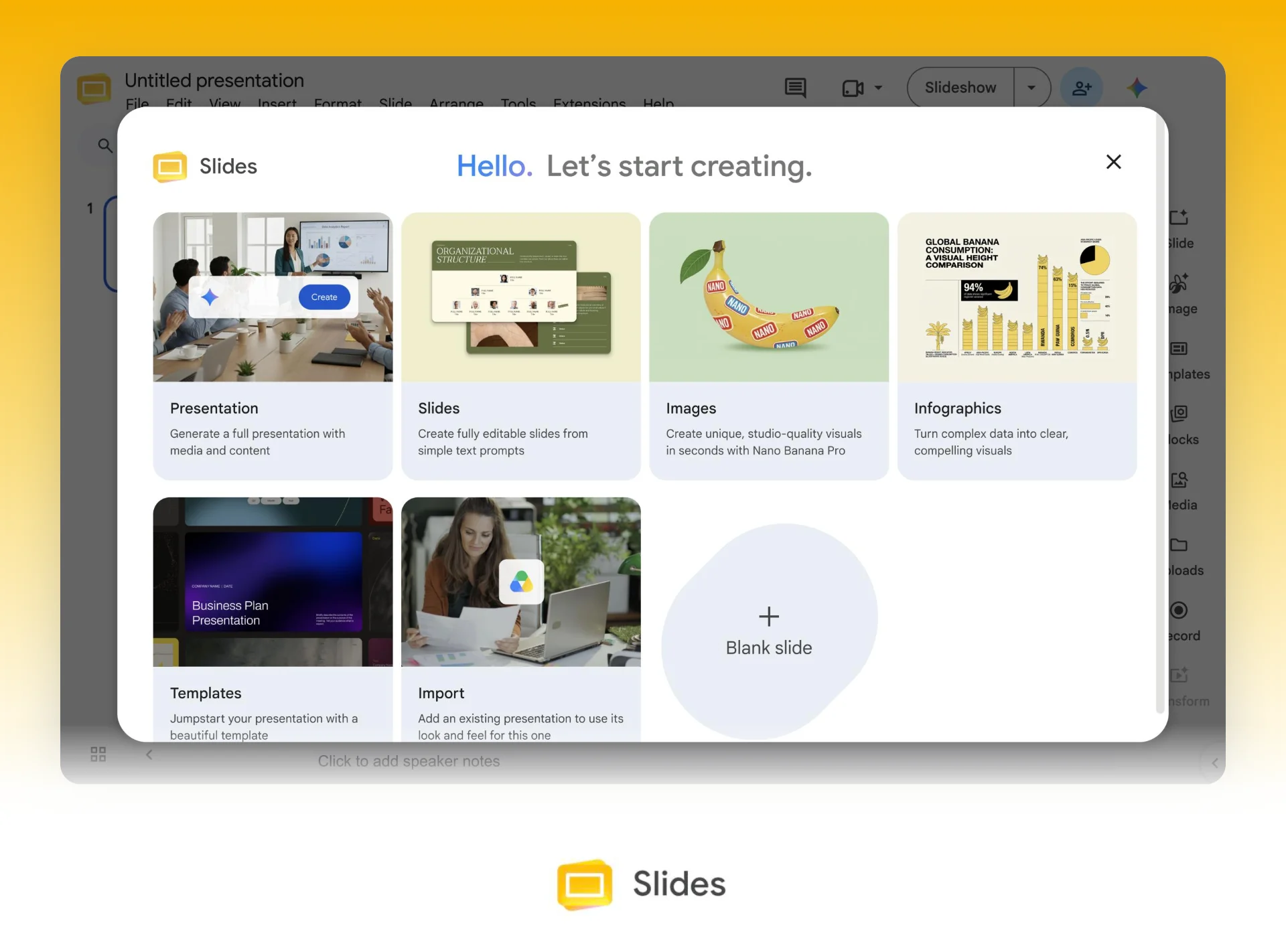
- What you put in: a prompt in the Gemini side panel. Add Drive files as sources, or name one with @, and attach an existing deck to match its style. Google's help doesn't list which Drive file types work.
- Editing and checks: Gemini shows a plan with a per-slide outline that you edit, update and approve before it builds. After that, refine one slide at a time with Gemini or edit by hand, with comments and version history.
- Design: Slides themes, layouts and the template gallery. Gemini matches the style of an existing deck you attach, and some Business and Enterprise plans can share domain templates across the organization.
- Files and presenting: a native Slides file that Google calls "fully native and editable." File > Download gives you PPTX or PDF. Present with Presenter view and audience Q&A.
- Drawbacks: Gemini in Slides isn't part of free Slides or Workspace Business Starter. Full-deck generation is desktop and English only, and you keep the tab and side panel open while it builds. Google caps generated presentations at 100 slides per user a month on Business and Enterprise Standard or Plus (500 with the AI Expanded Access add-on).
- Best for: teams on Workspace Business Standard or higher, or on Google AI Pro or Ultra, who write their decks in English.
Sources: Create a presentation with Gemini, Gemini in Slides, Workspace AI usage limits, Google Slides, Workspace Updates, June 2026, Google Workspace pricing, Present in Google Slides, Change themes and layouts.
6. What is Pitch best for?
Pitch is best for small sales and agency teams who build many decks from one branded template and share them by tracked link.
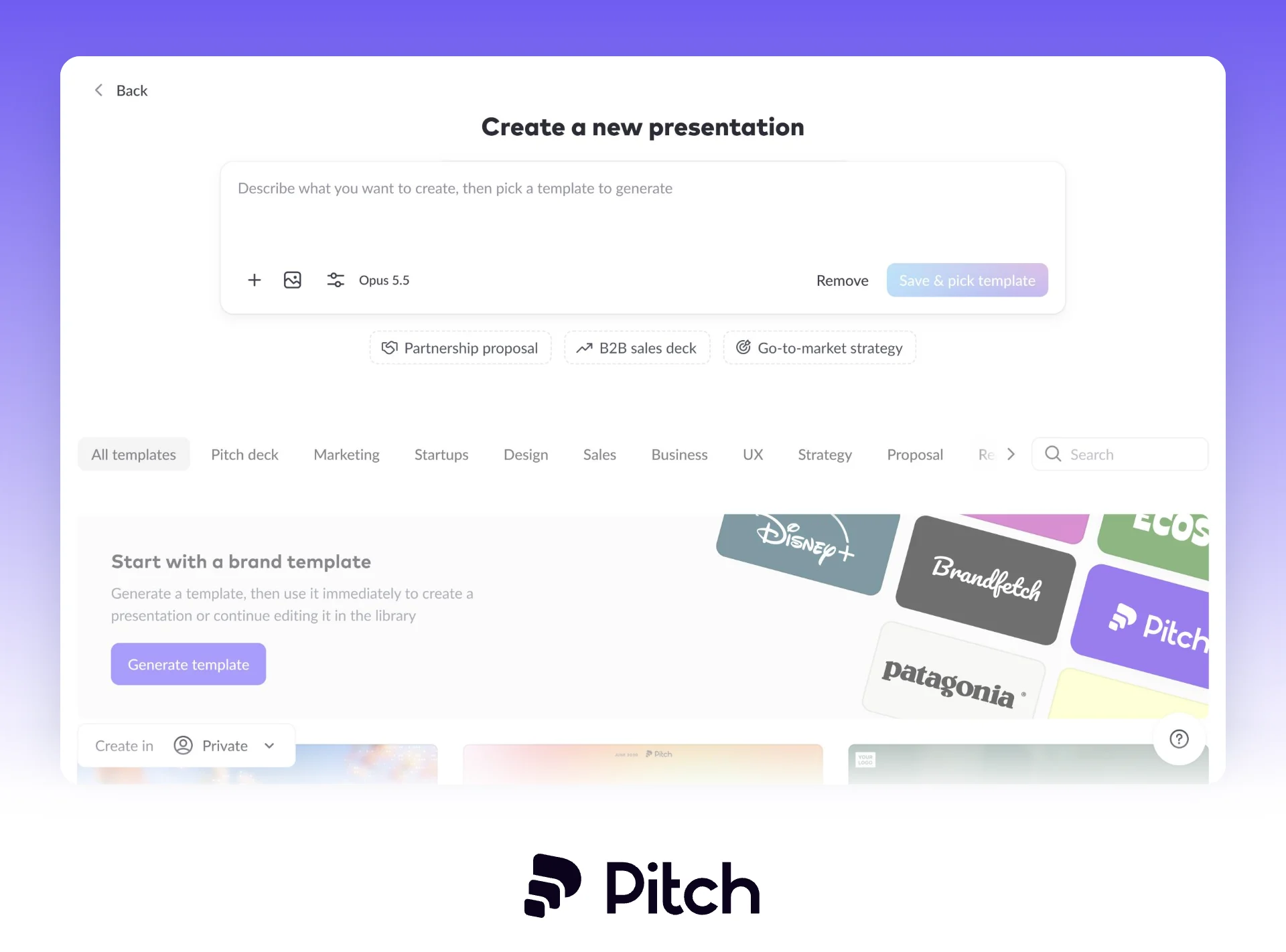
- What you put in: choose "Create with AI," write a prompt, then pick a template from your Library or the Pitch Gallery. Pitch Agent takes PDF, MD, TXT and CSV files and images as context; Word files aren't listed. Entering your domain builds a branded template from your logo, colors and fonts.
- Editing and checks: Pitch Agent adds slides, replaces images across the deck and answers questions about the content. Select a block for Quick actions such as proofread, rewrite or match brand tone. Version history is on Team (30 days) and Business.
- Design: your template is the baseline for everything the agent creates, with slide styles shared across the workspace. Custom fonts are on paid plans.
- Files and presenting: PDF on every plan, with a small Pitch watermark on Free. PPTX on paid plans; animations and uploaded videos don't carry over and fonts can fall back to Calibri. Tracked links with analytics come with Team and Business.
- Drawbacks: Free gets 100 AI credits once. PPTX import takes 16:9 decks only. PowerPoint export works one deck at a time and not on mobile or offline.
- Best for: teams who care more about one shared template and link analytics than about starting from long documents.
Sources: Pitch pricing, Pitch paid plans, Pitch AI presentation maker, Create a new presentation, Pitch Agent, Export to PowerPoint, Export to PDF, Import a presentation.
How to turn a PDF brief into an editable pitch deck in MOVO
In this example, a marketing agency pitches a home goods retailer called Harbor & Pine. It has a 12-page capabilities brief as a PDF and a spreadsheet of case results, and the client's team wants a deck they can edit in PowerPoint. The agency, the client and every number are made up.
1. Attach the brief and describe the deck
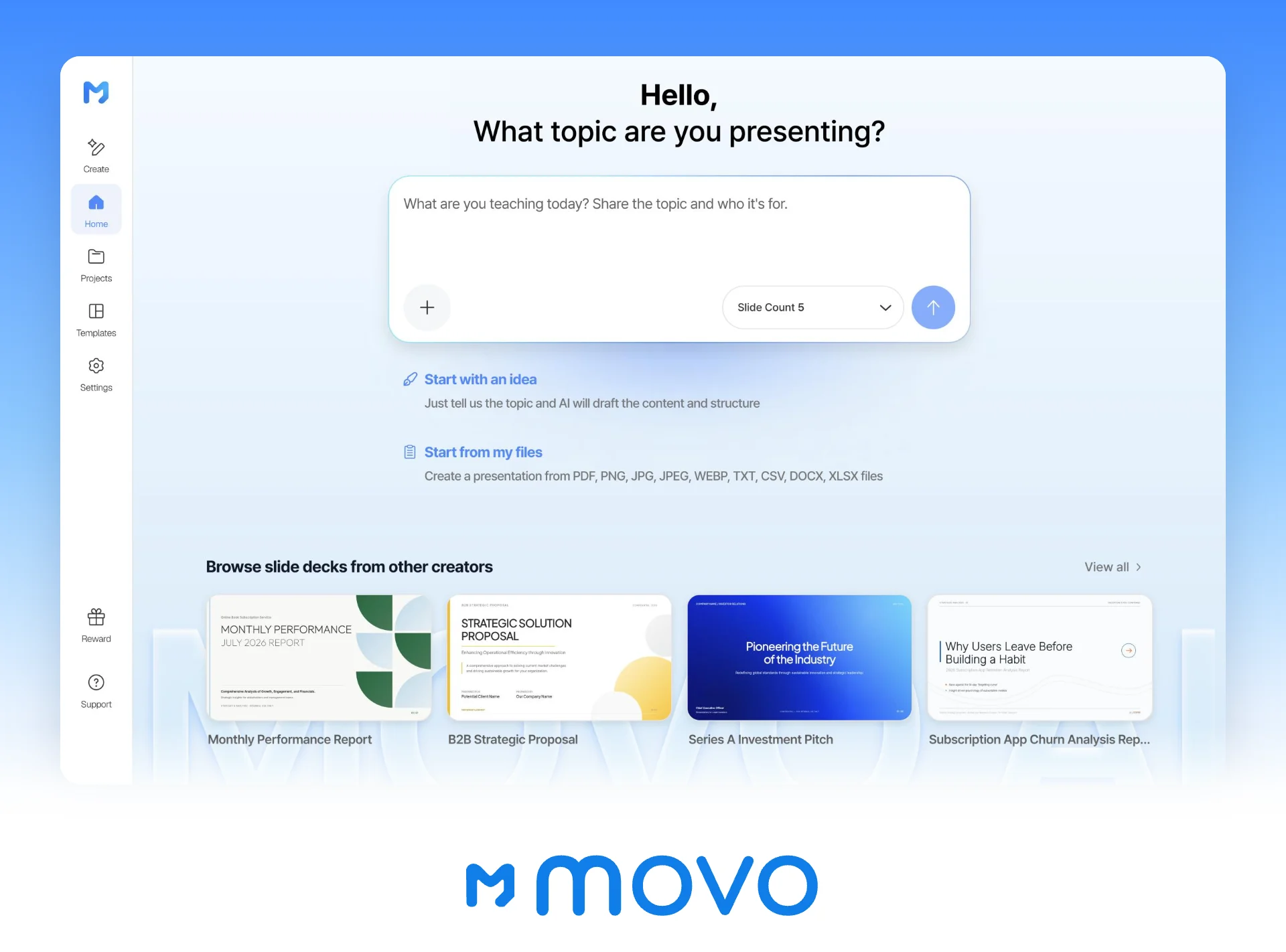
In the dashboard input, attach the brief and the results spreadsheet, set "Slide Count" to 7, and write what the deck is for and which rules the AI must keep. Seven slides is over the Free limit of 5, so this example needs Pro or Max.
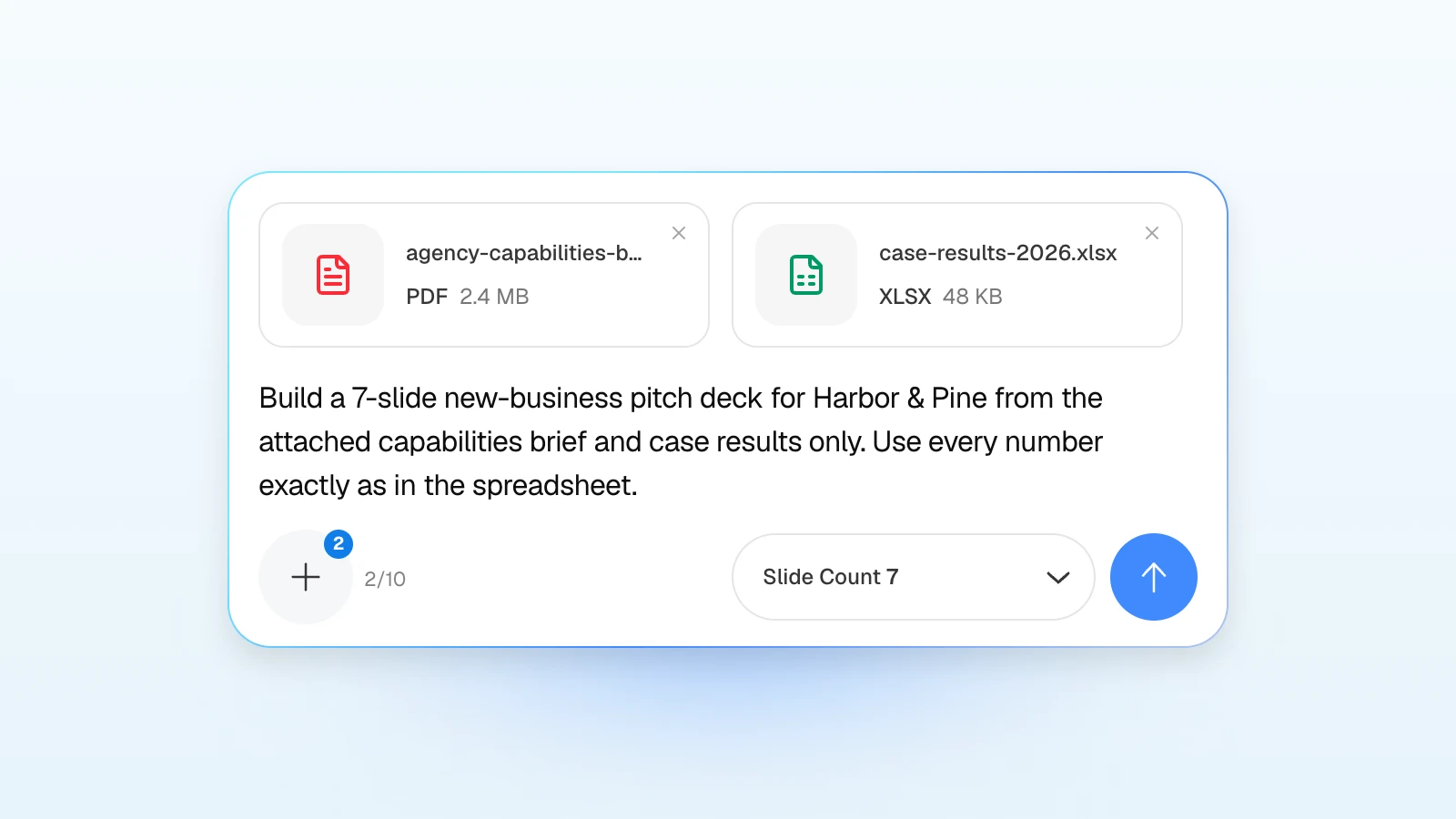
Try a request like this:
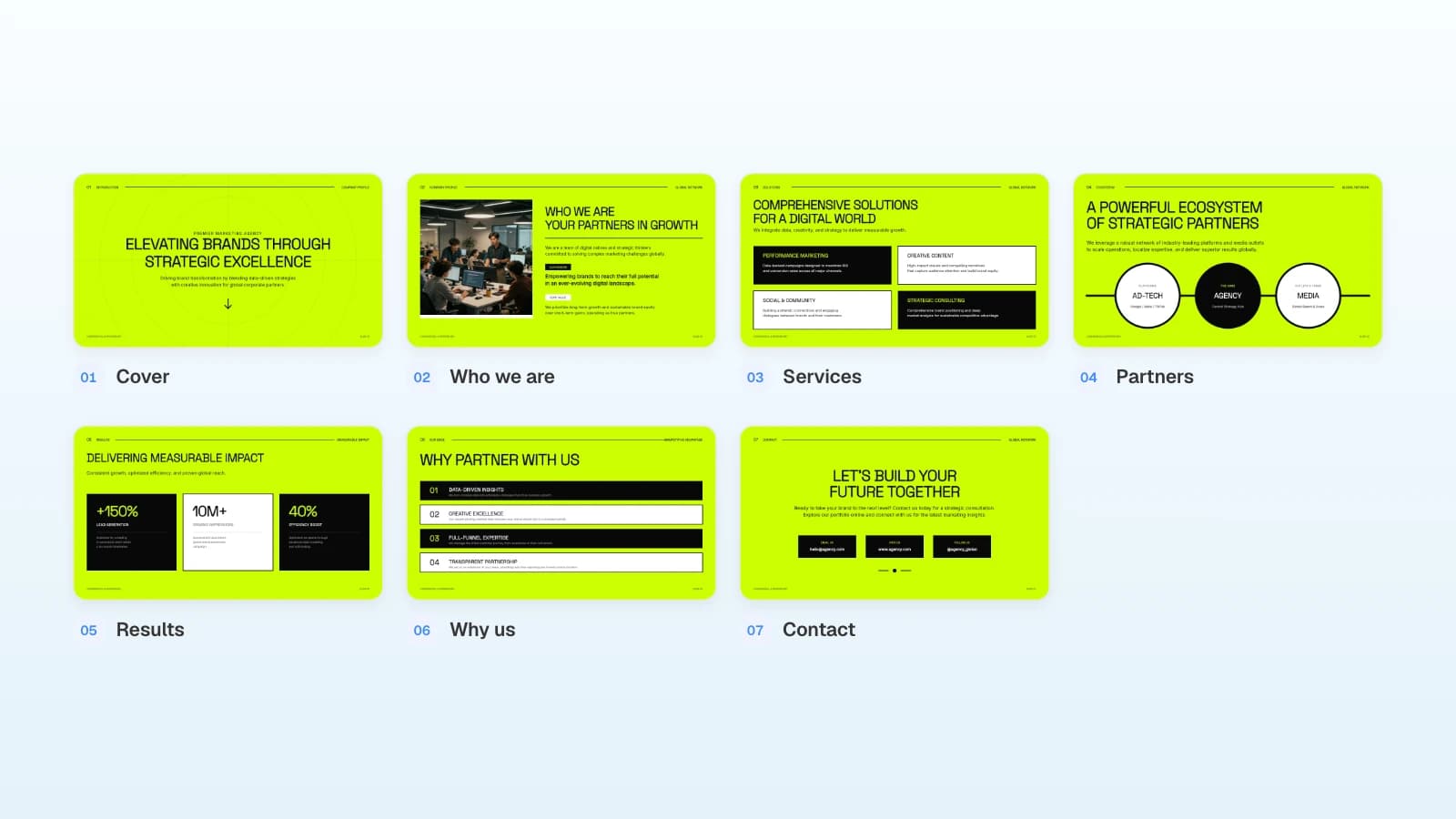
Build a 7-slide new-business pitch deck for Harbor & Pine, a home goods retailer, from the attached capabilities brief and case results only. Order: cover, who we are, services, partner network, results, why partner with us, contact. Use every number exactly as it appears in case-results-2026.xlsx, keep client names as written there, and don't add awards, clients or partners that aren't in the files.
2. Edit the outline
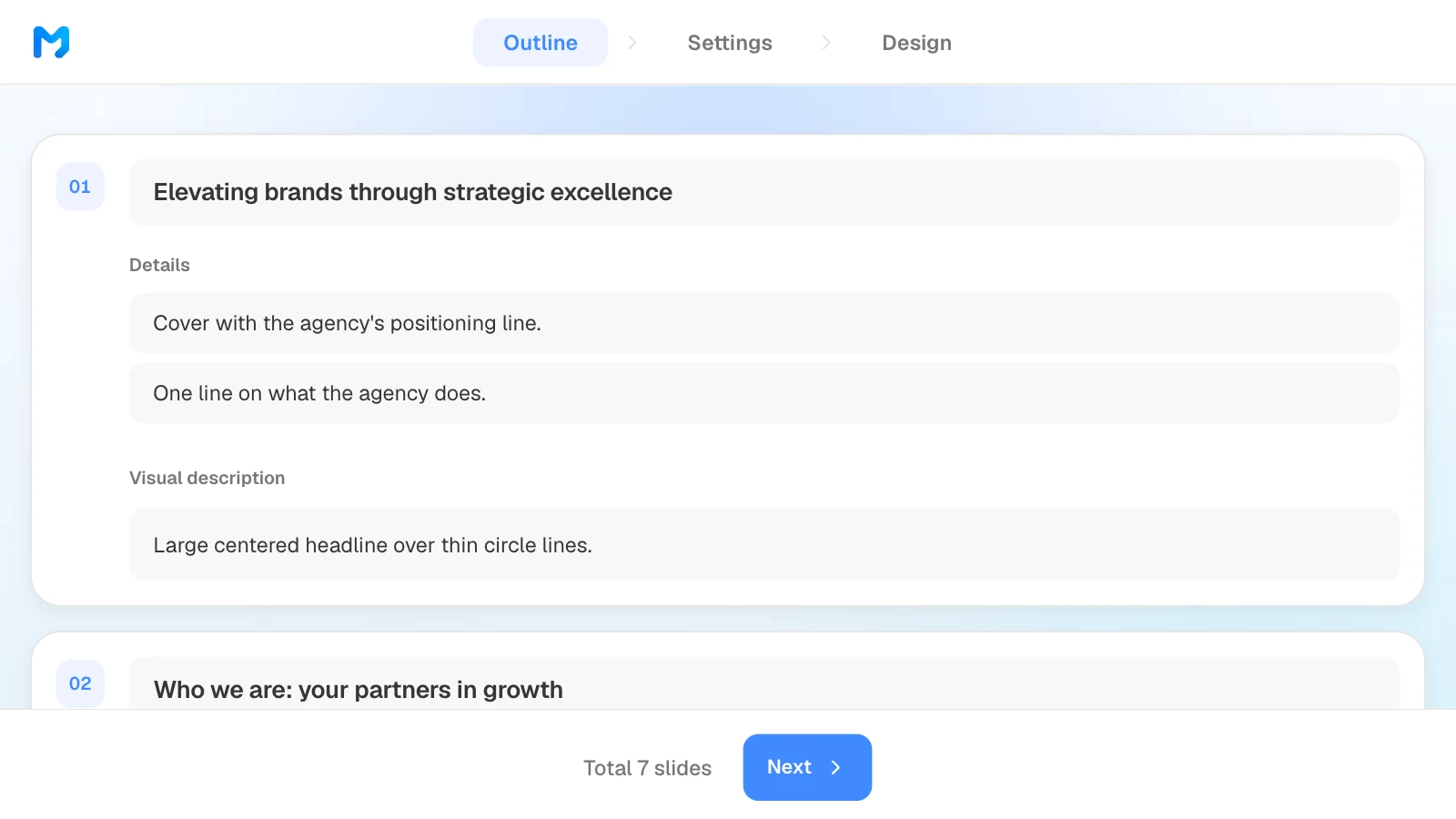
Read the title, details and visual description MOVO suggests for each slide. Rewrite titles as the point you want Harbor & Pine to remember, and drag slides to reorder them. A missing case study or a wrong order is cheapest to fix here, before any design exists.
3. Set the audience and tone
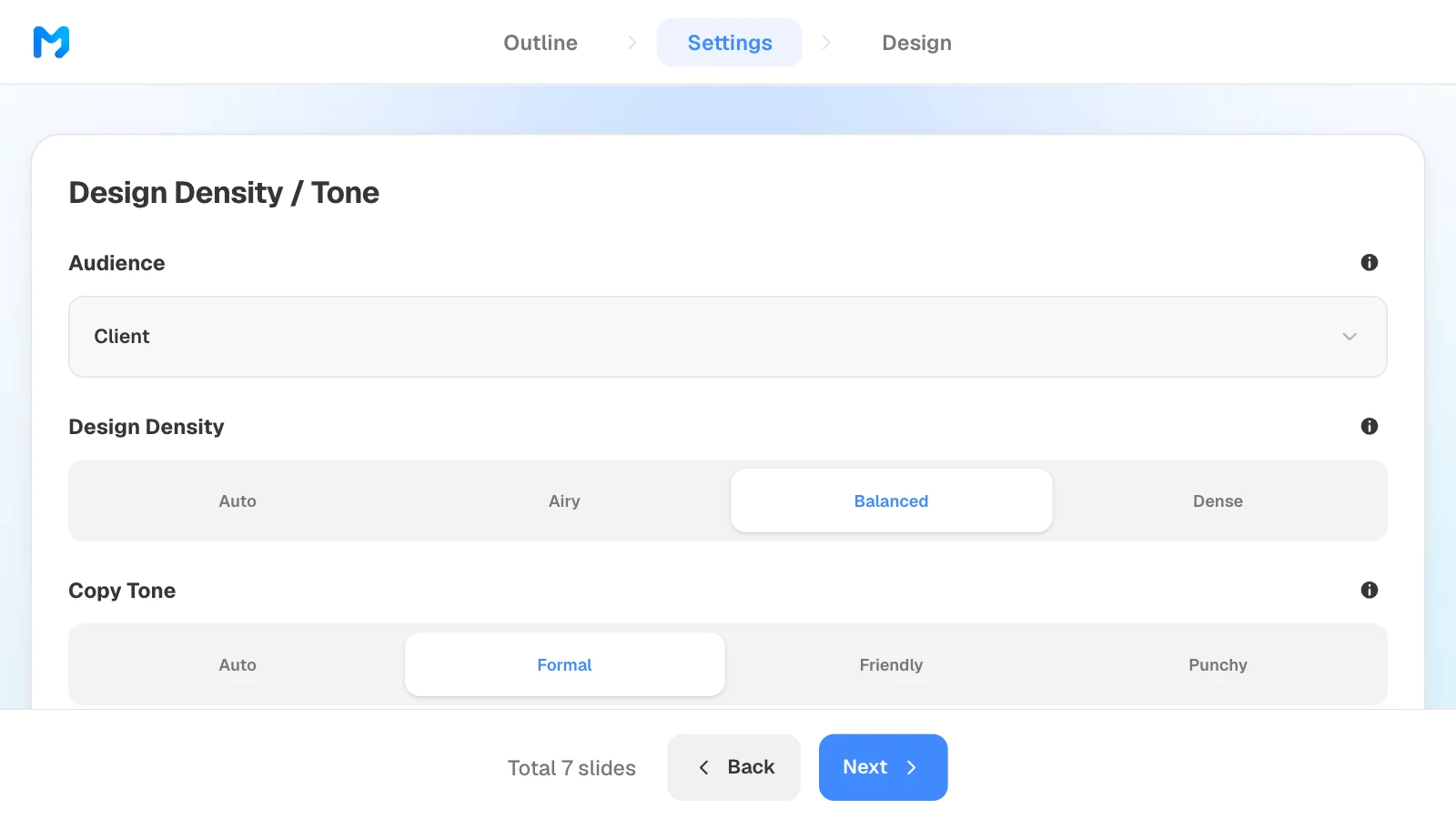
In settings, choose "Client" as the audience, "Balanced" design density and "Formal" copy tone. Scroll down to set background and brand colors and fonts if the agency has its own.
4. Pick a design
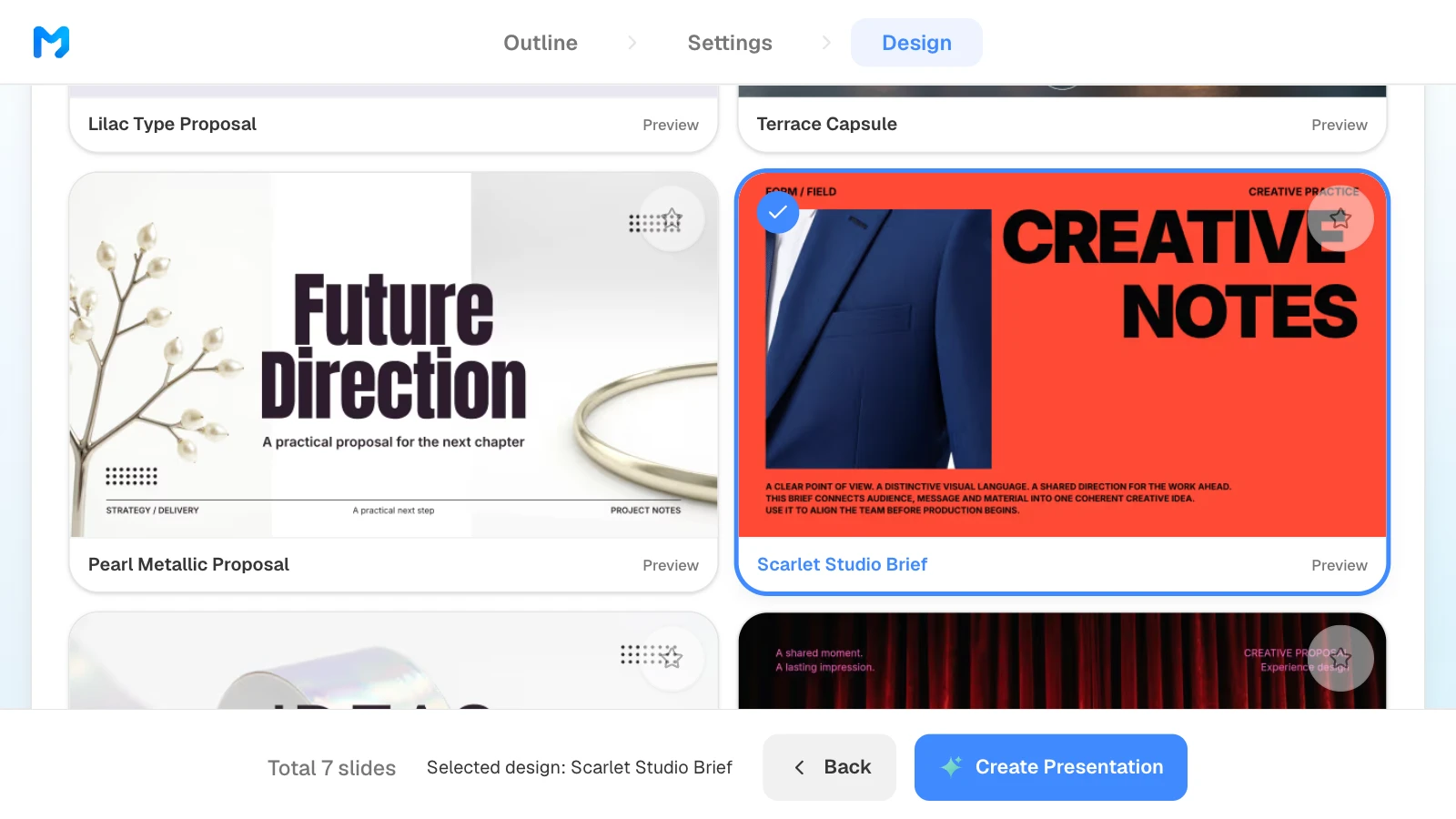
Choose "Proposal / Persuasion" under "Document type" to see only proposal styles, open "Preview" to see sample slides, and pick one. Styles marked "Pro" are for paid plans. Then click "Create Presentation."
5. Check the numbers and fix one slide
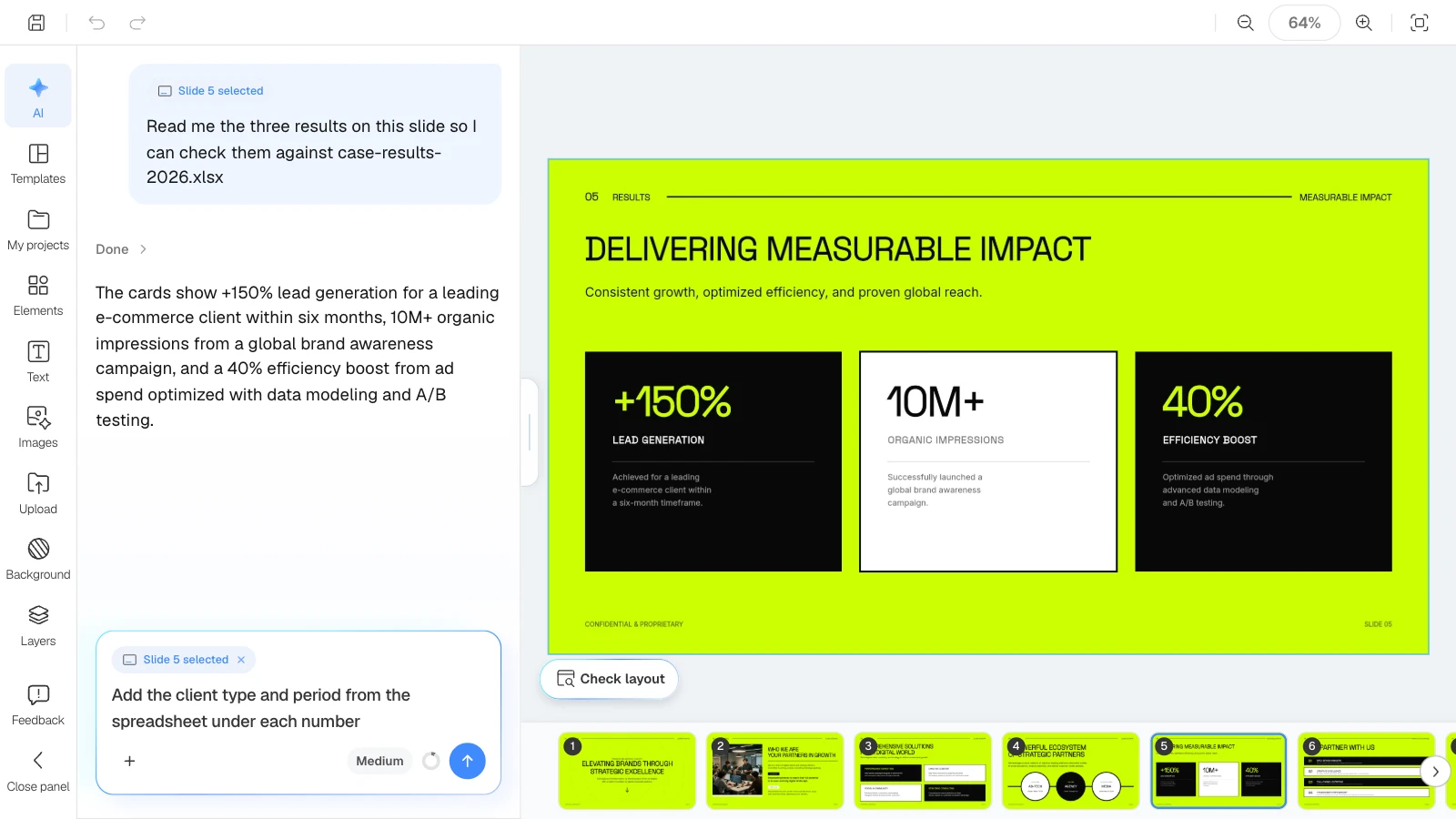
Open the results slide and compare each number with the spreadsheet. Select the slide, ask the AI in the left panel to read the figures back or to change only that slide, or edit the text on the canvas. Before you export, click "Check layout" below the canvas to catch text that overlaps or spills after your edits.
6. Export a PowerPoint file
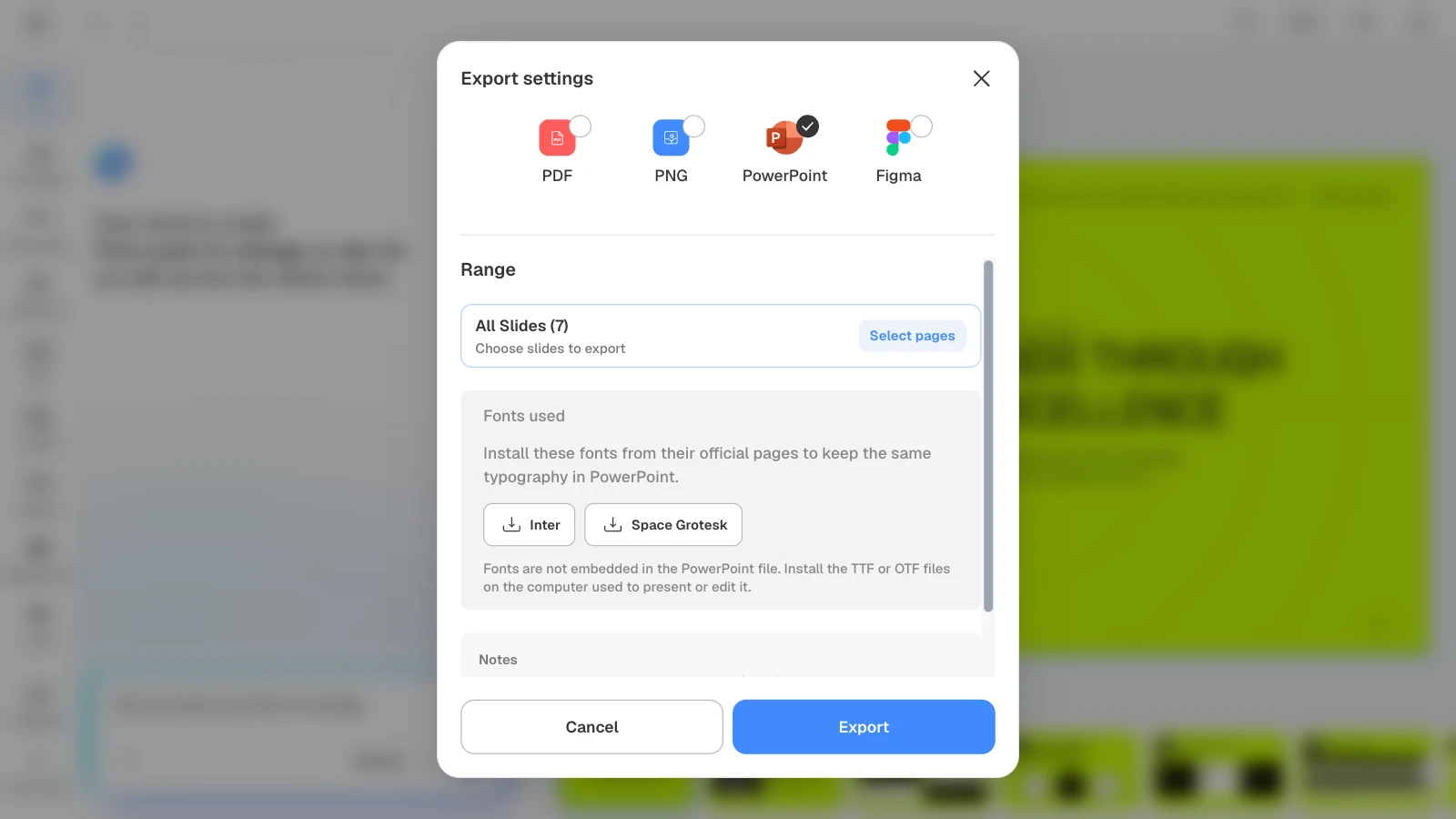
Click "Export" at the top of the editor, choose "PowerPoint" and "All Slides," and export. Send a PDF when the client only needs to read the deck, and the PPTX when their team will edit it. Fonts aren't embedded in the PPTX, so install the fonts the export dialog lists on the computer you present from.
Three pitch and sales templates to start from
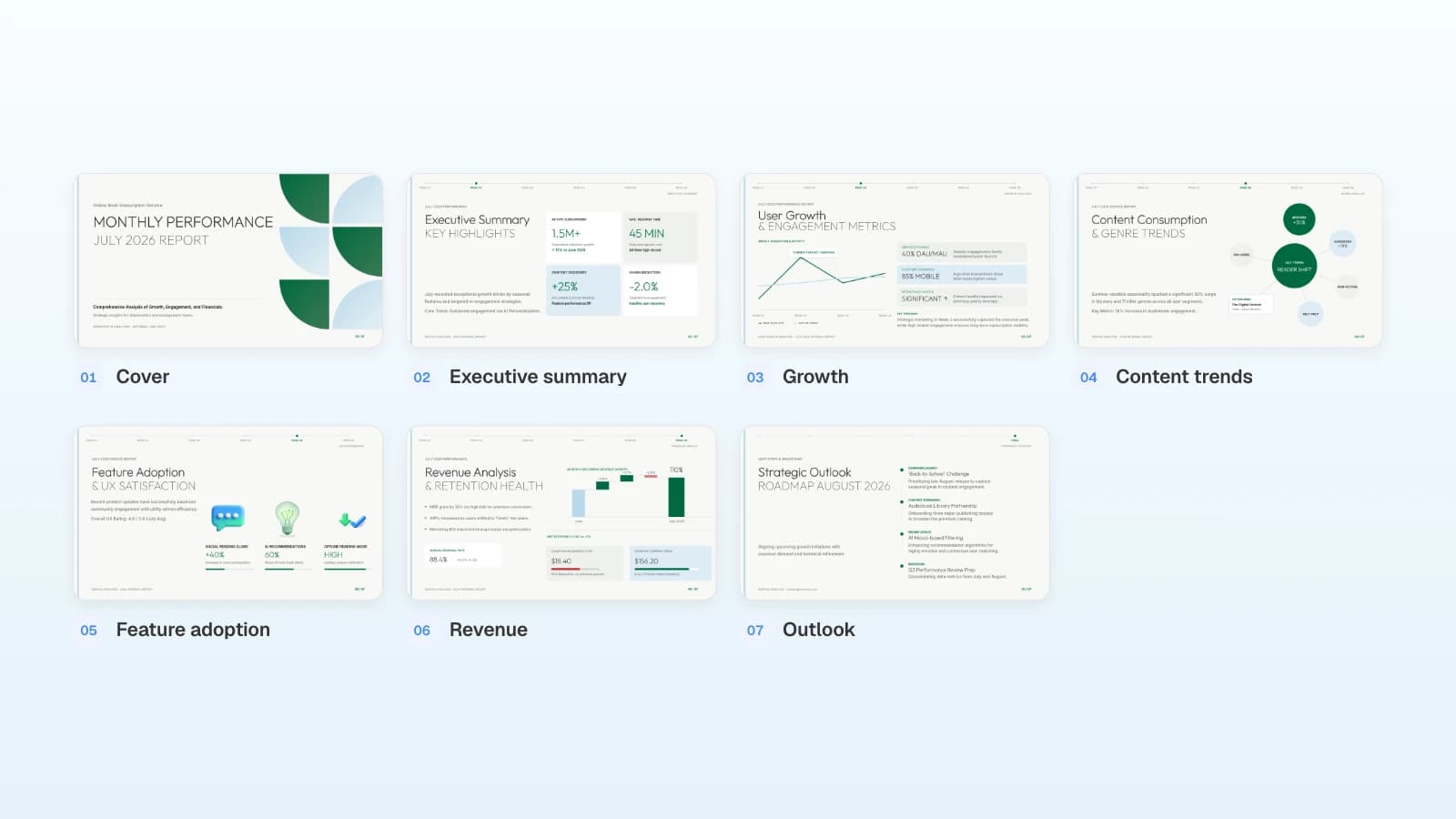
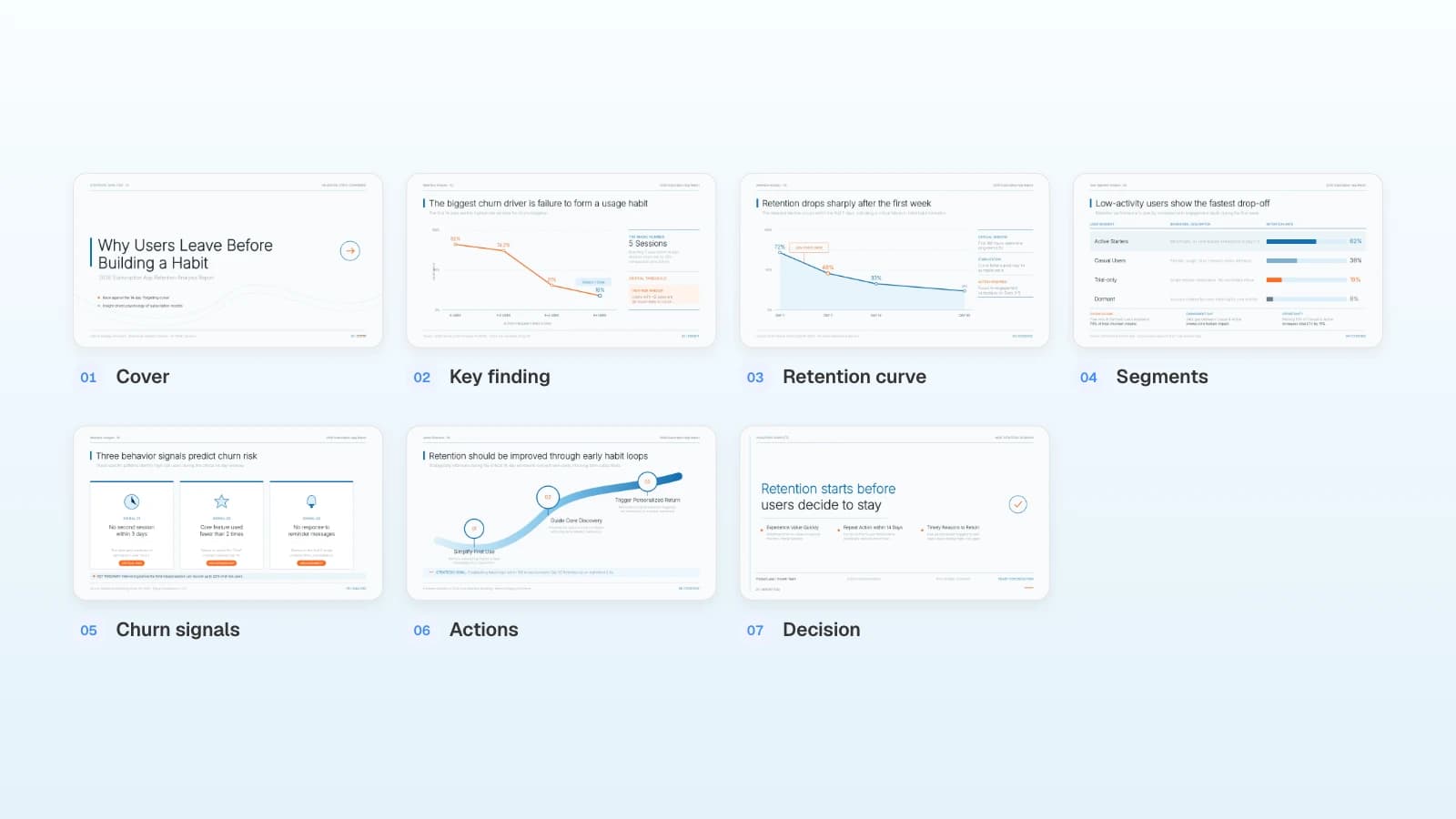
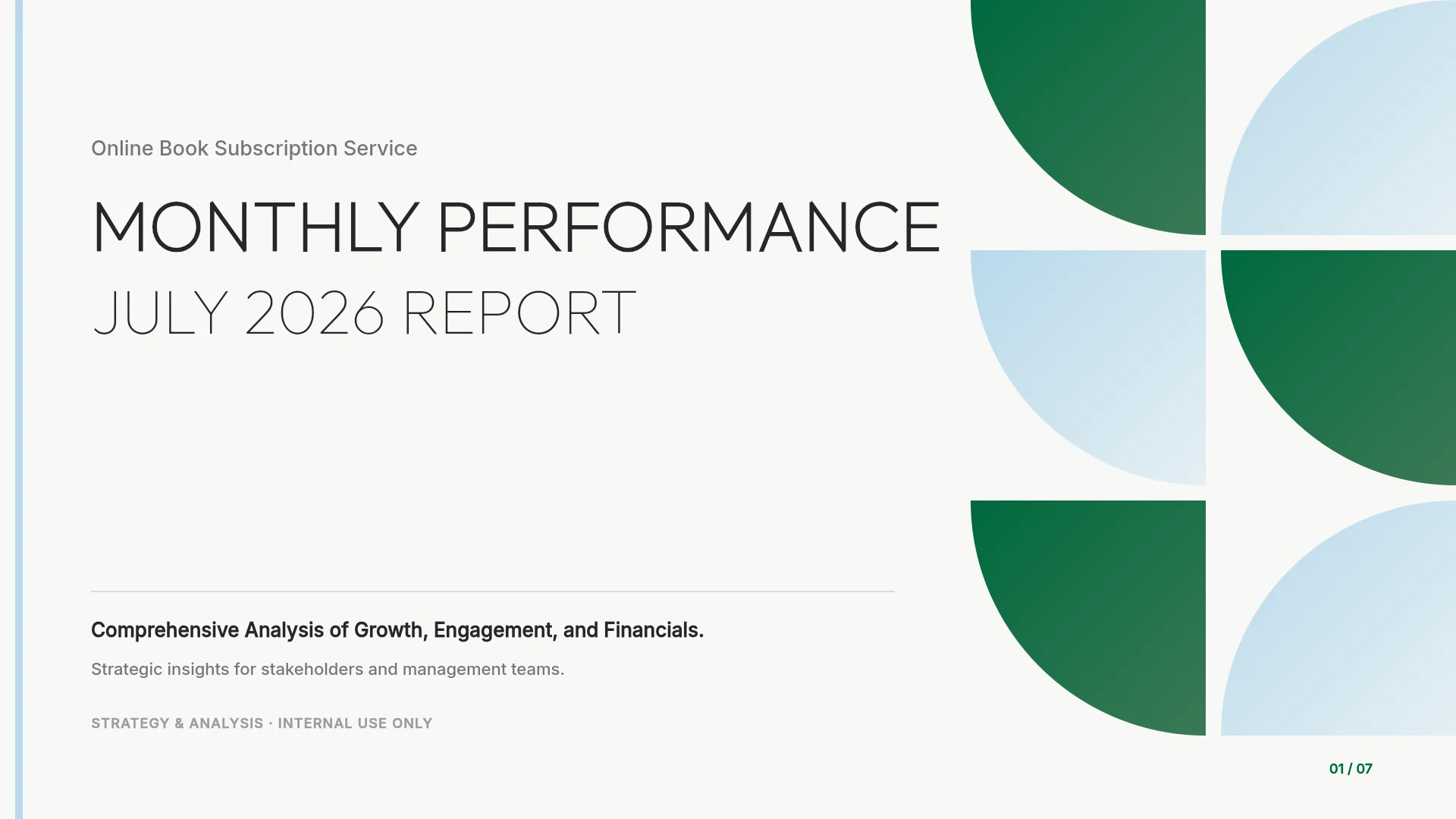
These are MOVO templates written for a global audience. The companies and numbers in them are fictional and show structure only. Open one, sign in and click "Start from this deck" to copy it into your projects on any plan, then replace the content with your own.
1. Digital Marketing Agency Pitch Deck (7 slides)
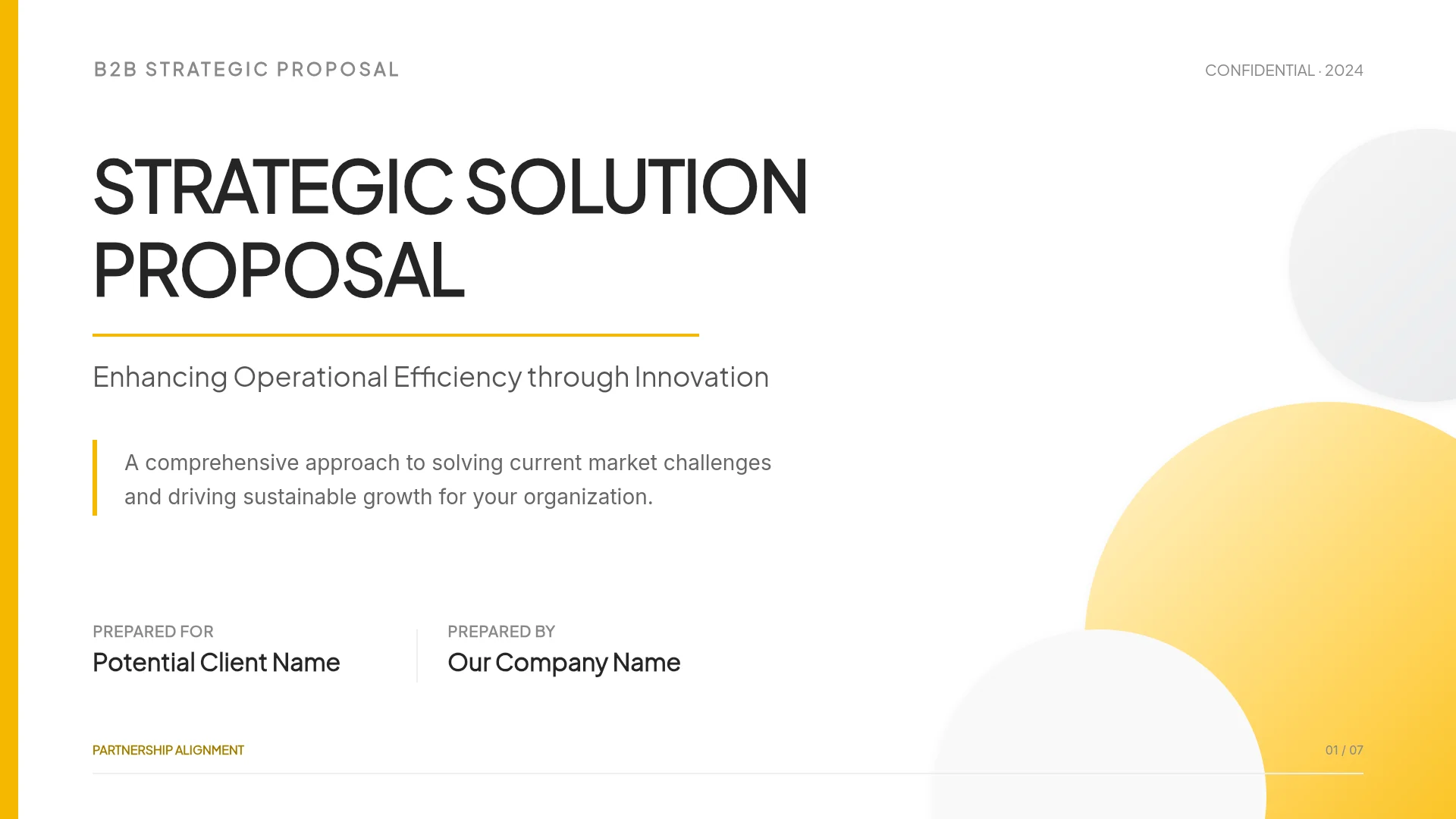
An agency pitch that moves from who the agency is to its four services, partner network, three result cards, four reasons to partner, and a contact slide. It fits agencies and consultants pitching a new client, and it is the deck used in the walkthrough above.
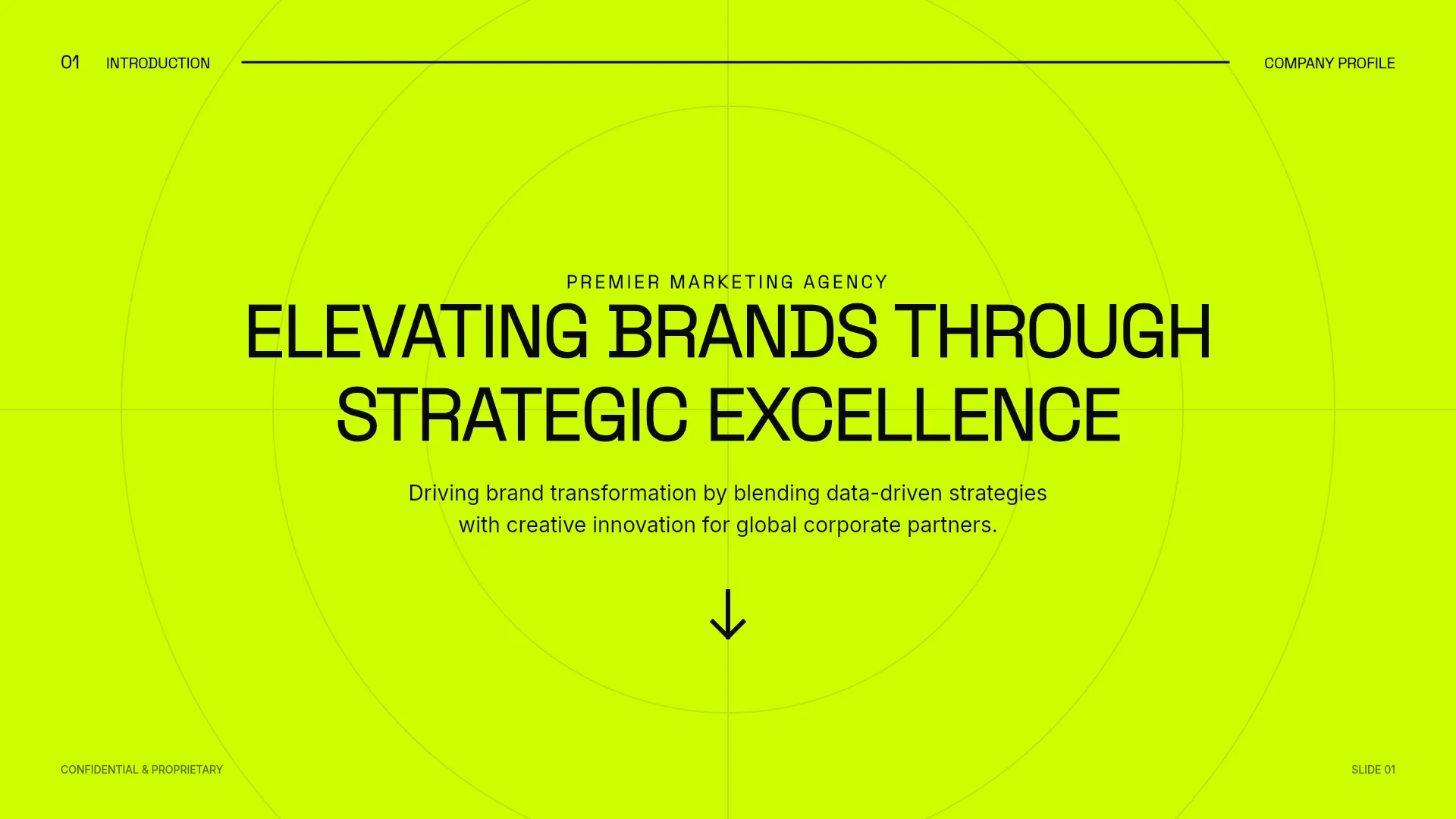
View the Digital Marketing Agency Pitch Deck template
2. Onboarding Automation Proposal (10 slides)
A sales deck for a software product: the old process and its three problems, how the product works, results by the numbers, a before-and-after comparison, and a closing call to start. It fits SaaS teams turning a product brief into a deck for buyers.
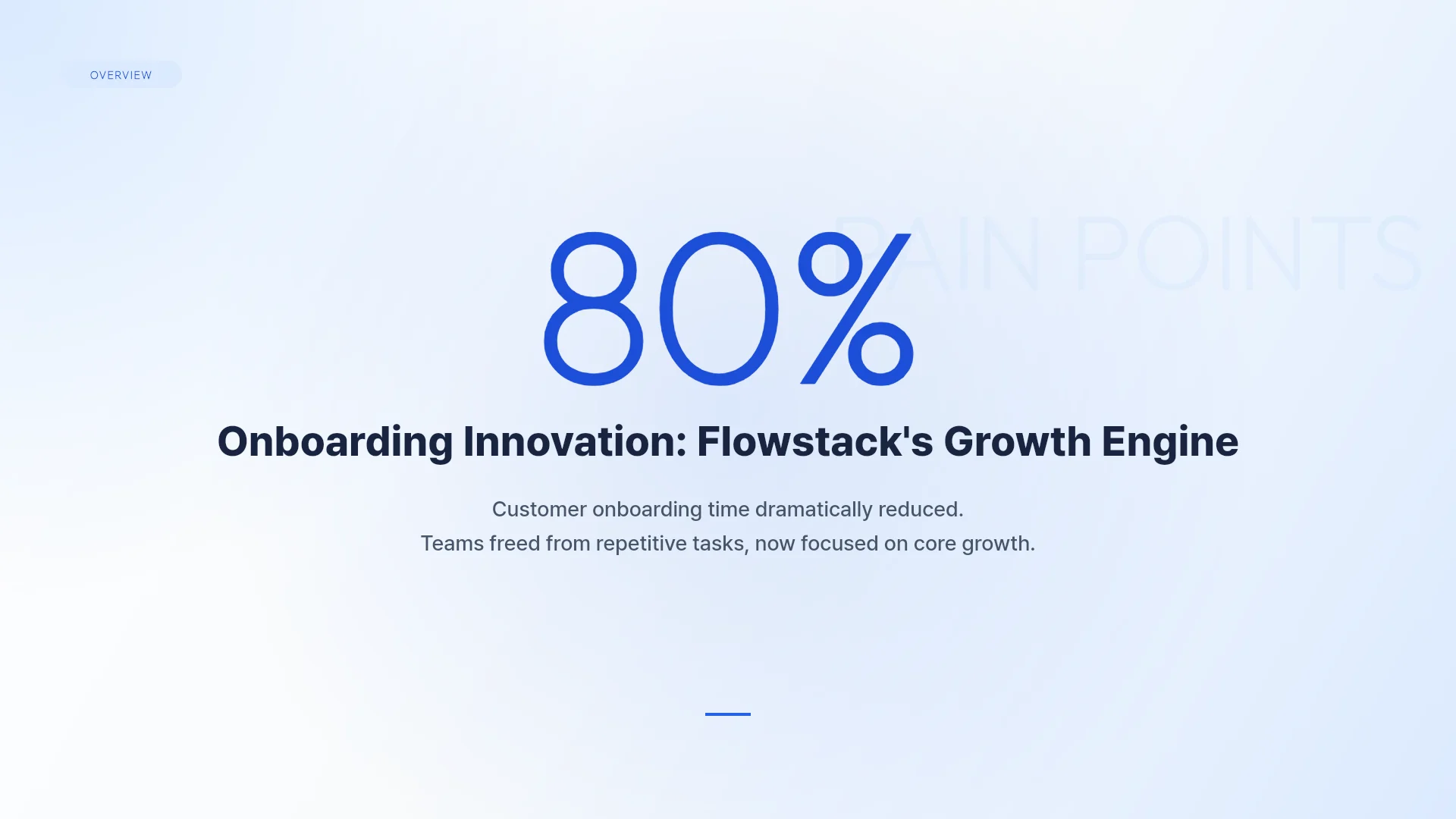
View the Onboarding Automation Proposal template
3. Team Collaboration Platform Proposal (8 slides)
A sales proposal for a workplace messaging tool, with the cost of the problem, three stat cards, the solution, features, customer stories, and an offer for a 30-day pilot. It fits teams selling a product to business buyers who want a clear next step.
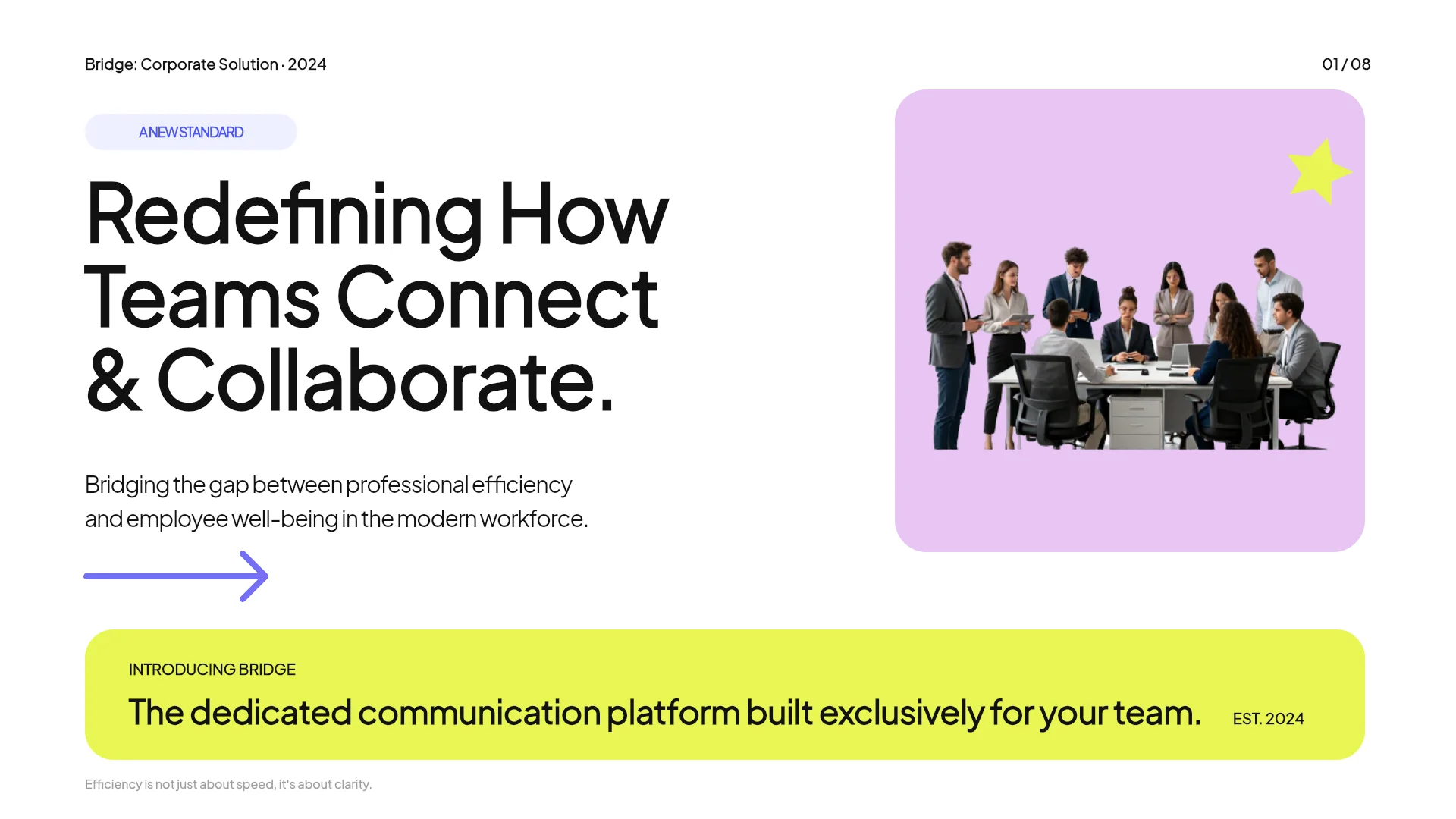
View the Team Collaboration Platform Proposal template
Frequently asked questions
Is there a free Gamma alternative that exports PPTX?
Google Slides is free and downloads any deck as PPTX, but drafting it with Gemini needs an eligible Workspace or Google AI plan. PowerPoint for the web is also free, but Microsoft lists Copilot in PowerPoint only on paid plans. Canva's help lists PPTX downloads without naming a plan. Beautiful.ai, Pitch and MOVO put PPTX export on paid plans; MOVO's Free plan exports PDF and PNG with a watermark. Gamma's own Free plan exports PPTX with a "Made by Gamma" badge.
Which Gamma alternatives export to Google Slides?
Google Slides with Gemini makes native Slides files to begin with. Beautiful.ai exports an editable Google Slides deck on Pro, Team and Enterprise, without videos, audio, animations or transitions. Microsoft, Pitch and MOVO document no direct Google Slides export. Gamma's pricing page lists Google Slides export on every plan; its help says this works by exporting a PPTX and uploading it, and Google Slides then ignores the fonts embedded in the file.
Do these tools charge credits the way Gamma does?
Most meter AI use in some way. Pitch gives Free 100 credits once and Plus 500 a month. Canva counts deck generation against a monthly AI allowance. Google caps generated presentations at 100 slides per user a month on Business and Enterprise Standard or Plus, and Microsoft applies usage limits without publishing the numbers. Beautiful.ai lists "Unlimited AI content generation" on its paid plans. MOVO gives 300 credits a month on Free and 5,000 on Pro. Gamma's 400 Free credits never refill.
Which alternatives can follow our company template?
PowerPoint with Copilot builds from your organization's .pptx or .potx template, and Brand kit needs a work Copilot license. Pitch generates into the template you pick and can build one from your domain. Beautiful.ai applies a team Brand Kit to AI-generated decks. Google Slides with Gemini matches the style of a deck you attach, and some Workspace plans share domain templates. Canva applies a Brand Kit with "Apply brand." MOVO takes your brand colors and fonts in settings, but it can't import a PowerPoint template and keep its layouts.
Can I move a Gamma deck into one of these tools?
Export it from Gamma first; PPTX and PDF export are on every Gamma plan. PowerPoint and Google Slides open the PPTX directly. Canva imports PPTX files of up to 300 slides (beta, desktop browser), Beautiful.ai imports them with "Import From PPT," and Pitch imports 16:9 decks. MOVO doesn't accept PPTX: attach the PDF export instead, and MOVO builds a new deck from its content.
Summary
If you start from a PDF, Word file or Excel workbook and want to review each slide's visual description before design, check layouts and hand off a PowerPoint file, start with MOVO; Beautiful.ai and Google Slides with Gemini also let you edit an outline first. Pick PowerPoint with Copilot when everything must stay in Microsoft 365, Canva when your team designs in Canva, Beautiful.ai for consistent layouts and an editable PowerPoint, Google Slides with Gemini for Workspace teams writing in English, and Pitch for a small team working from one branded template. If you mostly share decks as links or web pages, Gamma may still fit best. Plans change often, so check each pricing page again before you pay.