Consulting Proposal and Monthly Report Decks
What MOVO is and how a consulting or agency team uses it on a client engagement: a proposal from the RFP, a monthly report from the results spreadsheet, review, a share link, and PPTX handover.
A consulting firm or agency hands the same client a proposal, a kickoff deck, monthly reports, and a final report. Each time, someone rereads the RFP, the meeting notes, and the latest spreadsheet, rebuilds the same slide structure, checks every number against the source, and exports whatever format the client wants. When deadlines overlap, review time is the first thing to go.
MOVO starts from those files. Describe the deck and attach your material, and MOVO shows a slide-by-slide outline first. Edit the outline, pick a design, and the slides are built; then fix slides one at a time, share a link, or export PDF or PPTX. This guide explains what MOVO is, where it fits in a consulting or agency engagement, how to produce the monthly client report every month, and how to review and hand over the files.

What is MOVO?
MOVO is an AI presentation tool: it drafts a deck from your request and files, lets you edit every slide, and exports PDF, PNG, PPTX, or Figma. You can start in two ways: type a request and attach files in the dashboard input, or copy a similar deck from the template gallery into your projects.
| Task | How to do it in MOVO | Good to know |
|---|---|---|
| Add material | Type a request, attach files, and choose the slide count | PDFs up to 100 pages and spreadsheets up to 20 sheets; Word, CSV, TXT, and images too. Save PPTX files as PDF |
| Set the structure | In the outline step, edit each slide's title, details, and visual description, and drag to reorder | The number of slides follows the count you chose in the input |
| Choose a design | Narrow styles by document type and mood, then pick one | Styles marked "Pro" need a paid plan |
| Edit | Select a slide and ask in the AI panel, or edit on the canvas | "Check layout" finds overlapping or spilling text |
| Reuse | Duplicate a project, or insert slides from the Templates or My projects tab | Inserted slides go right after the slide you are on |
| Share and hand over | Share a link, or export | PDF and PNG on every plan; PPTX and Figma on paid plans |
Where does MOVO fit in a consulting engagement?
Use it for every deck the client receives. Each stage starts from different material.
| Stage | Deck | Material to attach | Start from | Similar template |
|---|---|---|---|---|
| Win the work | Proposal or agency pitch | RFP PDF, discovery notes | Dashboard input | 90-Day Customer Feedback Operating Model |
| Kickoff | Kickoff deck | Signed scope, timeline, proposal PDF | Dashboard input | - |
| Delivery | Monthly or status report | Results spreadsheet, last month's report PDF | Input, or duplicate last month | Monthly Performance Report |
| Close | Final report | Results data, retrospective notes | Dashboard input | - |
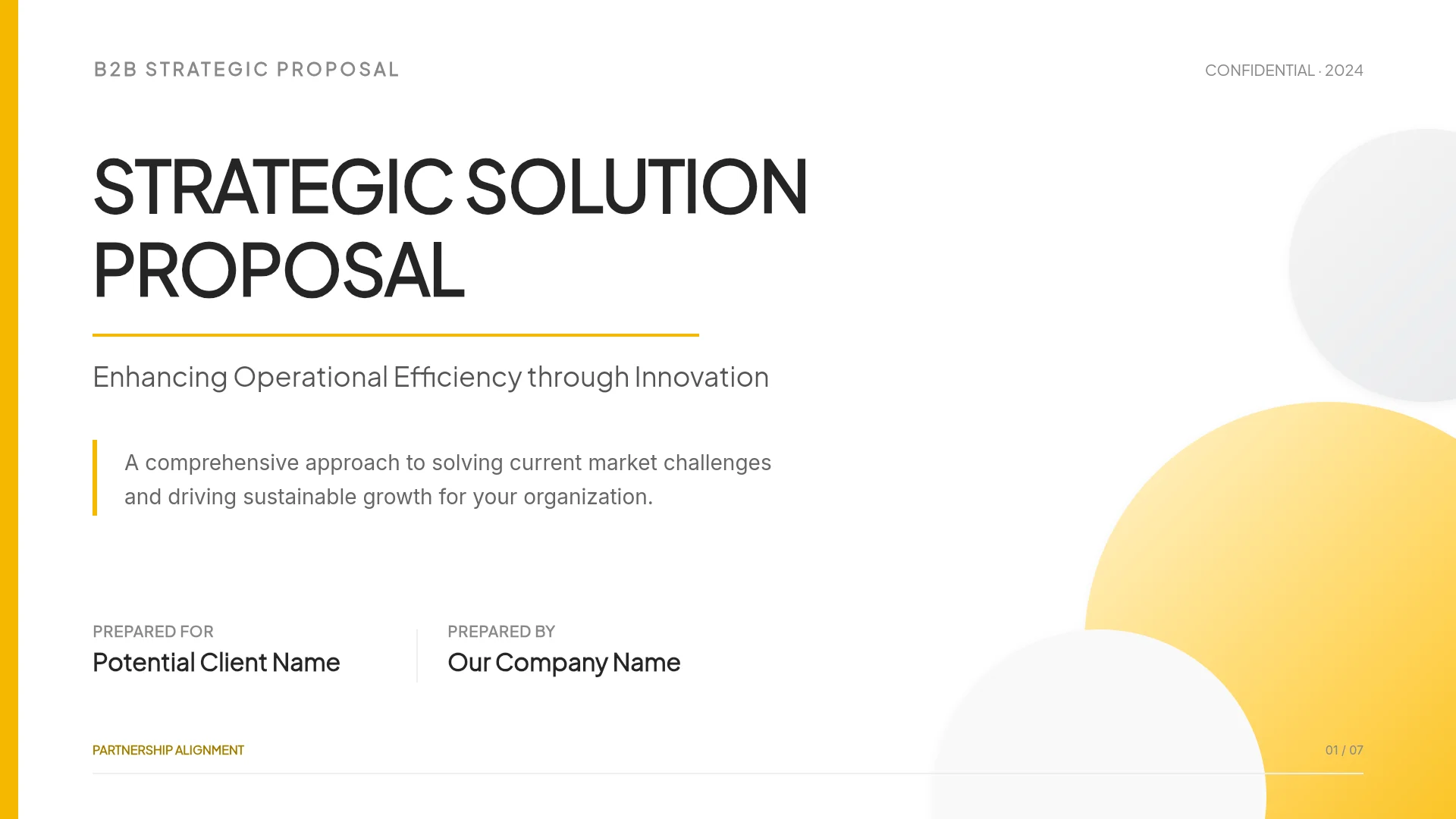
For a proposal, attach the RFP and your notes and start from the input. If you already have a structure you like, start from a template instead: open it in the gallery and click "Start from this deck" (sign-in required) to copy it into your projects and open the editor. Inside the editor, the Templates tab on the left inserts single slides from other templates into your deck.
A proposal request can look like this:
Using only the attached RFP and discovery notes, build a 7-slide proposal asking the client's head of product to approve a 90-day customer feedback operating model engagement. Order: current vs. proposed approach, three stages, evidence, 90-day plan, decision loop, next steps. Don't add numbers or case studies that aren't in the notes.
How do you produce the monthly report every month?
After the first month, continue in one of three ways.
| Method | How | When it fits |
|---|---|---|
| Build it fresh | Attach last month's report PDF and this month's spreadsheet in the input, and ask for "the same structure as last month" | The structure stays, but the story changes |
| Duplicate and edit | In My projects, open last month's project menu (⋯), choose Duplicate, then update figures and text | Same design and structure, new numbers |
| Insert slides | In the editor's My projects tab, pick slides from another project and insert them | You only need a few slides from an earlier report or the proposal |
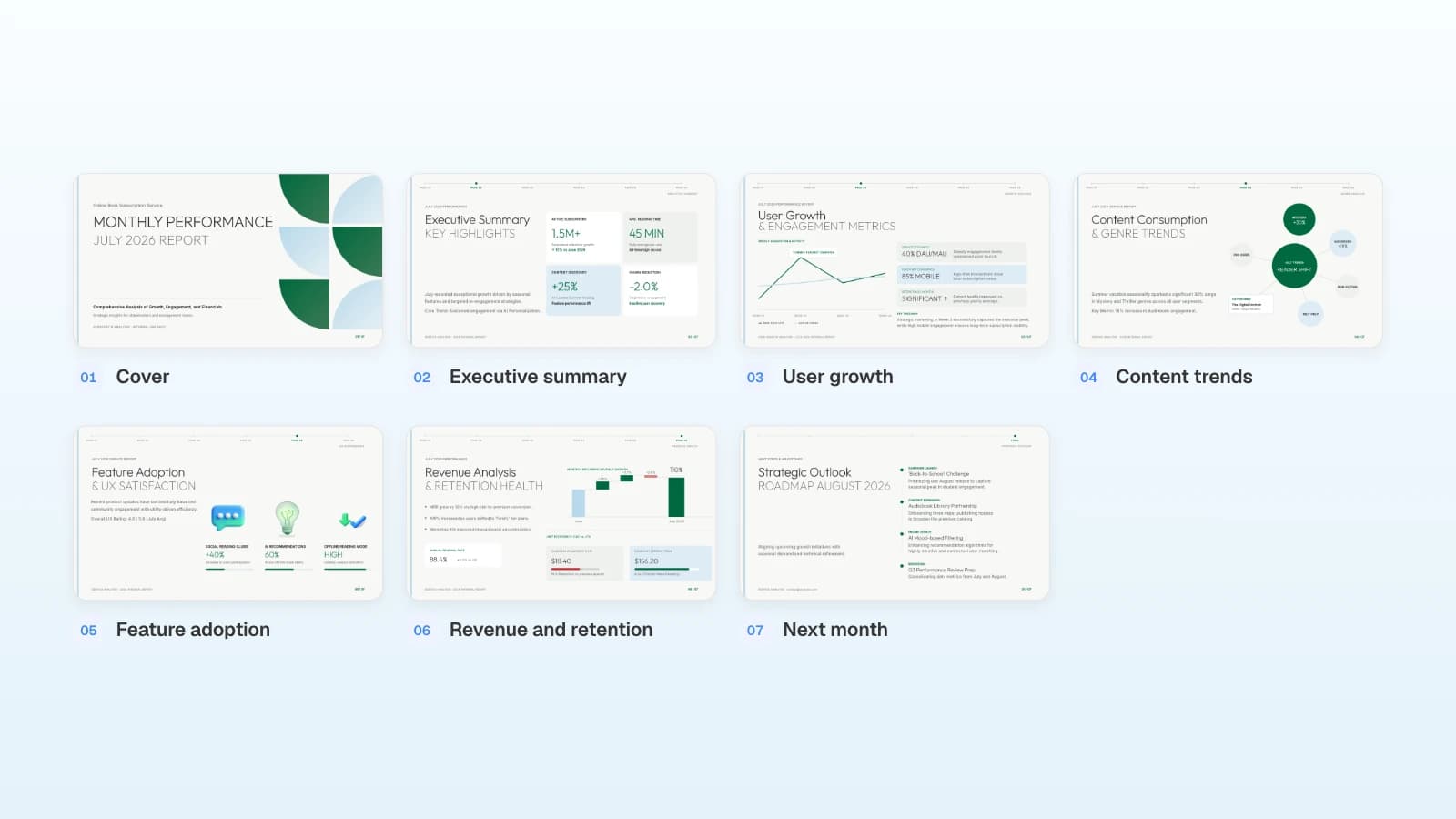
Keeping the same order every month lets the client put two months side by side. The seven slides below are one example.
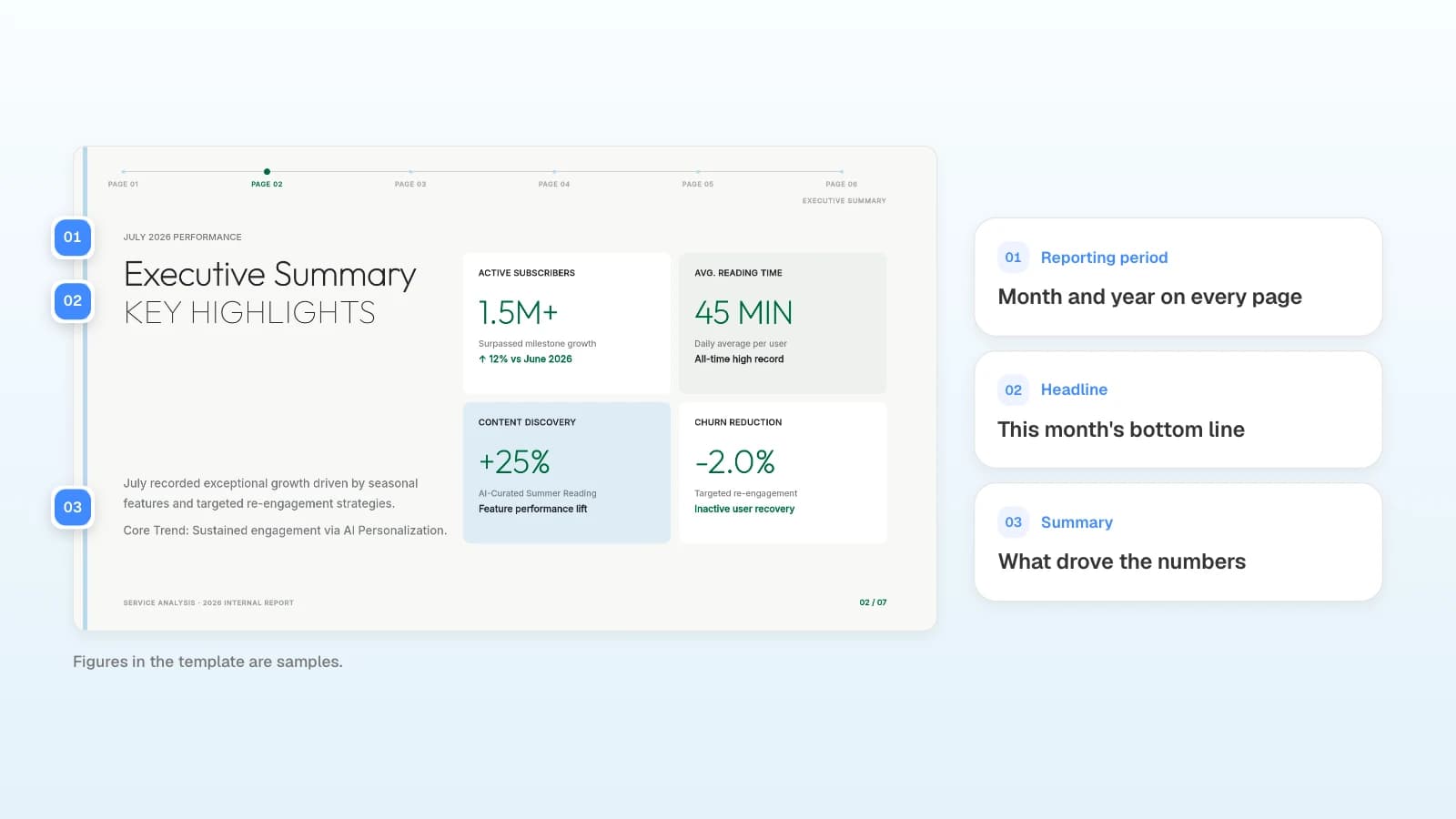
The executive summary carries the month's bottom line. US federal plain-language guidance tells writers to "start by stating your purpose and the bottom line" (Digital.gov), and a client report works the same way: the headline states the conclusion, the summary says what drove it, and every figure matches the spreadsheet with its month-over-month change. Mark causes you have not confirmed as hypotheses.
Who checks what before the client sees it?
The data owner checks numbers against the source, the engagement lead checks commitments and scope, and the author checks the layout. A small team can combine roles, but name one person who approves the final file.
| Check | Question | Owner | In MOVO |
|---|---|---|---|
| Facts | Do figures, periods, and units match the source? | Data owner | Compare each slide with the source file |
| Scope | Did work we never promised slip in? | Engagement lead | Select the slide and ask the AI panel |
| Message | Does each title state a conclusion the data supports? | Engagement lead | Ask for a title-only rewrite |
| Language | Is anything overstated? | Author | Edit the sentence on the canvas |
| Layout | Does anything overlap or get cut off? | Author | Check layout |
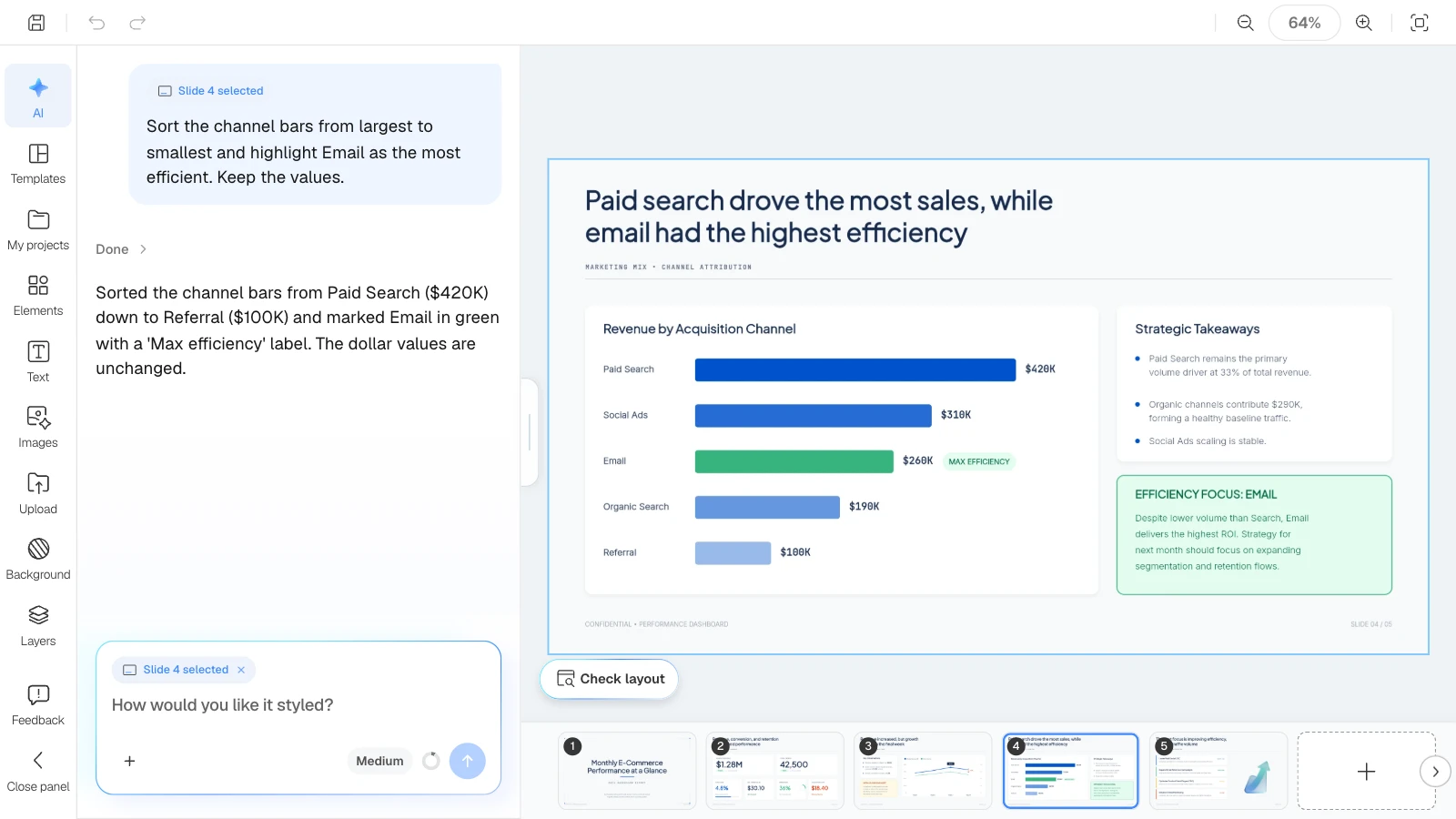
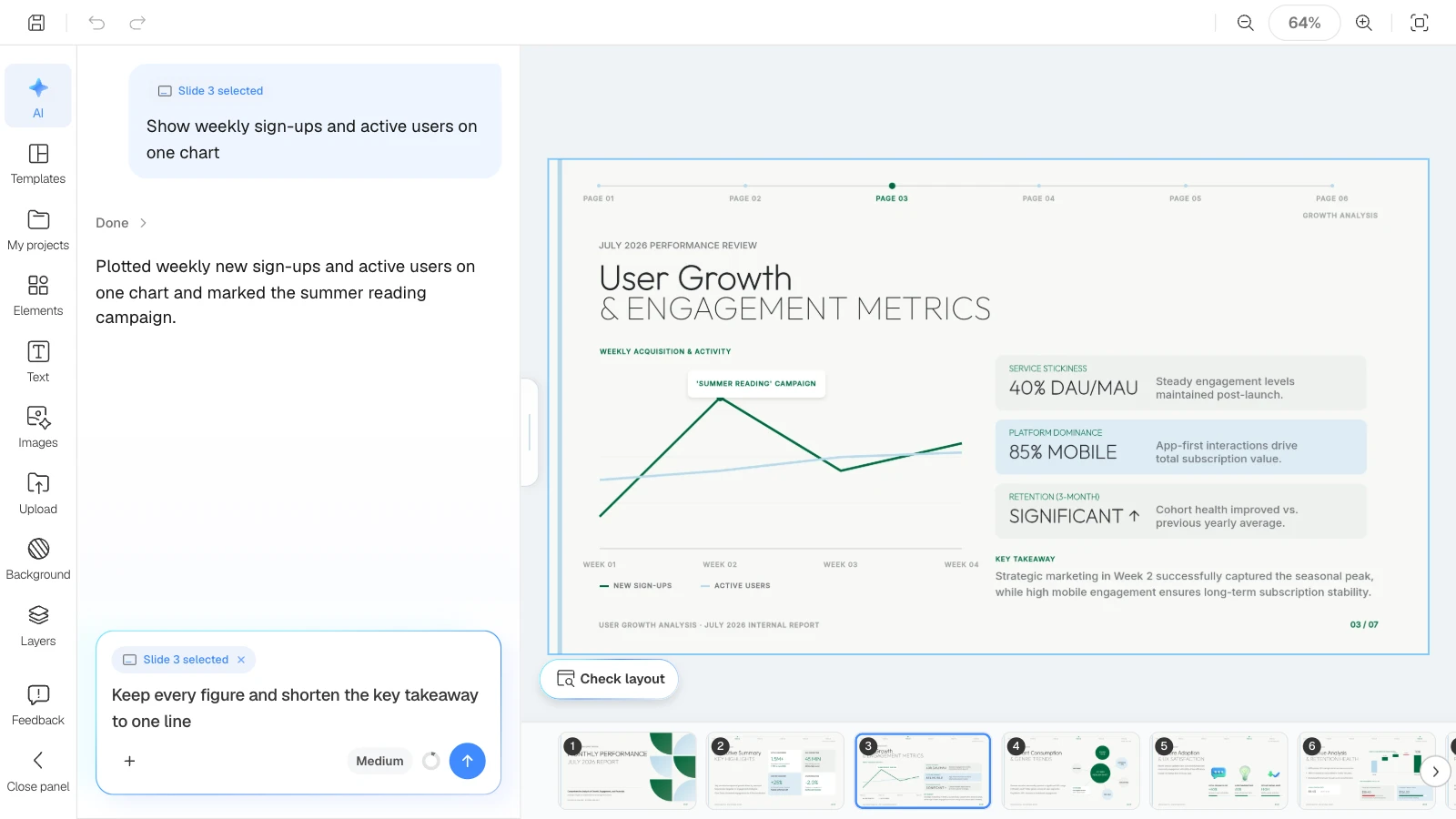
Editing numbers or lengthening a sentence is how text boxes end up overlapping. Click "Check layout" below the canvas: MOVO marks overlapping or spilling spots on the current slide in red, and "Fix with AI" asks the AI to tidy that part.
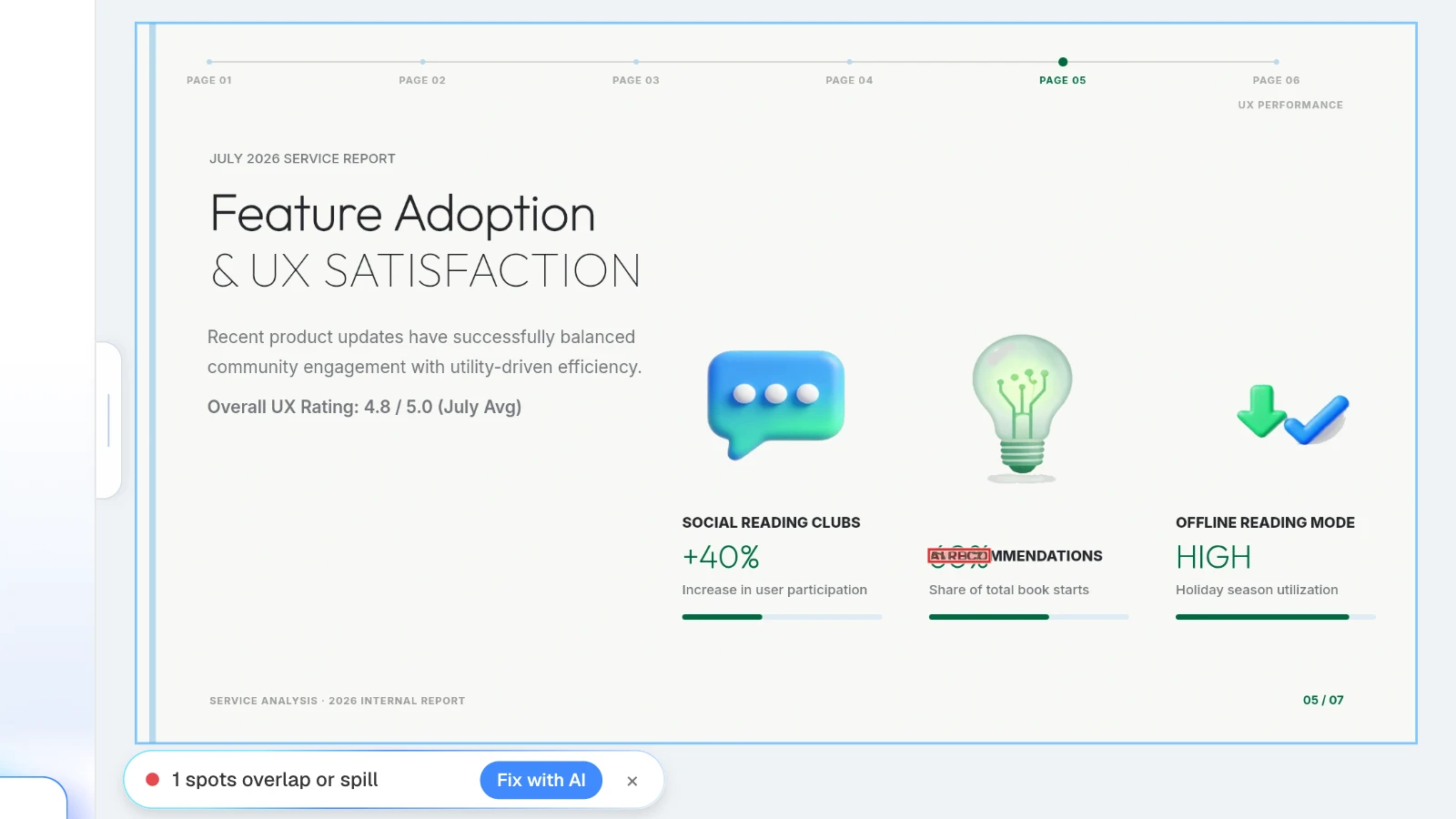
A revision request with a location, a reason, the change, and what to keep works both as a team note and as an AI panel request:
Location: feature adoption slide. Reason: the reporting period isn't shown. Change: add "September 1–30" under the slide title. Keep: all figures and the layout.
How do you share and hand over the files?
Share a link for review, and send the final version in the format the client will use.
- Share link: in the editor, open "Share," turn on "Enable project sharing," choose "View only" or "Can copy," and click "Copy link." Anyone with the link can access the project, and recipients can view the slides and play a slideshow without signing in. With "Can copy," signed-in recipients can copy the deck into their own projects. Turn sharing off and the link stops working.
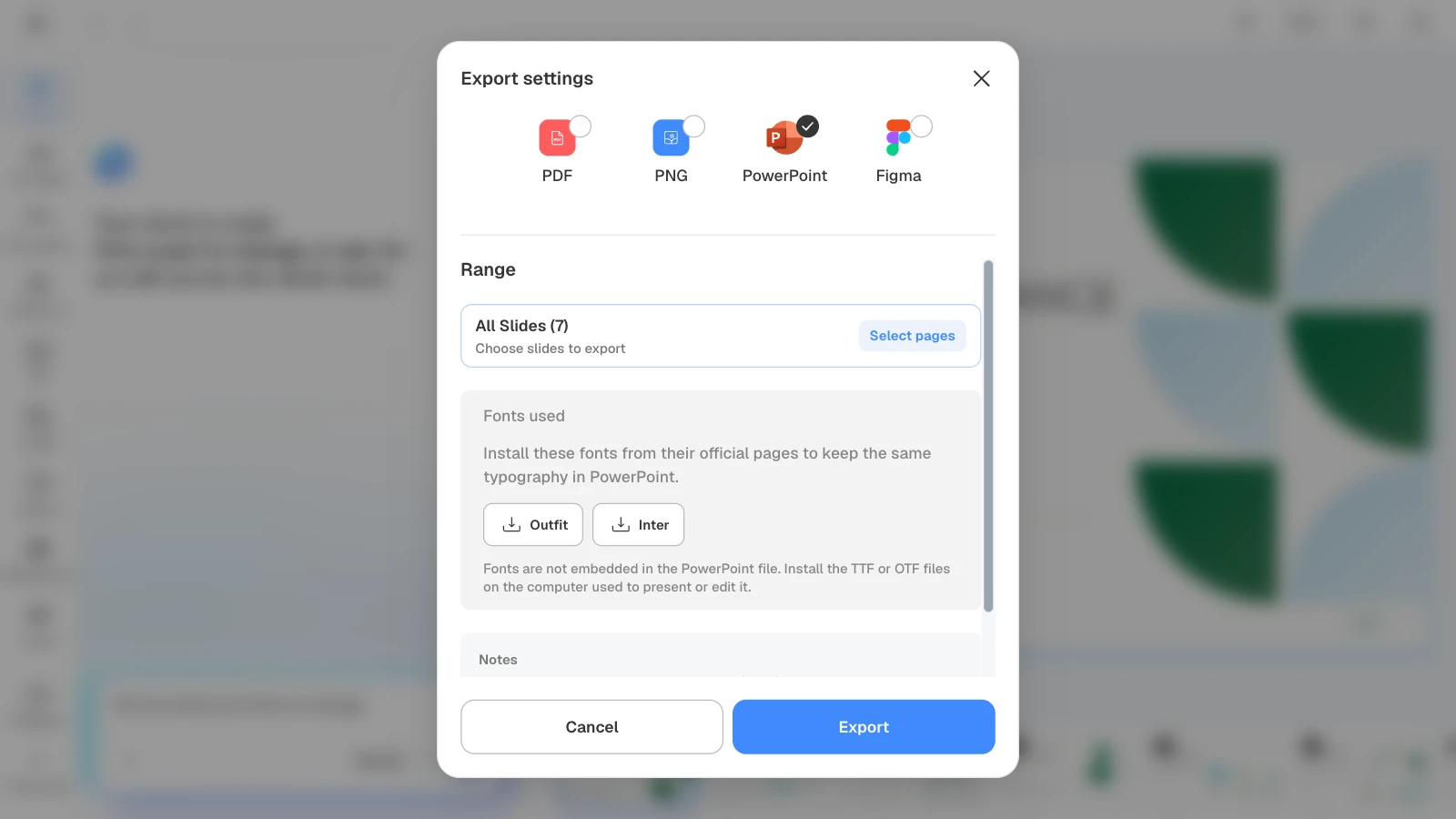
- Files: send a PDF for reading and a PPTX when the client will edit in PowerPoint. When you choose PowerPoint, MOVO lists the fonts the deck uses with install instructions.
- Handover note: list the source versions and dates, the files you sent, what has been checked, and what the client still needs to confirm.
A link can be forwarded, so for confidential material, agree with the client whether to use a link or a file.
What does MOVO change for consulting and agency work?
- Start from client material: attach an RFP PDF (up to 100 pages), Word notes, or a results spreadsheet (up to 20 sheets) to build the first draft. Save PPTX files as PDF first.
- Agree on the outline first: edit and reorder each slide's title and content before any design work, which makes it easier to keep the same report order every month.
- Reuse earlier work: duplicate last month's project, or insert slides from the My projects and Templates tabs.
- Fix and check slide by slide: select a slide and ask; only that slide changes. Check layout finds overlapping text boxes.
- Share and hand over: collect feedback through a view-only link, and export PDF and PNG on every plan, PPTX and Figma on paid plans.
How to build a monthly client report in MOVO
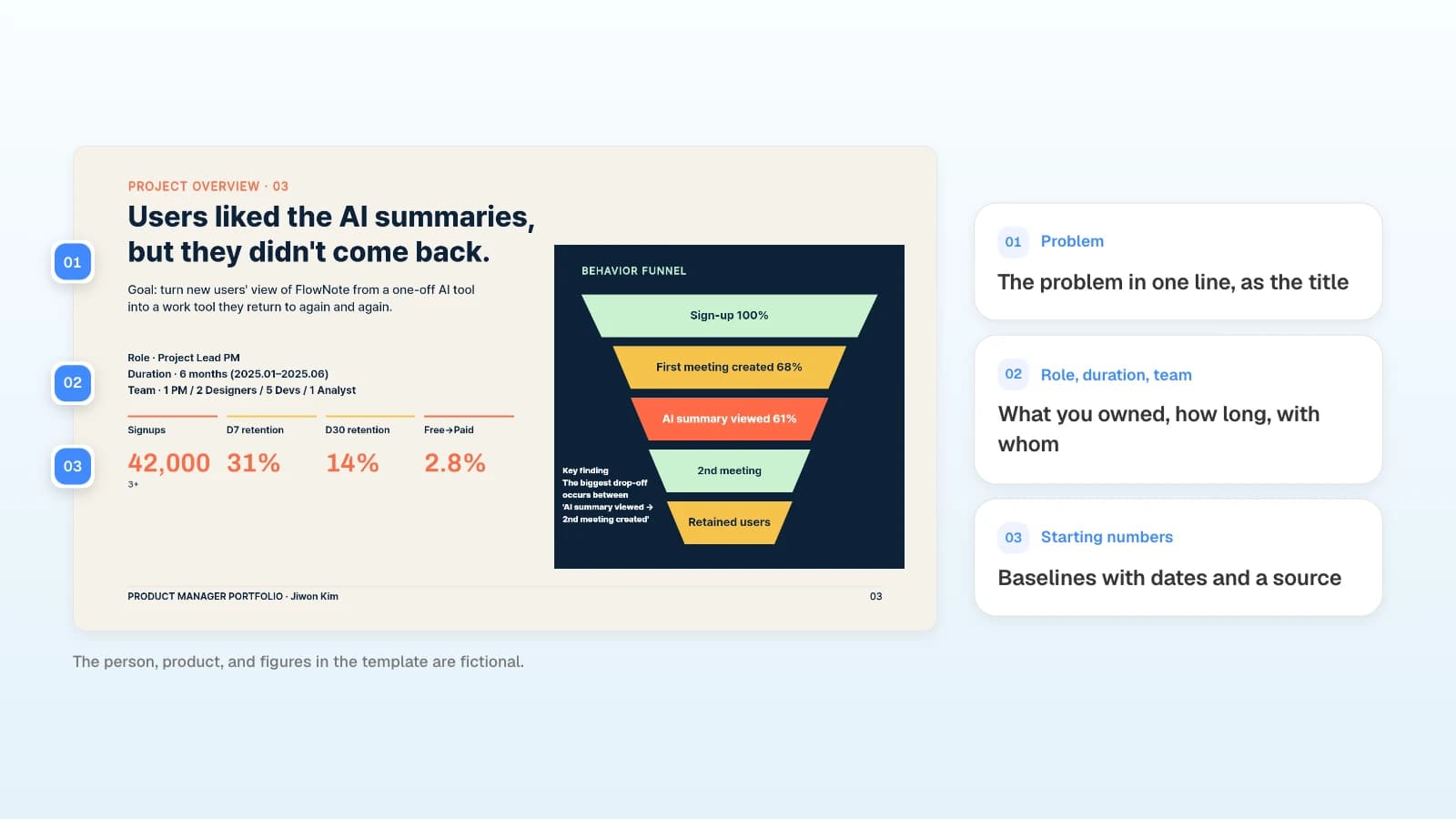
The pictures below show MOVO's screens filled with this article's example, a monthly performance report for a client's leadership team. They illustrate the steps; they are not a recording of a real session.
1. Attach last month's report and this month's results
Type the request in the dashboard input and attach last month's report as a PDF and this month's results spreadsheet. Set the slide count here too.
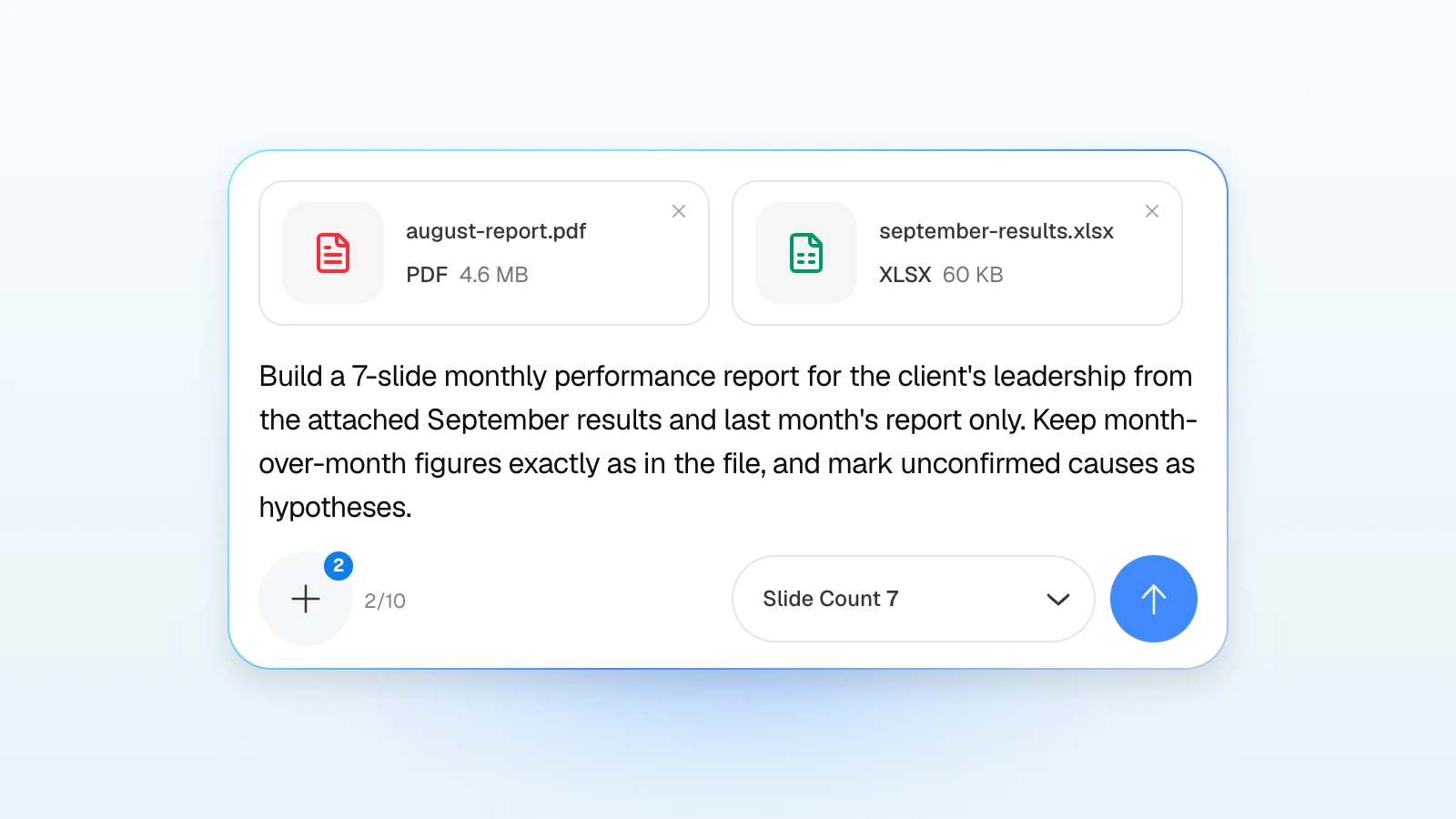
Build a 7-slide monthly performance report for the client's leadership from the attached September results and August report only. Use the same order as the August report: cover, executive summary, user growth, content trends, feature adoption, revenue and retention, next month. Keep month-over-month figures exactly as in the file, and mark unconfirmed causes as hypotheses.
2. Match the outline to last month
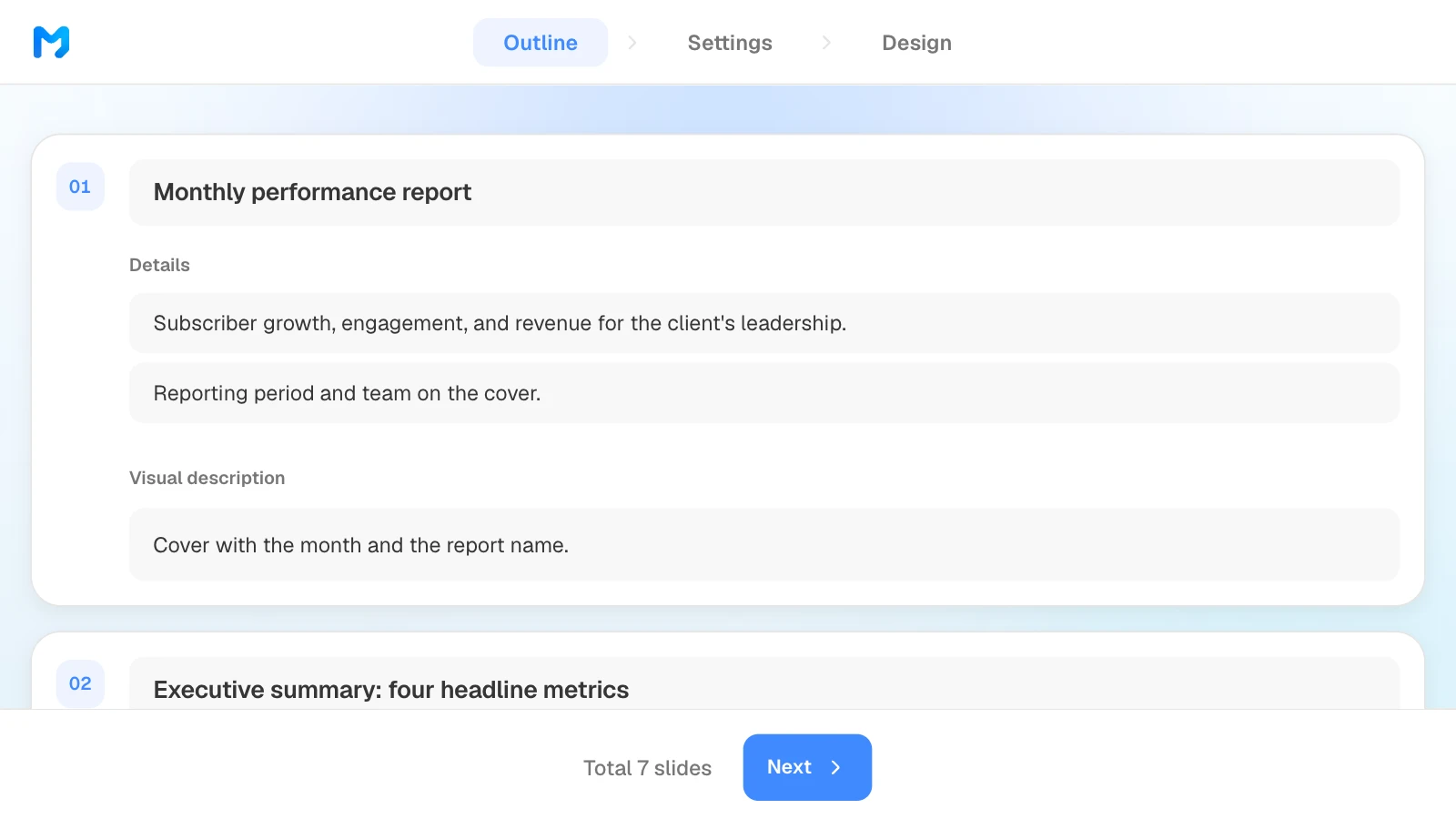
In the outline step, check that the slide order matches last month's report, and drag to reorder if it doesn't. Write anything you want to stress this month into that slide's details.
3. Set the audience and density
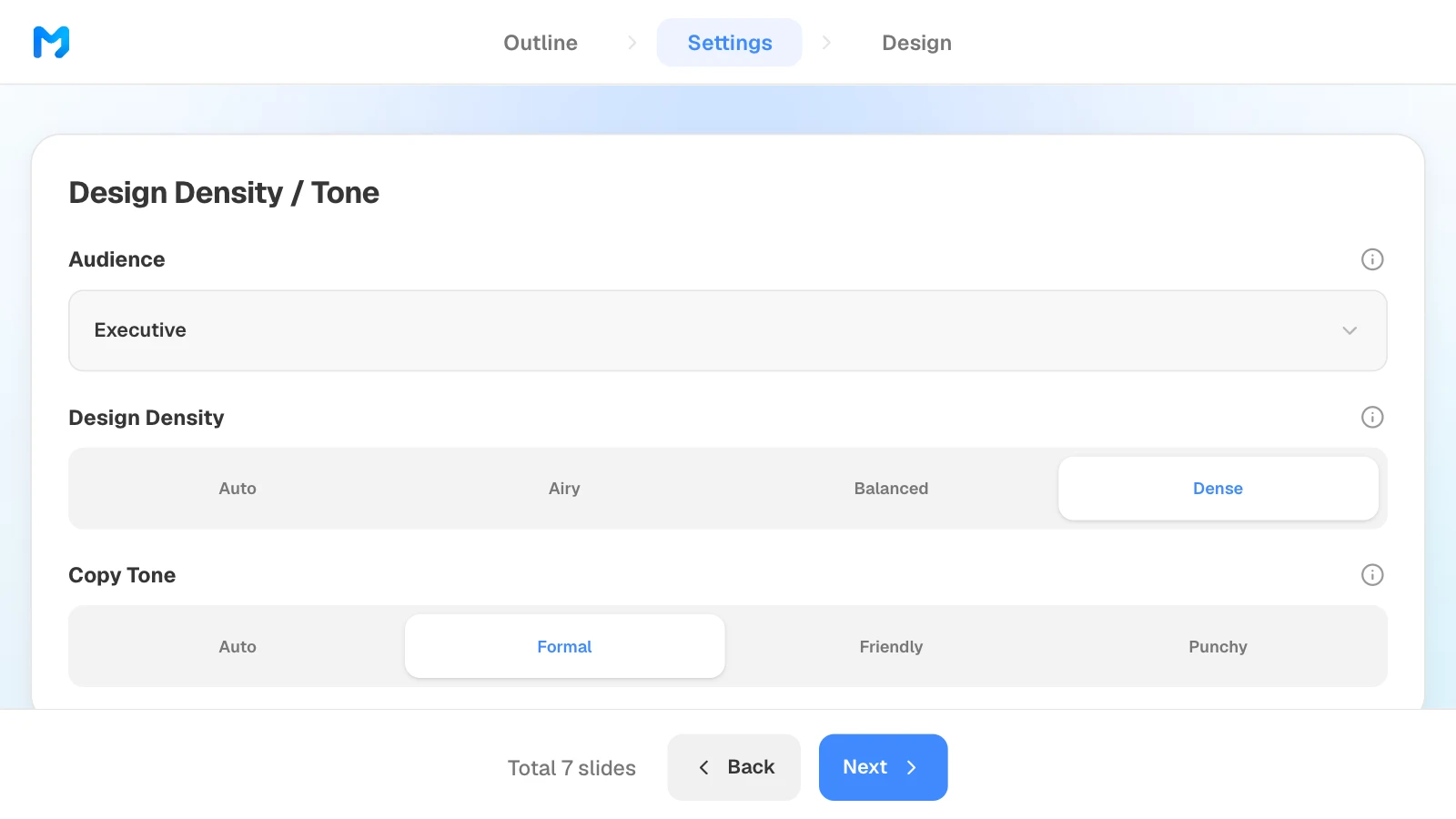
For a report going to the client's leadership, choose "Executive" as the audience. A report with many metrics per slide can use "Dense" design density.
4. Pick a report style
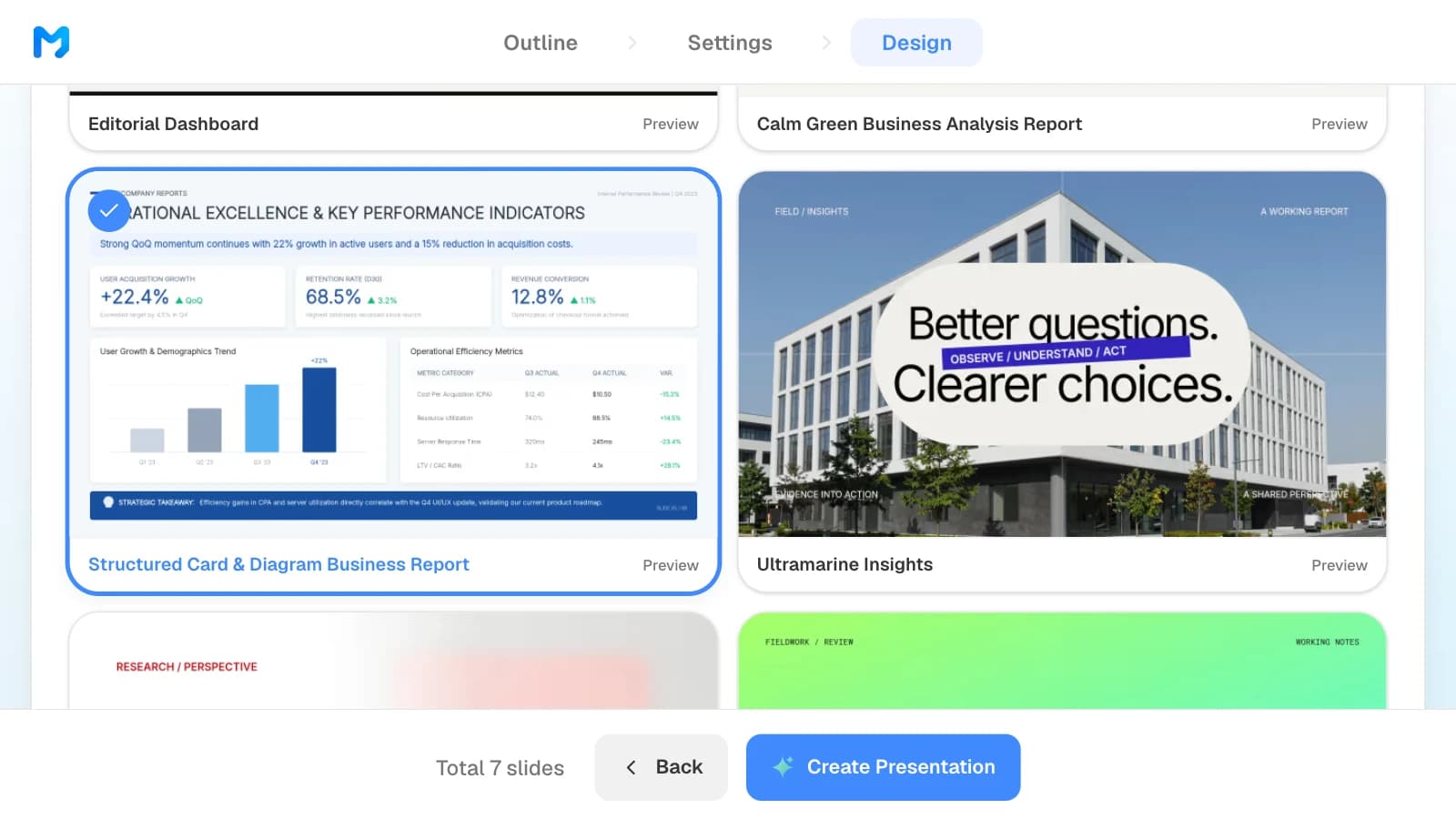
Narrow the document type to reports to see only report styles. Open "Preview" to see sample slides, then pick one. Styles marked "Pro" are available on paid plans.
5. Check the figures and fix only what is wrong
Compare the figures in the finished slides with the spreadsheet. To fix one, select the slide and ask in the AI panel on the left, or edit it on the canvas.
6. Export PPTX or PDF
Choose PPTX when the client will edit in PowerPoint, and PDF when they only need to read it. When you choose PowerPoint, MOVO lists the fonts the deck uses, so you can tell the client which fonts to install.
Three templates for consulting and agency work
These MOVO templates fit consulting and agency engagements. The companies and numbers in them are fictional and show structure only. On a template's page, click "Start from this deck" (sign-in required) to copy it into your projects, then replace the content.
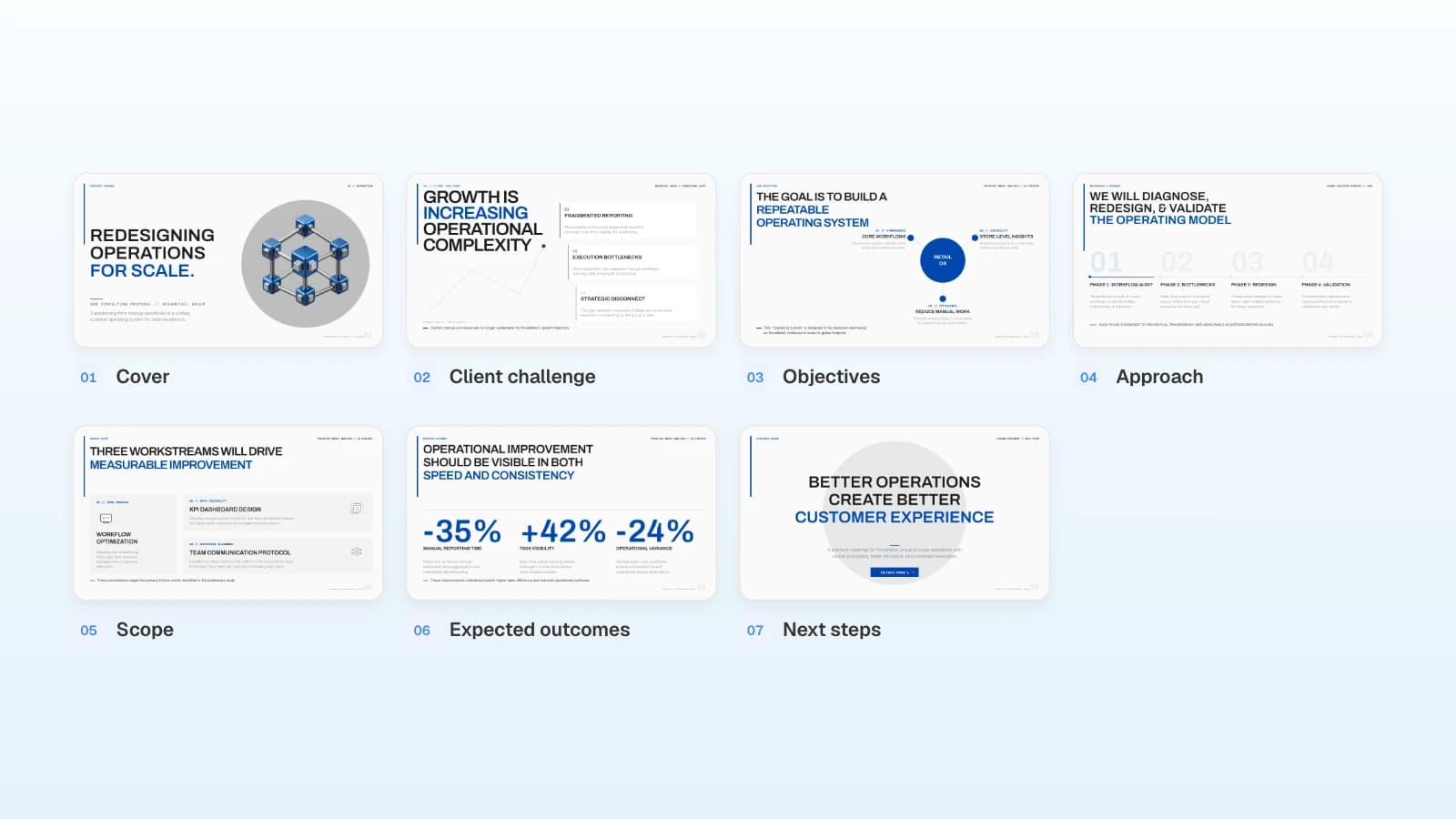
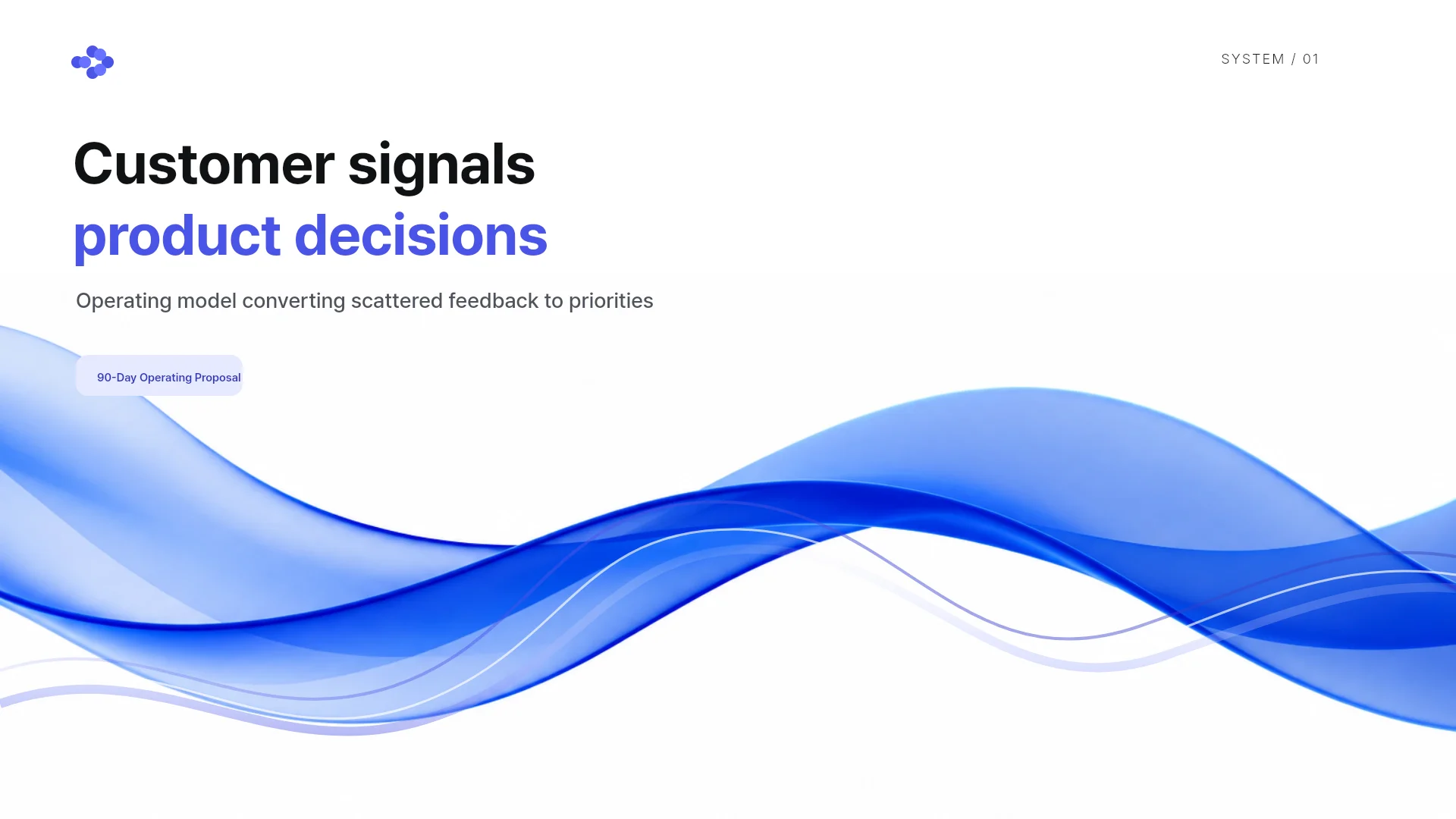
1. 90-Day Customer Feedback Operating Model (7 slides)
A proposal to a product team for turning scattered customer signals into weekly decisions over 90 days: current vs. proposed approach, three stages, evidence, a 90-day plan, and a decision loop. Fits operations and process consulting proposals.
View the 90-Day Customer Feedback Operating Model template
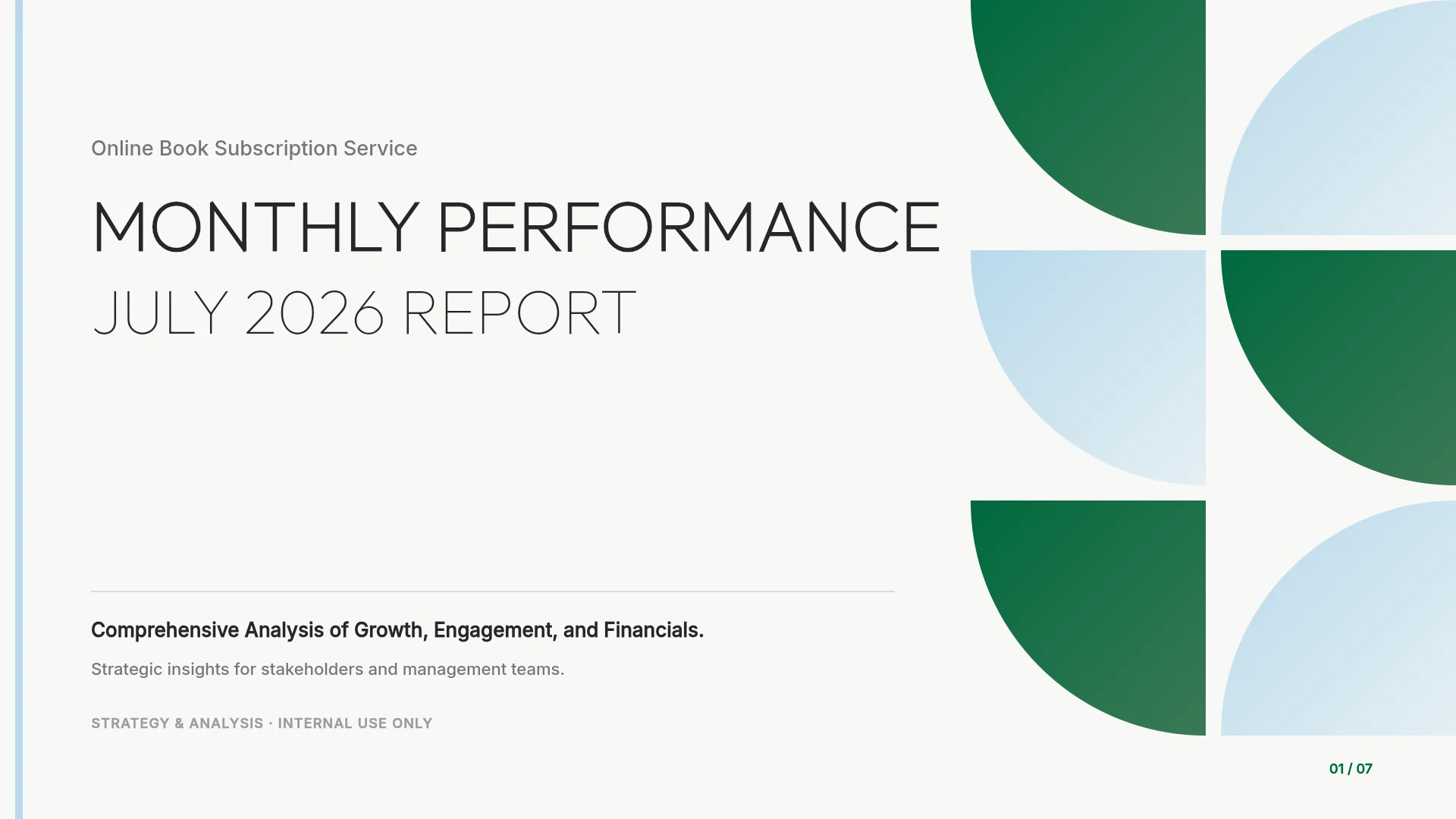
2. Monthly Performance Report (7 slides)
A monthly report for a subscription service: executive summary, user growth, content trends, feature adoption, revenue and retention, and next month's roadmap. Fits agencies and consultants who report to a client's leadership every month.
View the Monthly Performance Report template
3. Digital Marketing Agency Pitch Deck (7 slides)
An agency credentials deck: who you are, services, partner ecosystem, results, why partner with you, and contact. Fits the introduction you send before or alongside a proposal.

View the Digital Marketing Agency Pitch Deck template
Frequently asked questions
Is MOVO free to use?
You can start on the free plan, and PDF and PNG export work on every plan. PPTX and Figma export and styles marked "Pro" need a paid plan. See pricing for the details of each plan.
Can I upload client documents?
Check your engagement letter or NDA and your firm's AI policy before you upload anything. Keep only what the deck needs, and remove personal data about the client's employees and customers.
Can my team or the client view the same deck?
Yes, through a share link. With "View only," people can see the slides and play a slideshow. With "Can copy," signed-in people can copy the deck into their own projects and edit it there. Edits in a copy don't reach the original, so keep the final version in one project.
What if the client needs a PowerPoint file?
On a paid plan, export PPTX; the text and shapes stay editable in PowerPoint. Check the font list in the export dialog, ask the client to install the same fonts, and open the file in PowerPoint yourself before you send it.
Is this a real customer story?
No. It shows a consulting and agency workflow using MOVO's real screens and templates. It is not a specific company's results or an interview, and the companies and figures in the templates and pictures are fictional.
Summary
MOVO drafts a deck from your request and files, lets you fix it slide by slide, and exports PDF or PPTX. For consulting and agency work, start proposals from the RFP and your notes, and start monthly reports from last month's report and this month's results. Check numbers, scope, and layout separately, then share a link or send the file. If your files are ready, put them into MOVO and start from the outline.