How to Edit Presentation Slides with MOVO AI
See how MOVO AI editing works: target a slide or element with the chip, ask for shorter text, a new style, a chart, or a layout fix, know what the AI changes and keeps, and review or undo each edit.
Your first draft is done, but the alert box is too long, the channel numbers are stuck in plain text, and one slide has two text boxes on top of each other. You'd like to just tell the AI what to fix, but it isn't obvious how to point at the right slide, or what to write so that only that part changes.
In the MOVO editor, the AI panel on the left targets the slide you're viewing with a "Slide N selected" chip. Select text boxes or shapes on the canvas, and the chip changes to "N elements selected." Write one sentence on what to change and what to keep, send it, and the AI edits the slide while you watch the result land on the canvas. This guide covers how MOVO AI editing works, how to set the scope, example requests by goal, what the AI changes and what it keeps, and how to review and undo an edit.

How does MOVO AI editing work?
Select a slide, send a request, and the AI edits that slide and applies the result to the canvas. When it finishes, the request shows "Done" with a short reply, and the changed slides are saved without an extra step.
| On screen | What it does |
|---|---|
| "Slide N selected" chip | Targets the slide you're viewing |
| "N elements selected" chip | Targets the text boxes or shapes you selected on the canvas |
| Input box | Enter sends; Shift+Enter adds a new line |
| Reasoning level | Low, Medium, or High; Medium is the default |
| Stop | The send button turns into Stop while the AI is working |
| Progress line | Shows steps like "Polishing the slide," then collapses to "Done" |
| "More" under a reply | Shows the credits that request used |
If you send another request while the AI is working, the panel says "I'll send this once the current work finishes" and runs it next.
How do you set the scope of an edit?
The chip says where; your sentence says what and how much. Move to another slide and the chip follows it. Remove the chip, and the request no longer points at one slide, so the scope comes from your sentence: several slides or the whole deck.
| Scope | How | Chip | Example request |
|---|---|---|---|
| One element | Select a text box on the canvas | N elements selected | Shorten this headline to one line and keep the key term |
| One slide | Select the slide in the thumbnails | Slide N selected | Only change this slide: cut the alert to one sentence |
| Several slides | Remove the chip and name the slides | None | Make the headlines on slides 2 and 5 use the same tone |
| The whole deck | Remove the chip | None | Use "average order value" instead of "AOV" across the deck |
- The X on the chip clears selected elements first; with nothing selected, it unpins the slide. Move to another slide and the chip comes back.
- A suggested request applies to the whole deck, so clicking one also removes the slide chip.
- An open-ended design request like "make it look better" can redesign the slide and fix the same problem on similar slides. To limit it, say "only this slide."
What should you ask for, by goal?
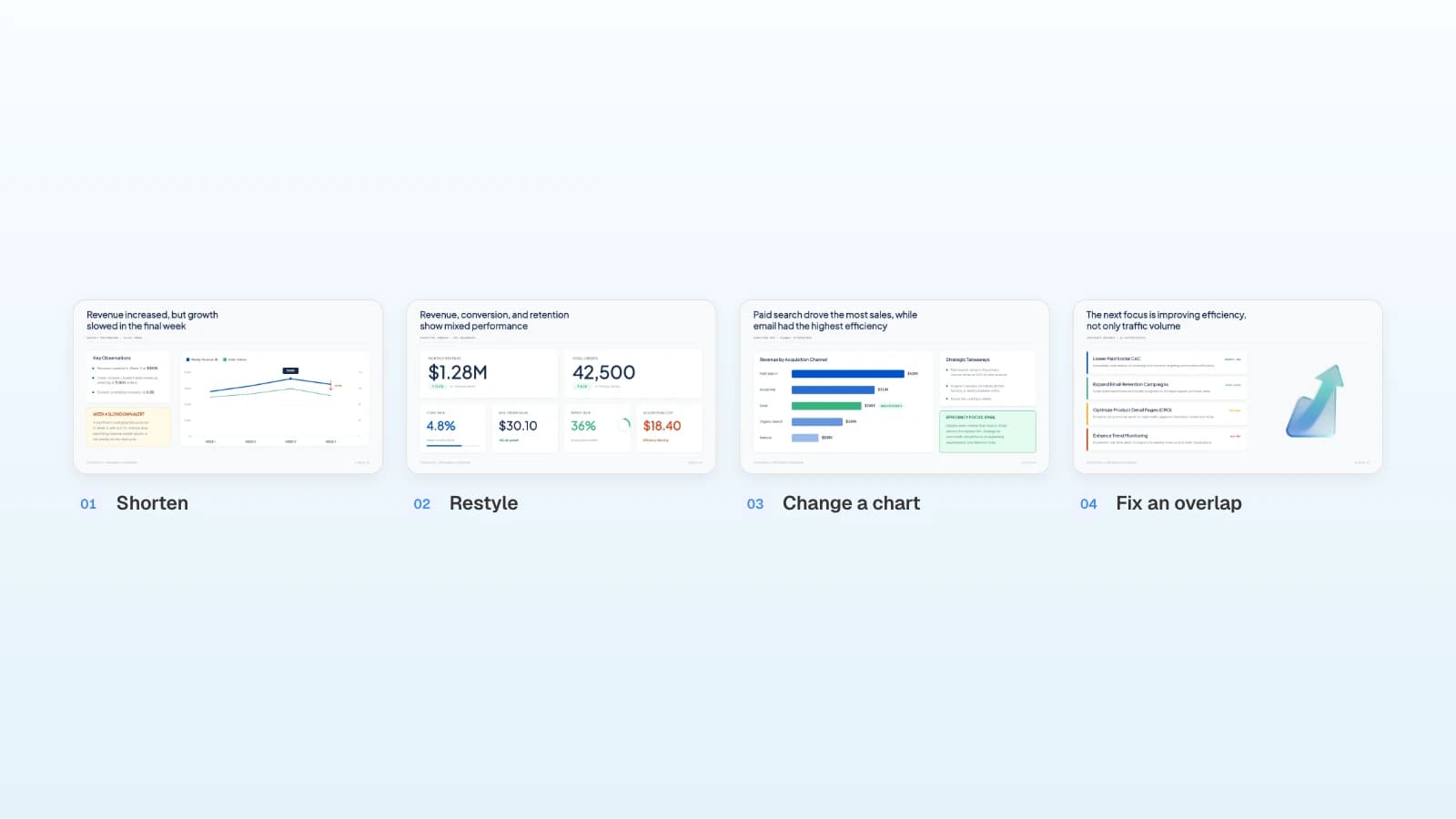
Pair one change with one thing to keep. Here are four edits that come up in almost every monthly report.
1. Shorten long text
When a box runs long, like the Week 4 alert on slide 3, say how short and what must stay.
Cut the Week 4 alert to one sentence. Keep the 9.7% drop.
Check that shortening didn't drop a qualifier such as "vs. previous month."
2. Restyle a slide
When one slide looks off, like the mixed KPI cards on slide 2, say what to change and what to leave alone.
On this slide only, turn the six KPIs into one row of equal cards. Keep every number and label.
Check that the slide still matches the rest of the deck and that text has enough contrast with its background.
3. Change a chart
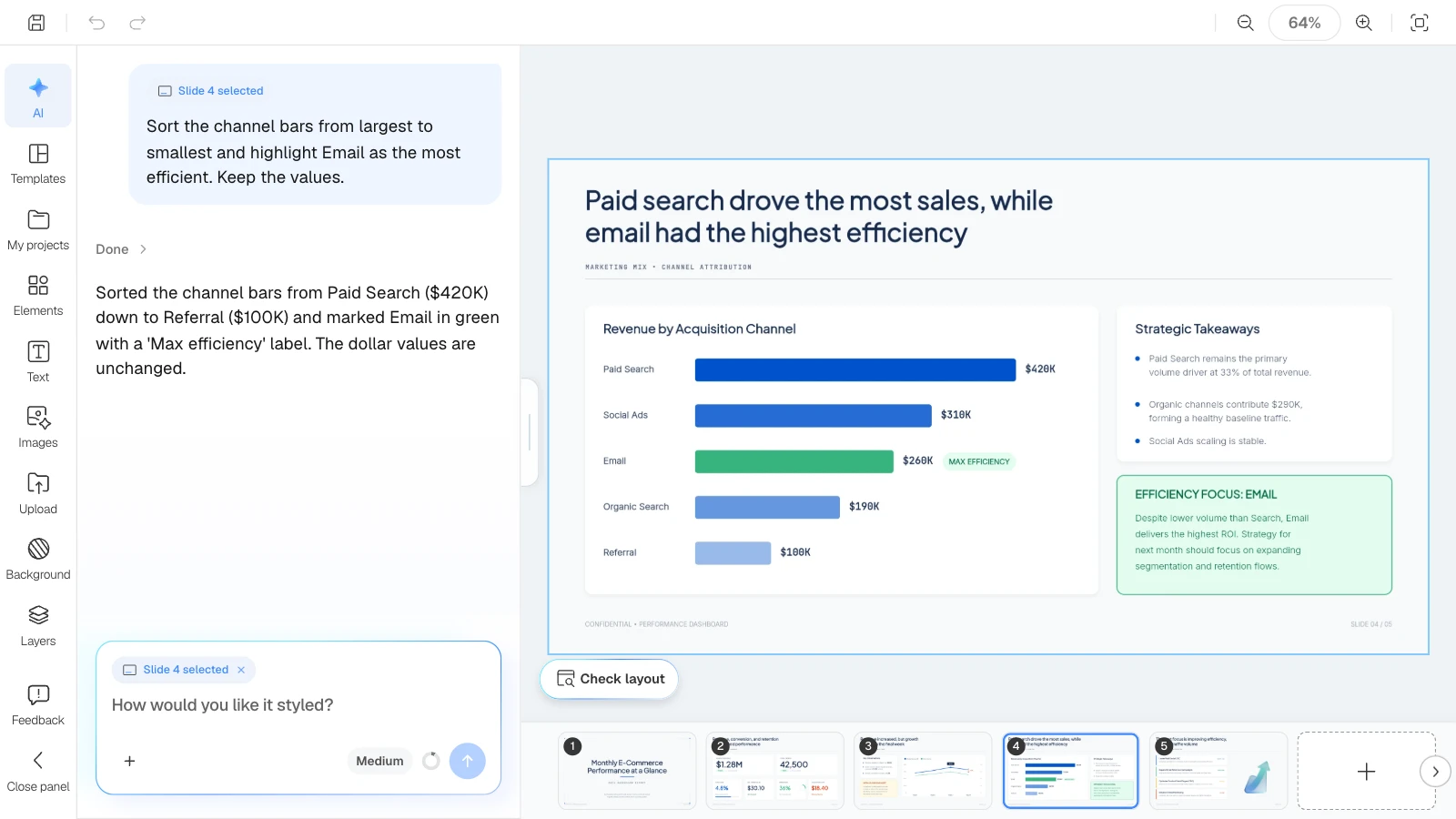
When a chart doesn't make its point, like the channel bars on slide 4, say how to show it and what must not change. The same works for turning numbers written as text into a chart.
Sort the channel bars from largest to smallest and highlight Email as the most efficient. Keep the values.
Check that bar lengths match the numbers and that units are labeled. Charts are drawn with shapes and text, so if you change a number later, ask the AI to resize the bar too.
4. Fix an overlap
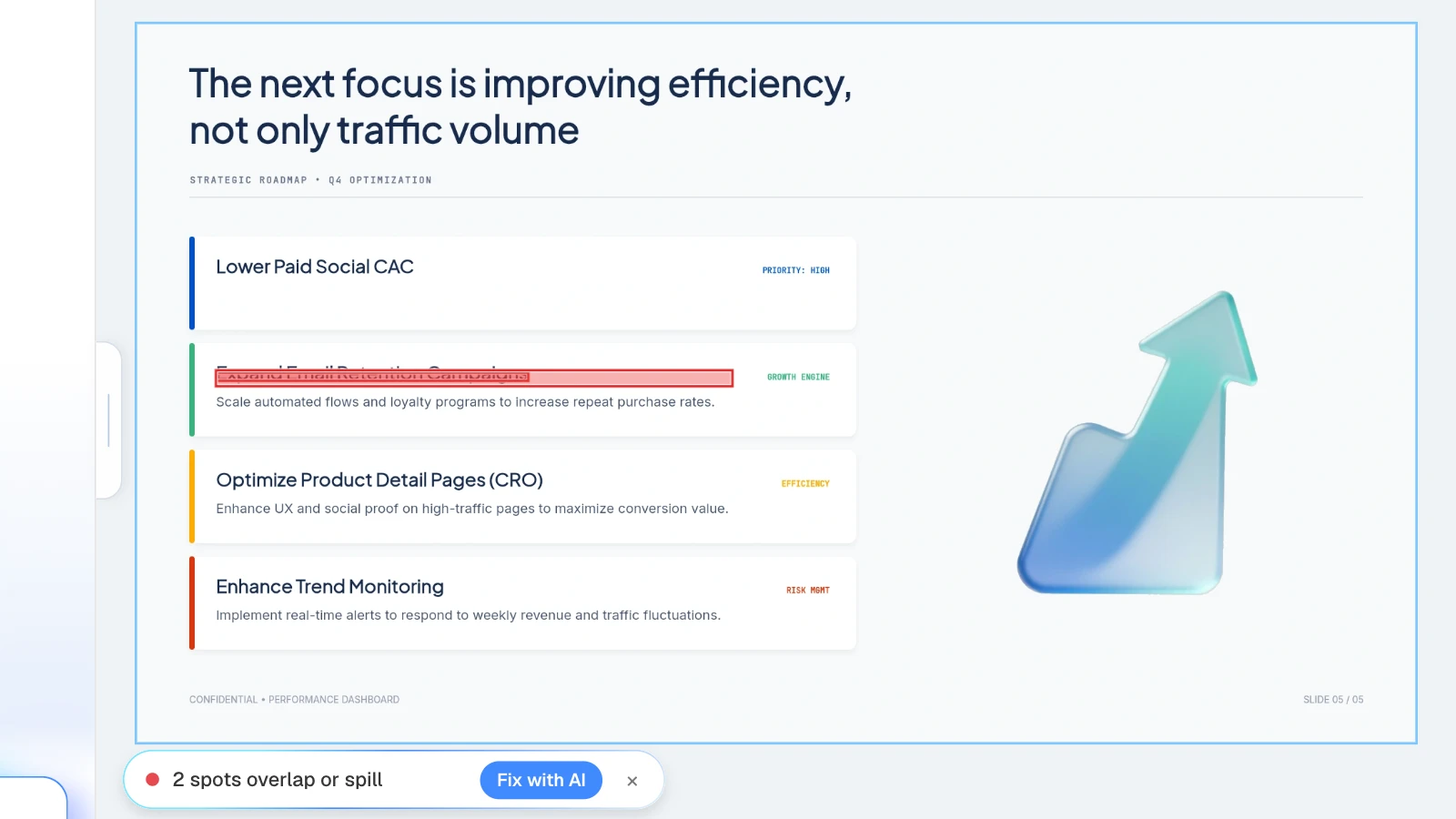
Click "Check layout" below the canvas, and MOVO marks overlapping or spilling spots on the current slide in red. "Fix with AI" sends what it found as a cleanup request. When you write the request yourself, say what must stay.
Separate the first action's description from the title below it. Keep the wording and font sizes.
More requests that come up often:
| Goal | Example request |
|---|---|
| Headline as the takeaway | Rewrite the headline so it states this slide's conclusion |
| Add a slide | Add a slide after slide 4 that breaks down the budget by channel |
| Reorder | Move the roadmap slide right after the summary |
| Restore a lost condition | Put "for new customers only" back into the sentence you shortened |
What does the AI change, and what does it keep?
A request sent with a chip targets that slide. An edit that could make visible content disappear isn't applied, and the slide stays as it was. MOVO AI is set up to keep facts, the meaning of numbers, and source notes intact, but still compare the result with your source.
| Situation | What happens |
|---|---|
| A request sent with a chip | The AI edits that slide or the selected elements |
| An open-ended design request | The AI can redesign the slide and fix the same problem on similar slides |
| "Fix with AI" from Check layout | Only the spots the check found are fixed; intentional overlaps may stay |
| An edit that could remove visible content | It isn't applied, and the slide stays as it was |
| While the AI is working | You can keep editing the canvas; adding, deleting, or reordering slides waits until it finishes |
| You click Stop | The work stops, but slides already updated stay updated |
| You don't like the latest result | Undo in the toolbar reverts changes, most recent first |
When an edit isn't applied, the panel says why, for example "This edit could remove some content, so it was not applied." Rewrite the request with clearer rules about what to keep, then send it again.
How do you review an AI edit and undo it?
Check that the part you asked about changed, that numbers and conditions survived, and that nothing nearby got covered.

| Check | What to look for |
|---|---|
| The requested part | It changed the way you asked |
| Numbers and conditions | Values, units, and qualifiers match your source |
| Nearby elements | No text box or chart got covered or pushed off the slide |
| Other slides | If you sent it without a chip, skim the rest of the deck |
| The exported file | It looks the same when you open the PDF or PPTX |
To undo, click Undo in the toolbar. The AI's changes revert, most recent first. Undo history lasts only while the editor is open, so before a big edit, keep a copy of the original wording and numbers.
What does MOVO change for editing slides with AI?
- A chip that follows your view: the chip moves with the slide you're viewing and switches to "N elements selected" when you select elements. Remove it to name several slides or the whole deck in your request.
- Suggestions for this deck: after generation, the panel offers up to three requests based on your outline. Clicking one fills the input box; you decide when to send.
- Check layout, then fix: find overlapping or spilling spots and send them straight to the AI with "Fix with AI," one slide at a time.
- No silent deletions, and Undo works: edits that could remove visible content aren't applied, and applied results revert with Undo.
- Keep going while it works: queue your next request, and pick a reasoning level (Low, Medium, High) to trade speed for depth.
How to edit slides with AI in MOVO
The screenshots below show MOVO's editor filled with this guide's example, a monthly e-commerce sales dashboard. They illustrate the steps; they are not a recording of a real session.
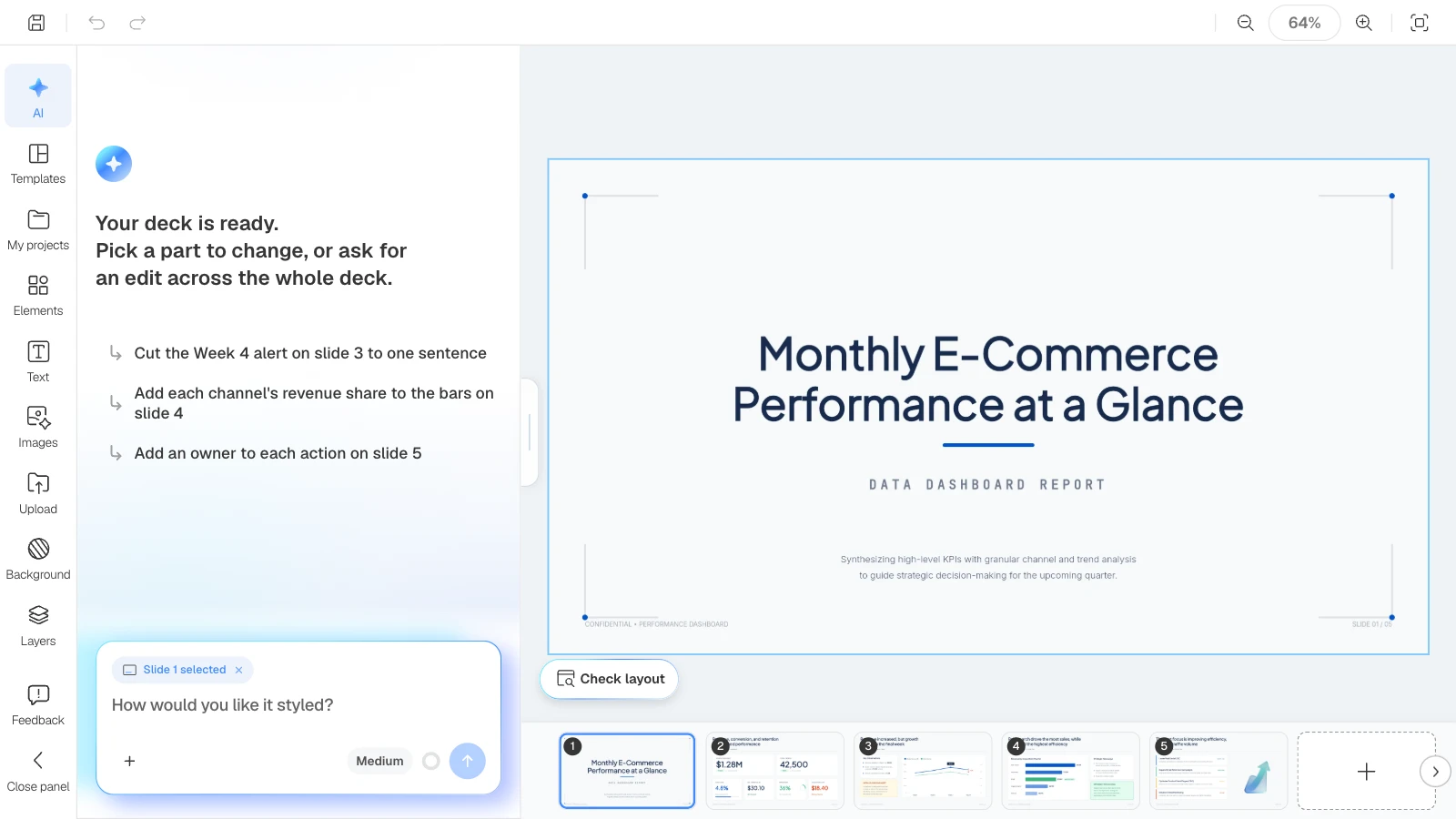
1. Start in the AI panel
Open a finished deck, and the AI panel on the left says "Your deck is ready." with requests suggested for this deck. Click one to put it in the input box, edit it if you like, and send.
2. Select a slide and write the request
Click a slide in the thumbnails at the bottom, and a "Slide N selected" chip appears in the input box. Write one sentence on what to change and what to keep, then send.
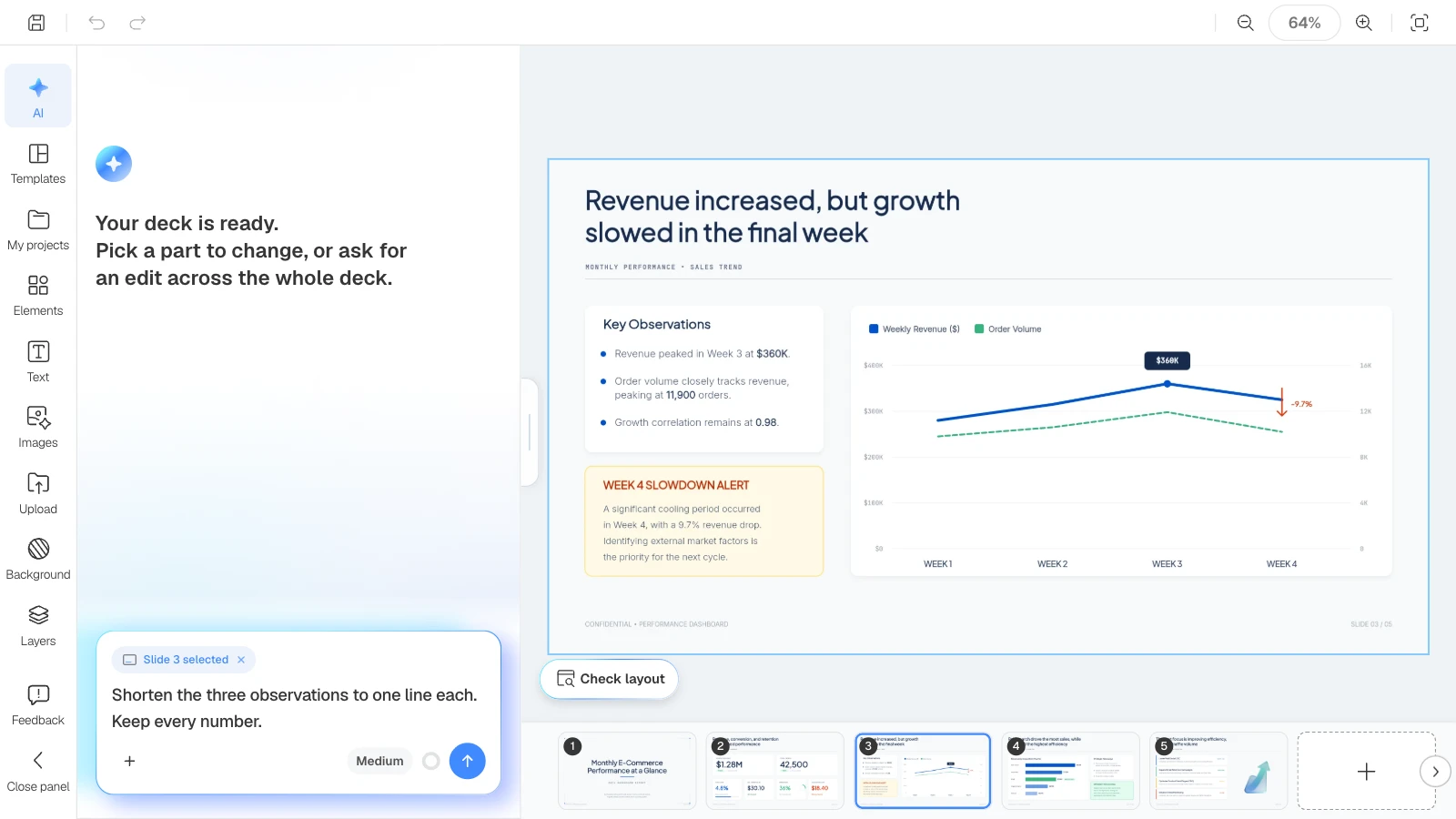
Shorten the three observations to one line each. Keep every number.
Medium reasoning is enough for most edits. Choose High for complex requests that touch several slides at once.
3. Check the result and follow up
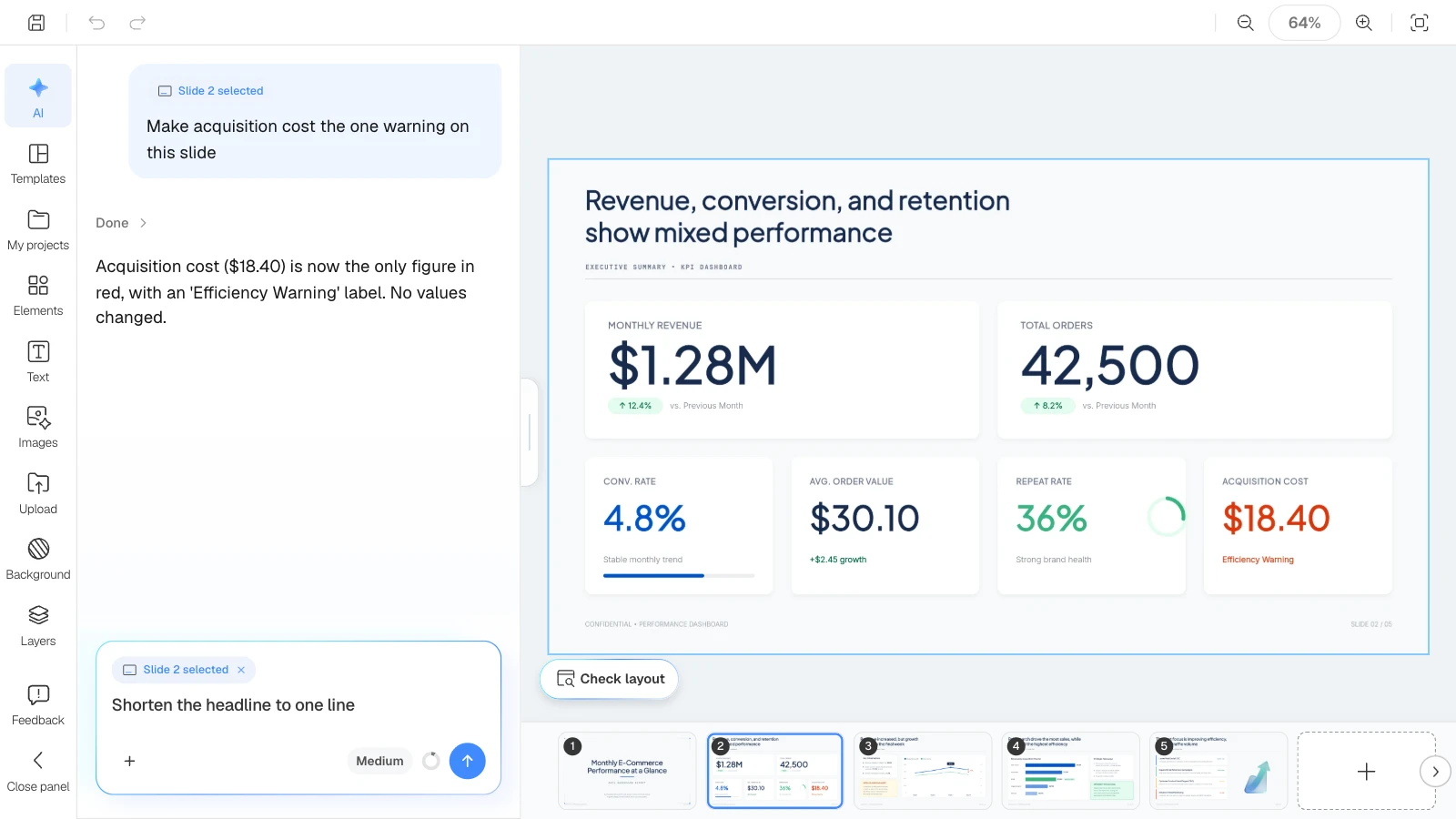
When the AI finishes, its reply appears under "Done" and the canvas shows the result. If something is still off, follow up in the same conversation; the earlier request stays in context.
4. Run Check layout
After you lengthen text or add a chart, click "Check layout" below the canvas. When red marks appear, click "Fix with AI" to ask for a cleanup. If an overlap is intentional, leave it.
5. Review, then export
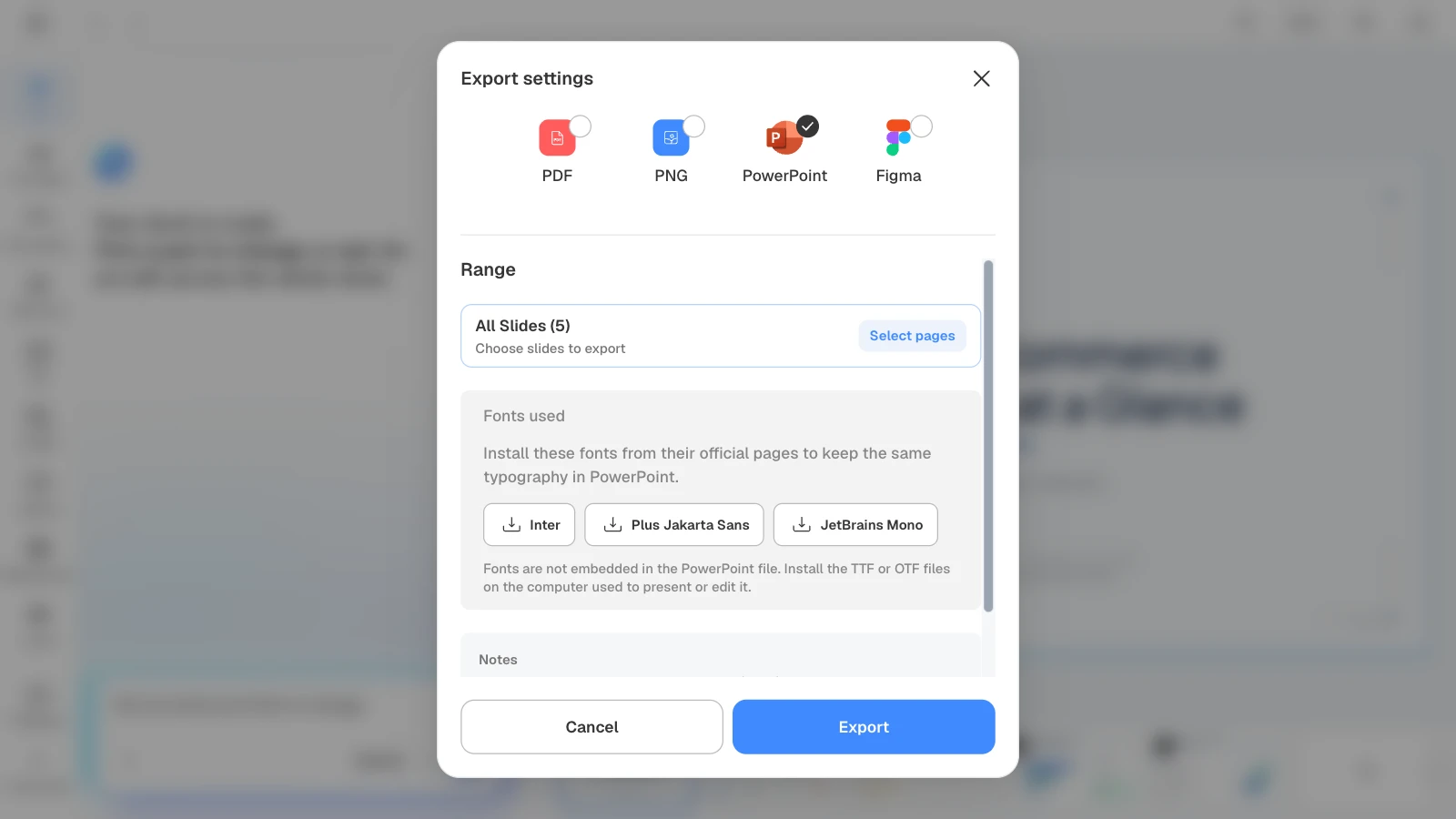
Once numbers and layout check out, click "Export" at the top right of the editor. Exporting is done with that button, not in the AI panel. PDF and PNG are available on every plan; PowerPoint and Figma on paid plans.
Two report templates to practice AI editing on
Reports full of numbers and charts are good practice for shortening, charting, and fixing layout. Click "Start from this deck" on a template page, sign in, and MOVO copies it into your projects and opens the editor. The companies and numbers in these templates are fictional and only show structure.
1. Monthly E-commerce Sales Dashboard (5 slides)
A monthly e-commerce report with a KPI summary, a weekly sales trend, revenue by channel, and next steps, all in US dollars. You can try every example request in this guide on it.

View the Monthly E-commerce Sales Dashboard template
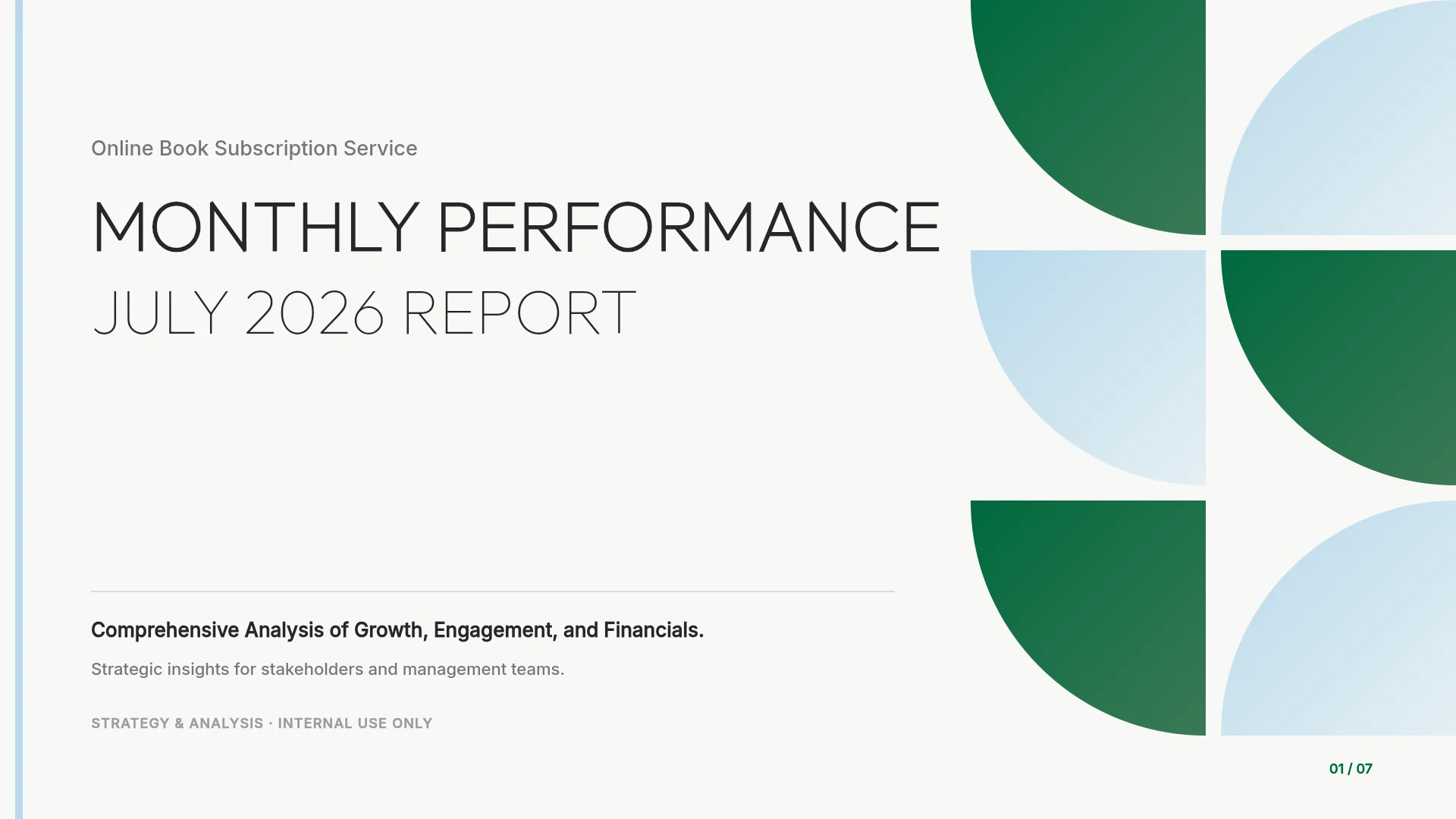
2. Monthly Performance Report (7 slides)
A subscription service's monthly report: executive summary, user growth, content trends, feature adoption, revenue and retention, and next month's roadmap. Its mix of KPI cards and charts is good practice for "keep the numbers, shorten the text" requests.
View the Monthly Performance Report template
Frequently asked questions
Does selecting a slide mean only that slide changes?
The chip tells the AI which slide you mean. An open-ended design request like "make it look better" can still fix the same problem on similar slides. To keep the edit to one slide, say "only this slide," and skim the other slides afterward.
Can I undo what the AI changed?
Yes. Click Undo in the toolbar, and the AI's changes revert, most recent first. That's more reliable than asking the AI to "put it back." Undo history lasts only while the editor is open, so keep a copy of the original wording and numbers before a big edit.
Does AI editing use credits?
Yes. Each request uses credits based on the work it takes. Click "More" under a reply to see what that request used. Generating the suggested requests doesn't use credits.
Can I edit the slide myself while the AI is working?
Yes, you can keep editing text and shapes on the canvas. Adding, duplicating, deleting, or reordering slides waits until the AI finishes. While a new deck is still being generated, the editor is view-only.
Can I ask for several changes in one message?
Related changes can go in one message. Send different kinds of changes, such as wording, layout, and color, separately so you can see what each one did. If you send the next request while the AI is working, it runs as soon as the current one finishes.
Summary
MOVO AI editing works by pointing a chip at the slide or elements you want changed and writing one sentence on what to change and what to keep. The same pattern covers shortening text, restyling, turning numbers into charts, and fixing overlaps. Check numbers, conditions, and nearby layout against your source, and if you don't like a result, undo it and send a clearer request.