Employee Onboarding Presentation in 8 Slides
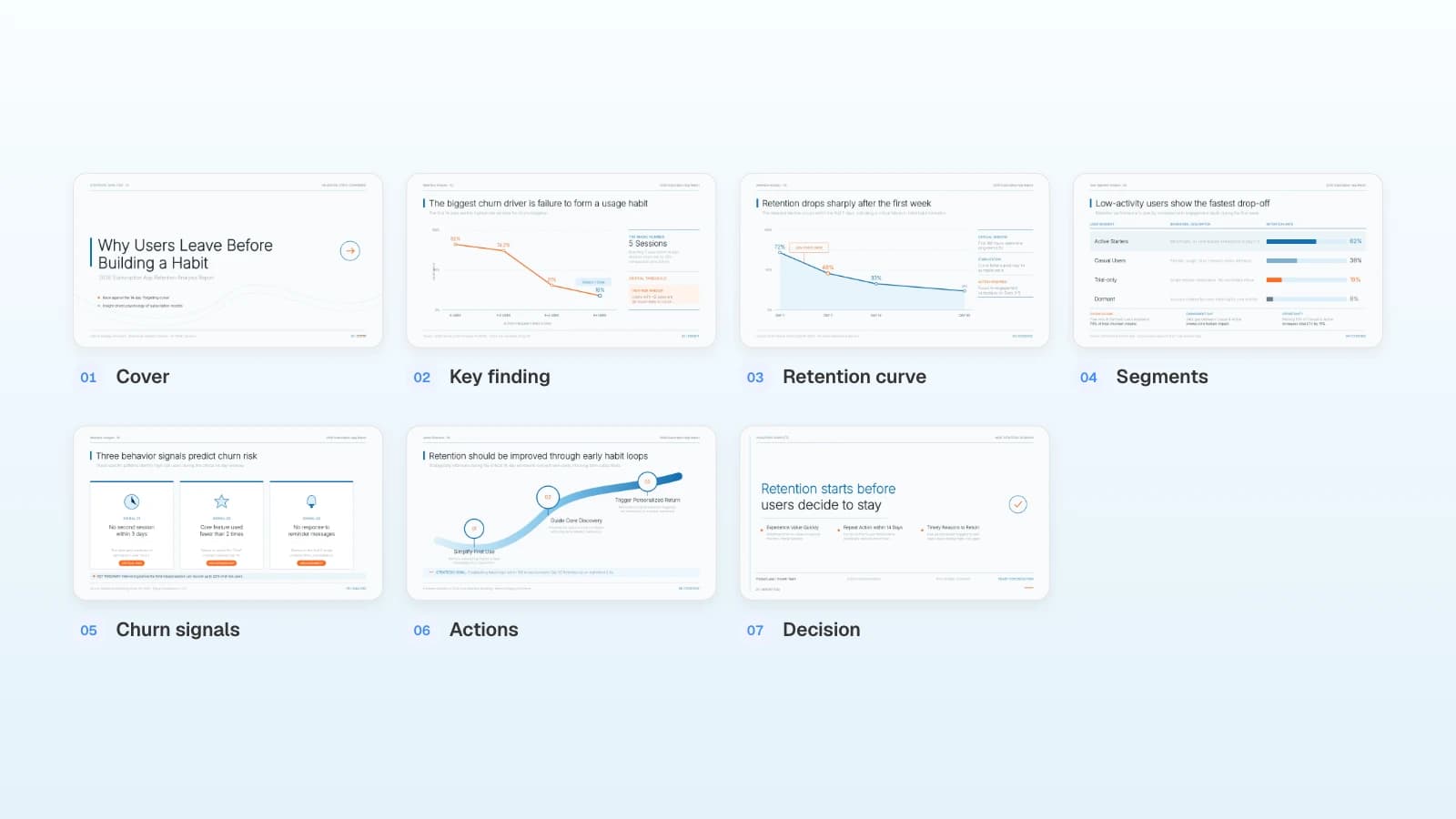
An 8-slide onboarding deck for a new Customer Success Manager: who they shadow, which accounts they take over and when, what done means, and who signs off.
An employee onboarding presentation should tell one new hire what to do in their first week and first 90 days, who checks the work, and when they take over on their own. Keep the company story to a slide or two, because HR's orientation already covers it. The trouble starts when a hiring manager reuses that orientation deck. It explains the mission, the benefits, and the org chart, but it doesn't tell a new Customer Success Manager whose calls to sit in on Tuesday, which accounts become theirs at day 30, or who decides that week one went well. So the new hire spends Wednesday asking.
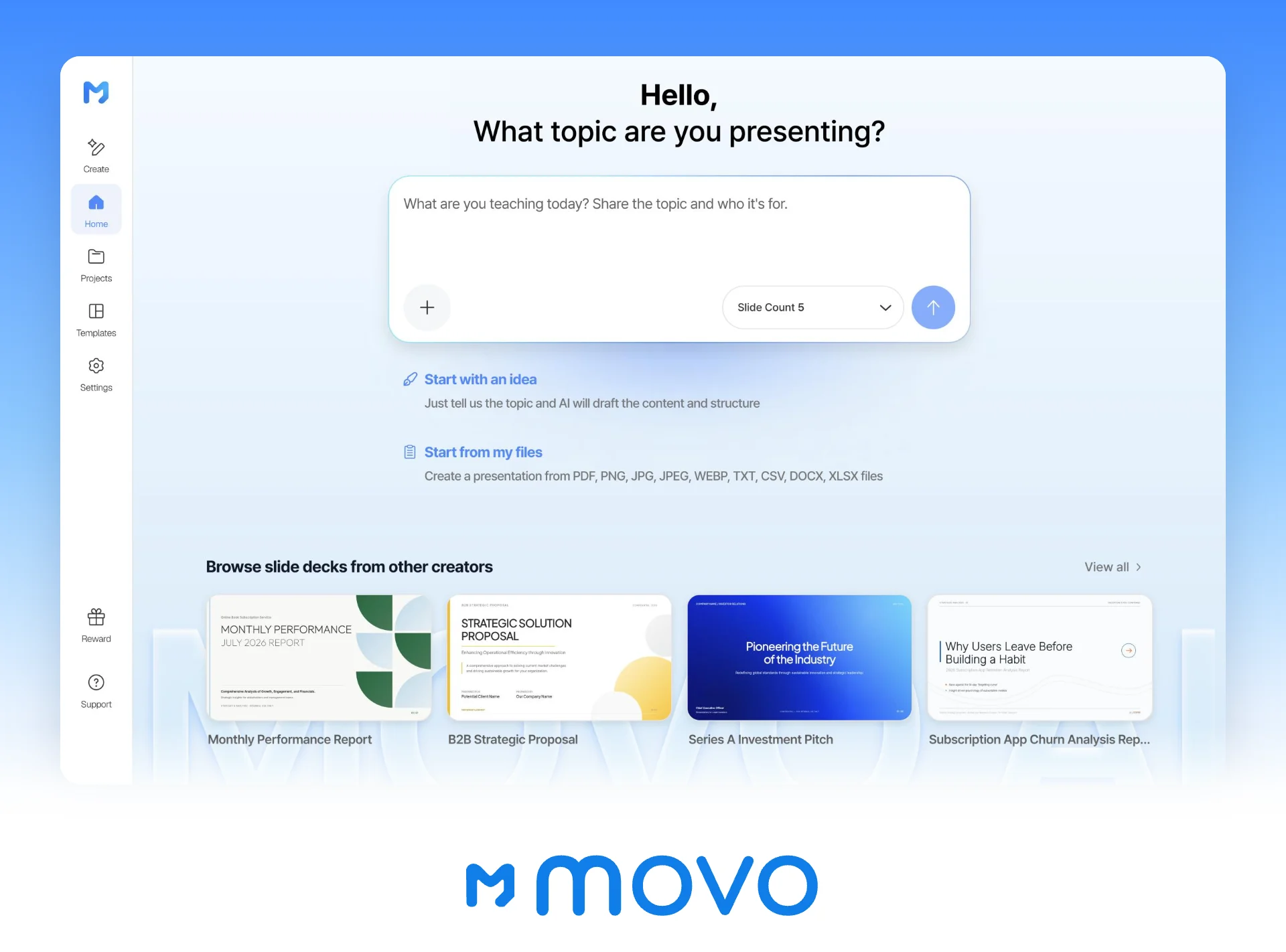
MOVO starts from the files you already keep: the role description, the last hire's checklist, an export of the account list. Attach them and ask for an eight-slide onboarding deck, and MOVO shows each slide's title, details, and visual description before it builds anything. Fix names, day numbers, and the handoff order there, pick a design, and the slides are built. When the buddy or the account list changes later, select that slide and ask the AI to update it. This guide follows one fictional example from start to finish, a 60-person B2B SaaS company in Denver onboarding its new Customer Success Manager: the eight slides, a day-by-day first week, the 30-60-90 day plan with account handoffs, how to keep policies out of the deck, the MOVO workflow, and a template to copy.
What goes in an employee onboarding presentation?
A role onboarding deck needs eight slides: a cover with the manager and buddy, what the new hire owns, who they work with, week one day by day, tools and channels, the account handoff schedule, 30-60-90 day goals, and check-ins. HR's company-wide orientation covers the mission, benefits, and paperwork, so link to it instead of copying it.
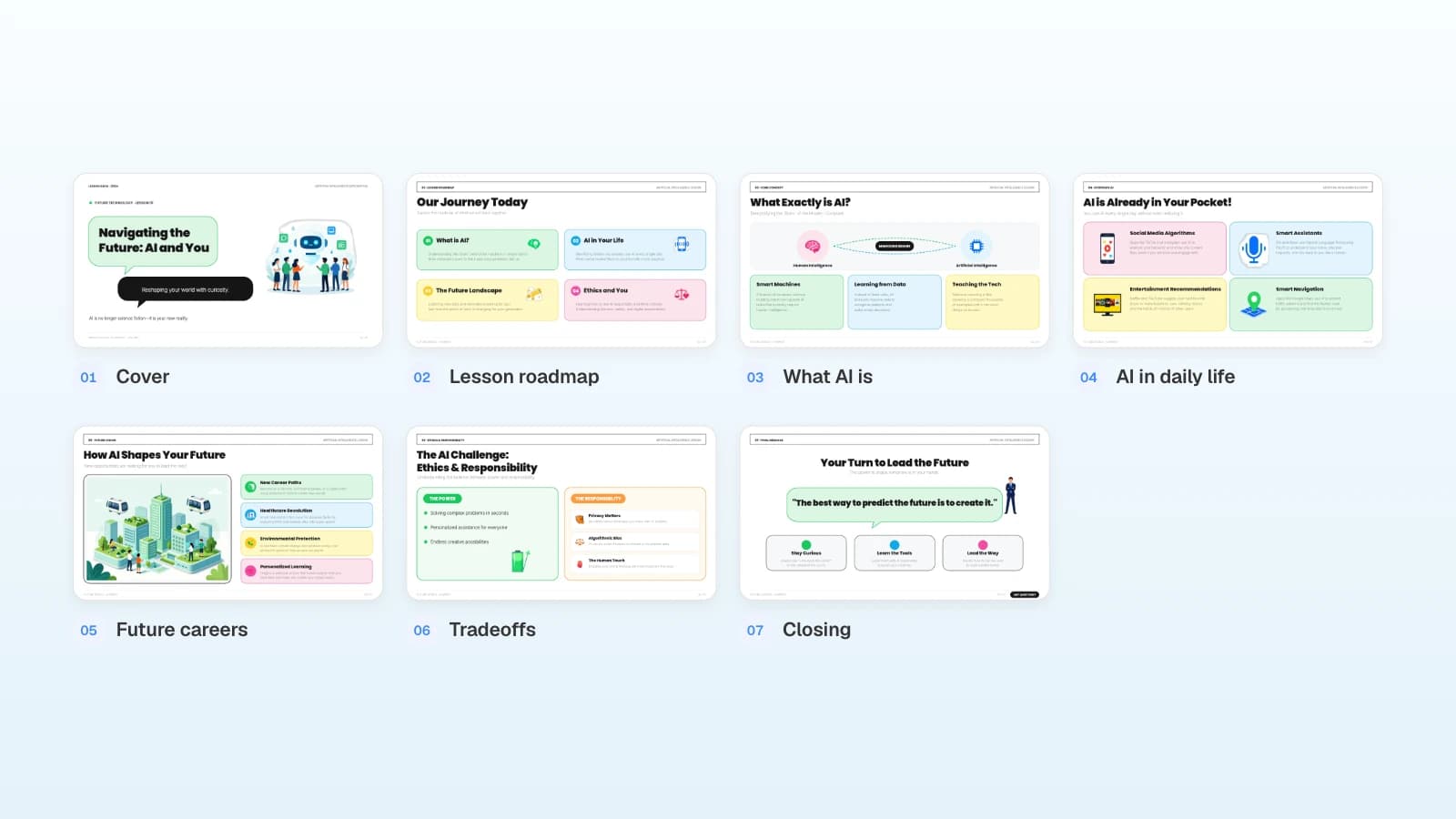
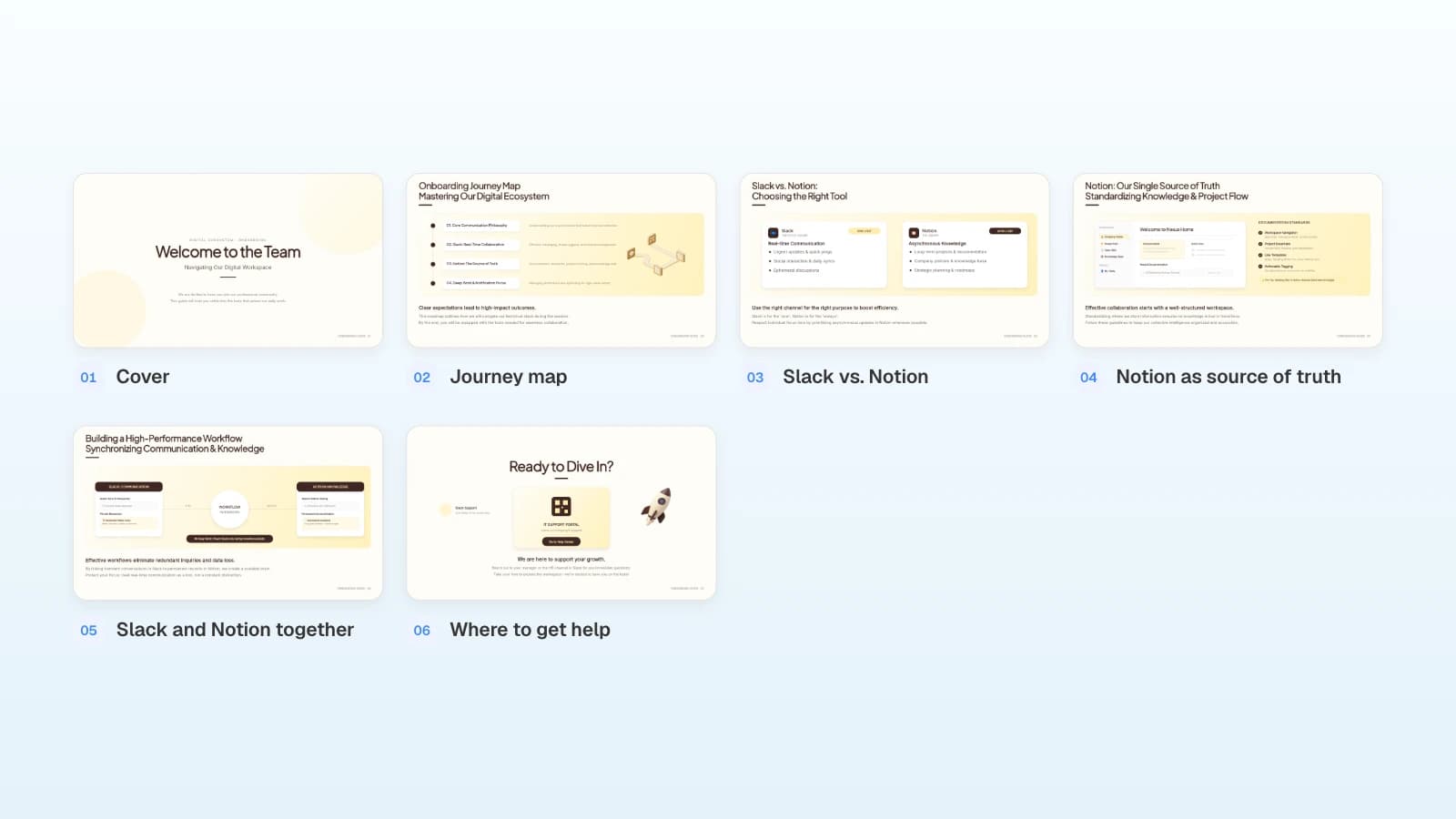
That template covers what every new hire needs on day one: which tool to use for what, how Slack and Notion work together, and where to get help. A role deck boils that down to one slide, tools and channels, and fills the rest with the job itself.
| Company-wide orientation | Role onboarding deck | |
|---|---|---|
| Owner | HR or People Ops | The hiring manager |
| Audience | Everyone starting this month | One role, often one person |
| Covers | Mission, values, benefits, the handbook, paperwork such as Form I-9 | Who to shadow, which accounts move and when, tools, what "done" means, who signs off |
| Updated | When company policies change | Whenever the team, the tools, or the account list changes |
| Shown | Day 1 morning | Day 1 afternoon, then reopened every Friday |
Here is the role deck for our example. Aspenrow is a fictional 60-person company in Denver that sells scheduling and dispatch software to HVAC and plumbing contractors. Its new Customer Success Manager (CSM) will take over 24 accounts worth $840,000 in annual recurring revenue (ARR) from Sam Patel, a senior CSM who is moving to enterprise accounts.
| # | Slide | What goes on it |
|---|---|---|
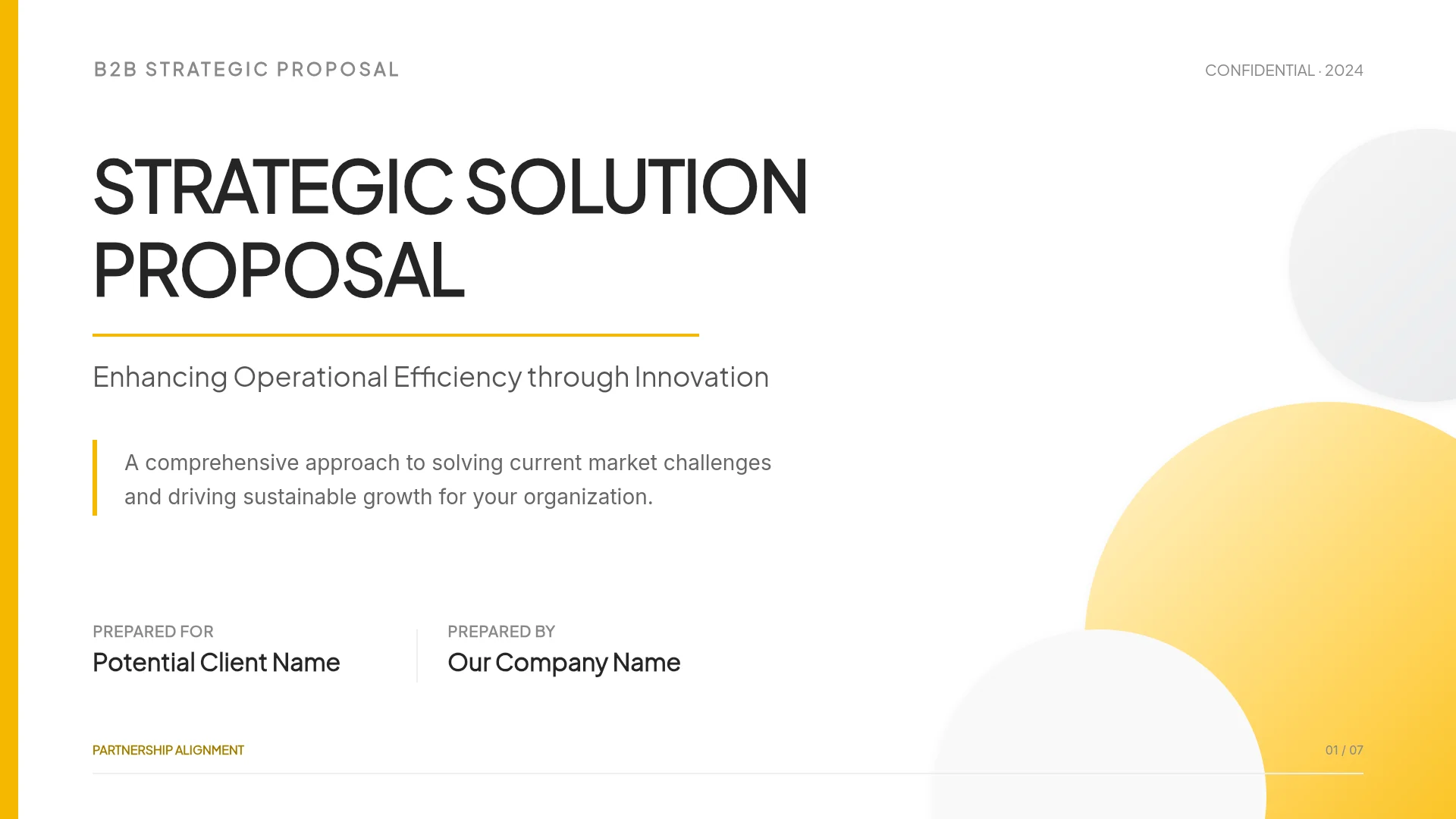
| 1 | Cover | "Customer Success Manager: your first 90 days," manager Dana Ortiz (Head of Customer Success), buddy Sam Patel, the #cs-team channel, a link to HR's orientation deck |
| 2 | What you own | Adoption, quarterly business reviews (QBRs), and renewals for 24 accounts. Billing disputes go to Finance, bugs go to Support |
| 3 | Who you work with | Dana for priorities and sign-off, Sam for calls and account history, Kim Nguyen (Support Lead) for escalations, Account Executives for new customers |
| 4 | Week 1, day by day | The task, who helps, and what counts as done, Monday to Friday |
| 5 | Tools and channels | HubSpot, Zendesk, Gong, and two Slack channels, each with one line on what it's for |
| 6 | Account handoff | 6 accounts by day 30, 16 by day 60, all 24 by day 90 |
| 7 | 30-60-90 day goals | One outcome per phase and who signs it off |
| 8 | Check-ins | The weekly 1:1, the first Friday review, and the day 30, 60, and 90 reviews |
Write slide 2 first. Once the new hire knows what they own and what they hand off, every other slide has a reason to be there.
What should week one look like?
Give each day one task, the person who helps, and a "done when" line the new hire can check without asking anyone. A list of tasks with no owner and no finish line leaves them guessing by midweek.
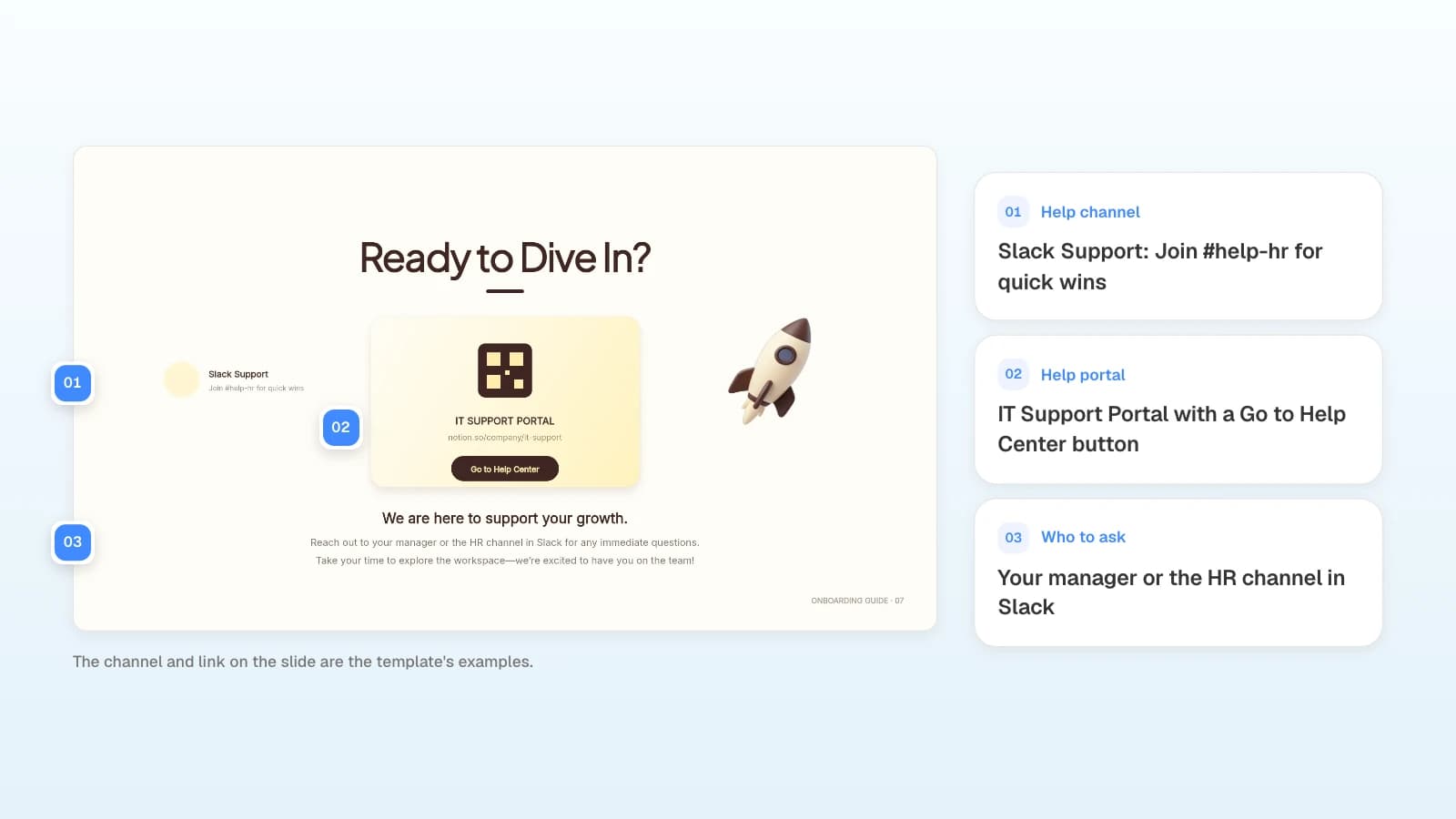
The template's last slide says where to go for help: a Slack channel, an IT portal, and "your manager or the HR channel." A role deck names the person who helps on each day and adds the line that says the task is done. Here is Aspenrow's first week for the new CSM:
| Day | Task | Who helps | Done when |
|---|---|---|---|
| Mon | HR orientation in the morning. Access to HubSpot, Zendesk, Gong, #cs-team, and #cs-escalations by 3 p.m. | HR, RevOps | You can open all 24 account records and see the Zendesk queue |
| Tue | Sit in on two of Sam's calls: a weekly check-in and a new-customer kickoff | Sam | One page of notes per call: the customer's goal, their questions, the follow-ups |
| Wed | Read the account plans for the 6 accounts Sam proposes to hand over first, and listen to each one's last Gong call | Sam | One line per account: goal, current result, gap |
| Thu | Product admin training in the sandbox, then two hours on the support queue | Kim | You can set up a demo company and explain the three most common ticket types |
| Fri | Run the agenda on one check-in call while Sam listens, then a 30-minute review with Dana | Sam, Dana | Dana signs off the week-one list and confirms your first 6 accounts |
Put the Friday review on the slide. It gives every line above it a deadline, and it is where the manager confirms which accounts move first.
How do you write the 30-60-90 day plan?
Give each phase one outcome you can see, the number of accounts the new hire owns by then, and the person who signs it off. "Learn the product" is an activity. "Run check-in calls on your first 6 accounts alone" is an outcome.
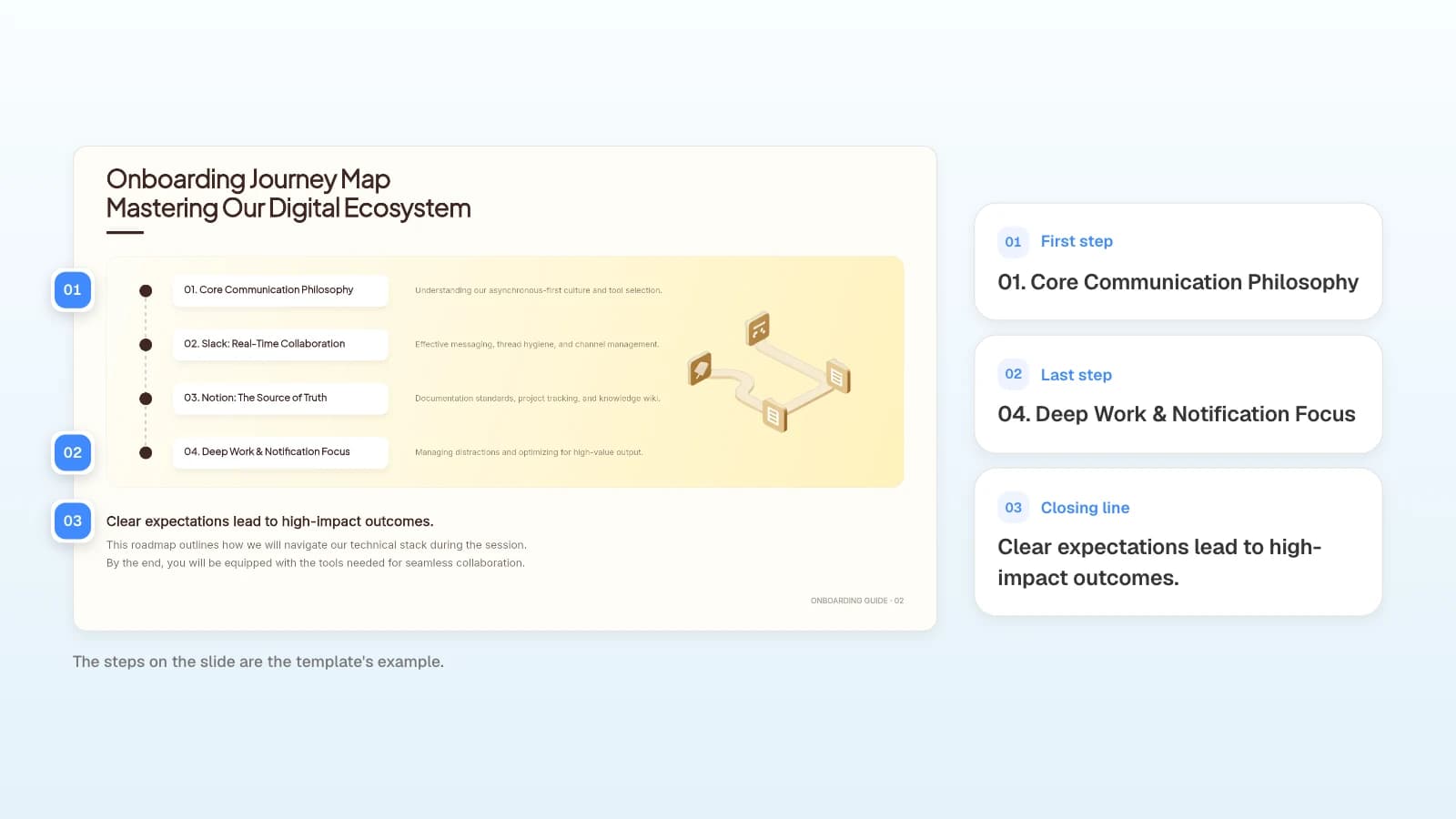
The template's journey map puts four steps in order, and each step's line names something to learn, such as "Understanding our asynchronous-first culture and tool selection." Keep the order, replace each line with an outcome, and use the closing line for the review days: day 30, 60, and 90. For Aspenrow's CSM:
| By | Accounts owned | Outcome | Signed off by |
|---|---|---|---|
| Day 30 | 6 | Ran check-in calls on all 6 alone and updated each account plan: goal, result, gap | Dana, in a 30-minute review |
| Day 60 | 16 | Led two QBRs with customer stakeholders while Sam sat in, and updated health scores every Friday | Dana |
| Day 90 | 24 | Owns the full book ($840,000 ARR) and a renewal plan for the 3 accounts renewing next quarter; Dana joins the first renewal call | Dana, with Sam confirming the handoff is complete |
Move accounts in waves. Start with healthy accounts that don't renew for at least four months, so the first calls aren't about price. Before each handoff, Sam fills in a five-line note per account:
- Main contact and their goal: who the new CSM will talk to, and what problem the contractor bought the software to fix.
- What they use: the modules they have and how many technicians they schedule in it each week.
- Open tickets: how many, and the oldest one.
- Renewal date and ARR.
- One risk: for example, the person who championed the purchase just left.
Then Sam introduces the new CSM on a short call with the customer, so the change comes from someone the customer already knows.
How do you keep the deck from turning into a policy dump?
Test each slide with one question: does it change what the new hire does in the next 90 days? If not, link to the place where it lives and move on. Policies change on their own schedule, and a copy in your deck goes stale the day they do.
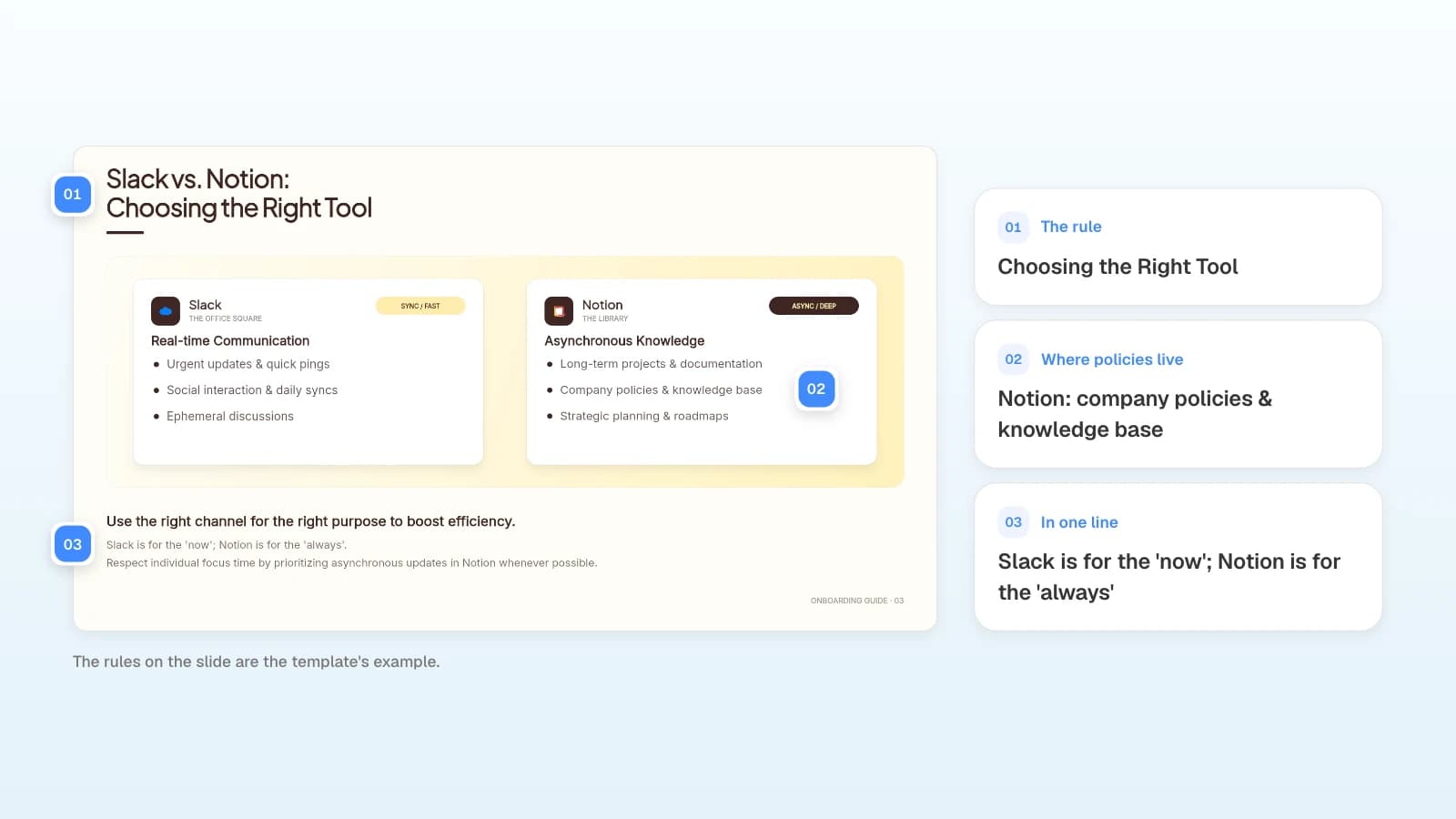
This slide states the rule: quick questions go to chat, and policies and how-tos live in the wiki. Your onboarding deck points to both instead of copying either.
| Information | Where it lives | What the role deck shows |
|---|---|---|
| Benefits, PTO, Form I-9, the handbook | HR's orientation and HR system | The link to HR's orientation deck on the cover |
| Product how-tos and ticket macros | The wiki | The three pages to read this week, with links |
| Renewal and discount approval rules | The CS playbook in the wiki | The one rule needed before day 90, plus the link |
| Account history | HubSpot | Which 6 accounts to read first |
Two habits keep the deck reusable. Write dates as day numbers ("day 30") instead of calendar dates, so the next hire gets the same plan. And write full names and roles only on the cover and slide 3; other slides can use first names. When Sam moves on, update those two slides, then search the deck for "Sam" to catch the rest.
What does MOVO change for an employee onboarding presentation?
- Start from the files you keep: attach a role description in Word (.docx), an account list in Excel (.xlsx, up to 20 sheets and 100,000 cells) or CSV, and the last hire's checklist as a PDF (up to 100 pages). The Free plan takes up to 3 files of 5 MB each; Pro and Max take up to 10 files of 20 MB each, with 50 MB per upload in total. Save .doc and .xls files as .docx and .xlsx first.
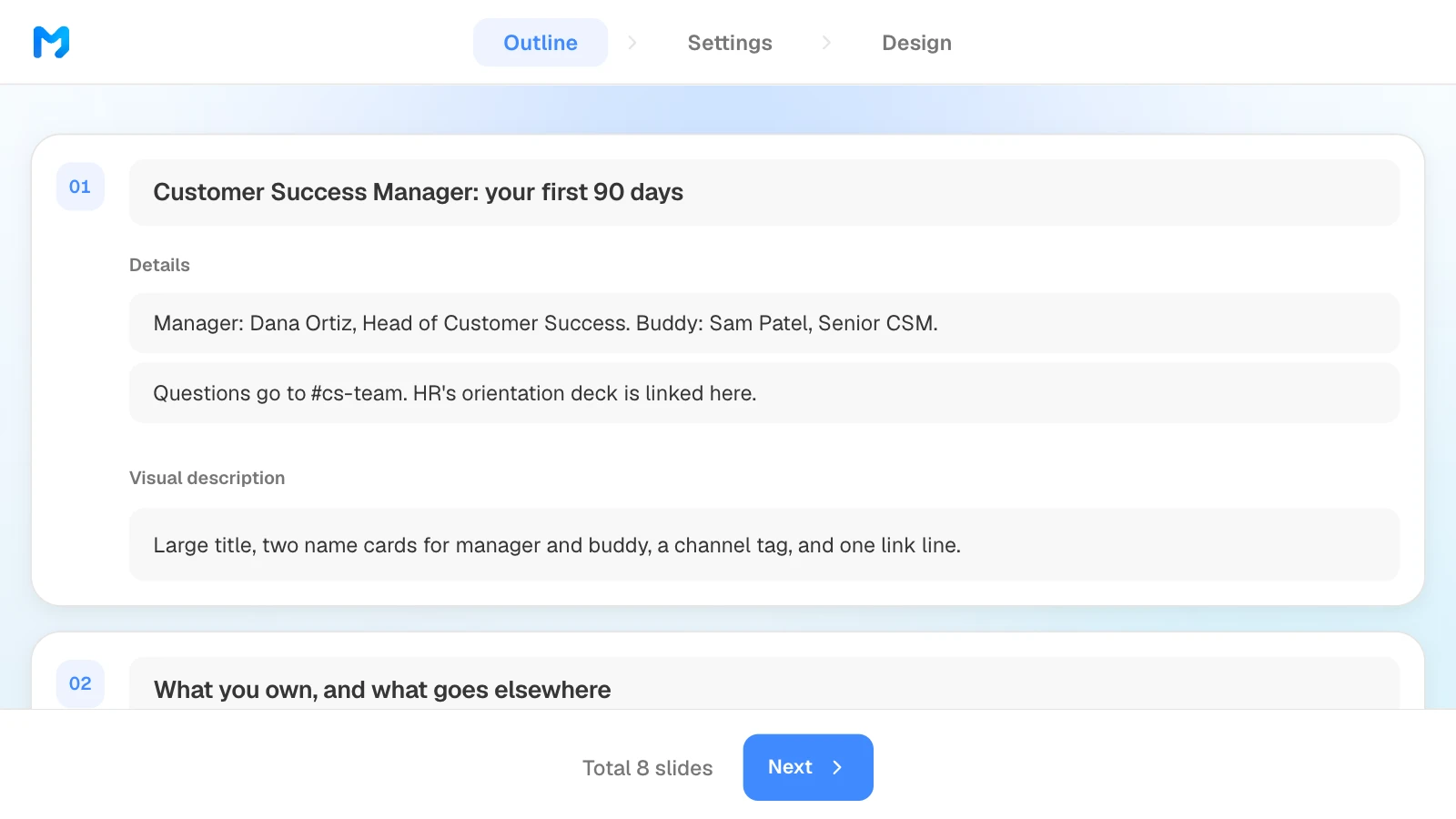
- The outline comes first: before any slide is built, MOVO shows each slide's title, details, and visual description. Fix names and day numbers there, and drag slides into order.
- Designs made for explaining: in the design step, change the filter that reads "All" to "Education / Explanation" to see styles meant for guides and training.
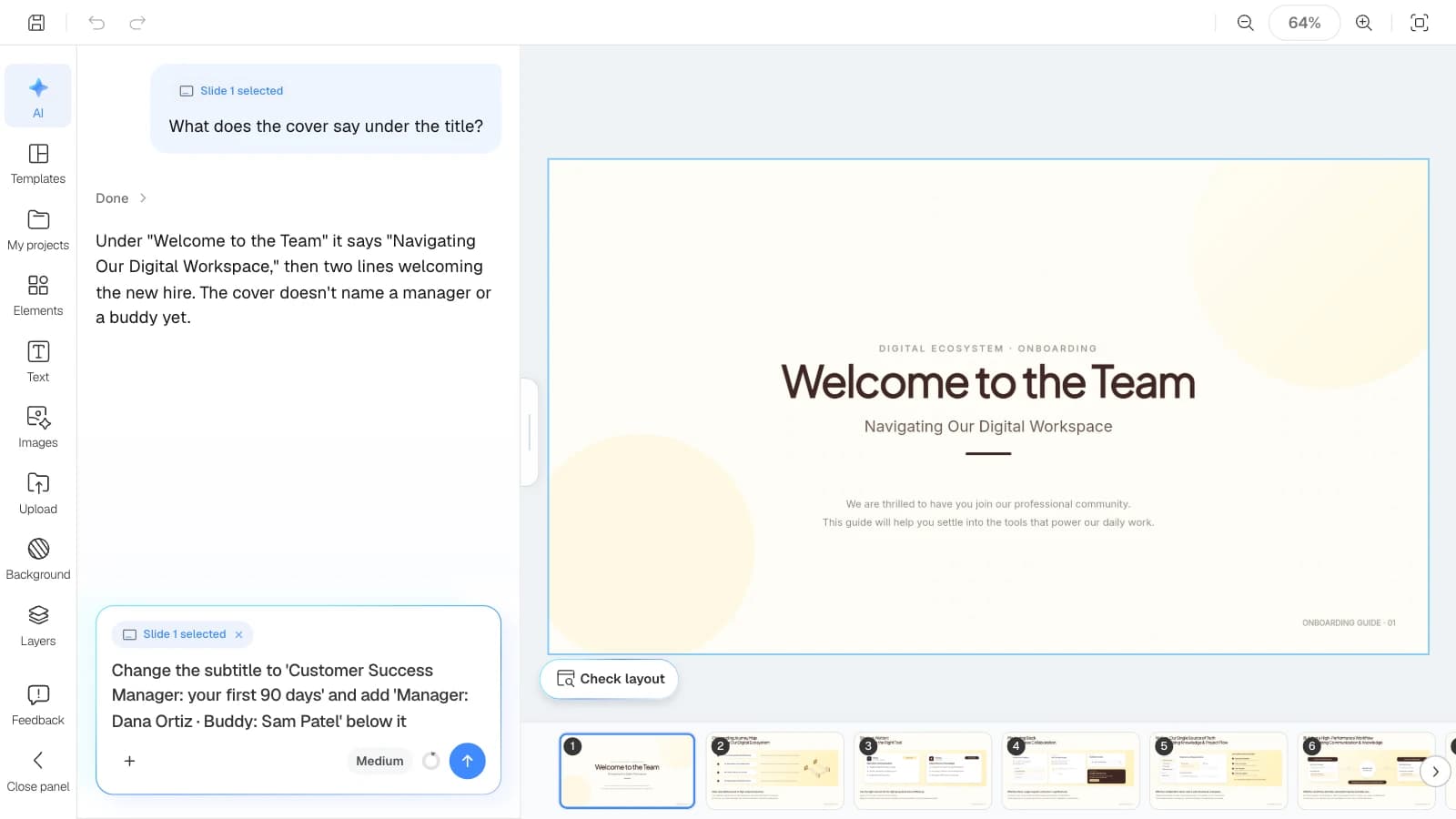
- Update one slide when the team changes: select the slide and ask the AI, for example, to swap in the new buddy's name. The selected slide is attached to your request, so the AI works from what is on it. "Check layout" under the canvas checks the slide you are viewing for overlapping or clipped text.
- Export formats by plan: PDF and PNG export on all plans (the Free plan adds a MOVO watermark), PowerPoint and Figma on paid plans. In the PowerPoint file, text, images, and shapes stay editable.
How to build an employee onboarding presentation in MOVO
1. Attach the role files and write the request
In the dashboard input, say who the deck is for, what the new hire should be able to do by Friday, and what to leave out. Attach the role description, the account list, and the last hire's checklist, and set "Slide Count" to 8. On the Free plan, AI generation builds up to 5 slides per deck, so an eight-slide deck needs a paid plan (Pro builds up to 30).
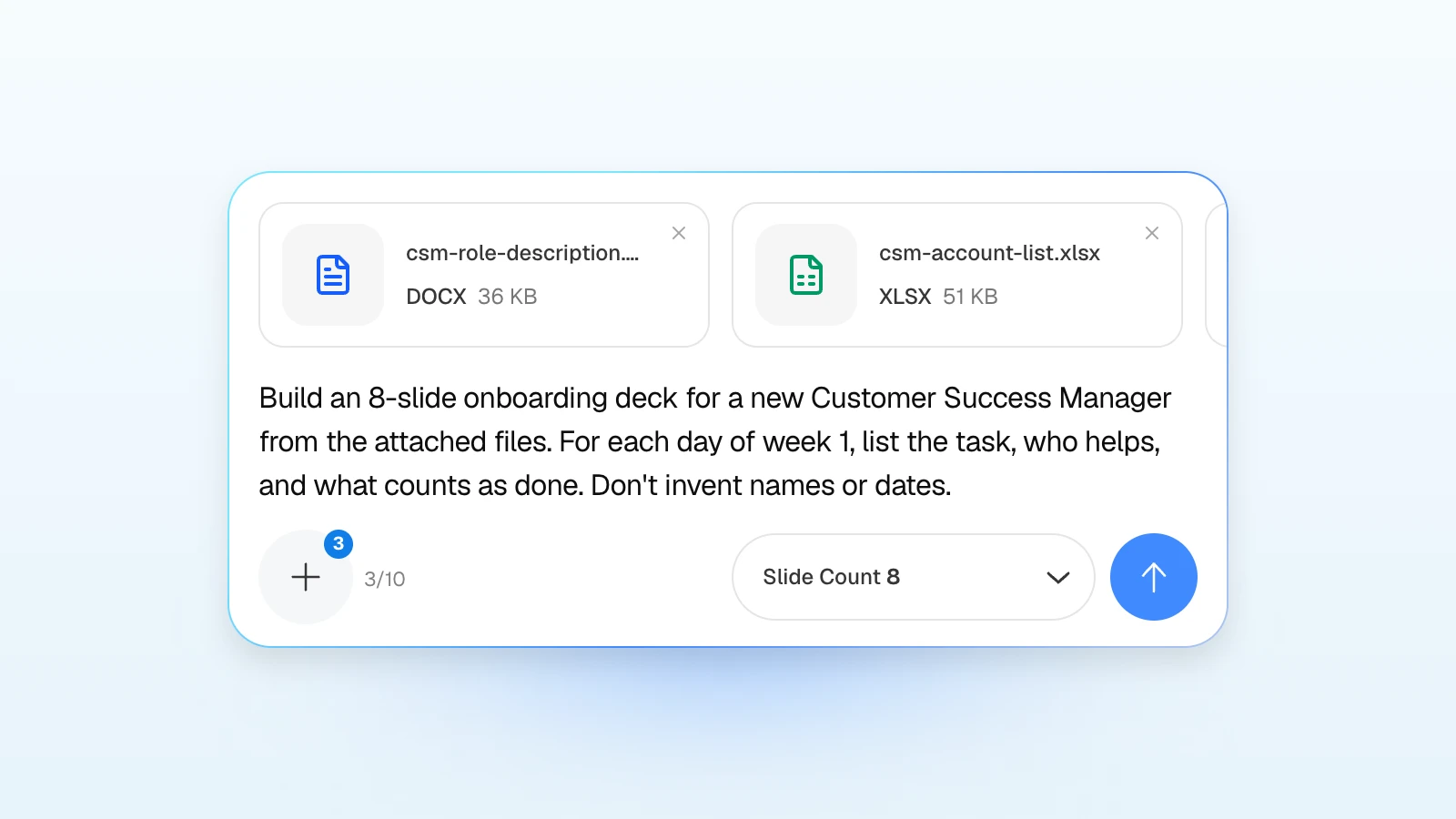
Copy this request and change the role, the slide list, and the files it names:
Build an onboarding deck for a new Customer Success Manager from the attached role description, account list, and last hire's checklist only. Eight slides: cover, what you own, who you work with, week 1 day by day, tools and channels, account handoff schedule, 30-60-90 day goals, check-ins and sign-off. For each day of week 1, list the task, who helps, and what counts as done. Leave out benefits, PTO, and company history; put a link to the HR orientation deck on the cover instead. Don't invent names, accounts, or dates that aren't in the files.
2. Check the outline
Read each slide's title and details against your files: names, account counts, and day numbers. Edit any field directly, and drag slides to reorder them. MOVO aims for the slide count from step 1. If the outline comes back shorter, a note says how many slides it wrote, so check that all eight are there before you move on. MOVO builds the slides from the outline you leave here.
3. Set the audience and tone
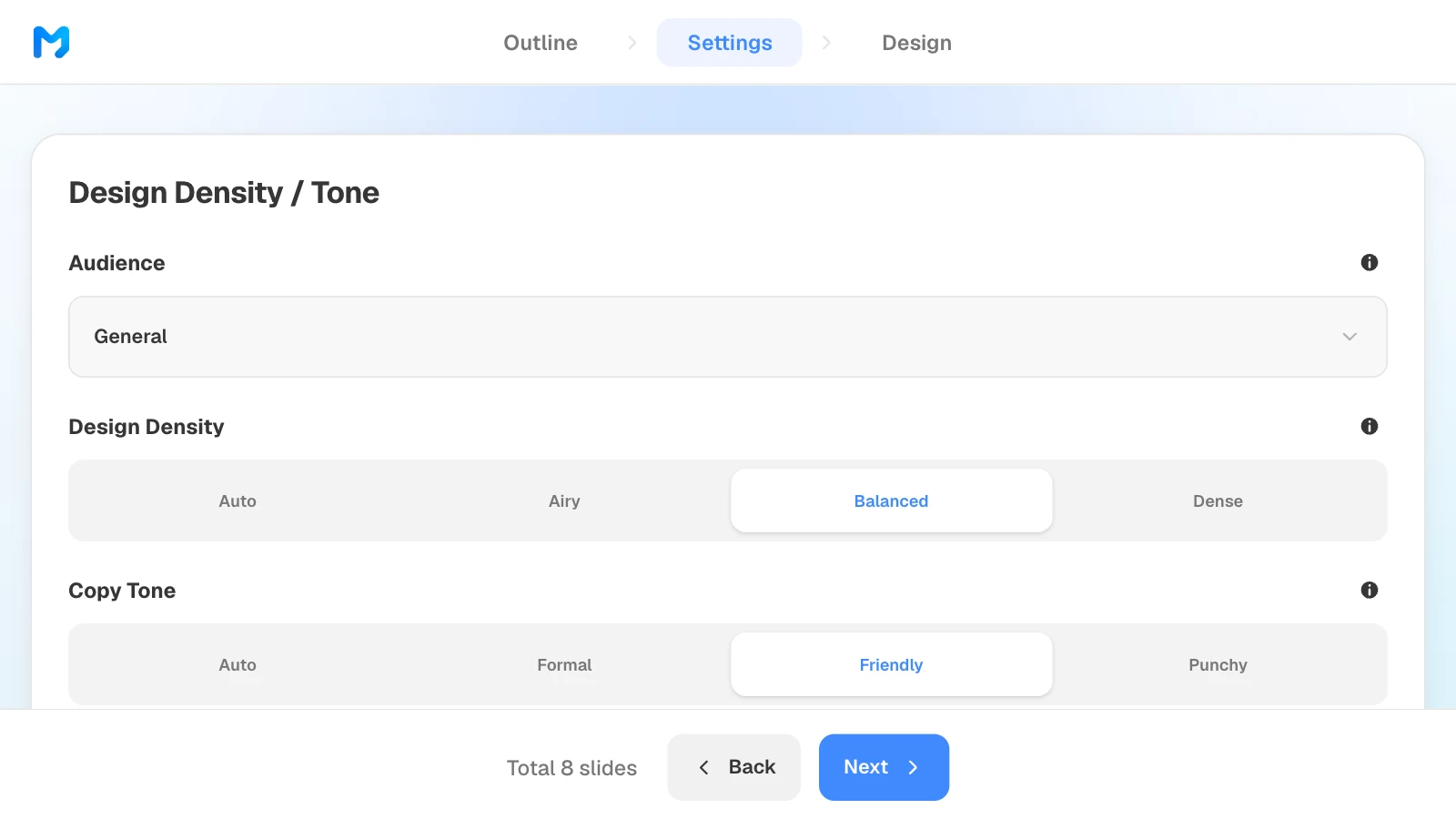
In settings, leave "Audience" on "General", set "Design Density" to "Balanced", and set "Copy Tone" to "Friendly". Balanced suits slides that hold a five-row table like week one, and Friendly fits a deck the new hire reopens all week.
4. Pick a design
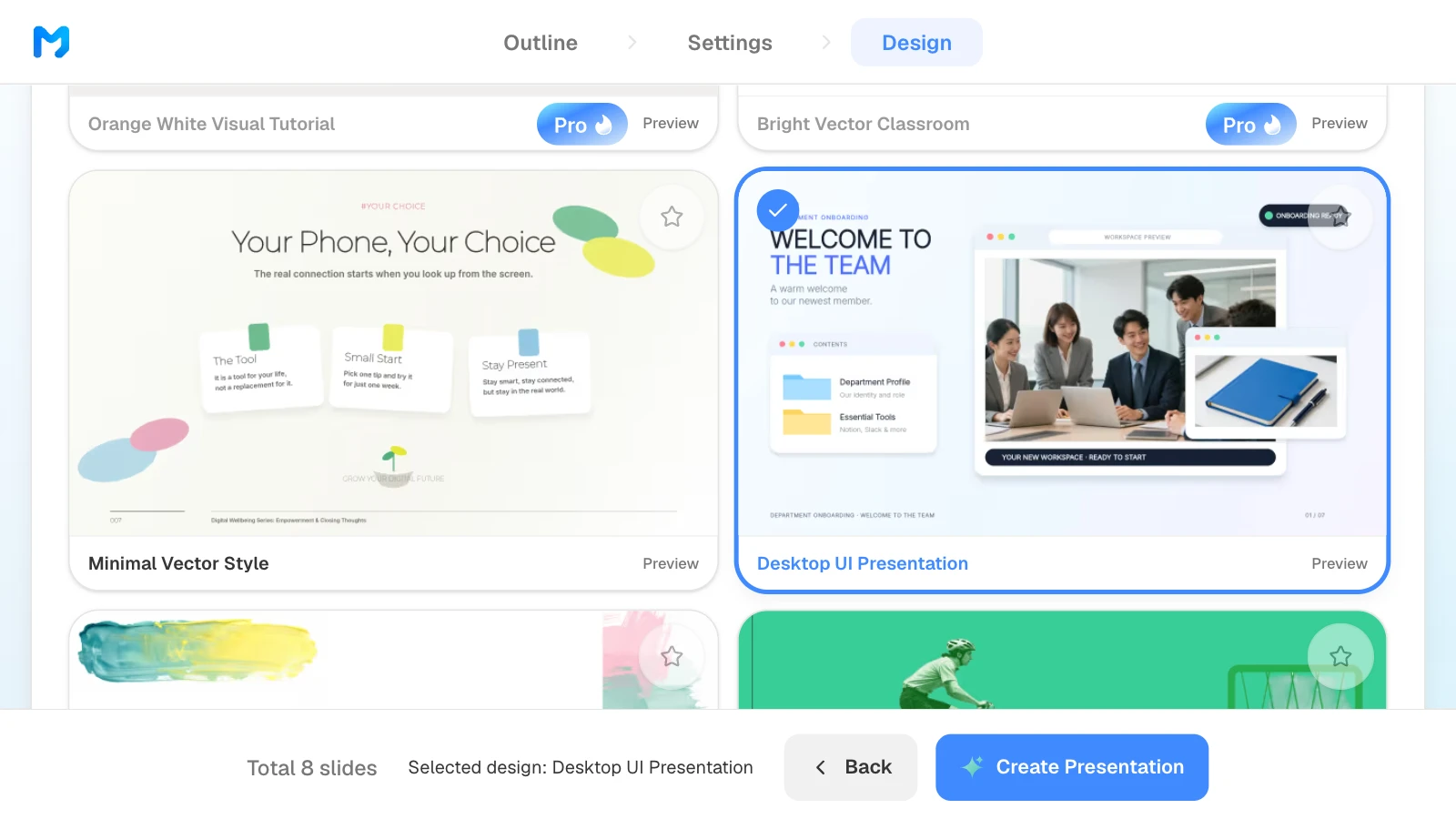
Open the filter that reads "All", next to "Favorites only" and "Mood", and choose "Education / Explanation". Use "Preview" to see a style's sample slides, then select one. Styles marked "Pro" are available on paid plans.
5. Check names and day numbers, then fix one slide
Compare the finished slides with your files: every name, account count, and day number. To change one slide, select it and type the request in the AI panel on the left, or edit the text on the canvas. Then click "Check layout" under the canvas to catch text that now overlaps or gets cut off.
6. Export the file
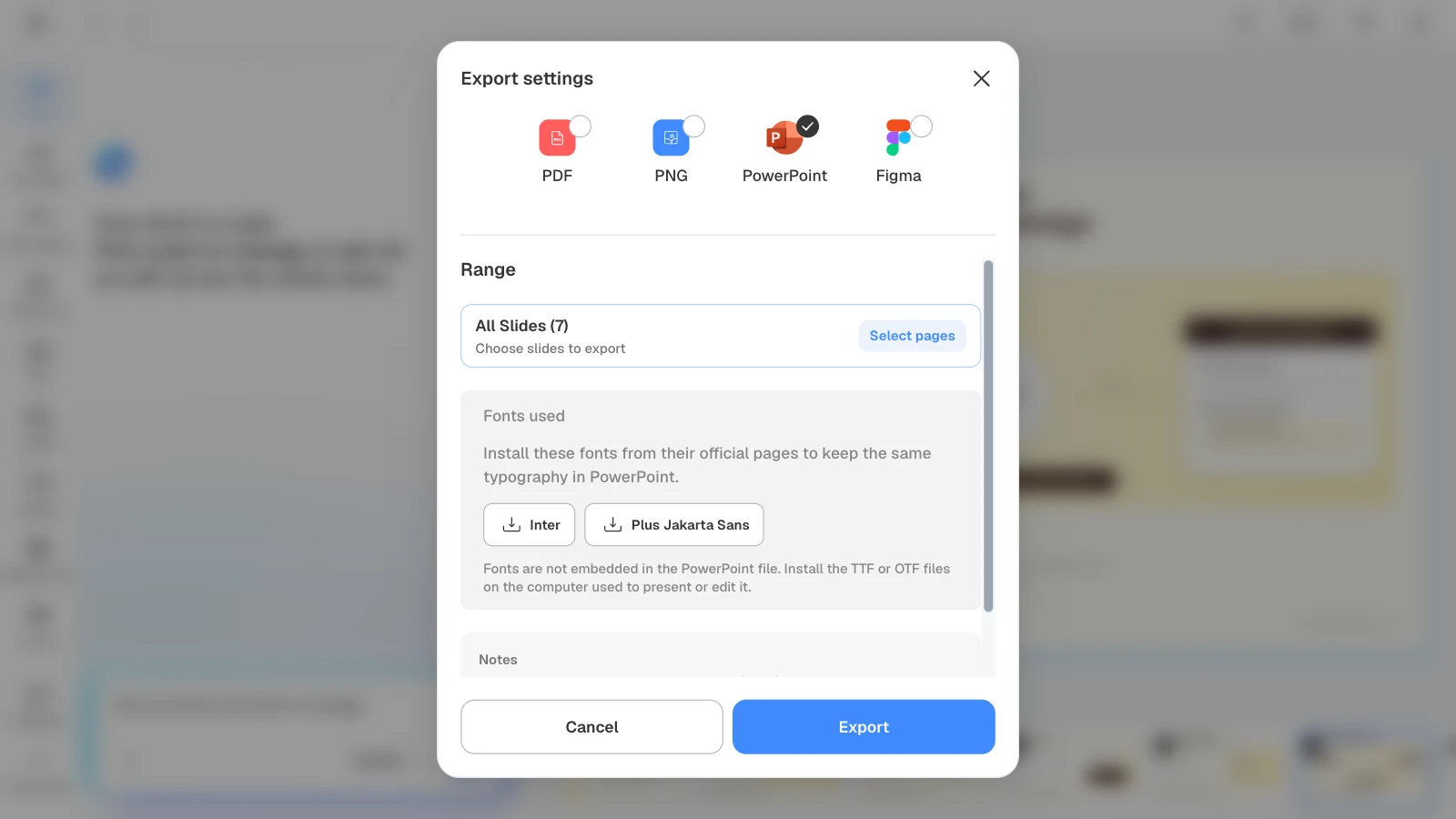
Export a PDF to share on day one, and a PowerPoint file if other managers will copy the deck for their own hires. When you choose PowerPoint, MOVO lists the fonts the deck uses. Fonts aren't embedded in the file, so install them on any computer that will edit or present it. The export notes also say some fonts and designs may render differently, so open the file in PowerPoint once before you share it.
An employee onboarding template to start from
This MOVO template is written in English. The workspace, channels, and links in it are fictional and only show the structure. Copy it into your projects and replace the content; copying a template works on every plan.
Digital Workspace Onboarding (7 slides)
A tools onboarding deck: when to use Slack and when to use Notion, Slack habits, Notion as the single source of truth, how the two connect, and where to get help. It fits HR teams that welcome every new hire the same way, and remote or async teams where tool habits are the first hurdle. Show it on day one next to the role deck rather than inside it, and put your own help channel and contacts on the last slide.
View the Digital Workspace Onboarding template
Frequently asked questions
How many slides should an employee onboarding presentation have?
For a role deck, about eight: short enough to walk through together in one sitting on day one. If it runs long, move company background into HR's orientation and keep the week-one plan, the handoff schedule, and the sign-offs.
Should HR or the hiring manager build it?
The hiring manager builds the role deck, because only the manager knows who the new hire shadows and which accounts move when. Ask HR to review any slide that mentions pay, leave, benefits, or employment paperwork.
How is a 30-60-90 day plan different from a week-one checklist?
The checklist covers five days, and each task has an owner and a finish line. The 30-60-90 day plan sets one outcome per phase and names who signs it off. The Friday review at the end of week one is where the first hands over to the second.
Can I reuse the deck for the next hire?
Mostly. Update the cover, slide 3, and the account handoff slide with the new names and accounts, search the deck for the old first names, and check that the tools and channels haven't changed. If the role itself changed, rewrite slide 2 first, because the rest of the deck follows from it.
What should a remote new hire's deck add?
Put the time zone next to every meeting in the week-one plan, add the video link for each call they will sit in on, and note the date their laptop arrives, which should be before day one. Name a backup contact on slide 3 for the hours when the buddy is offline.
Summary
An employee onboarding presentation is most useful when it is built for one role: what the new hire owns, who they shadow, what counts as done each day of week one, which accounts move at day 30, 60, and 90, and who signs off at each step. Leave the mission, benefits, and policies to HR's orientation and the wiki, and link to them. If you already have a role description and an account list, attach them in MOVO and start from the outline.