How to Fix Overlapping Text in AI Slides
Why text overlaps or gets clipped in AI-generated slides, what MOVO's Check layout finds and misses, how to fix it with Fix with AI or by hand, and what to do when only the PPTX overflows.
You changed one number or added a few words, and now a label runs into the text beside it or spills out of its card. Or the deck looked fine in the editor, but the PPTX you sent opens on a client's laptop with lines wrapping where they shouldn't. Scanning slide by slide, it's easy to miss two small labels touching, or text hidden behind a shape.
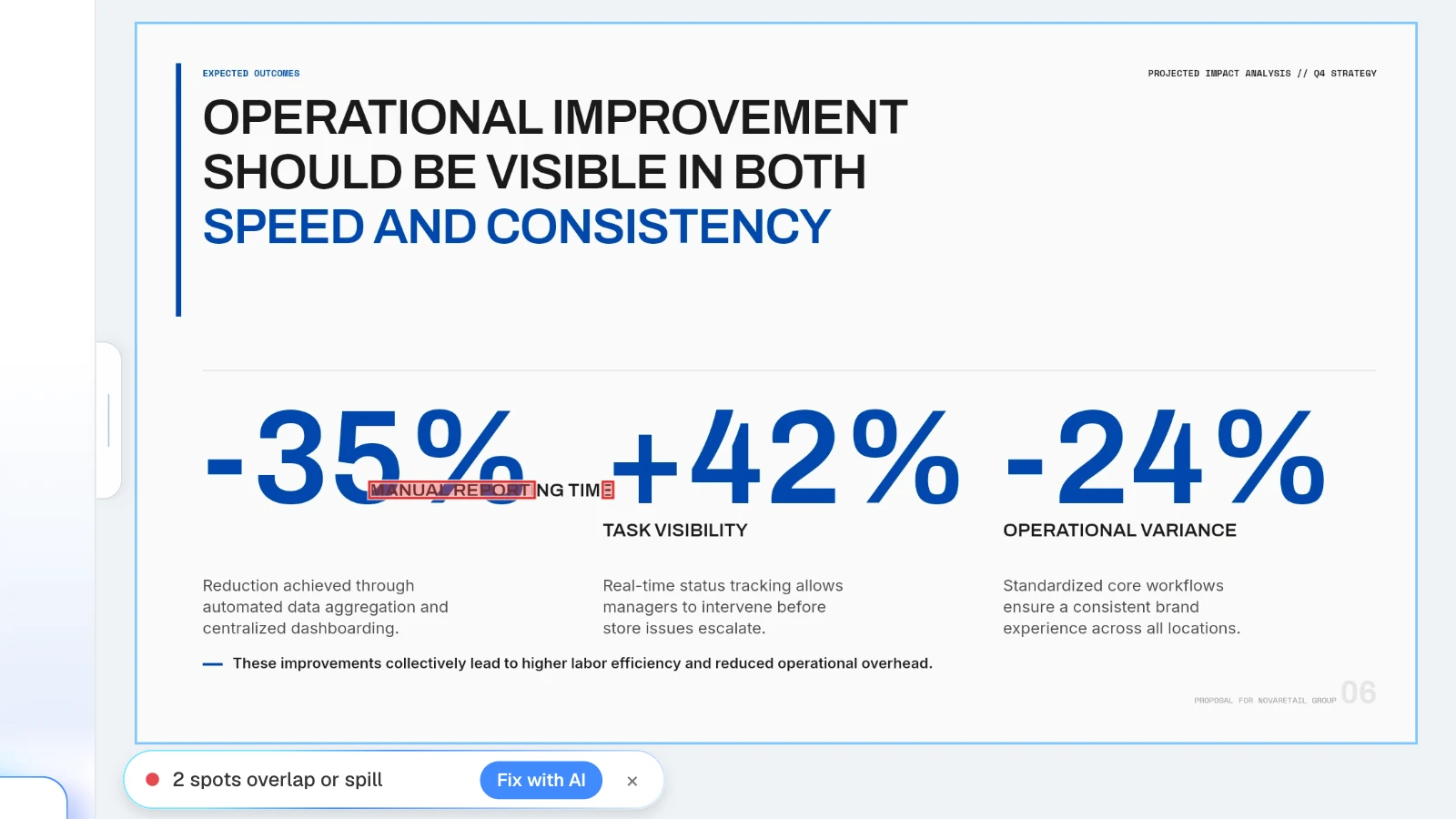
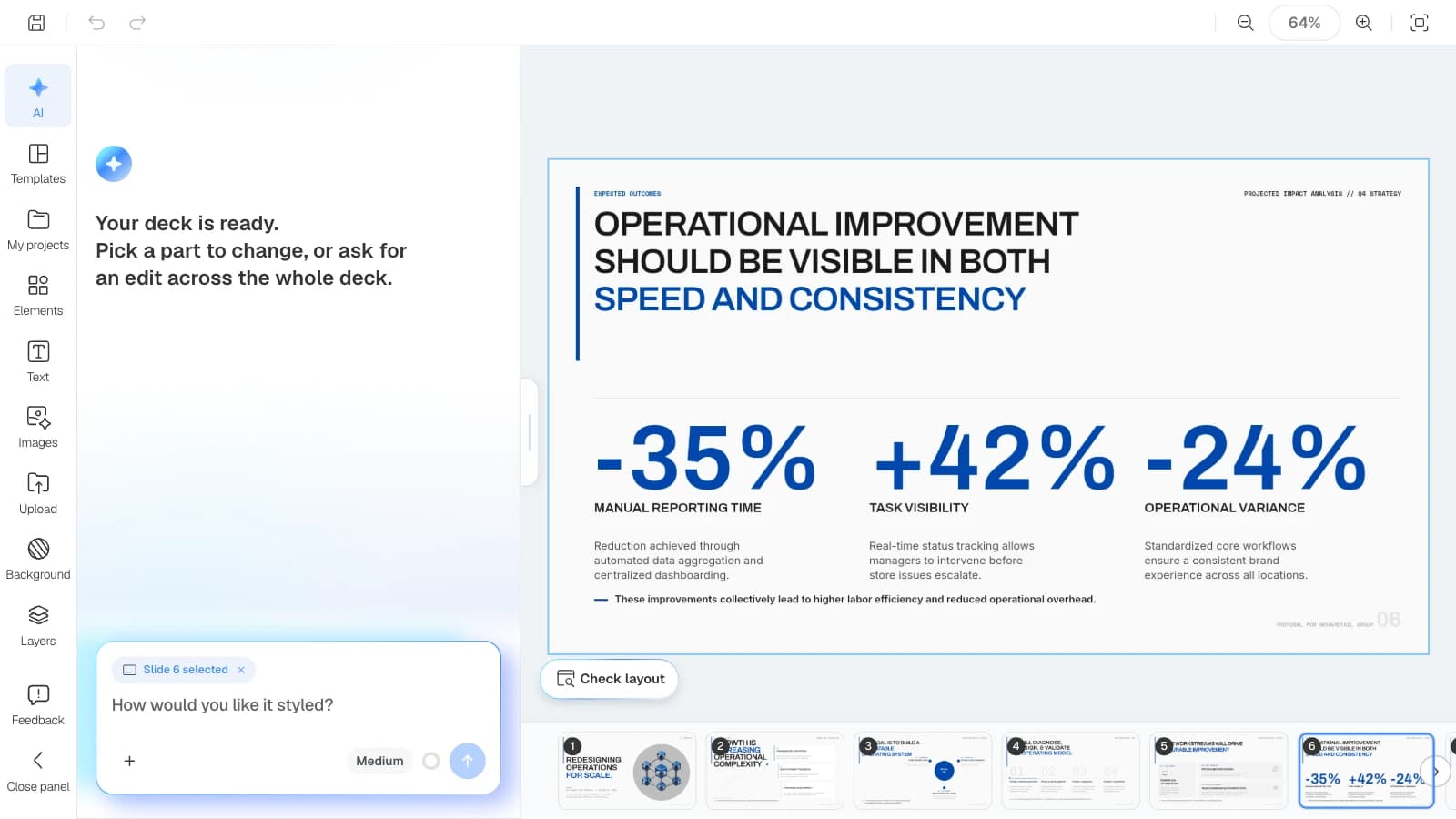
In the MOVO editor, click "Check layout" below the canvas. MOVO marks every spot on the current slide where text overlaps or spills, in red, and tells you how many there are. "Fix with AI" sends those spots to the AI panel, or you can move the text box or change the line height yourself. This guide covers why text collides, what Check layout finds and misses, how to fix it with AI or by hand, and what to do when only the PPTX overlaps.
Why does text overlap or get cut off in AI-generated slides?
Every text box and shape on a slide has a fixed position and size. When the text gets longer, or the font or font size changes, the text outgrows its space and runs into its neighbors. It happens the same way in an AI draft and in a slide you edited by hand.
| What you see | Common cause | First thing to try |
|---|---|---|
| Text overlaps text | A sentence or number got longer, or a box was moved | Shorten the text or re-space the boxes |
| The last line is missing | Text grew inside a fixed-height box | Make the box taller or cut the text |
| Text spills out of its card | More text than the card can hold | Enlarge the card or split the slide |
| Text hides behind a shape | A shape or image sits in front of the text | Bring the text to the front |
| Text runs off the slide | The box was pushed out of place | Move it back inside |
| Lines collide within a paragraph | Line height is too tight | Increase the line height |
| Only the PPTX overflows | The computer opening it lacks your fonts | Install the fonts |
What does Check layout find, and what does it miss?
It checks the slide you're viewing for text that overlaps other text, is covered by a shape, image, or line, or runs out of its card or off the slide. It doesn't call the AI; it runs in your browser, so it uses no credits.
| Problem | What it means | Marked as |
|---|---|---|
| Overlap | Text in two text boxes collides | Red box |
| Covered text | A shape, image, or line is drawn on top of the text | Red box |
| Spills out of its card | Text runs past the card (shape) it sits on | Red box |
| Clipped by its box | Text is longer than a fixed-height box, so the end is hidden | Red box |
| Off the slide | Text extends past the slide edge | Red box |
| Tight line height | Line height is smaller than the font size, so lines overlap | Red box |
| Borderline overlap, line behind text | Text barely touches, or a line runs behind it; readable but worth a look | Orange dashed box |
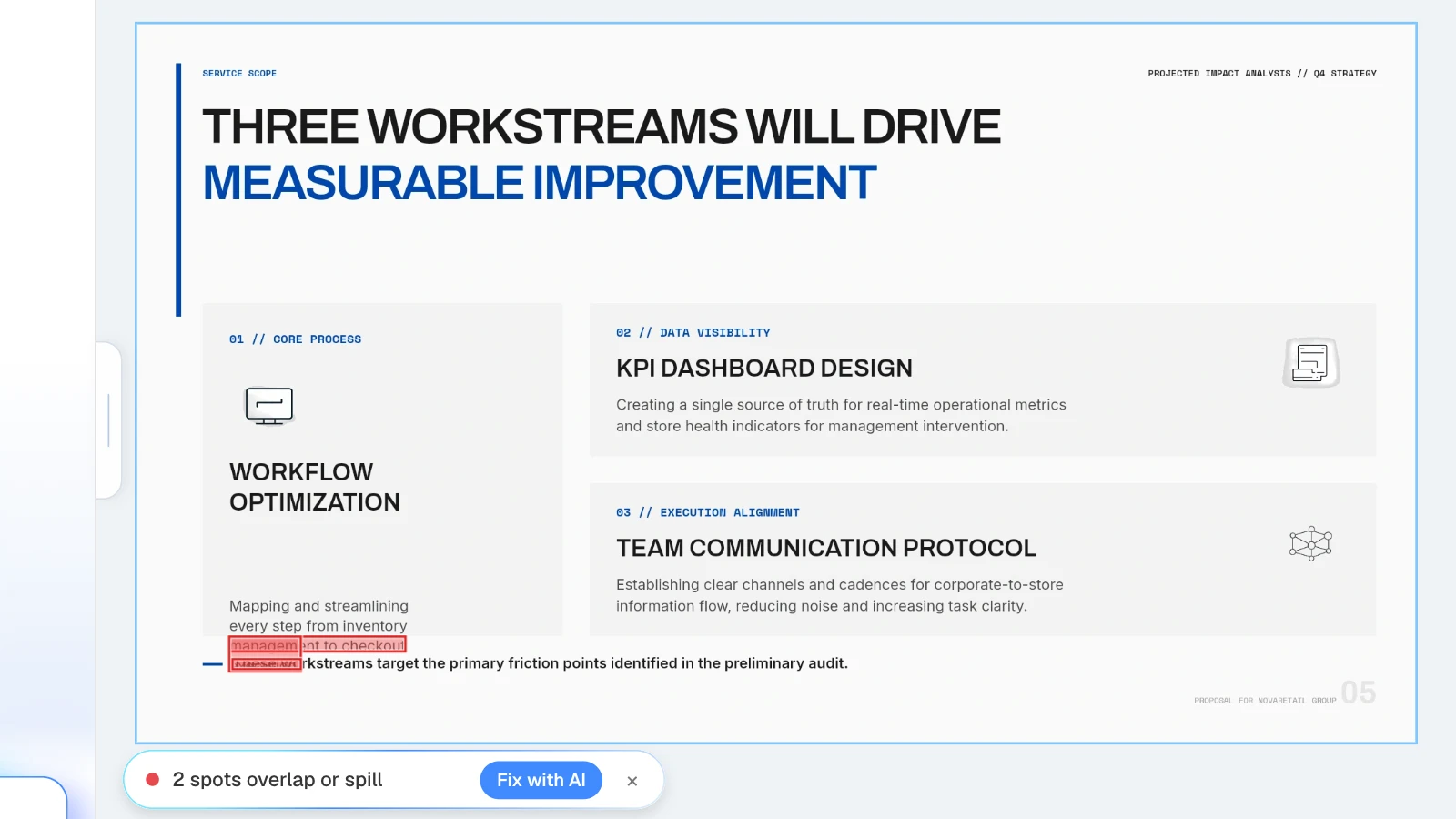
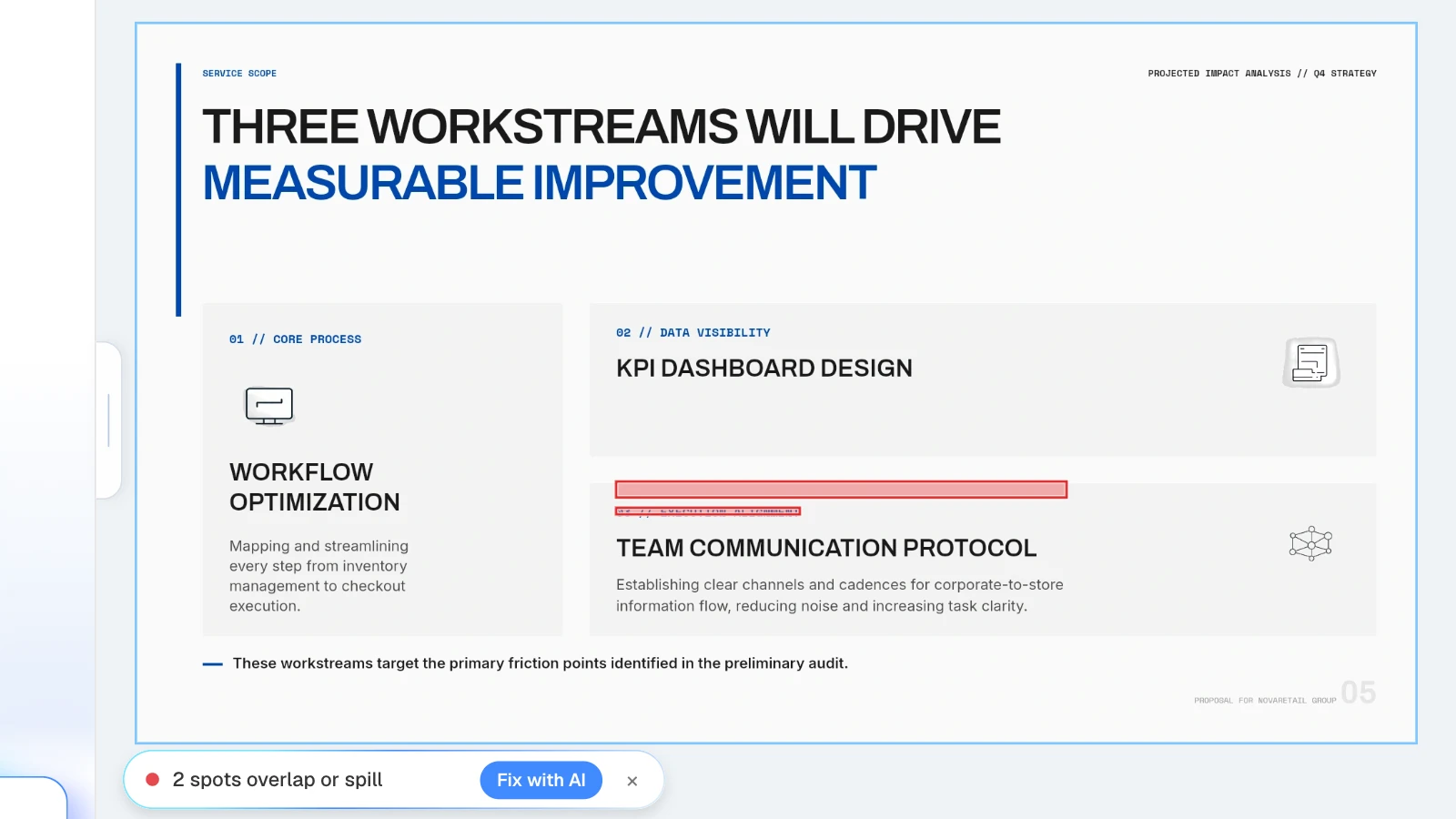
The result appears as one line below the canvas. If it finds problems, you'll see how many spots overlap or spill, with a "Fix with AI" button; if not, "Nothing overlaps or gets clipped" shows briefly and fades. If it says "Can't check right now · try again shortly," wait for the slide to finish drawing and click again. The result disappears when you move to another slide, so check each slide separately.
Check layout doesn't catch everything:
- Shapes or images overlapping each other, or running off the slide, count as design and aren't flagged.
- It doesn't measure color contrast, so text placed on a similar-colored shape can pass while being hard to read.
- A shape or image that is less than 50% opaque doesn't count as covering text, so check text under see-through overlays yourself.
- Hidden elements, text that's simply too small, and typos or wrong numbers aren't checked.
- A warning isn't always a mistake. Text that merely touches other text is flagged, so an overlap you designed on purpose can show up too.
What happens when you click Fix with AI?
MOVO sends the full list of flagged spots to the AI panel. If the AI is idle, the request goes out right away; if it's busy with another request, it waits in the queue and goes out when that work finishes. If neither is possible, MOVO fills in the input and leaves it for you to send.
The request says: "The layout check raised N warning(s) (possible overlap or clipping). Some overlaps may be intentional design — use your judgment and only fix what actually looks off." The AI fixes only the flagged spots and judges whether an overlap was intended. Like other AI requests, it uses credits. Run Check layout again afterward.
If something must stay the same, type your own request instead of clicking Fix with AI.
Keep the words and numbers, fix the position
"MANUAL REPORTING TIME" overlaps the numbers. Move it back under -35% without changing any text, and keep the three columns evenly spaced.
Text spilling out of a card
The body text in the first card spills out of the card. Don't shrink the font; shorten the sentences or make the card taller. Keep every number.
A longer title colliding with the subtitle
The title now wraps to two lines and collides with the subtitle. Two lines is fine; move the subtitle and everything below it down.
Too much for one slide
This slide has too much content to fit. Split it into two slides without deleting any evidence or numbers.
Swap in the names of the colliding elements, the words and numbers to protect, and what may change (line count, position).
How do you fix overlapping text by hand?
When one box just needs to move, doing it yourself is faster. Select an element and tools such as "Font size" and "Line height" appear in the toolbar at the top.
| Problem found | What to do in the editor |
|---|---|
| Overlap | Drag the text box elsewhere, or drag a side handle to change its width |
| Clipped by its box | Drag a side handle and the box resizes its height to fit the text; or cut the text |
| Spills out of its card | Enlarge the card shape or cut the text |
| Covered text | Right-click the text and choose "Bring to Front" |
| Tight line height | Select the text box and increase "Line height" in the toolbar |
| Off the slide | Move the text box back inside the slide |
Dragging a corner handle of a text box scales the font along with the box, so use a side handle when you only want to change the width. Shrinking the font makes the warning go away, but the text gets harder to read. W3C's accessible presentations checklist asks for text big enough to read from the back of the room, and for less text on each slide (W3C WAI). Cut words or split the slide first, and change the font size last. Then run Check layout again.
Why does the PPTX overlap when the editor looks fine?
Usually it's the fonts. MOVO's PowerPoint export doesn't embed fonts, so on a computer that doesn't have them, PowerPoint shows the text in another font. Letter widths change and lines can overflow. Microsoft notes that when fonts are embedded, sharing the file with someone who doesn't have them installed won't change its fonts, layout, or styling (Microsoft Support).
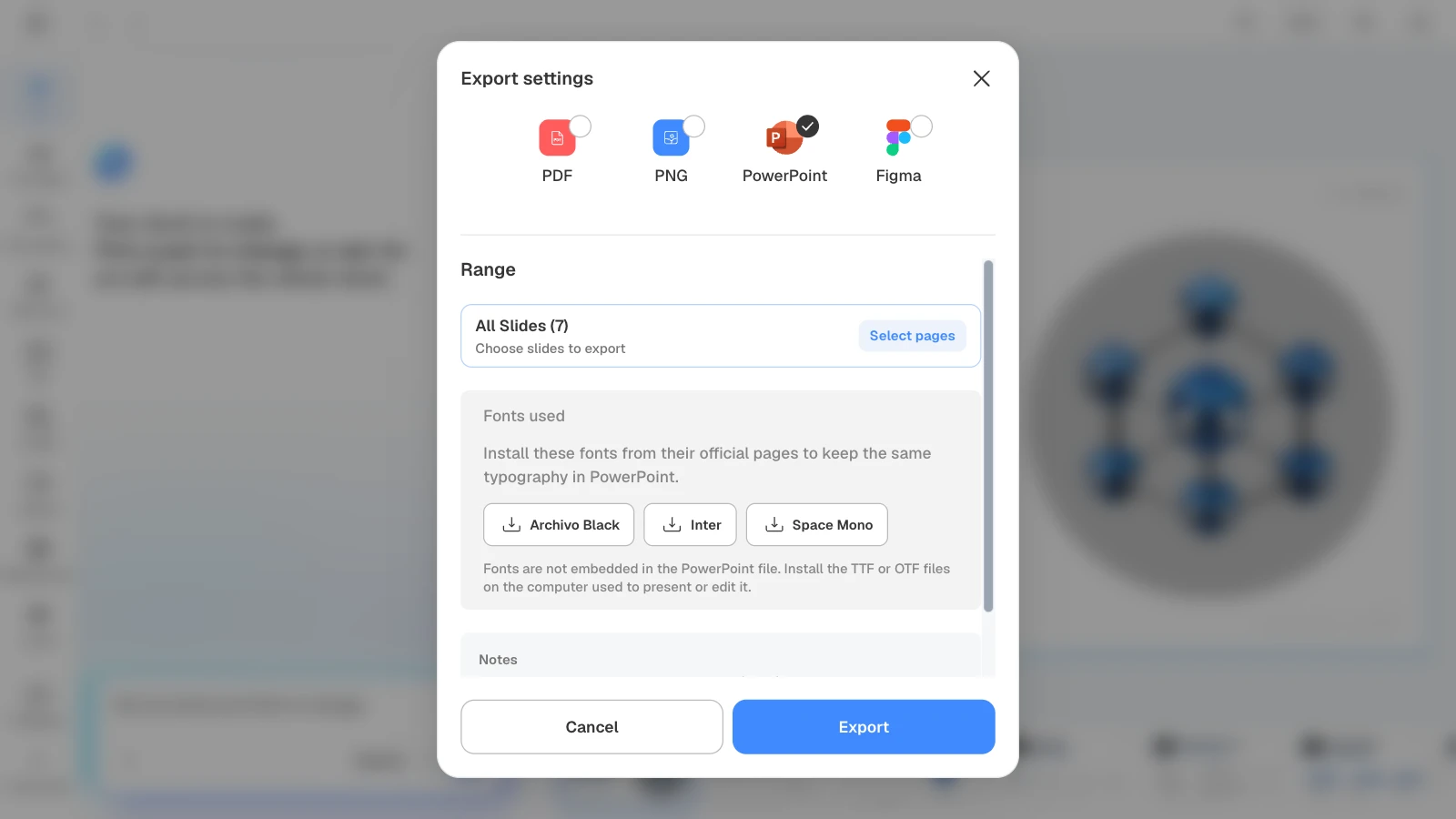
- Install the fonts: in the export dialog, choose PowerPoint and look under "Fonts used." Each font has a link to its official page. Install the TTF or OTF files on the computer that will present or edit the deck.
- Embed them in PowerPoint: with the fonts installed, go to File > Options > Save in PowerPoint for Windows and select "Embed fonts in the file" before saving. Microsoft lists font embedding for PowerPoint for Microsoft 365 for Mac and PowerPoint 2024 and 2021 for Mac as well, and notes that some fonts can't be embedded (Microsoft Support).
- Send a PDF when no one needs to edit: MOVO draws PDF and PNG exports as images the same way the editor draws slides, so the layout stays put. The text in the PDF can't be edited. PDF and PNG are available on every plan; PPTX and Figma on paid plans.
What does MOVO change for fixing overlapping text?
- One click to find collisions: Check layout marks overlaps, covered text, text running out of cards, boxes, or the slide, and tight line height on the current slide. It doesn't use the AI, so it costs no credits.
- It finds text you can't see: text hidden behind a shape still gets a red box where it sits.
- Fix with AI touches only the flagged spots: it passes the list to the AI panel, and the AI decides whether an overlap was intended. If the AI is busy, the request waits in the queue.
- Manual tools are right there: line height, font size, and Bring to Front are one selection away.
- The PPTX export tells you which fonts to install: the export dialog lists the deck's fonts with official download links.
How to find and fix overlapping text in MOVO
The pictures below show MOVO's screens filled with this article's example deck, the Retail Operations Consulting Proposal template. The red boxes come from running the real Check layout after we moved a text box on purpose; the request in the AI panel is an illustration.
1. Open the slide and click Check layout
Open the slide to check and click "Check layout" at the bottom left of the canvas. The button doesn't appear while a deck is still being generated.
2. Look at what each red box points to
Check whether the text in each red box is actually covered or cut off. Text that runs off the slide gets a box that crosses the slide edge. Orange dashed boxes are readable but worth a look.
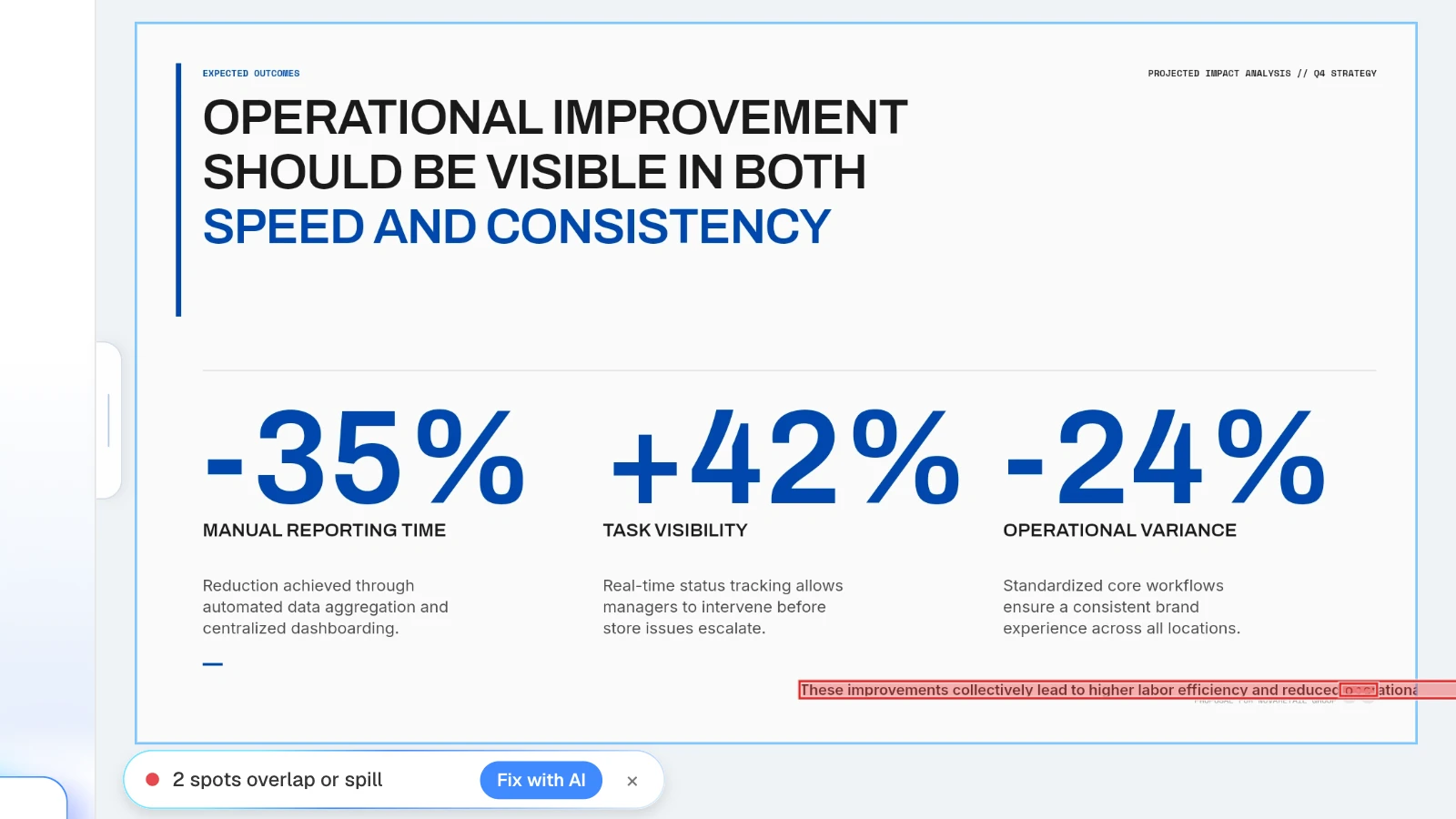
3. Click Fix with AI, or ask with conditions
If the AI can decide, click "Fix with AI." If words, numbers, or spacing must stay the same, type your request in the AI panel.
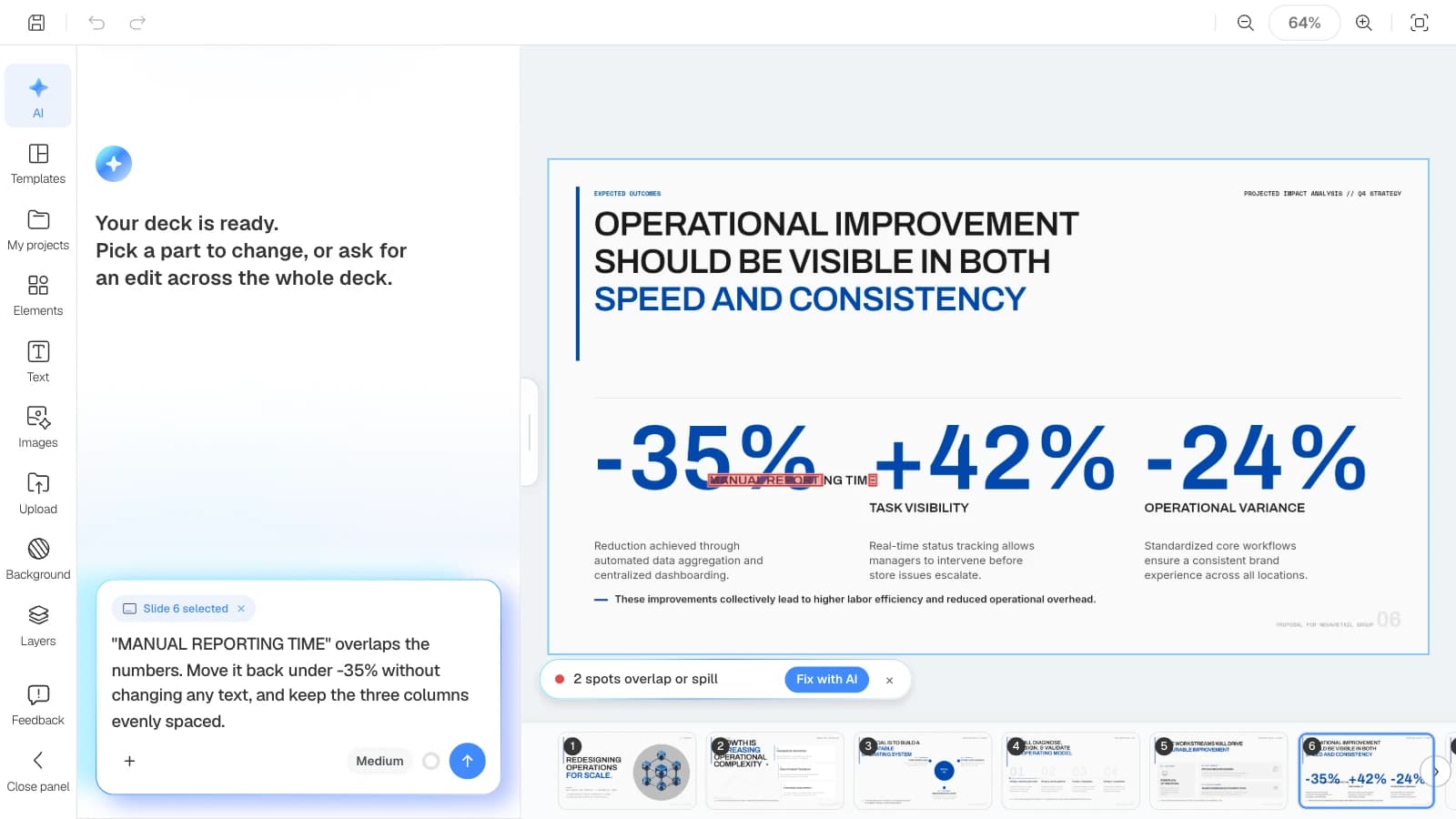
4. Check again, then open the exported file
Run Check layout again on the slide you fixed. Even if it comes back clean, open the file you'll present. For a PPTX, make sure the deck's fonts are installed on the presenting computer.
Three text-heavy templates to try
These MOVO templates are written in English for a global audience. The companies and numbers in them are fictional and show structure only. Copy one into your projects, fill it with your content, and run Check layout on each slide.
1. Retail Operations Consulting Proposal (7 slides)
A consulting proposal for standardizing retail operations, with challenge cards, a phased plan, workstream cards, and big outcome numbers. The pictures in this article use it. Check the card text and the labels under the big numbers when your copy gets longer.
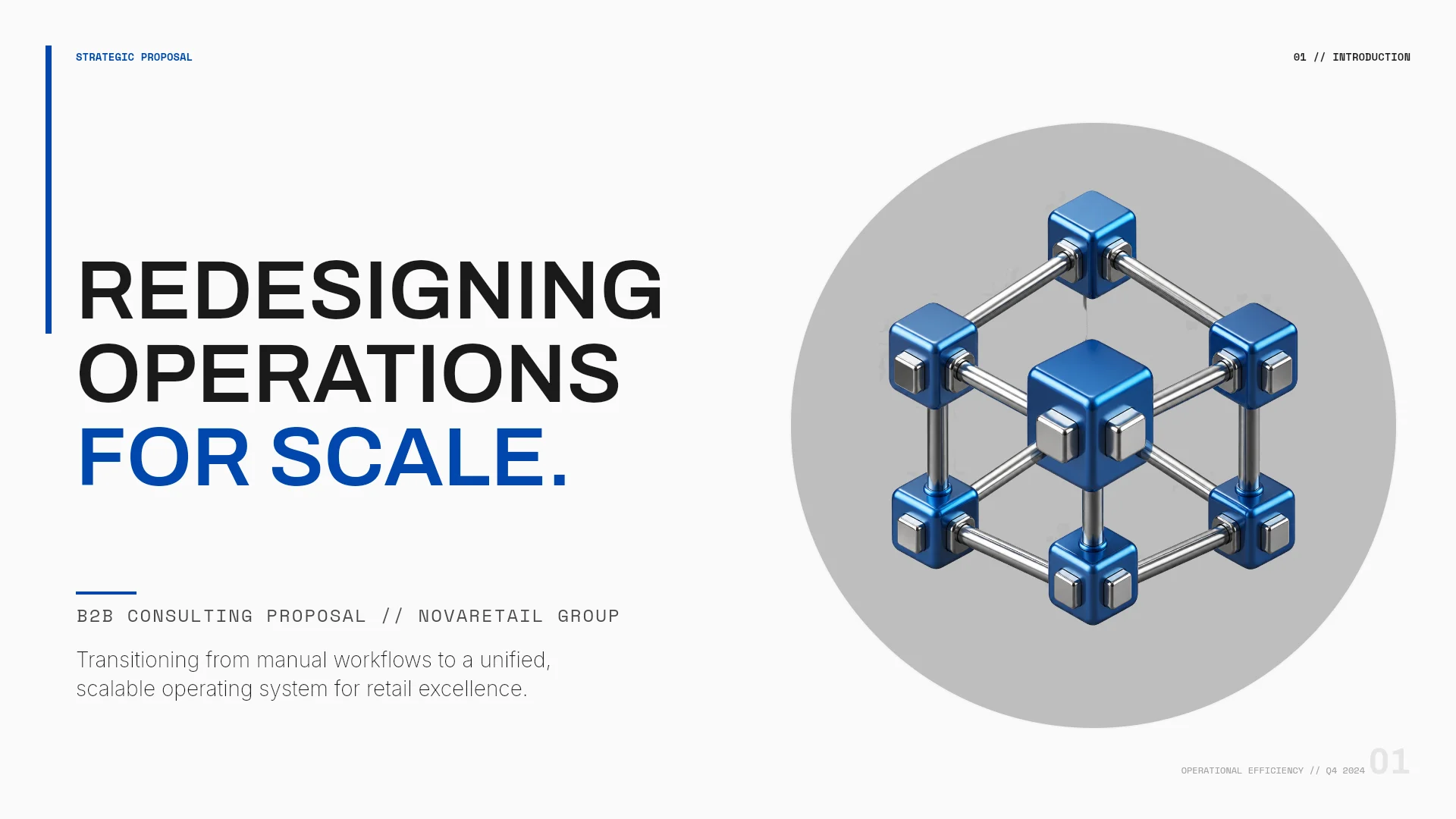
View the Retail Operations Consulting Proposal template
2. Project Retrospective Report (6 slides)
A post-launch retrospective covering results, wins, gaps, root causes, and action items. Its metrics and notes sit inside outlined boxes, which makes it a good place to see how much of your own project story fits in each box.
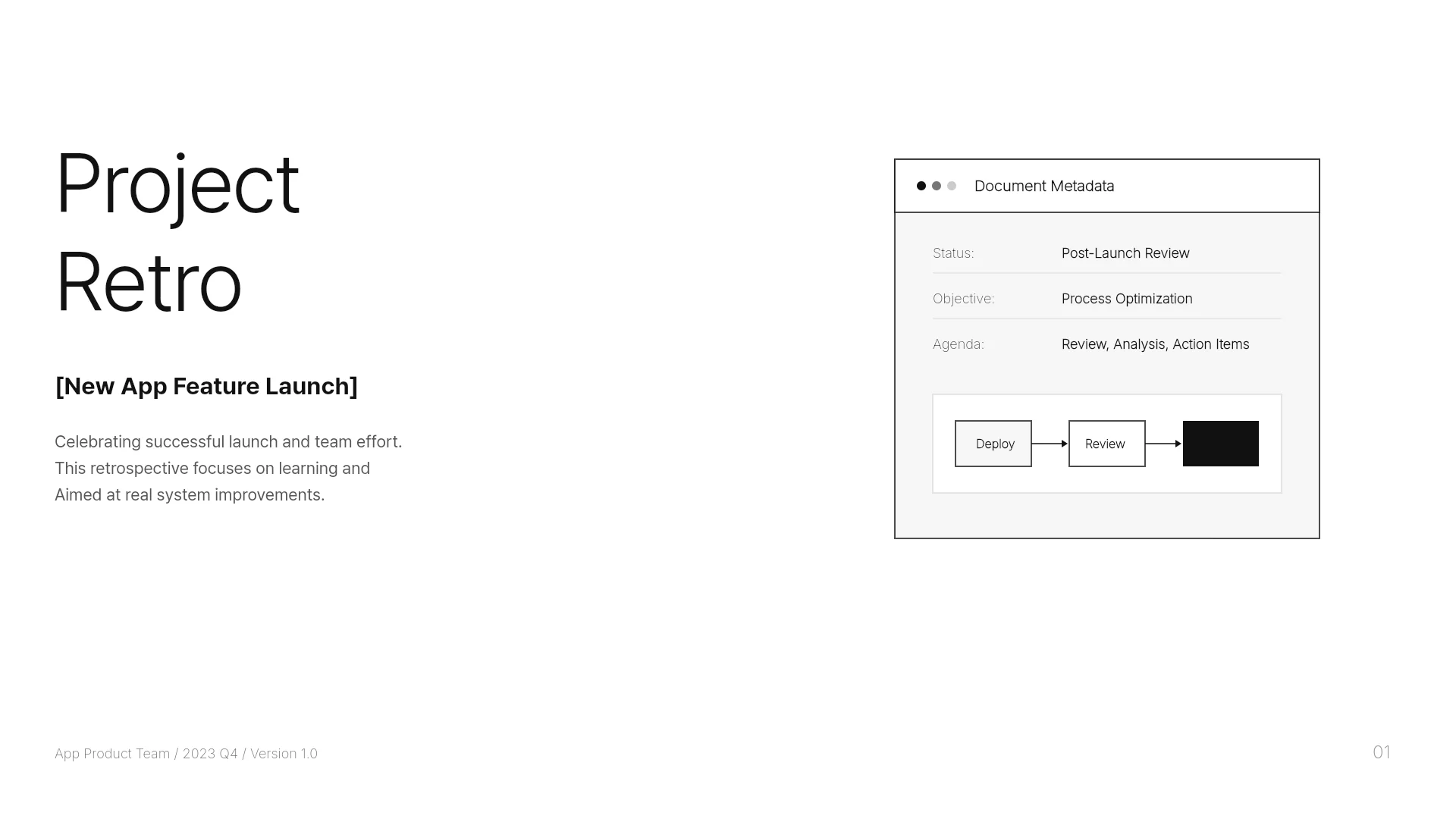
View the Project Retrospective Report template
3. Monthly E-commerce Sales Dashboard (5 slides)
A monthly report with KPI cards, a sales trend, revenue by channel, and next steps. When you replace the sample figures with longer numbers of your own, check the KPI cards and chart labels first.

View the Monthly E-commerce Sales Dashboard template
Frequently asked questions
Does every warning need fixing?
No. Check layout flags text that merely touches other text, so an overlap you designed on purpose can show up. Look at whether the text in the red box is actually covered or cut off; if it reads fine, you can leave it.
Can I check every slide at once?
No. Check layout works on the slide you're viewing, and the result disappears when you move to another slide. Start with the slides you changed the most.
I clicked Fix with AI, but a warning is still there.
The AI can leave spots it judges to be intentional design. Run the check again; if what remains is a real problem, name the element and the result you want in the AI panel, or move it yourself.
Does Check layout use credits?
No. The check doesn't call the AI; it runs in your browser. Clicking Fix with AI or asking for a fix in the AI panel uses credits like any other AI edit.
Isn't shrinking the font the fastest fix?
It clears the warning quickly, but smaller text is harder to read from across the room. Cut words or split the slide first, and adjust the font size last.
Summary
Text overlaps or gets cut off when it outgrows the space it was given. In MOVO, run Check layout on each slide to find overlaps, covered text, and spills, fix them with Fix with AI, a request that states what to keep, or a quick manual edit, then check again. If only the PPTX overflows, install the deck's fonts on the presenting computer, or send a PDF when no one needs to edit it.