How Many Slides for a 5-Minute Presentation?
Start with 5–7 slides for a free-format five-minute talk. See the official Ignite, PechaKucha, 3MT, and lightning talk rules, a six-slide plan with a time for each slide, and how to rehearse to five minutes.
The hardest part of a five-minute talk is deciding how many slides it can hold. Too few and you talk over one slide for a long time; too many and the clock runs out mid-explanation. Some events also fix the count for you, so a rule of thumb picked up online can be the wrong answer.
MOVO starts from what you already have. Attach your script or notes, and MOVO shows a slide-by-slide outline before it builds anything. Choose the slide count in the input, write a time budget into each slide's details in the outline, pick a design, and the slides are built; if a slide runs long in rehearsal, select it and shorten only that one. This guide answers how many slides a five-minute presentation needs, with and without official rules, then covers a timed six-slide plan, what belongs on a slide versus in your voice, how to rehearse to five minutes, the MOVO workflow, and templates you can copy.

How many slides for a 5-minute presentation?
If the event sets no format, start with 5–7 slides. That works out to about 40–60 seconds per slide. It is this guide's starting range, not a rule. If the event sets a format, follow it.
| Format | Length | Slides | Rule |
|---|---|---|---|
| Ignite | 5 min | 20 | 15 seconds per slide, auto-advancing |
| PechaKucha | 6 min 40 s | 20 | 20 seconds per slide, auto-advancing |
| Three Minute Thesis (3MT) | 3 min | 1 | One static slide; going over 3 minutes disqualifies |
| PyCon US lightning talk | Up to 5 min | Optional | Slides encouraged but not required |
| APHA Annual Meeting lightning session | 5 min | 2–3 | No more than 2–3 slides |
| Free-format 5-minute talk | 5 min | 5–7 | This guide's starting range; adjust in rehearsal |
- Ignite: every talk must follow the format of 5 minutes, 20 slides, and 15 seconds per slide, and slides auto-advance (Ignite Talks guidelines, About Ignite).
- PechaKucha: 20 images, each auto-advancing after 20 seconds, for 400 seconds in total. Architects Astrid Klein and Mark Dytham created it in Japan in 2003 (PechaKucha).
- 3MT: the University of Queensland's rules allow one static slide, and competitors who exceed three minutes are disqualified (UQ 3MT competitor guide, FAQ).
- PyCon US 2026: lightning talks run a maximum of five minutes, slides are encouraged but not required, and a one-minute talk is fine (PyCon US).
- APHA: lightning presenters get five minutes and no more than two or three slides (APHA).
What about "one slide per minute"? Treat it as a ceiling some guides set, not a target. The University of Southern Mississippi's guidance for 10–12 minute symposium talks, for example, says "no more than one slide per minute" (University of Southern Mississippi). In a free-format talk, the title and closing slides take 10–30 seconds each, so the ceiling can stretch to six or seven slides. If one chart needs more than a minute of explanation, use fewer slides.
What goes on each slide in five minutes?
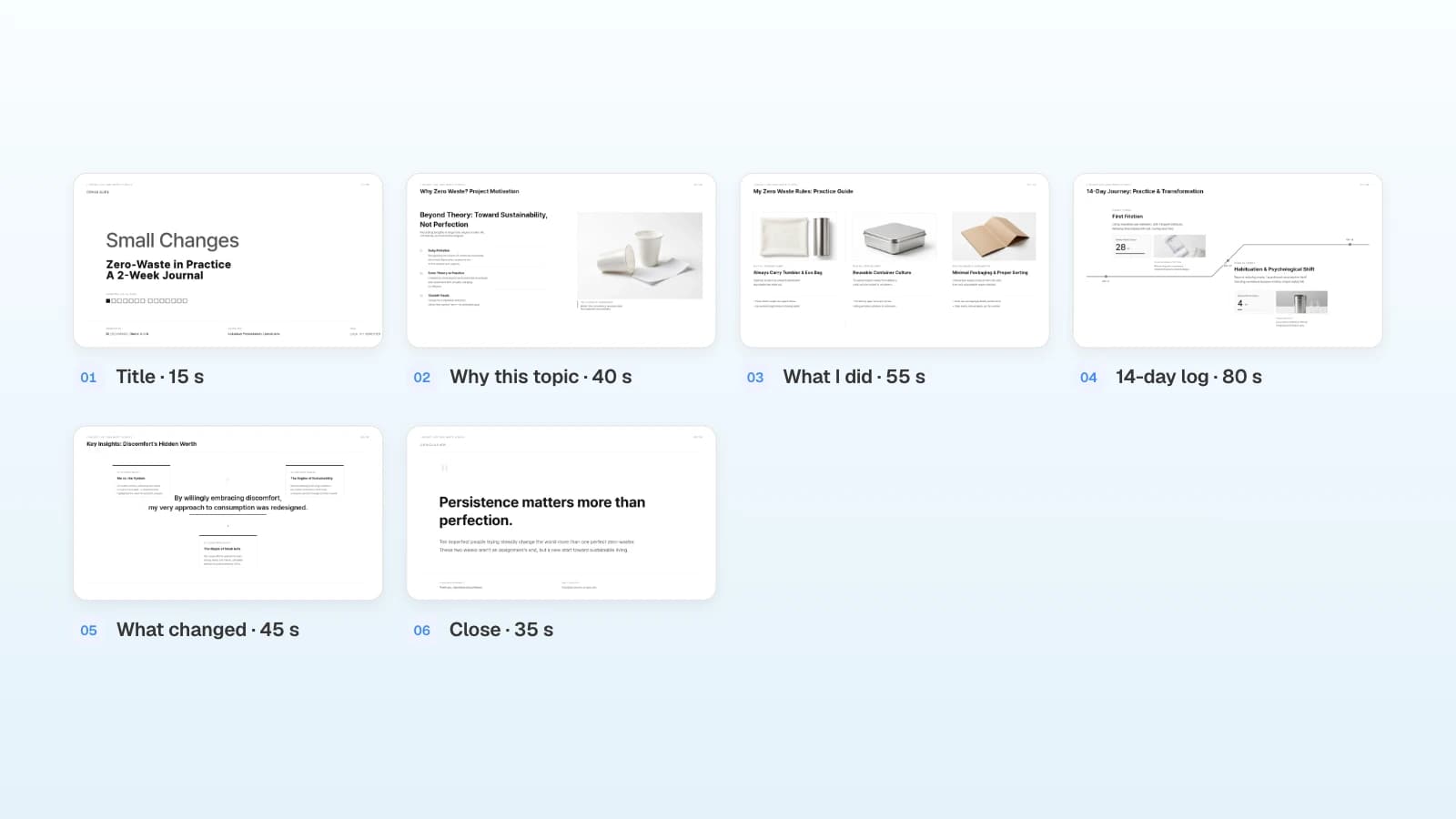
Give the most time to the middle slides that carry your evidence. Here is a five-minute class presentation, a two-week zero-waste log, split into six slides and 4 minutes 30 seconds. The remaining 30 seconds cover transitions and surprises.
| Slide | Its job | Time (example) |
|---|---|---|
| 1. Title | Say the topic and your name, move on | 15 s |
| 2. Why this topic | Three reasons | 40 s |
| 3. What I did | Three rules | 55 s |
| 4. 14-day log | Week 1 vs. week 2 results | 80 s |
| 5. What changed | One sentence and three supporting points | 45 s |
| 6. Close | One-sentence takeaway and thanks | 35 s |
| Total | 4 min 30 s |
For a different purpose, change the job of the middle slides:
- Team update: situation → problem → proposal → decision needed, in 4–5 slides.
- Pitch: for a five-minute pitch, Techstars suggests about 1 minute of intro, 2–3 minutes of demo, 1–1.5 minutes on the business, and about 30 seconds to land it (Techstars).
- Short research talk: question → method → key result → limits and next steps, in 5–7 slides.
How do you write slides you can say in 40 seconds?
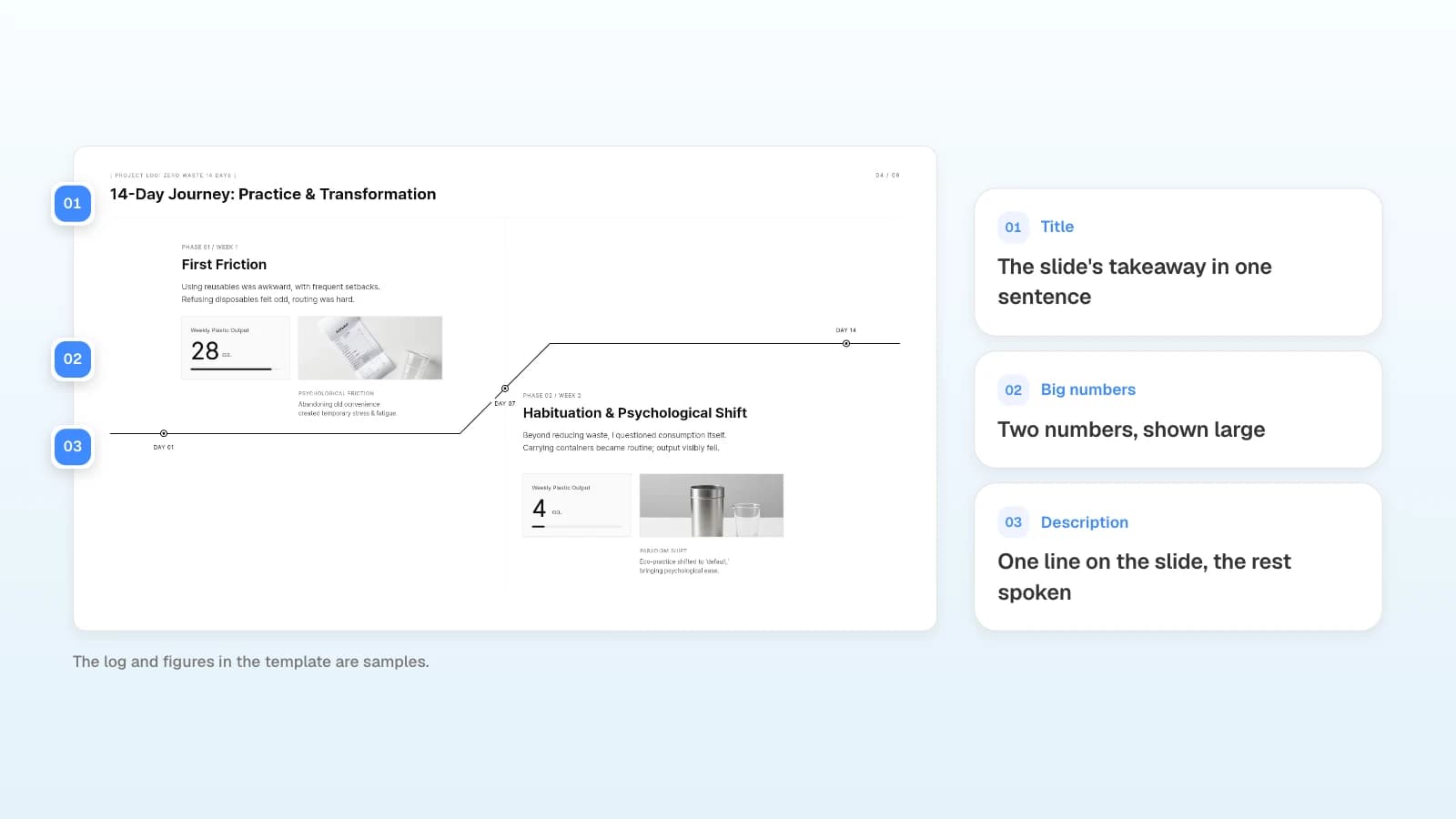
Put one message on each slide. Make the title that slide's takeaway, written as a sentence, and say the details out loud. MIT's Communication Lab recommends a single point per slide and titles that are full sentences, so the audience can follow the story from the titles alone (MIT CommLab).
| On the slide | Out loud |
|---|---|
| One-sentence takeaway (title) | How you reached it |
| One or two large numbers | How and when you counted them |
| One photo or diagram | Where to look in it |
| Up to three keywords | One example for each keyword |
In five minutes, a slide with more than five lines of text turns into reading time. Move script sentences into your speaker notes and leave only the takeaway and its evidence on the slide.
How do you rehearse to exactly five minutes?
Rehearse out loud at least twice with the file you will present, write down how long each slide takes, and compare it with your plan. When a slide runs long, cut what you say, not just the words on the slide.
- Time each slide: in PowerPoint, select Slide Show > Rehearse Timings. The toolbar shows the time for the current slide and for the whole presentation, and at the end PowerPoint asks whether to save the slide timings (Microsoft Support).
- Practice with auto-advance: for an Ignite-style talk, go to the Transitions tab, select the After check box, enter 15 seconds, and click Apply to All (Microsoft Support). From MOVO, export PPTX (paid plans) and set it up in PowerPoint. MOVO's own Slideshow advances with the arrow keys or a click.
- What to cut first: repeated background, optional examples, then supporting detail you can move to an appendix. Keep any condition that changes what your conclusion means.
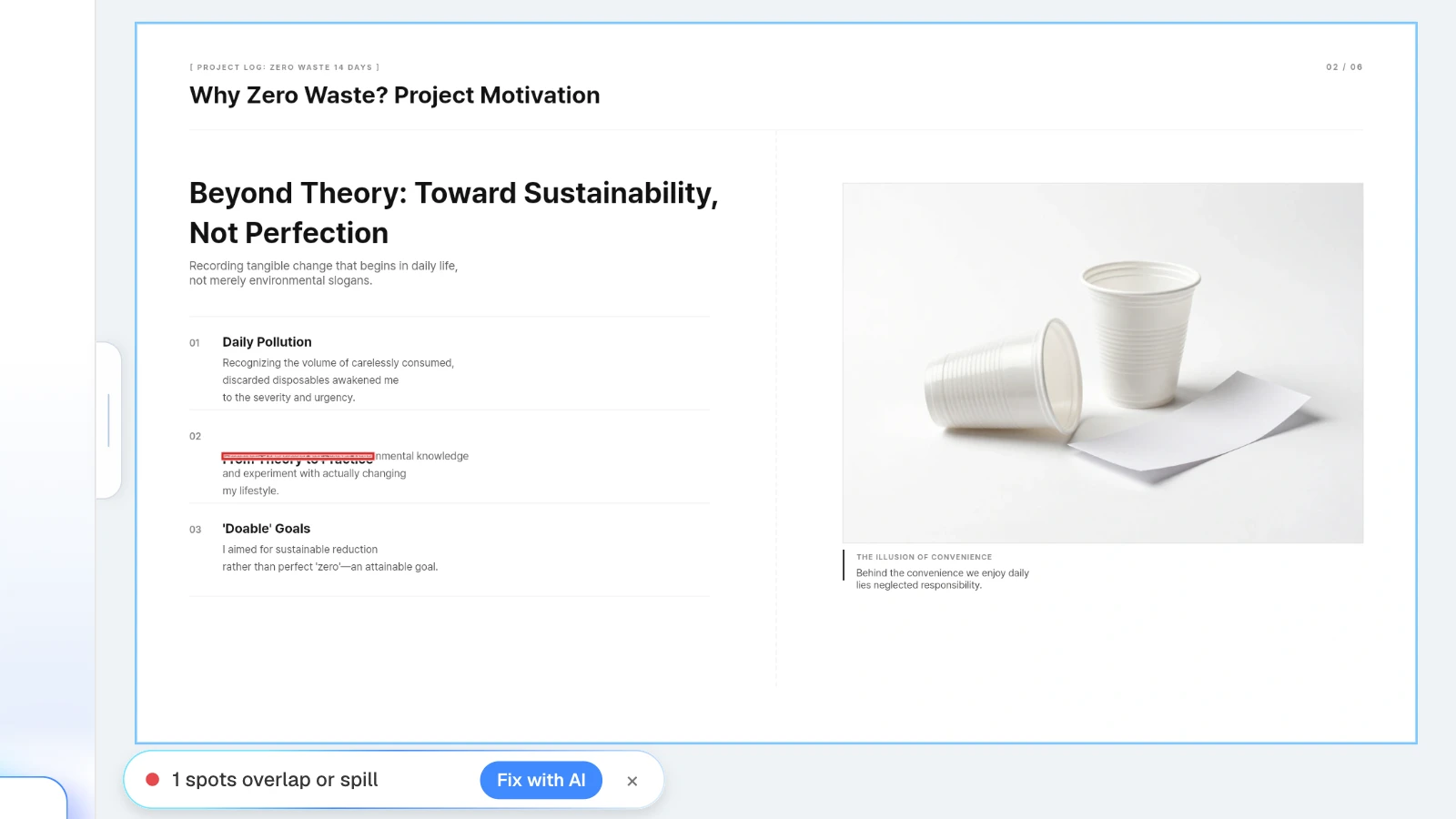
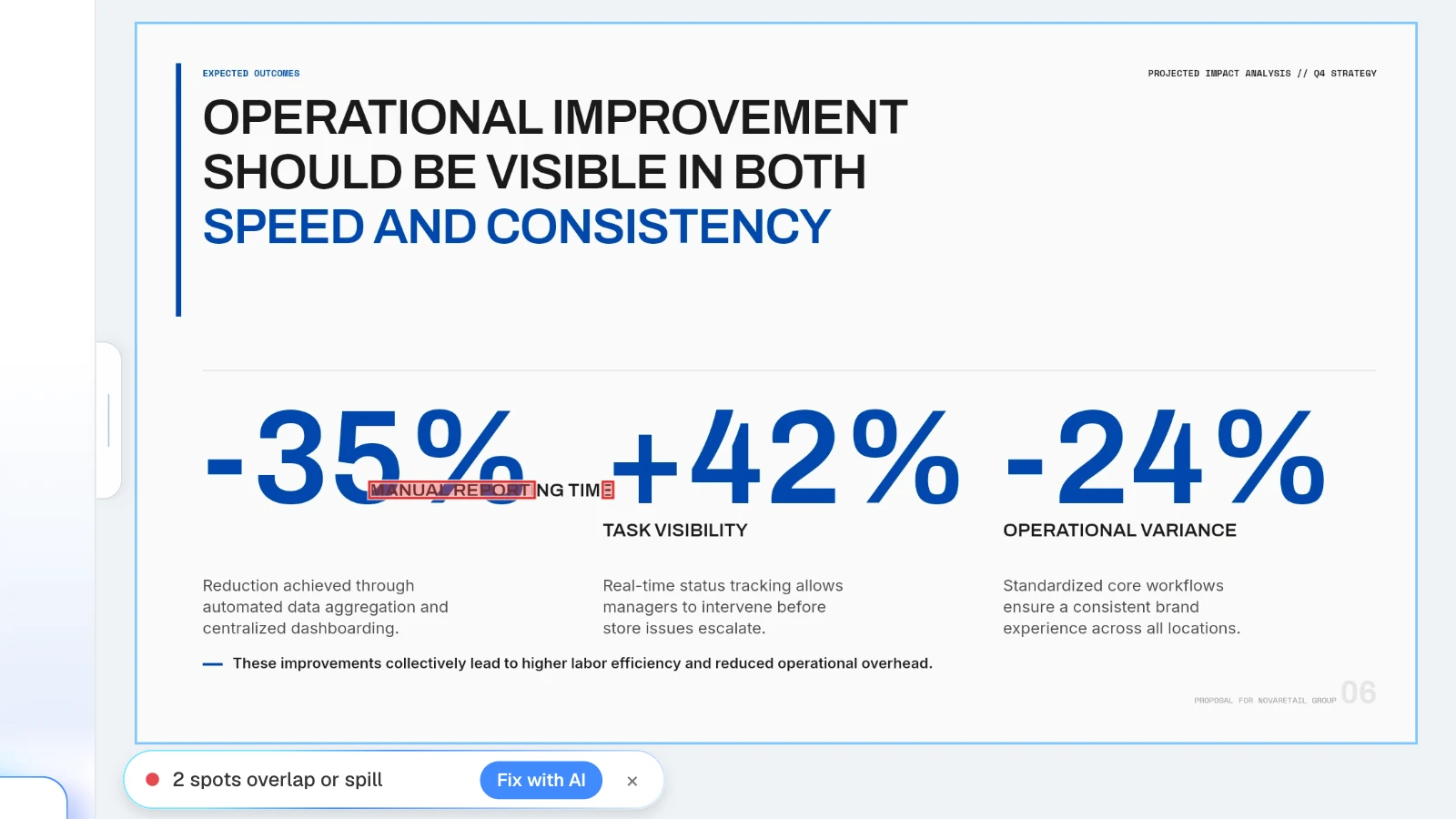
Shortening and rewriting lines is how text boxes end up overlapping. In the MOVO editor, click "Check layout" below the canvas: MOVO marks overlapping or spilling spots on the current slide in red, and "Fix with AI" asks the AI to tidy that part.
What does MOVO change for a five-minute talk?
- Set the slide count first: choose the number of slides in the input. The Free plan creates up to 5 slides per deck.
- Start from your script and data: attach a script as Word (DOCX), a log as Excel (up to 20 sheets), or a reference PDF (up to 100 pages). Save PPTX or other formats as PDF first.
- Put the time budget in the outline: MOVO shows every slide's title and details before building, so you can note seconds per slide and edit titles, details, and order before any design work.
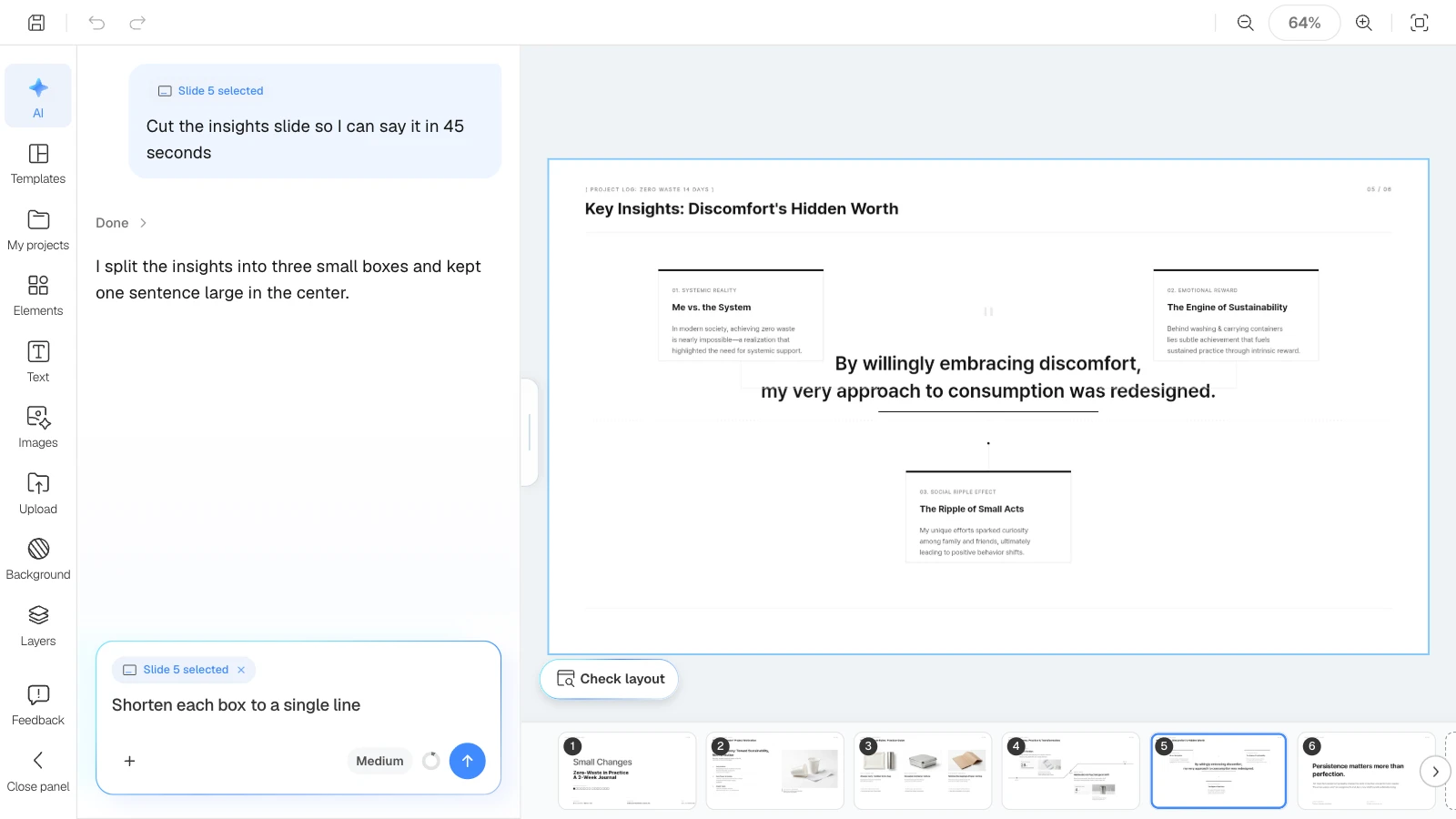
- Shorten only the slide that runs long: select it and ask, for example, "cut this so I can say it in 45 seconds"; only that slide changes. Check layout finds overlapping text boxes.
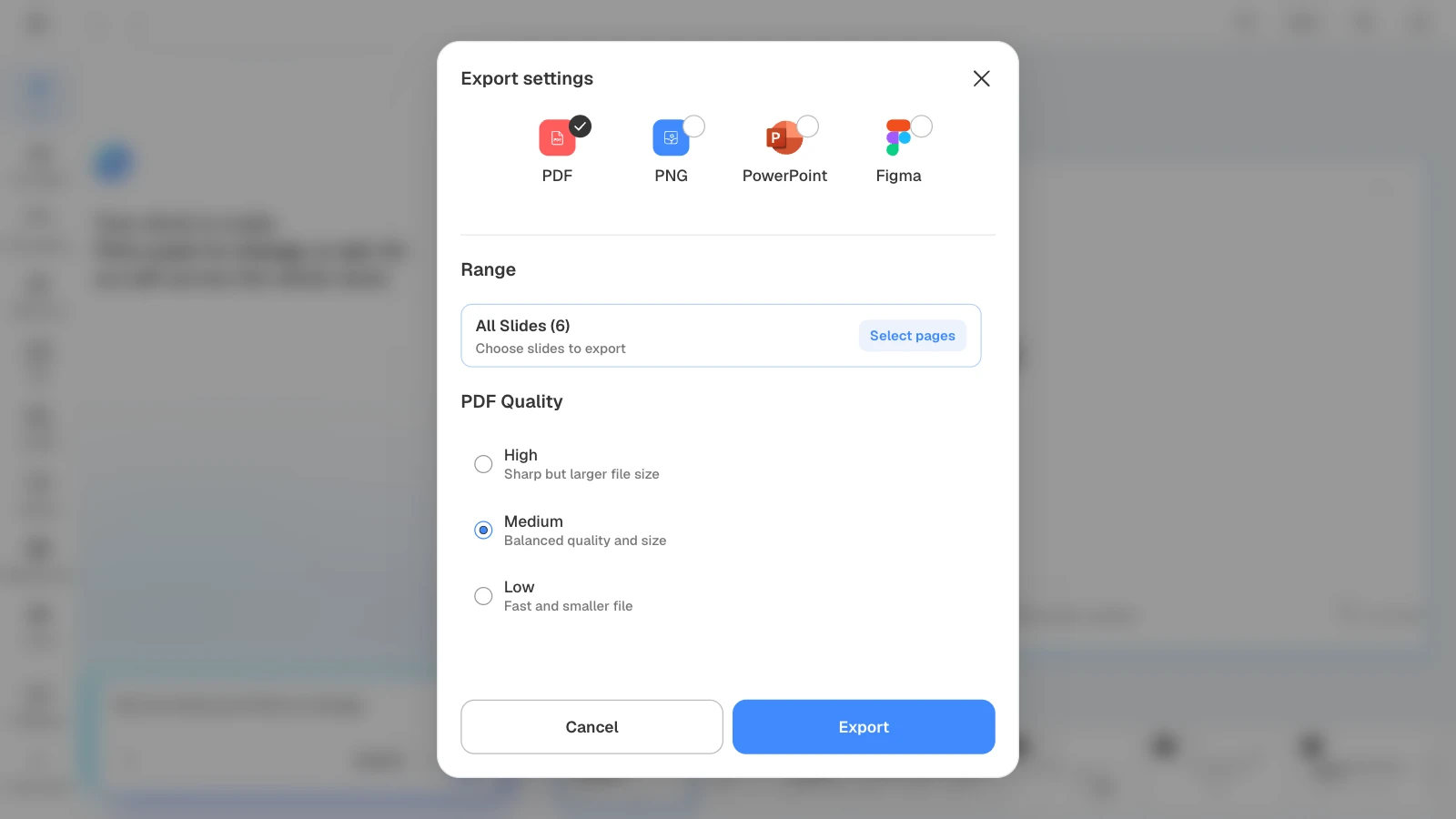
- Present or export: present full screen with "Slideshow" in the editor, or export PDF and PNG on every plan, PPTX and Figma on paid plans.
How to build a 5-minute presentation in MOVO
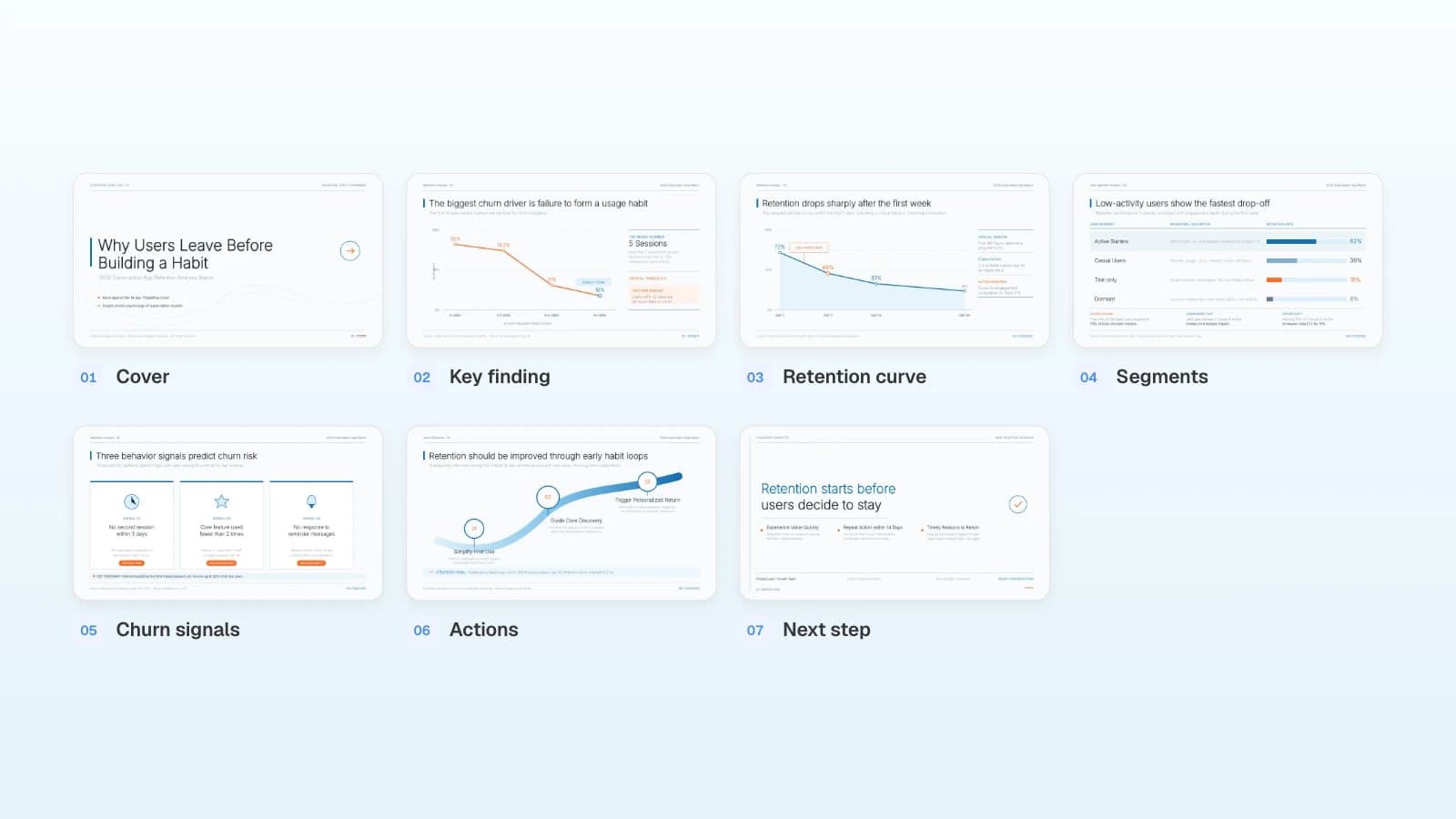
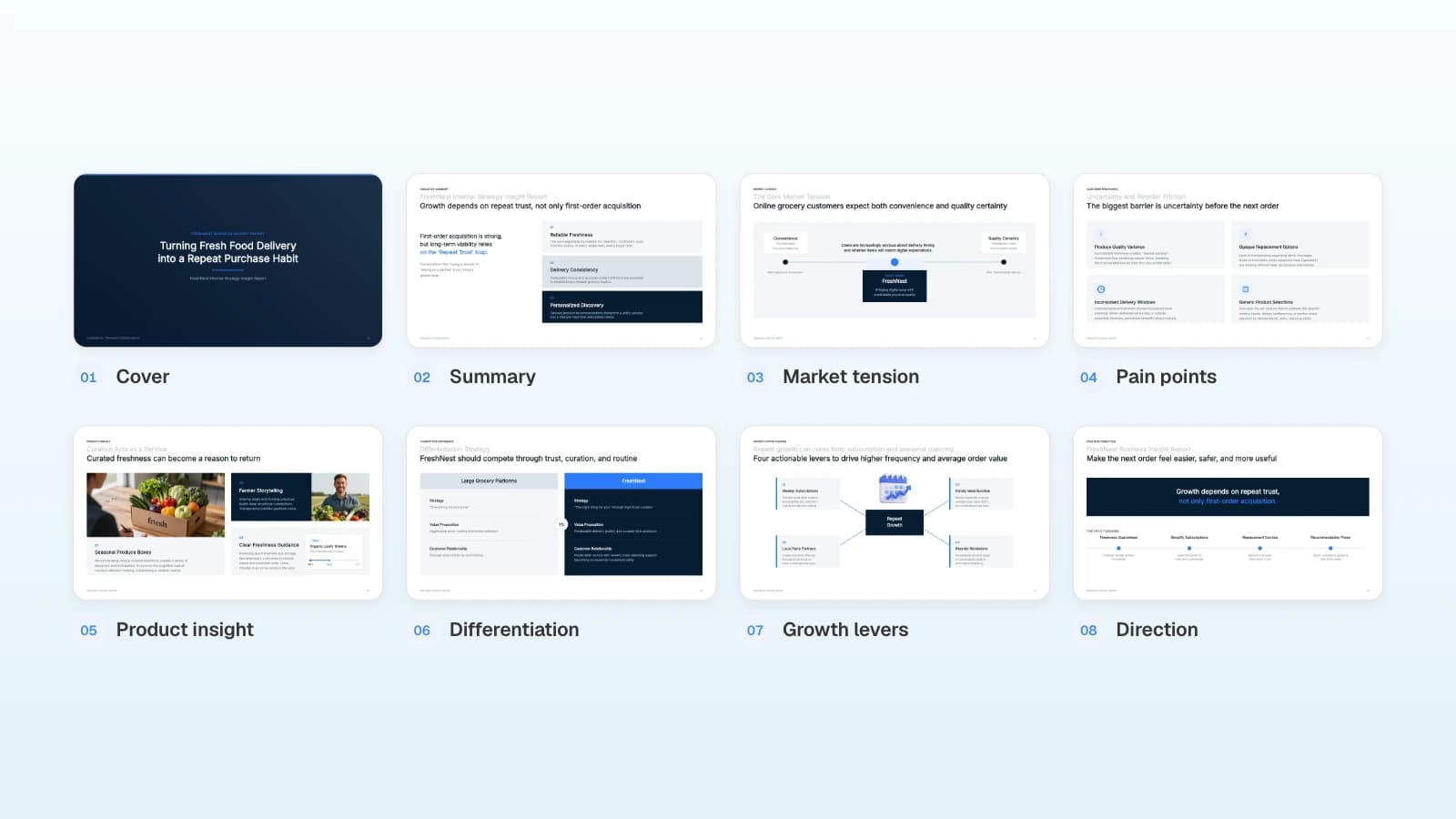
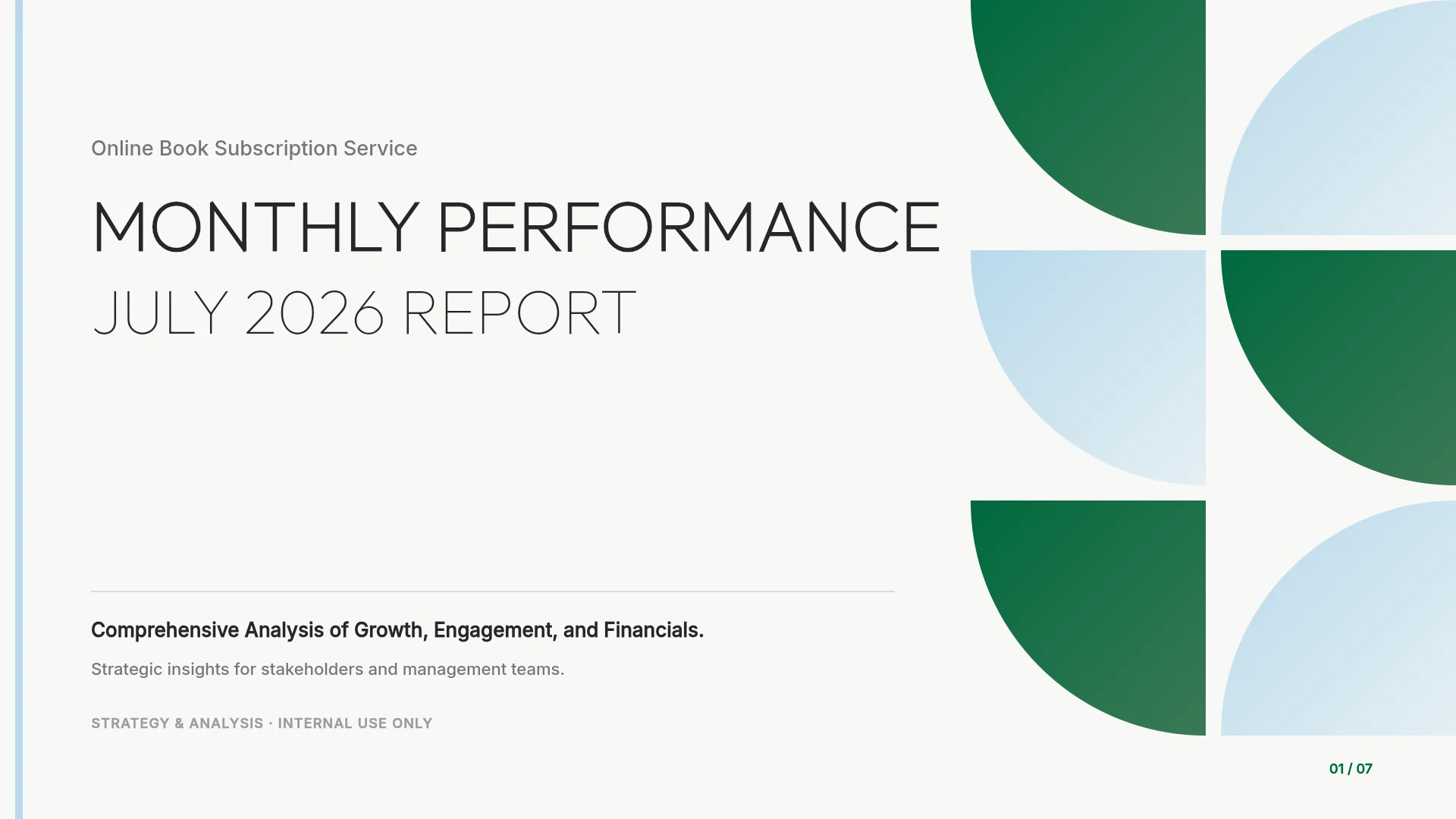
The pictures below show MOVO's screens filled with this article's example, a five-minute class presentation. They illustrate the steps; they are not a recording of a real session.
1. Attach your script and set the slide count
In the dashboard input, say what the talk is for, how long it runs, and the rules each slide should follow, then attach your script and data. Choose the slide count at the bottom right of the input.
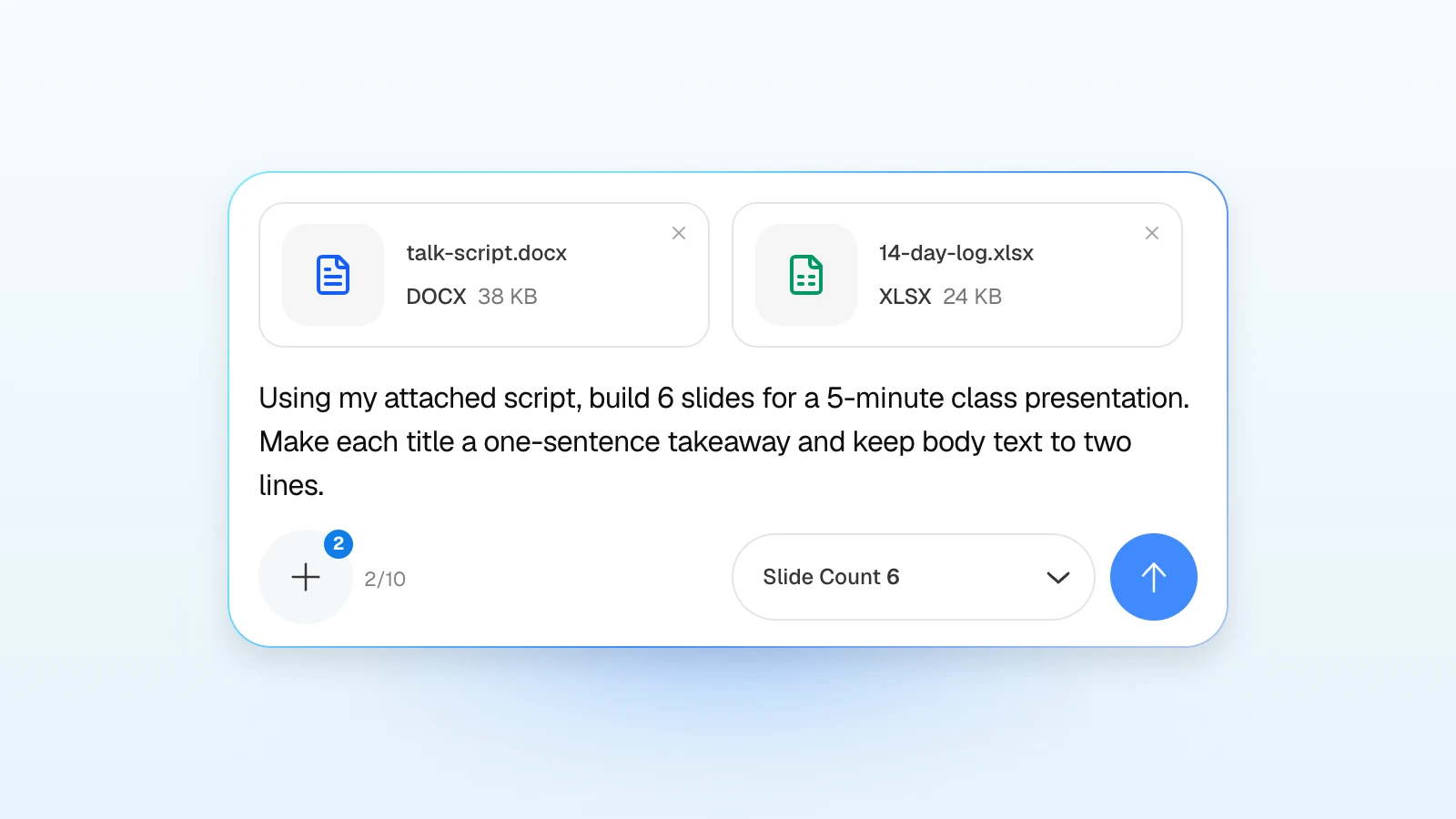
Using my attached script, build 6 slides for a 5-minute class presentation. Make each title a one-sentence takeaway and keep body text to two lines. Budget 15 seconds for the title, 40 for why this topic, 55 for what I did, 80 for the 14-day log, 45 for what changed, and 35 for the close. Keep every number from the log file exactly as it is.
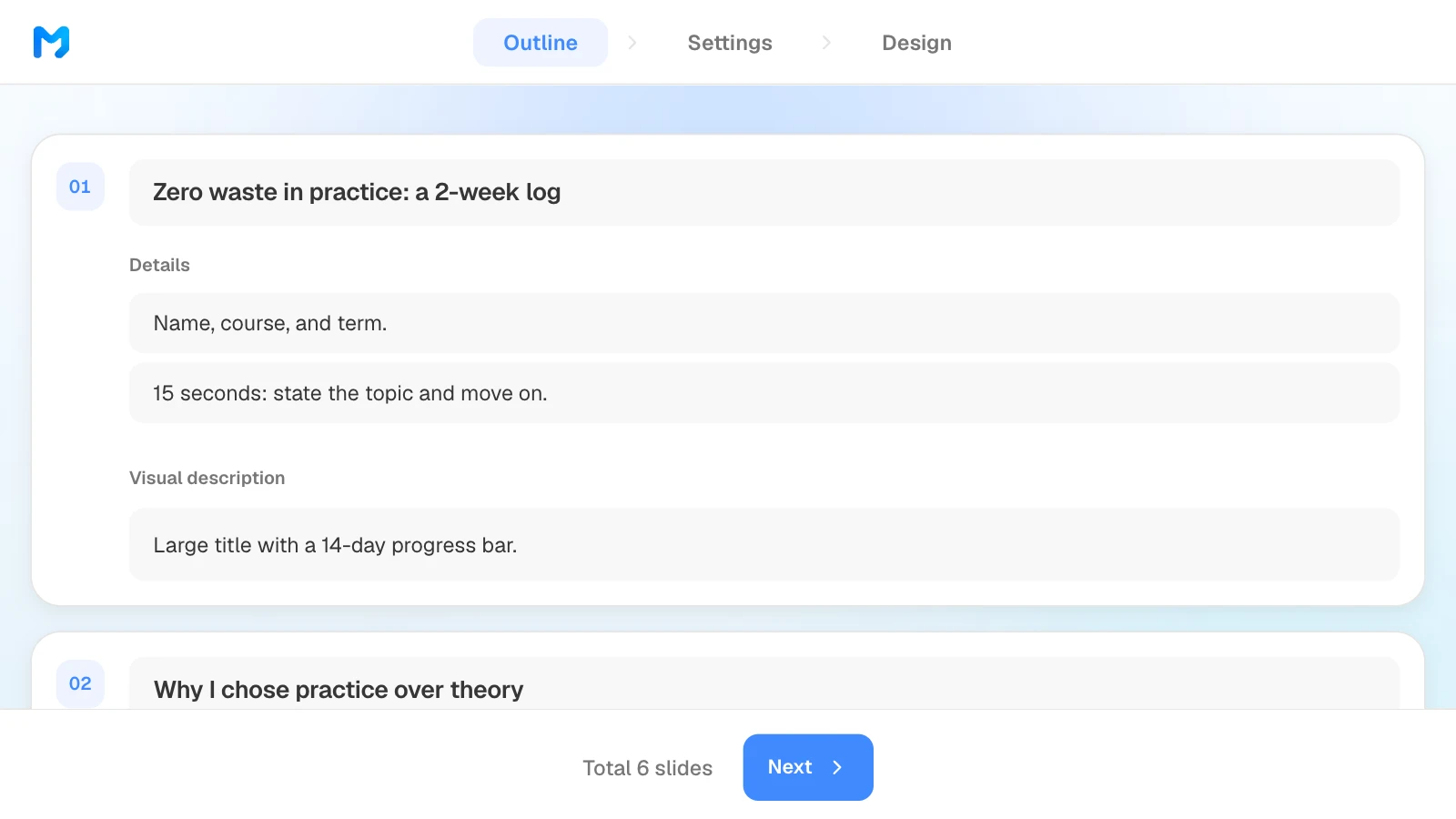
2. Check the time budget in the outline
Review the titles and details MOVO suggests for each slide, and add any missing time budget to the details. After rehearsal, those numbers show you which slide to shorten.
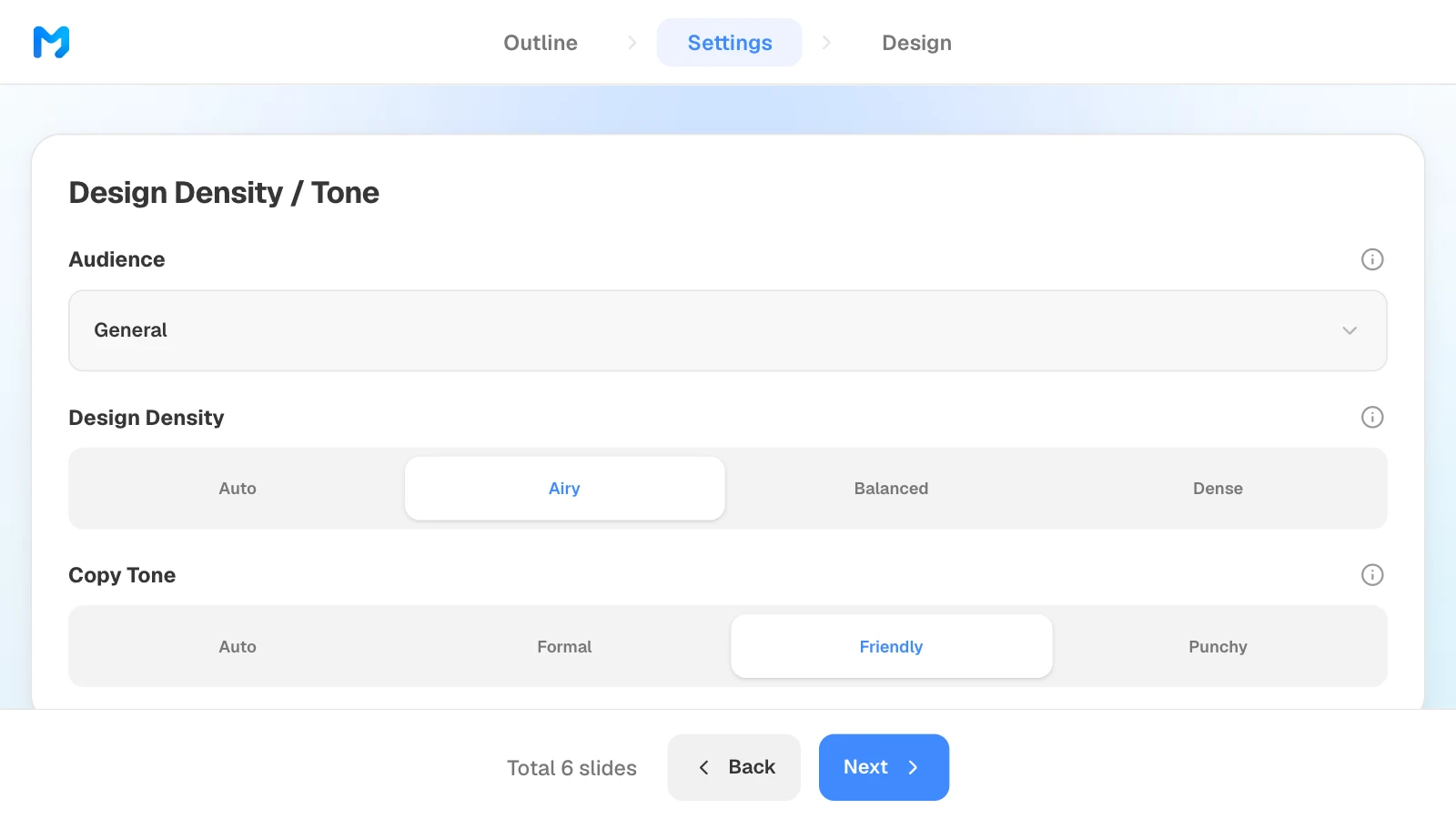
3. Set the audience and tone
In settings, choose the audience, design density, and copy tone. Design density sets the spacing between elements; five-minute slides carry few elements, so "Airy" is a safe choice.
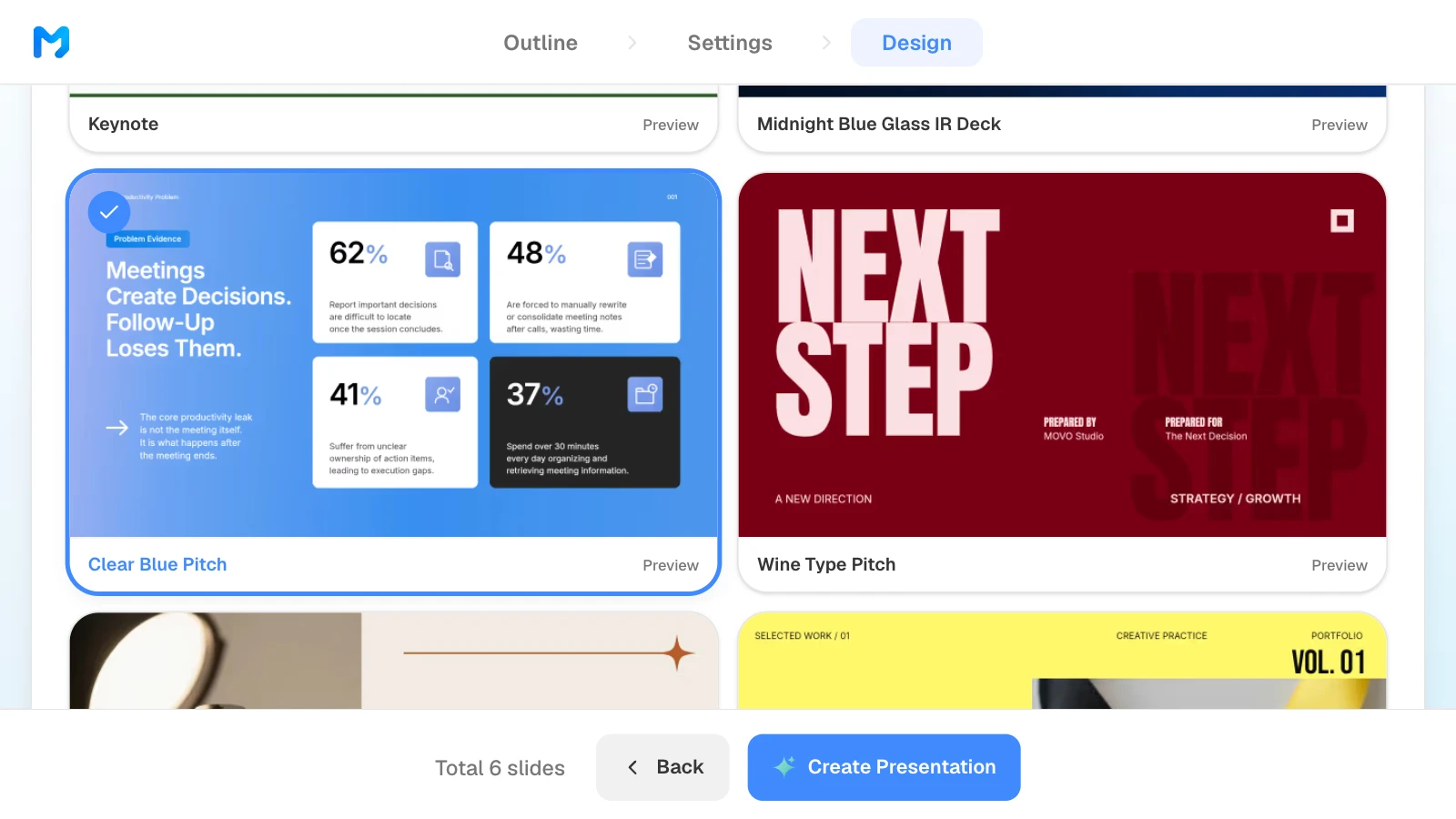
4. Pick a design
Choose "Presentation / Pitch" as the document type to see only presentation styles. Open "Preview" to see sample slides, then pick one. Styles marked "Pro" are available on paid plans.
5. Rehearse, then shorten only the slides that run long
Select the slide that ran long in rehearsal and ask in the AI panel on the left, or edit it on the canvas.
6. Present or export
A PDF is the safest file for an unfamiliar presentation computer. If you need Rehearse Timings or auto-advance, export PPTX and set them up in PowerPoint.
Four templates for a five-minute talk
These MOVO templates have six slides each. The companies, people, and figures in them are fictional and show structure only. On a template page, click "Start from this deck" to copy it into your projects after you sign in, then replace the content.
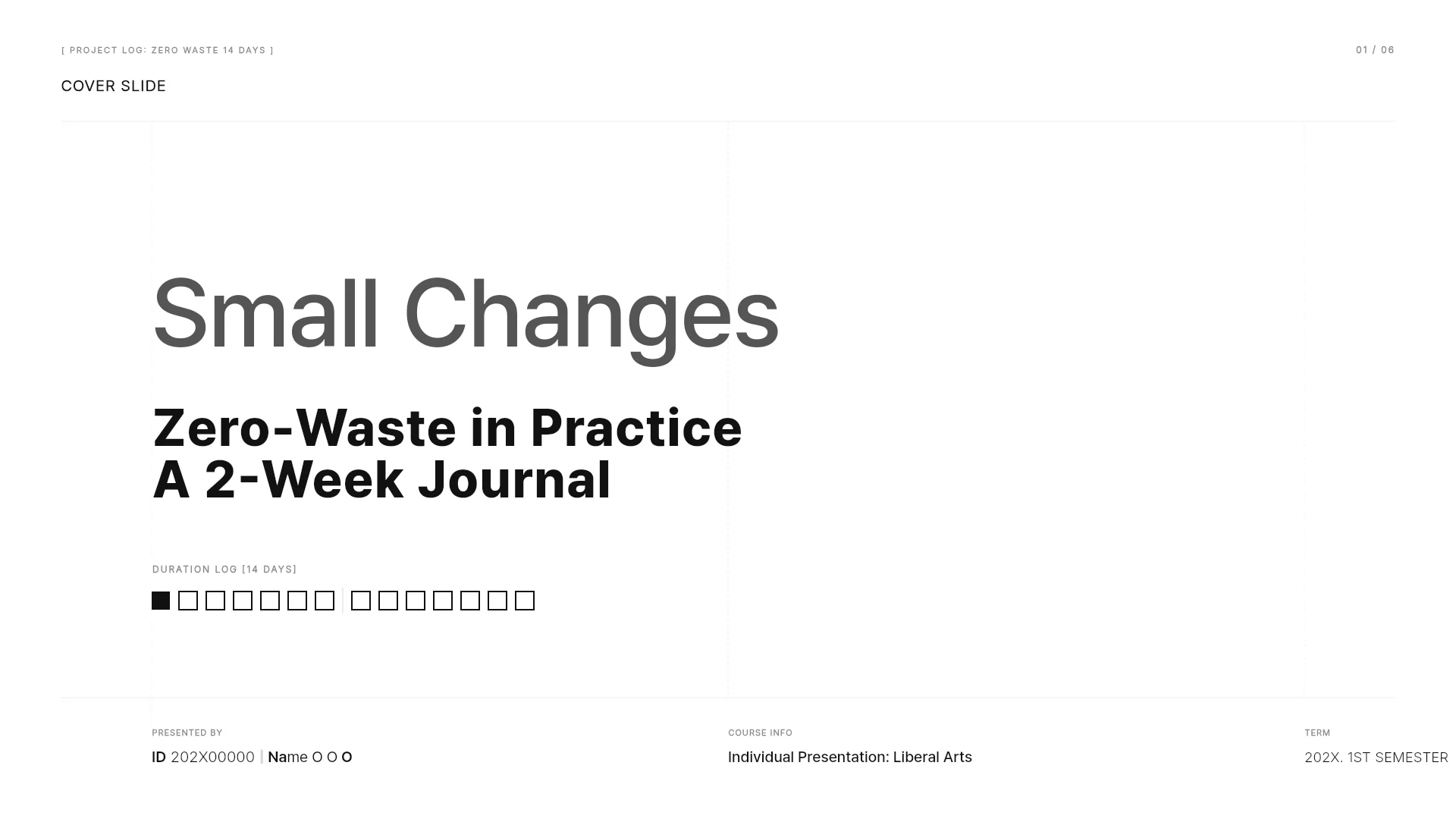
1. Zero Waste Project: A 2-Week Practice Log (6 slides)
A personal project presentation that moves from motivation to rules, a 14-day log, insights, and a closing line. Fits a five-minute class presentation.
View the Zero Waste Project template
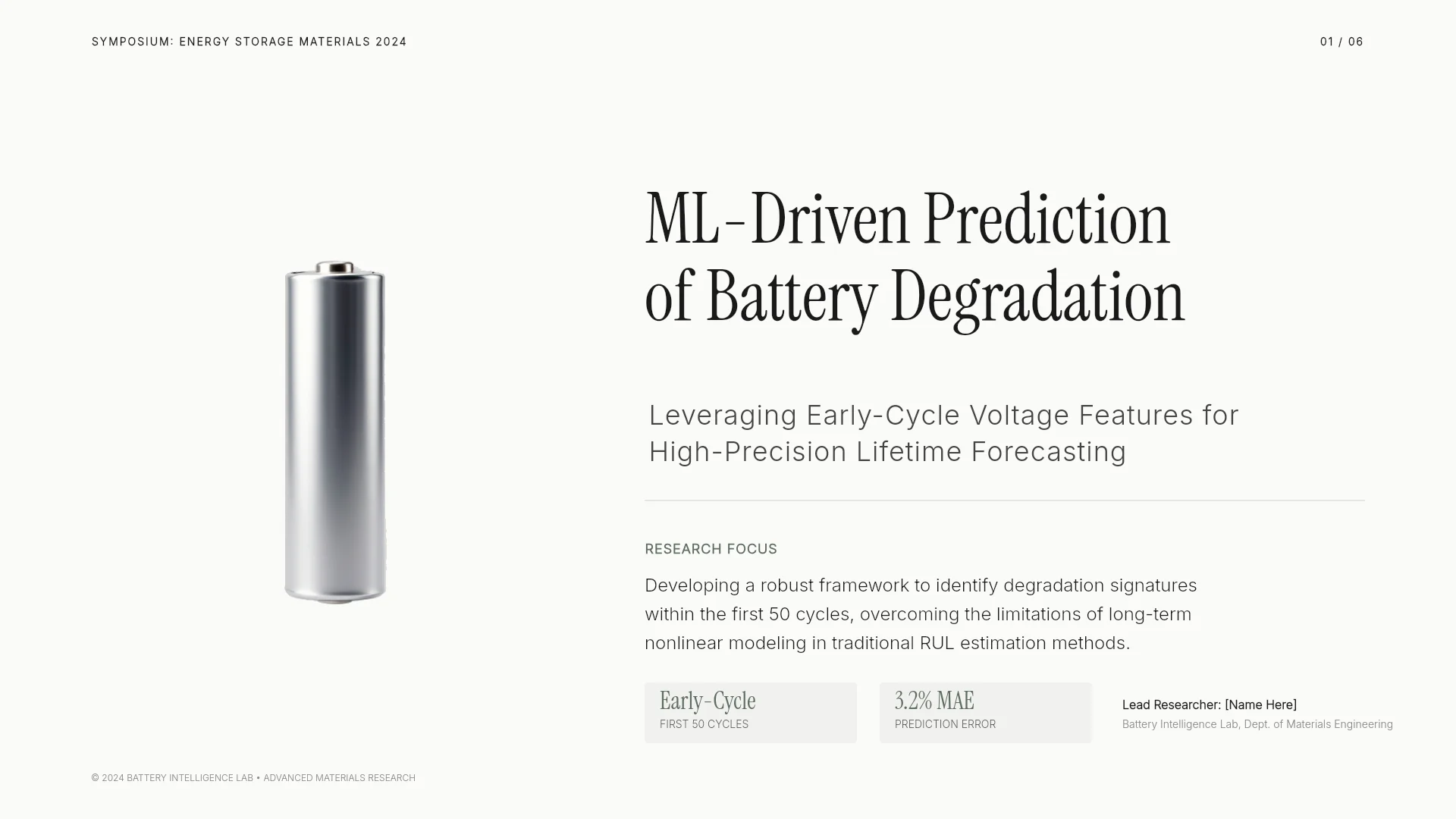
2. Academic Symposium Presentation (6 slides)
A short research talk: the question, the dataset, the method, results, an ablation study, and conclusions. Fits a lightning session or a lab seminar slot.
View the Academic Symposium Presentation template
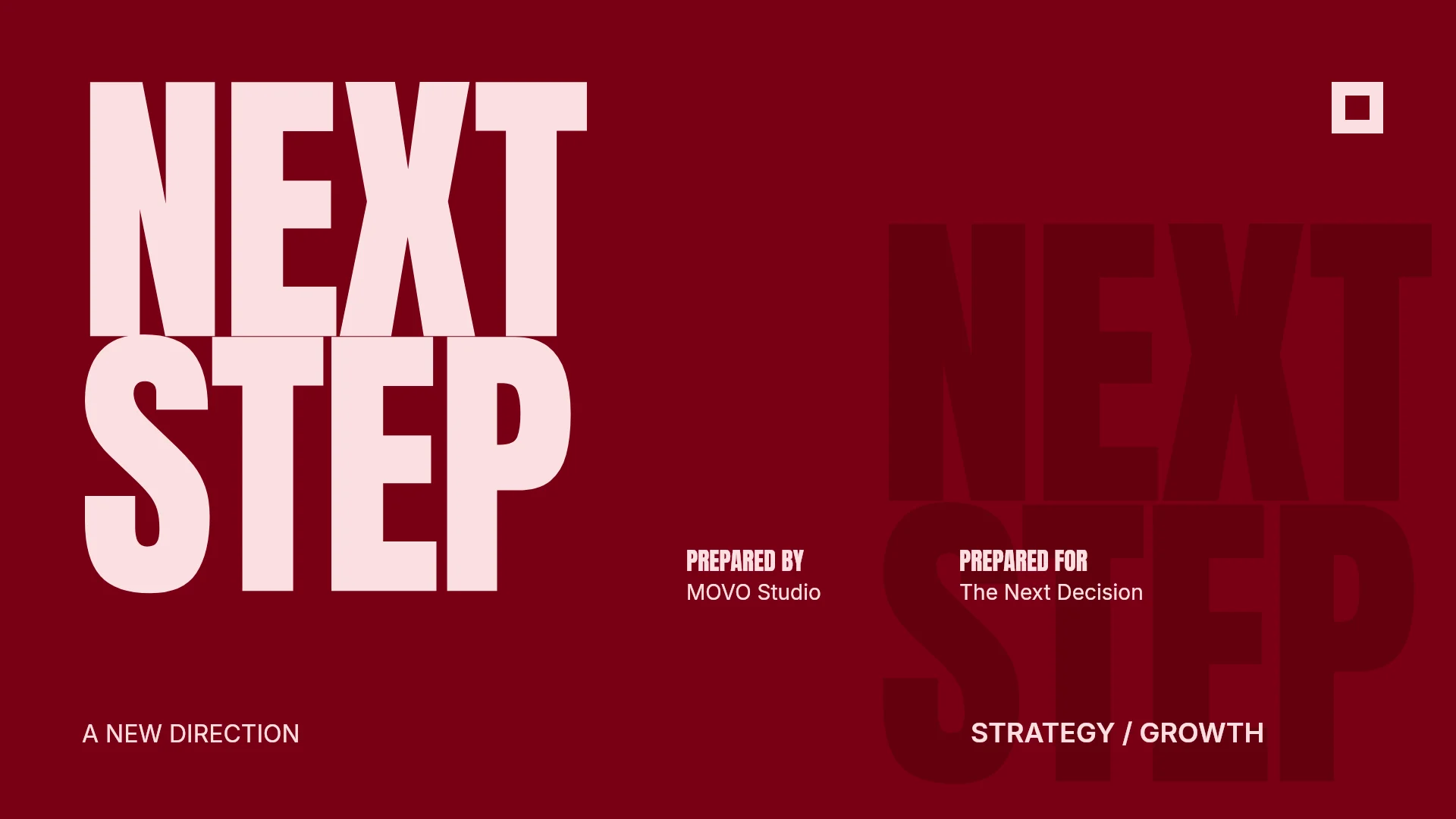
3. Wine Type Pitch — Next Step (6 slides)
A bold project pitch with an approach, possibilities, progress in numbers, priorities, and a closing ask. Fits a five-minute pitch or a proposal to decision-makers.
View the Wine Type Pitch template
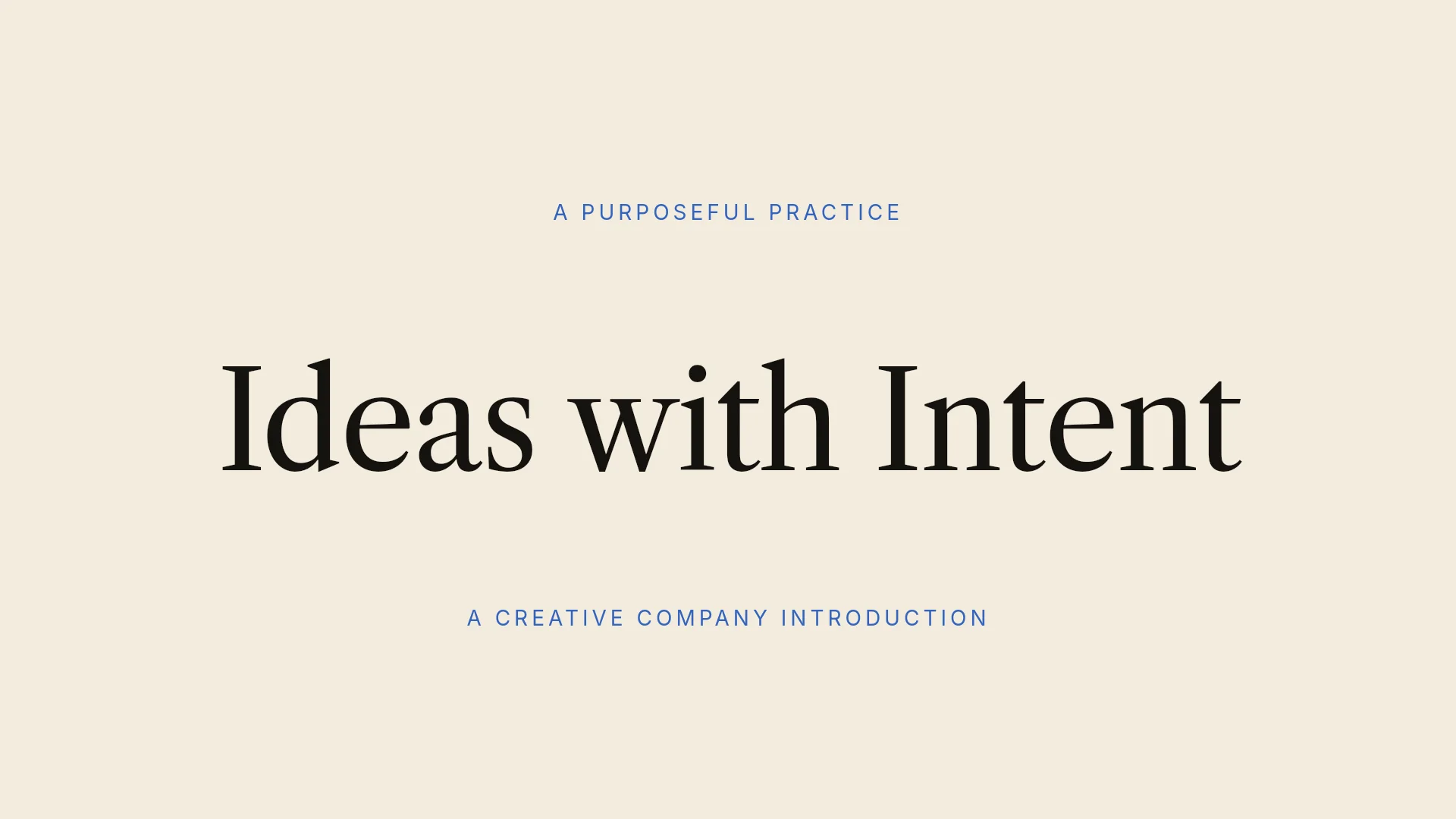
4. Cobalt Purpose — Company Pitch (6 slides)
A calm company introduction: purpose, response, capabilities, a five-step way of working, and an invitation to begin. Fits a five-minute introduction at a meetup or a client kickoff.
View the Cobalt Purpose template
Frequently asked questions
Is 10 slides too many for a 5-minute presentation?
For a free-format talk, usually yes. Ten slides leave about 30 seconds each, and less for the middle slides once the title and closing are done. Image-driven formats are the exception: an Ignite talk uses 20 slides because they auto-advance every 15 seconds. Judge by how much you need to say on each slide, not by the count.
Does the title slide count toward the total?
In this guide's six-slide example, yes. A title slide takes about 15 seconds, so it barely cuts into the middle. If an event caps the number of slides, check whether the cap includes the title slide.
Should I give every slide the same amount of time?
No. The example gives the title 15 seconds and the results slide 80 seconds. Give more time to slides that carry more explanation, then rebalance with the times you measure in rehearsal.
What if there is Q&A after the five minutes?
Keep the main deck sized to the talk and put backup slides after the closing slide. Move detailed numbers, extra photos, and method details you cut from the talk into that appendix.
What if I keep running over?
Decide the takeaway and the evidence the audience must keep, then cut repeated background and optional examples. Rehearse out loud again after each cut. Shrinking the font does not shrink what you have to say.
Summary
For a free-format five-minute talk, start with 5–7 slides; for formats with rules, such as Ignite (20 slides, 15 seconds each) or 3MT (one slide, three minutes), follow the rules. Give the most time to the middle evidence slides and keep one takeaway per slide. Rehearse out loud, time each slide, and cut what you say on slides that run long. If you have a script, put it into MOVO and start by setting the time budget in the outline.